Set up IAM client - End-to-end testing - (Unity module)
Create IAM client to claim DS
To allow your backend service to claim dedicated servers (DS) from your AMS fleet, you need an IAM client with sufficient permissions. In this tutorial section, you learn how that create IAM client.
-
Log in to the Admin Portal and go to your game namespace dashboard.
-
Go to Foundations > Identity & Access > IAM Clients and click Create New.
-
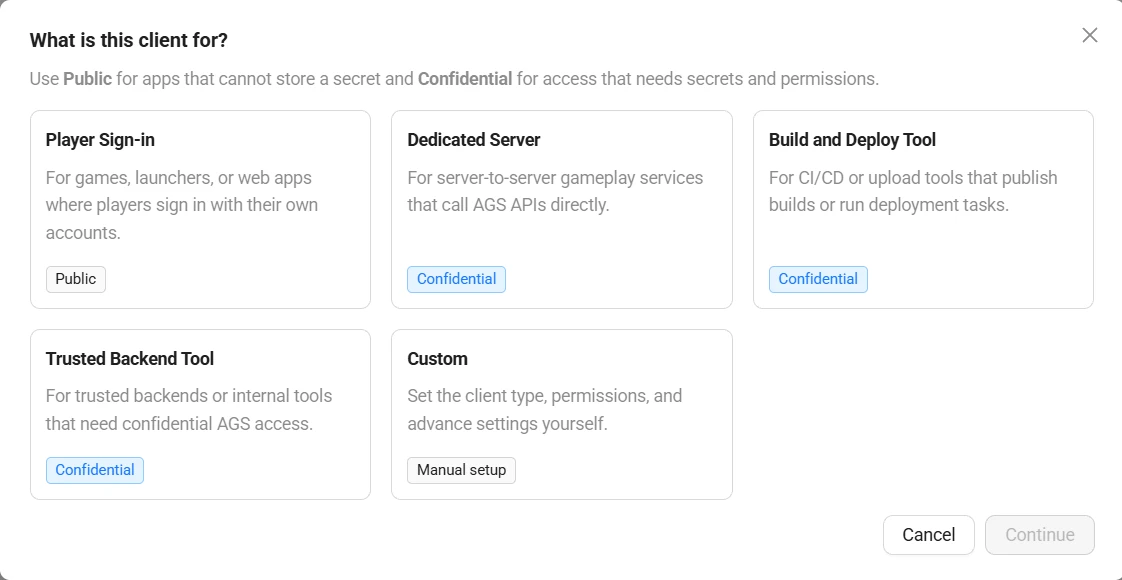
In the What is this client for? window, select Custom and click Continue. The New IAM Client page appears.
-
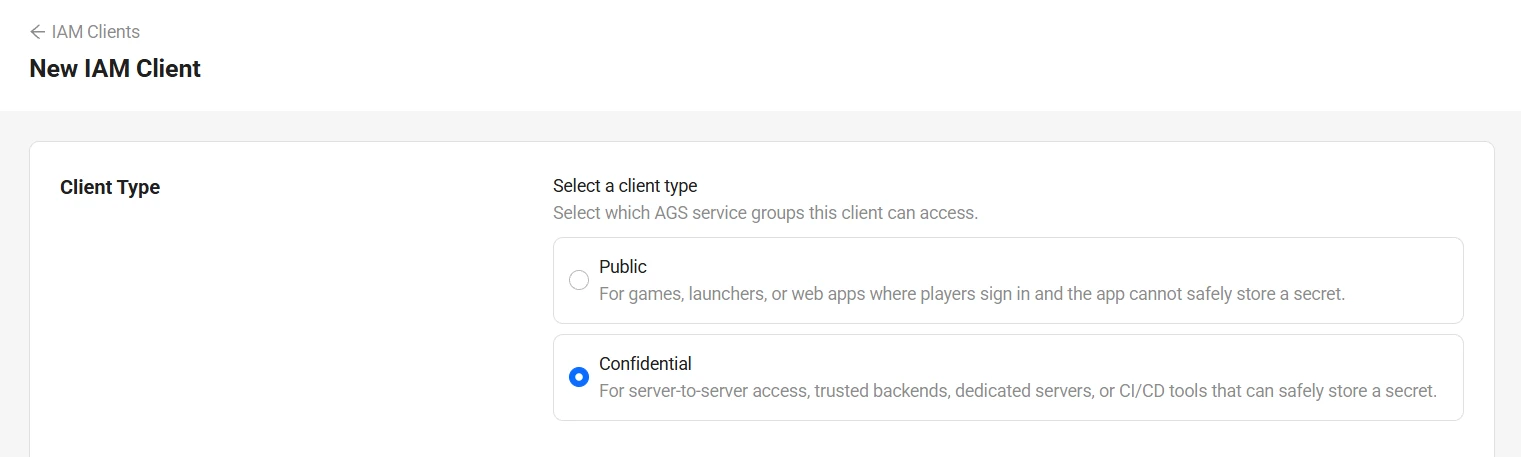
In the Client Type section, select Confidential.
-
In the Basic Info and Client Settings sections, use the configuration below to create a new server IAM client.
- Client Name: the name of the IAM client. Set it to ByteWars-AMSClaim.
- Secret: the secret or password for the IAM client. You can use your own secret or click Generate to generate a random one.
- Redirect URI: the URI used to redirect once the IAM client authorization is successful. Select Localhost, which sets it to
http://127.0.0.1.
-
In the Permissions section, enable the permission below. This permission allow you to claim dedicated servers from your AMS fleet.
- AMS > Dedicated Server Claim: enable Update permission.
-
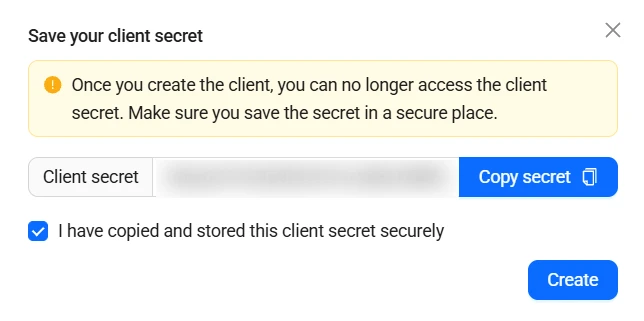
Click Continue. The Save your client secret window appears. Click Copy secret and save the secret somewhere secure. Then, tick I have copied and stored this client secret securely and click Create to create your IAM client.
warningThe Secret will not be shown again after you create the IAM client. Be sure to copy and save it before you click Create.