Writing a context file for AGS AI Analytics
Overview
A context file is a short document that tells AGS AI Analytics how your game works. Without it, a question returns a general answer over raw data. With it, the same question returns an answer that excludes noise such as test and QA accounts, understands your events, and splits players into the segments you care about.
You are not writing code. You are describing your game in plain language so the AI assistant can reason about it. The sections below cover what to put in a context file, an example you can adapt, and how to apply it.
When to use a context file
Add or extend a context file when you want to:
- Exclude non-real players, such as test, QA, bot, and dummy accounts, so counts reflect actual players.
- Define an event window so a phrase like "after the event" has a precise meaning.
- Explain what a custom event represents and which payload fields matter.
- Define the segments you want answers broken down by, such as returned versus dropped-off players.
What goes in a context file
A context file is organized into short sections. The exact headings are up to you, but the following cover the most common needs.
- Player eligibility: Describe which accounts count as real players. You decide the rules based on your own conventions. For example, you might treat accounts as non-real when the display name starts with
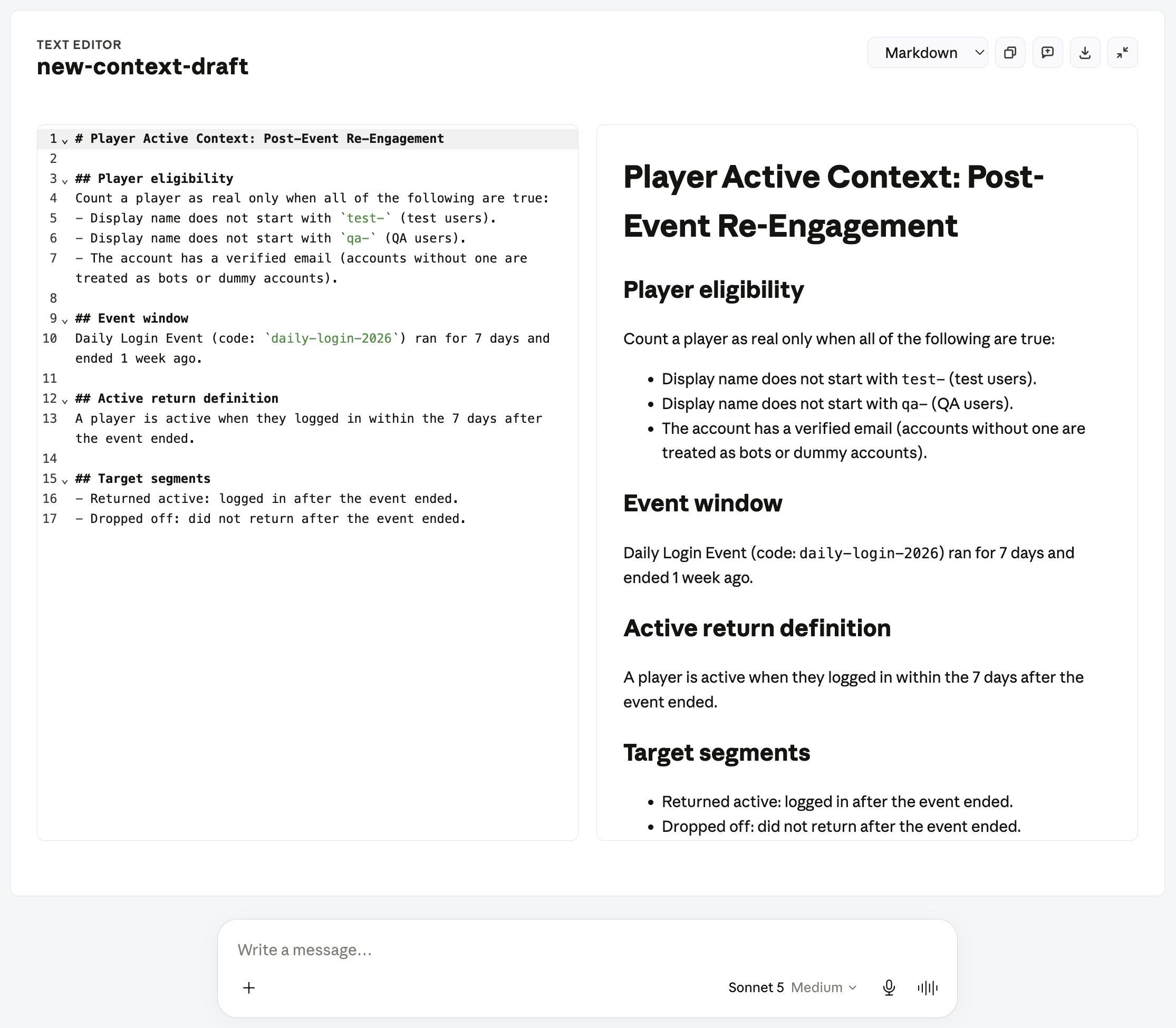
test-(test users), the display name starts withqa-(QA users), or the account does not have a verified email (treated as a bot or dummy account). Being explicit here matters twice over: it lets you dictate what counts as a test, QA, or bot account, and it tells the assistant exactly what to include or exclude when it builds the query. - Event window: Describe the event you are analyzing, including its event code so the assistant references the right one, and when it ran. For example, the Daily Login Event with code
daily-login-2026ran for 7 days and ended 1 week ago. Including the code avoids ambiguity when you have run similar events before. - Definitions: Define any term your questions rely on. For example, define what "active" means, such as a player who logged in within 7 days after the event ended.
- Target segments: List the groups you want answers split into, such as players who returned after the event versus players who dropped off.
- Metric definitions: Spell out how each key metric is calculated, including the population and the time grain. For example, "daily active users is the count of distinct eligible players with a successful login in a UTC day." This resolves ambiguity before the assistant writes the query.
- Native-event coverage: Name the streams that must be combined so a metric is not undercounted. For example, "a successful login is the direct-auth stream plus the platform-auth streams (Steam, PSN, Epic) — never count logins from only one."
- Identity and join rules: State the canonical key and how tables relate. For example, "count players by
user_id, not display name; join purchases to entitlement grants onorder_no." This avoids duplicated players and failed joins. - Custom-event dictionary: Describe each custom event you send, with its fields, units, and enum values. For example, "
tutorial_step_completedfires once per step;step_idis one ofmovement,combat,loadout;duration_msis in milliseconds." Sending each event type under its own name, rather than one generic event, keeps it in its own table and quick to query. - Catalog and currency conventions: Give SKUs readable names and state monetary units. For example, "
starter_bundle_v2is the Explorer Starter Pack; amounts are in minor units, so divide by 100; report each currency separately and do not convert between them." - Data caveats and calendar: Note known gaps, migrations, and cutoffs, along with your patch and season dates. For example, "platform-login events are incomplete for March 4–6; Patch 2.4 launched June 12 and Season 8 ran June 15 to July 30." This keeps the assistant from reading a data gap as a real drop and lets it pick comparison windows without asking.
Example context file
The example below shows a context document in the Run Analytics Context Playbook editor. Use it as a starting point and adapt the rules to your game.
Apply the context file
You do not attach the context manually, and you do not have to write it all yourself. Adding the Run Analytics Context Playbook gives the assistant the know-how to build and manage your namespace's context with you:
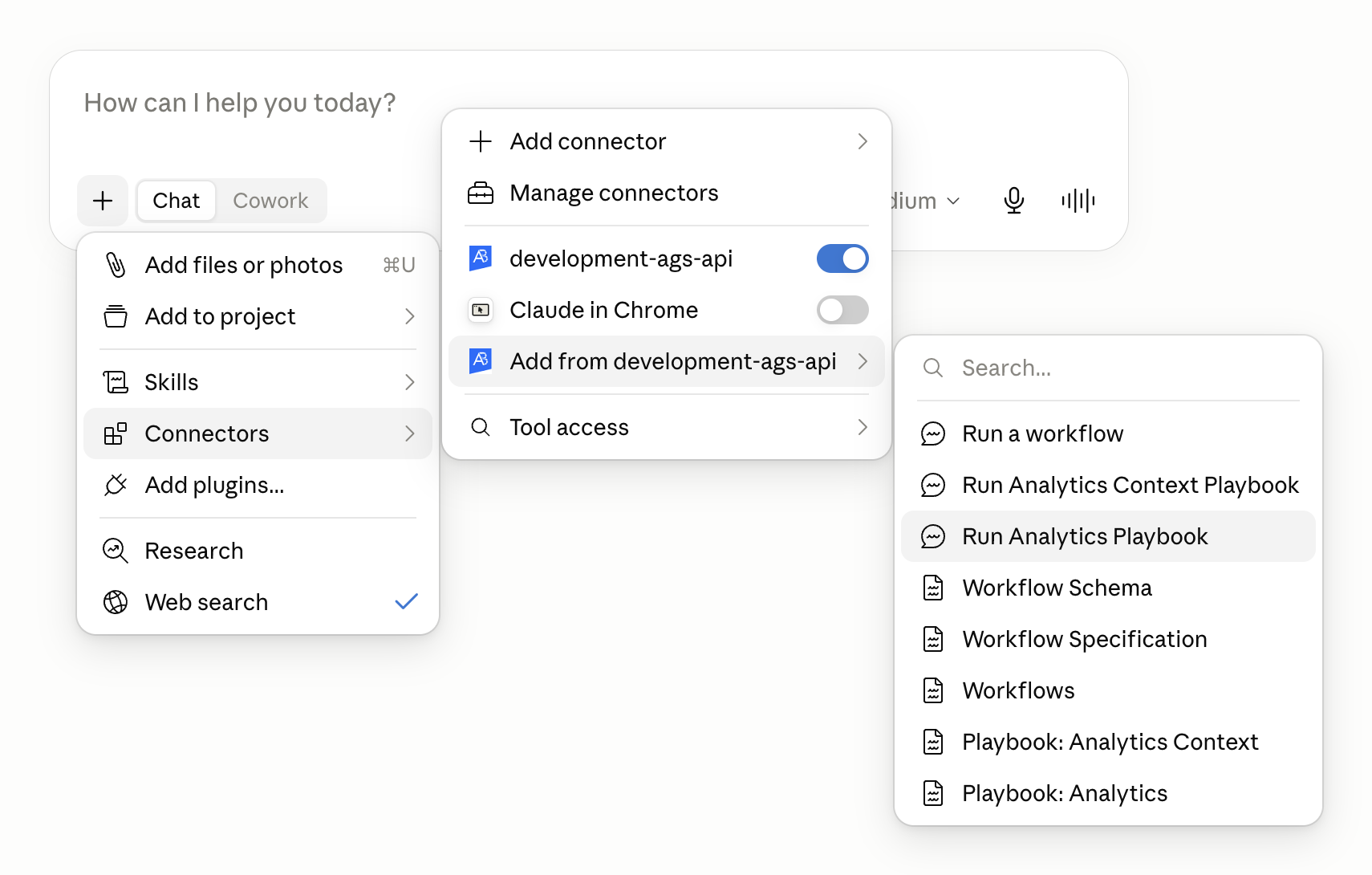
- In Claude Desktop, open the + menu and go to Connectors. Under your AGS connector, select the Add from … entry, then choose Run Analytics Context Playbook. This loads the playbook into the conversation; it does not open an editor on its own.
- Describe what you want to capture, even roughly, for example, "track who comes back after the Daily Login Event, and ignore our QA accounts." The assistant asks leading questions to pin down what you mean and what you are trying to learn.
- The assistant then decides how to apply it: adding a new context document or editing an existing one, and opening an editor for you when it is time to write. It can also reorganize your context documents and flag misleading or out-of-date ones, since stale context makes future answers less reliable and adds unnecessary round trips.
- Once saved, the context is stored for the namespace and merged into every future query. Ask your question again, for example, "How many real players returned after the Daily Login Event?" and the answer now reflects your context.