Tag goals for organization
Overview
AccelByte Gaming Services (AGS) Challenge allows you to add tags to the goals of the challenges you create so players can group and filter them. This article provides information on how to use goal tagging, grouping, and filtering using AGS Challenge with the AGS Game SDK.
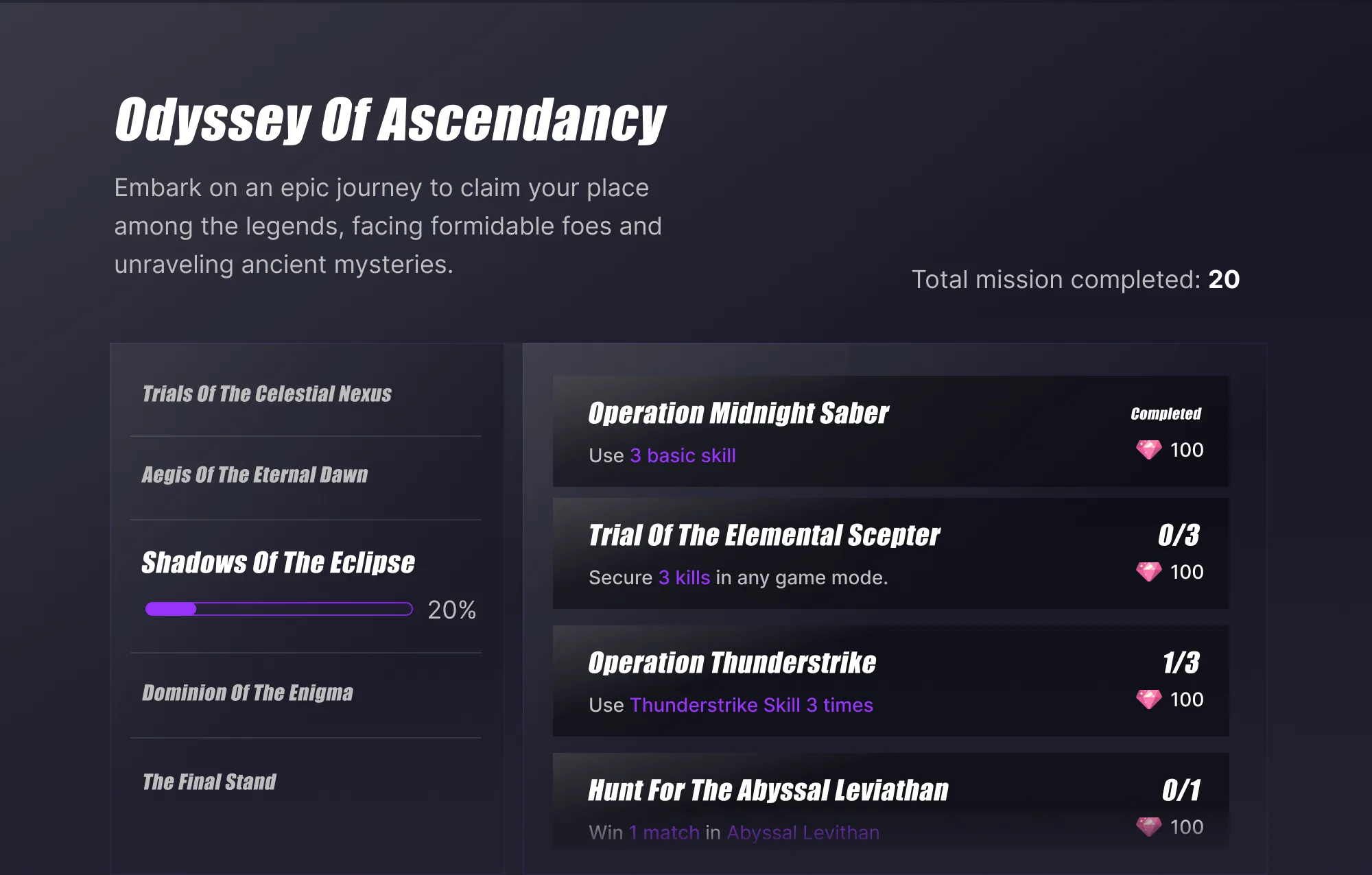
This article will use the example of implementing an all-time fixed challenge with 20 goals for the player to complete. Goals will be grouped based on the category so that players can easily find the relevant information about the goals.
Prerequisites
- The AGS Game SDK installed and configured into your Unreal or Unity project.
- Challenges integrated into your project with AGS Challenge.
- To follow the AGS CLI steps, you must have installed the AGS CLI and signed in with an account that has access to these features. See Install and sign in. The examples use a Bash shell.
Add tags to a goal
You can use tags in the goals configurations in the AGS Admin Portal or with the AGS CLI to group your goals.
- Admin Portal
- AGS CLI
- In the AGS Admin Portal under your game namespace, go to Engagement > Challenge > Configuration.
- Find your desired challenge you'd like to organize the goals for (or create a new one) and click its name to enter its configuration settings.
- Click on the Goals and Rewards tab.
- Edit your desired goal by clicking its name, or create a new one, and enter the name of a tag in the Tags field as desired.
- Press Enter on your keyboard for each tag you want to add.
To add tags to a new goal, set tags in the goal's request file. See Create goals and rewards. To add tags to an existing goal, follow these steps. For a challenge with the Fixed assignment rule, use the Admin Portal tab.
-
Save the goal's current settings to a file:
ags challenge goals get --namespace <YourNamespace> --challenge-code <ChallengeCode> --code <GoalCode> --format json > goal.json -
In
goal.json, add your tags to thetagslist, for example"tags": ["Hard"]. Keep the other settings as they are, because the update replaces the whole goal. -
Send the edited file:
ags challenge goals update --namespace <YourNamespace> --challenge-code <ChallengeCode> --code <GoalCode> --json @goal.json
Group or filter goals by tags in the game client
To retrieve a list of all goals for the a challenge with the tags you set, you can use the following code:
- Unreal Engine
- Unity
const FString& ChallengeCode = TEXT("specific-challenge-code");
const TArray<FString> Tags = { "Hard", "Medium" };
AccelByteOnlineSubsystemPtr->GetApiClient()->Challenge.GetScheduledChallengeGoals(
  ChallengeCode, THandler<FAccelByteModelsGetScheduledChallengeGoalsResponse>::CreateLambda([]
     (const FAccelByteModelsGetScheduledChallengeGoalsResponse& Response)
{
  for (auto ChallengeGoalData : Response.Data)
  {
     FString TagList{};
     for (auto Tag : ChallengeGoalData.Tags)
     {
        if (!TagList.IsEmpty()) TagList.Append(TEXT(":"));
        TagList.Append(Tag);
     }

     UE_LOG(LogTemp, Warning, TEXT("Goal Name: %s Description: %s IsActive: %hhd Tags: %s"),
        *ChallengeGoalData.Name, *ChallengeGoalData.Description, ChallengeGoalData.IsActive, *TagList)
  }
}), FErrorHandler::CreateLambda([](int32 ErrorCode, const FString& ErrorMessage)
{
  UE_LOG(LogTemp, Warning, TEXT("[%d]: %s"),
     ErrorCode, *ErrorMessage);
}), Tags);
const string challengeCode = "specific-challenge-code";
string[] tags = { "Hard", "Medium" };

AccelByteSDK.GetClientRegistry().GetApi().GetChallenge().GetScheduledChallengeGoals(challengeCode, result =>
{
    if (result.IsError)
    {
        // Things to do when Error happens
        Debug.LogWarning($"Failed to GetChallengeGoals {result.Error.Code} : {result.Error.Message}");
        return;
    }

    Debug.Log($"GetScheduledChallengeGoals Success");
    foreach (var item in result.Value.Data)
    {
        string collectedTags = "";
        foreach (var tag in item.Tags)
        {
            collectedTags += item.Tags + " ";
        }
        Debug.Log($"Goal Name: {item.Name} Description: {item.Description} IsActive: {item.IsActive} Tags : {collectedTags}");
    }

    , tags
});