Configure cycled leaderboards in the new Leaderboard service
Overview
The AccelByte Gaming Services (AGS) Leaderboard service supports cycled leaderboards. A cycled leaderboard runs for a specific time period and then resets, giving players repeated chances to compete for a spot on the leaderboard. The new leaderboard version is allows you to use specific time windows configured in statistic cycles so that you can flexibly choose the time frame for your leaderboard.
This article walks you through how to set up a leaderboard configuration to rank users' statistic values for a specific time window or cycle using a preset statistic configuration, from the AGS Admin Portal or with the AGS CLI.
Prerequisites
- Access to the AGS Admin Portal.
- Access to the AGS Leaderboard. See the API documentation for more information.
- Access to the AGS Statistics API to configure the required information.
- Pre-configured statistic information that you use to rank the users' values.
- A pre-configured stats cycle that you use to set the leaderboard time frame.
- To follow the AGS CLI steps, you must have installed the AGS CLI and signed in with an account that has access to these features. See Install and sign in. The examples use a Bash shell.
Configuring a cycled leaderboard
Before configuring the leaderboard, you need to define the metrics you want to track and display on the leaderboard. These could include things like score, time taken to complete a level, number of wins, etc. You can store the metrics by configuring a statistic configuration by following this guide.
Other than configuring the leaderboard, you can also configure its cycles by using the Statistic Cycle guide. The statistic cycle will be related to your configuration parameters in creating a leaderboard. You can configure the leaderboard by following the steps below:
- Admin Portal
- AGS CLI
-
On the AGS Admin Portal, go to Online > Leaderboards.
-
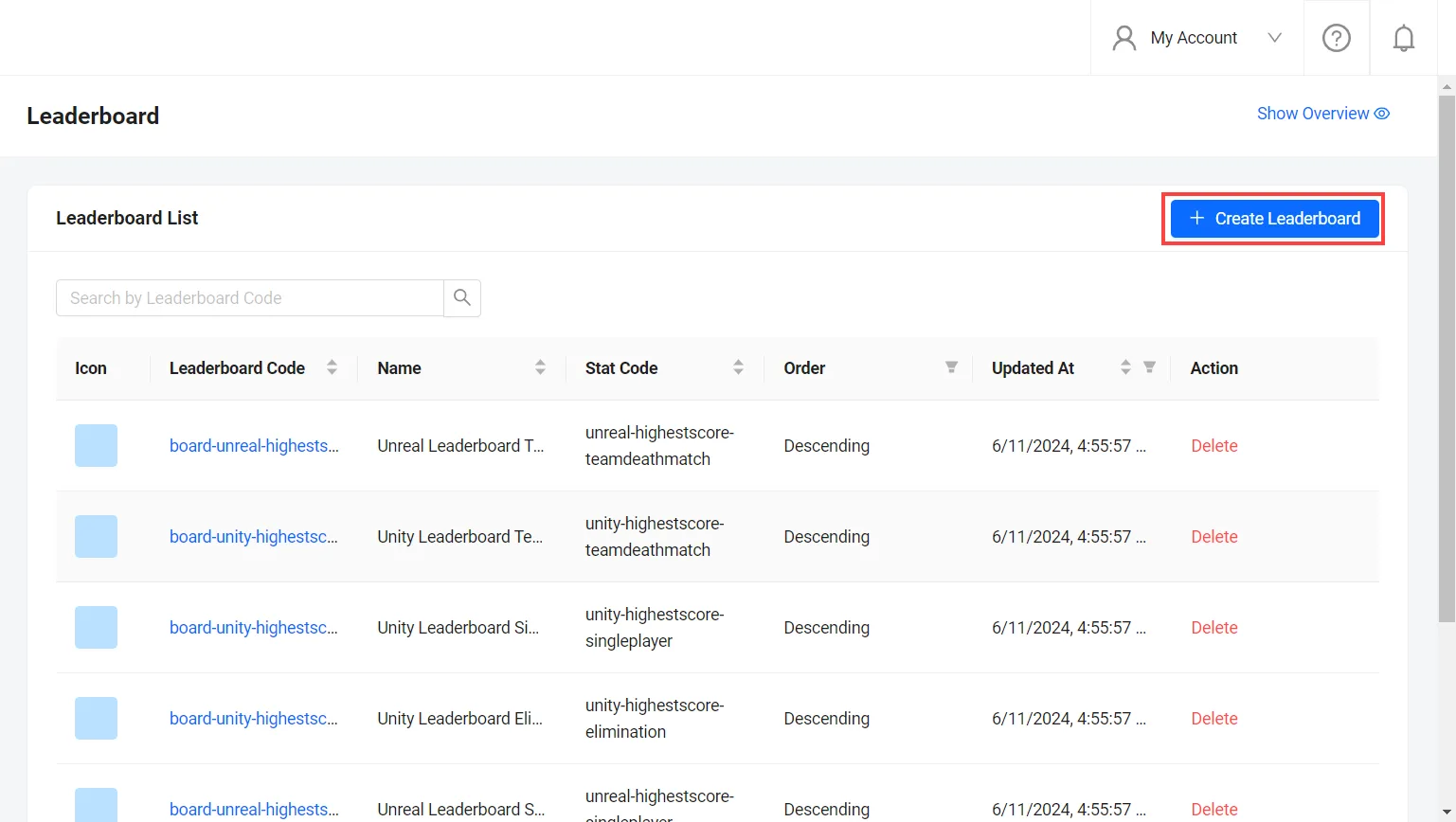
On the Leaderboards page, click on the + Create Leaderboard button.
-
On the Add Leaderboard form, fill in the required information:
- Fill in the Leaderboard Code using the allowed formats.
- Fill in the Stat Code with the related statistic configuration that you've created. This will be the statistic that the leaderboard draws from.
- Fill in the Leaderboard Name to make it easier for you to identify the leaderboard in the future.

-
Once the Stat Code is filled, you can pick the cycle for the leaderboard. Based on how you completed the form above, selecting a cycle may be mandatory. There will be two different configurations for the cycle:
- Cycle(s) will be referring to the available cycle that corresponds to the selected Stat Code filled.
- All-Time Cycle should be used if Cycle(s) are left empty. It will not refer to any cycle from the Statistic Configuration and there will be no end time/expiration for the leaderboard with this configuration.
- Order. You can choose the displayed leaderboard data to be listed in Ascending or Descending order.

-
When you're done, click the Add button to create your new leaderboard and the new leaderboard will appear in the Leaderboard List.
-
Get the statistic configuration that the leaderboard draws from. Replace
<YourNamespace>with your game namespace and<StatCode>with the statistic's code:ags social stat-definitions get --namespace <YourNamespace> --stat-code <StatCode>The
cycleIdsfield lists the statistic cycles that you can pick for the leaderboard. -
Create a JSON file with the leaderboard's settings. Any file name works. This example uses
leaderboard.json:{
"leaderboardCode": "<LeaderboardCode>",
"name": "<LeaderboardName>",
"statCode": "<StatCode>",
"cycleIds": ["<CycleId>"],
"allTime": false,
"descending": true
}leaderboardCode,name, andstatCode: the Leaderboard Code, Leaderboard Name, and Stat Code.cycleIds: the Cycle(s), using IDs from the previous step.allTime:truefor the All-Time Cycle. EithercycleIdsmust have at least one cycle, orallTimemust betrue.descending:truefor Descending order, orfalsefor Ascending.
To set an icon, add
iconURLwith the address of an image that is already hosted. The Admin Portal uploads the image for you. -
Create the leaderboard. After
@, pass the path to your JSON file:ags leaderboard leaderboards create --namespace <YourNamespace> --json @leaderboard.jsonThe command prints the new leaderboard.