Integrate rewards with supported events
Overview
The AccelByte Gaming Services (AGS) reward service allows you to grant virtual items or other entitlements as a form of recognition for achieving a certain challenge or objective within a game. This works by integrating with other services in AGS, such as Identity and Access Management (IAM), statistics, and achievements, that will be used to define the goals that players must achieve to earn rewards.
In this guide, you will learn how to integrate rewards with the supported events from other services in AGS, using the AGS Admin Portal or the AGS CLI.
Goals
- Provide an understanding and overview about reward configurations.
- Provide an understanding on how to utilize available events for granting rewards to players.
Prerequisites
- Access to the AGS Admin Portal.
- Access to AccelByte Platform API documentation.
- Access to the AccelByte Achievement and Statistic API to configure the required information.
- To follow the AGS CLI steps, you have installed the AGS CLI and signed in with an account that has permissions to manage rewards. See Install and sign in.
Supported events
The AGS reward service supports granting rewards to the players triggered by some events published by other services such as IAM, statistics, and achievements.
Understanding the event name and usage below will make it easier for you to choose the event you want to integrate with for your reward.
| Event Topic | Event Name | Usage |
| Statistic | statItemCreated | This is suitable if you want players to receive the reward upon creating a particular statistical value. |
| Statistic | statItemUpdated | This is suitable if you want players to receive the reward upon reaching a particular statistical value. |
| statisticCycle | statItemCycleUpdated | This is suitable if you want players to receive the reward upon reaching a particular statistic value within a statistic cycle, such as a daily, weekly, monthly, or seasonal cycle. |
| Achievement | userAchievementUnlocked | This is suitable if you want players to receive the reward upon earning a particular achievement. |
| Achievement | achievementRewardClaimed | This is suitable if you want players to receive the reward upon successfully claiming a global achievement. |
| User Account | userAccountCreated | This is suitable if you want players to receive the reward upon creating an account in your platform using the publisher namespace. |
| User Account | gameUserAccountCreated | This is suitable if you want players to receive the reward upon creating an account in your platform using the game namespace. |
| User Account | userAccountVerified | This is suitable if you want players to receive the reward when their account is verified in your platform using the game namespace. |
| User Account | userAccountLinked | This is suitable if you want players to receive the reward upon linking an account in your platform with a third-party account using the game namespace. |
| User Account | userAccountUpgraded | This is suitable if you want players to receive the reward upon upgrading their account from a headless account to full account using the game namespace. |
| User Account | thirdPartyAccountCreated | This is suitable if you want players to receive the reward upon creating an account on your platform from a third-party platform. Both userAccountCreated and thirdPartyAccountCreated are contained within the User Account event topic. |
Create a new reward configuration
- Admin Portal
- AGS CLI
-
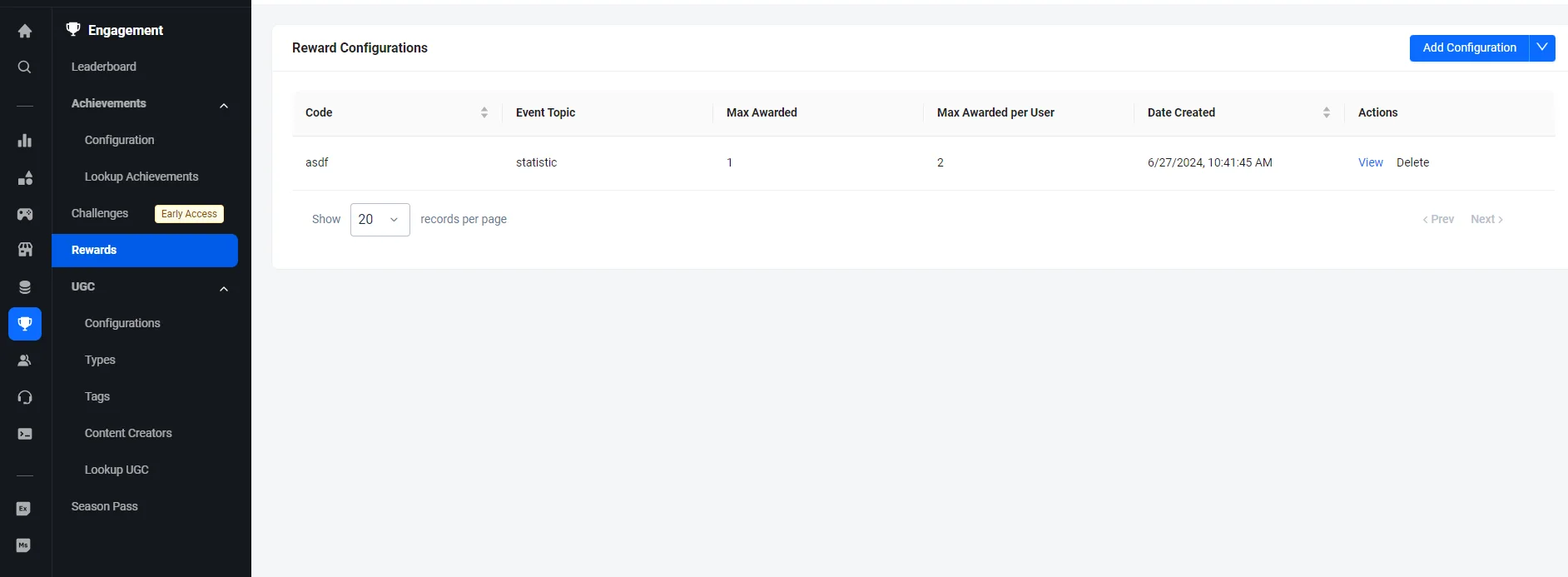
In the AGS Admin Portal, go to Online > Rewards.
-
On the Rewards page, click the Add Configuration button.

-
On the Add Rewards form, fill in the required information:

-
You will be required to fill in the Reward Code as a unique identifier for your reward with the allowed format (e.g.,
road-to-champion) and fill in the Description to provide extra information about the reward you created. -
Select the trigger for the reward from the Event Topic dropdown. You can choose either Statistic, Achievement, or User Account.
-
Advanced Settings:
-
There is an optional UserID Expression field that you can use to specify the condition that indicates the target User ID in the event payload using the JSON path format. If left blank, the default value is
$.[0].userId. Format:$.eventPayloadObject.userId -
Another optional field is Namespace Expression. You can use this to specify the condition that indicates the target namespace in the event payload using the JSON path format. If left blank, the default value is
$.[0].namespace. Format:$.eventPayloadObject.namespace
-
-
You are also required to fill in the maximum number of times the reward can be earned in your game namespace in the Max Awarded field, as well as the maximum number of times the reward can be earned by a single player in the Max Awarded Per User field.
-
-
Click Add. The new reward is added to the rewards list.
-
Create a JSON file with the reward's settings. Any file name works. This example uses
reward.json:{
"rewardCode": "road-to-champion",
"description": "<Description>",
"eventTopic": "statistic",
"maxAwarded": 100,
"maxAwardedPerUser": 1
}rewardCode: a unique identifier for the reward, up to 32 characters. Use lowercase letters and numbers, and separate words with single hyphens.description: optional extra information about the reward, up to 255 characters.eventTopic: the trigger for the reward. Usestatistic,achievement, oruserAccountfor the Admin Portal's Statistic, Achievement, or User Account option.maxAwardedandmaxAwardedPerUser: the Max Awarded and Max Awarded Per User values. To make a limit unlimited, set it to-1.
To set the UserID Expression and Namespace Expression advanced settings, add
userIdExpressionandnamespaceExpressionto the file. If you leave them out, AGS uses$.[0].userIdand$.[0].namespace. -
Create the reward. Replace
<YourNamespace>with your game namespace. After@, pass the path to your JSON file.ags platform rewards create --namespace <YourNamespace> --json @reward.jsonThe command prints the new reward. Its
rewardIdis the reward ID that you use to add reward conditions.
Add a reward condition
- Admin Portal
- AGS CLI
-
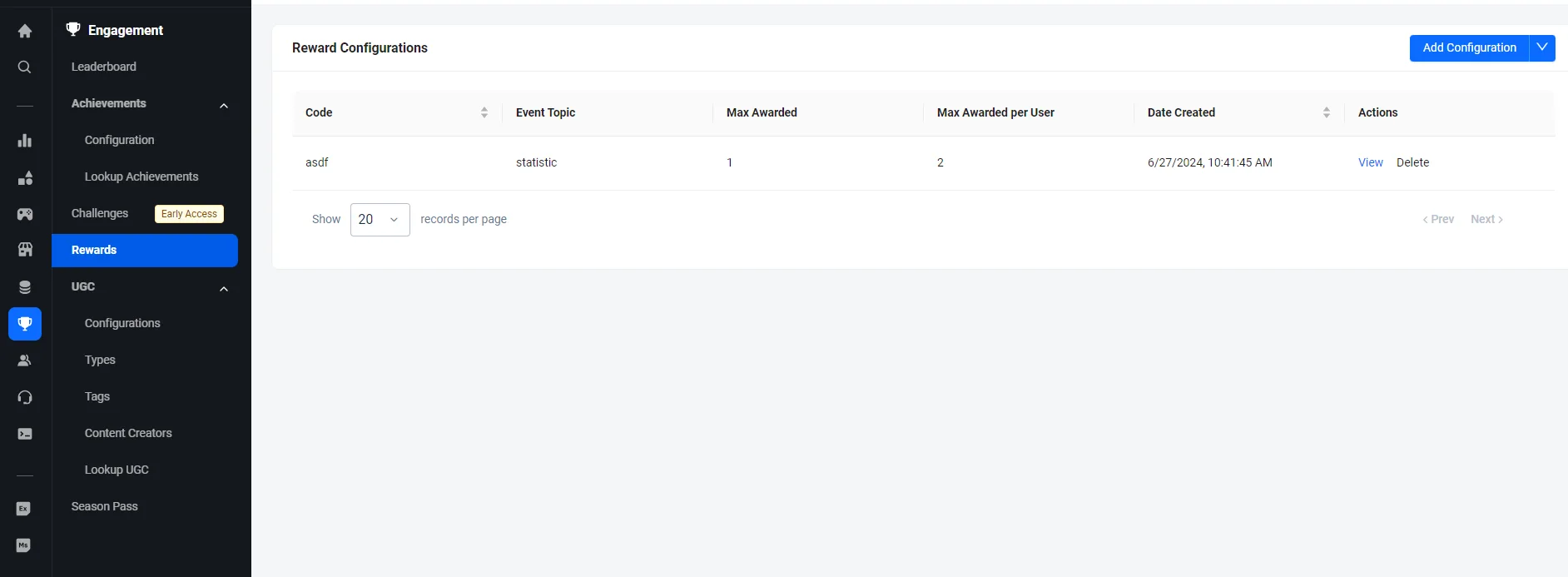
On the Rewards page of the Admin Portal, find the reward you want to update and click on its View option.
-
On the reward details page, click Add Reward Condition.

-
On the Add Reward Condition form, fill in the required information:

-
Fill in the Event Name field with the event you want to use to trigger the reward. For more details, see the list of supported events.
-
Enter a name for the specific event condition that triggers the reward in the Condition Name field.
-
Enter the specific condition that triggers the reward in JSON path format in the Condition field. The format for each event topic is given below.
-
Event Topic: Statistic: This is to grant a reward to the players for reaching a certain statistic value.
$.[?(@.statCode == "input-your-stat-code" && @.latestValue == x)]-
Input the statCode for the statistic configuration that you are using. This code can be found on the Statistics page in the Admin Portal.
-
Input the statistic value at which the reward will be granted if it matches with the player's latestValue.
-
In this example, the player will receive the reward once they reach 150 points in the rewardpoints statistic:
$.[?(@.statCode == "rewardpoints " && @.latestValue == 150)]
-
-
Event Topic: statisticCycle: This is to grant a reward to the players for reaching a certain statistic value within a statistic cycle. Use this event topic when the reward should follow cycle-scoped progress, such as daily login rewards or seasonal progression rewards.
$.[?(@.statCode == "input-your-stat-code" && @.cycleId == "input-your-cycle-id" && @.latestValue == x)]-
Input the statCode for the statistic configuration that you are using. This code can be found on the Statistics page in the Admin Portal.
-
Input the cycleId for the statistic cycle that the reward should follow. This ensures the reward condition evaluates the cycle-scoped value instead of the lifetime statistic value.
-
Input the statistic value at which the reward will be granted if it matches with the player's latestValue for the cycle.
-
In this example, the player will receive the reward when their dailyloginclaim statistic reaches 1 in the daily-login-cycle cycle:
$.[?(@.statCode == "dailyloginclaim" && @.cycleId == "daily-login-cycle" && @.latestValue == 1)]
-
-
Event Topic: Achievement: This is to grant a reward to the players upon unlocking a certain achievement.
$.[?(@.status == 2 && @.achievementCode == "input-your-achievement code")]- Define the Status. This determines when the player will receive the reward.
- Input 1 if the player will receive the reward when the achievement is in progress.
- Input 2 if the reward will be granted when the player receives the achievement.
- Input the achievementCode for the achievement configuration that you are using. This code can be found on the Achievements page in the Admin Portal.
- In this example, the player will receive the reward when they unlock the killingmachine achievement:
$.[?(@.status == 2 && @.achievementCode == "killingmachine ")] - Define the Status. This determines when the player will receive the reward.
-
Event Topic: User Account, Third-Party Login This is to grant a reward to the player after creating an account on your platform, or creating an account on your platform from a third-party platform such as Steam, Xbox, PlayStation, etc.
$.[?(@.userId != null && @.emailAddress != null)]- Input !=null in the userId field. This confirms that the user ID is not null.
- Input !=null in the emailAddress field. This confirms that the email address is not null. For third-party logins, you can remove this field and only use userId.
-
-
Fill in the REWARD ITEMS fields with the required information:

- Select the Item you want to grant as a reward. Please make sure that the item is already configured in your store (see the guide on stores for more information).
- Input the quantity of the item you want to include in the reward in the Qty field.
- If the reward item is a subscription, input how many days the subscription should last in the Duration field. If the item you have selected is any other type, you can leave this field blank.
- To add more items to the reward, click Add More Items.
-
-
When you're done adding items, click Save. The new reward condition is added to the list.
-
Find the ID of the reward you want to update. Each reward in the output has a
rewardId.ags platform rewards list --namespace <YourNamespace> -
Find the ID of each item you want to grant. The command searches your game's published store. Each item in the output has an
itemId.ags platform items list --namespace <YourNamespace> --item-name <ItemName> -
Save the reward's current settings to a file:
ags platform rewards get --namespace <YourNamespace> --reward-id <RewardId> --format json > reward.json -
In
reward.json, add an entry to therewardConditionslist. If the list already has entries, keep them. For example, this condition grants one item when a player reaches 150 points in therewardpointsstatistic:"rewardConditions": [
{
"eventName": "statItemUpdated",
"conditionName": "<ConditionName>",
"condition": "$.[?(@.statCode == \"rewardpoints\" && @.latestValue == 150)]",
"rewardItems": [
{
"identityType": "ITEM_ID",
"itemId": "<ItemId>",
"quantity": 1
}
]
}
]The fields match the Admin Portal form:
Admin Portal field Request body field Event Name eventName. See the list of supported events.Condition Name conditionNameCondition condition, in the JSON path format for the event topic, as shown in step 3 of the Admin Portal tab. Put a backslash before each double quote inside the condition, as in the example.Item itemId, withidentityTypeset toITEM_IDQty quantityDuration duration, in seconds, for how long the player owns a coin or option box item. For example,2592000is 30 days. To set an expiration date instead, useendDate. Don't set both. Leave out both for permanent ownership.To grant more items, add more entries to
rewardItems. -
Send the file back. The new reward condition is added to the reward.
ags platform rewards update --namespace <YourNamespace> --reward-id <RewardId> --json @reward.jsonwarningThe update replaces the reward's conditions with the
rewardConditionslist in the file. To keep the existing conditions, always send the full file that you saved withget.