Manage real and virtual currencies
Overview
This article will explain how you can configure the currencies that can be accepted for Store transactions using your Admin Portal. You can configure both real-world and virtual currencies to allow your players to transact using those currencies. Virtual currencies that you create can also be earned by or awarded to players. You will need to set up at least one currency prior to creating a store or item.
- If you create your currency in the publisher namespace, your currency will be available in every namespace.
- If you create your currency in a specific game namespace, your currency will only be available in that specific namespace.
- If you create a currency with the same code and symbol in multiple namespaces, they will be treated as different currencies.
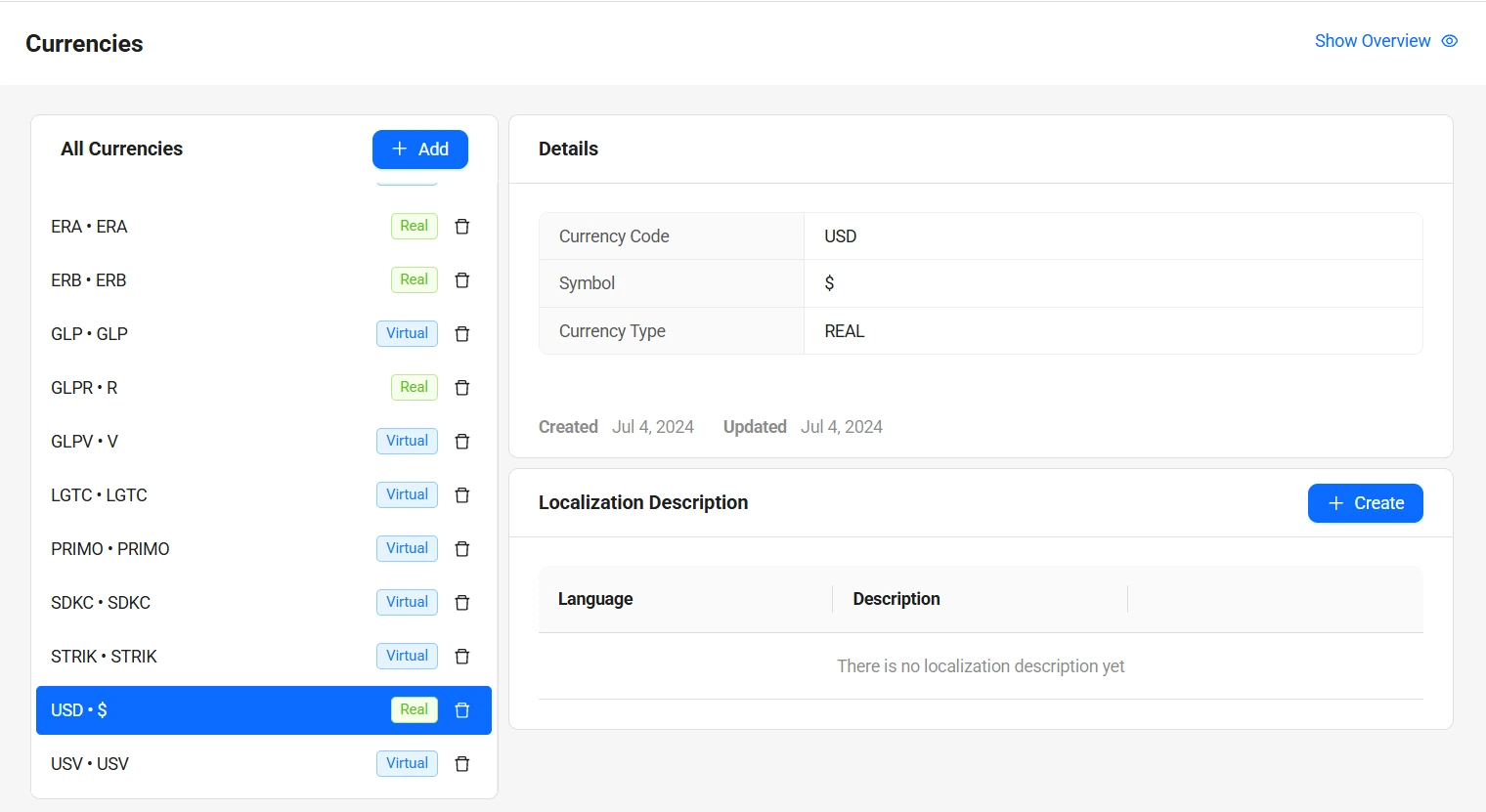
This article walks you through how to do the following in the AGS Admin Portal or with the AGS CLI:
- Manage real currencies
- Manage virtual currencies
Prerequisites
- Access to your publisher and game namespaces in the AccelByte Gaming Services (AGS) Admin Portal.
- To follow the AGS CLI steps, you have installed the AGS CLI and signed in with an account that has access to these features. See Install and sign in. The examples use a Bash shell.
Manage real currencies
The Real Currencies feature is not yet supported in AGS Public Cloud.
Creating a real currency will make that currency available to your players for transactions.
- Admin Portal
- AGS CLI
-
On the Admin Portal sidebar, go to Online > Wallets & Payments > Wallets > Currencies.
-
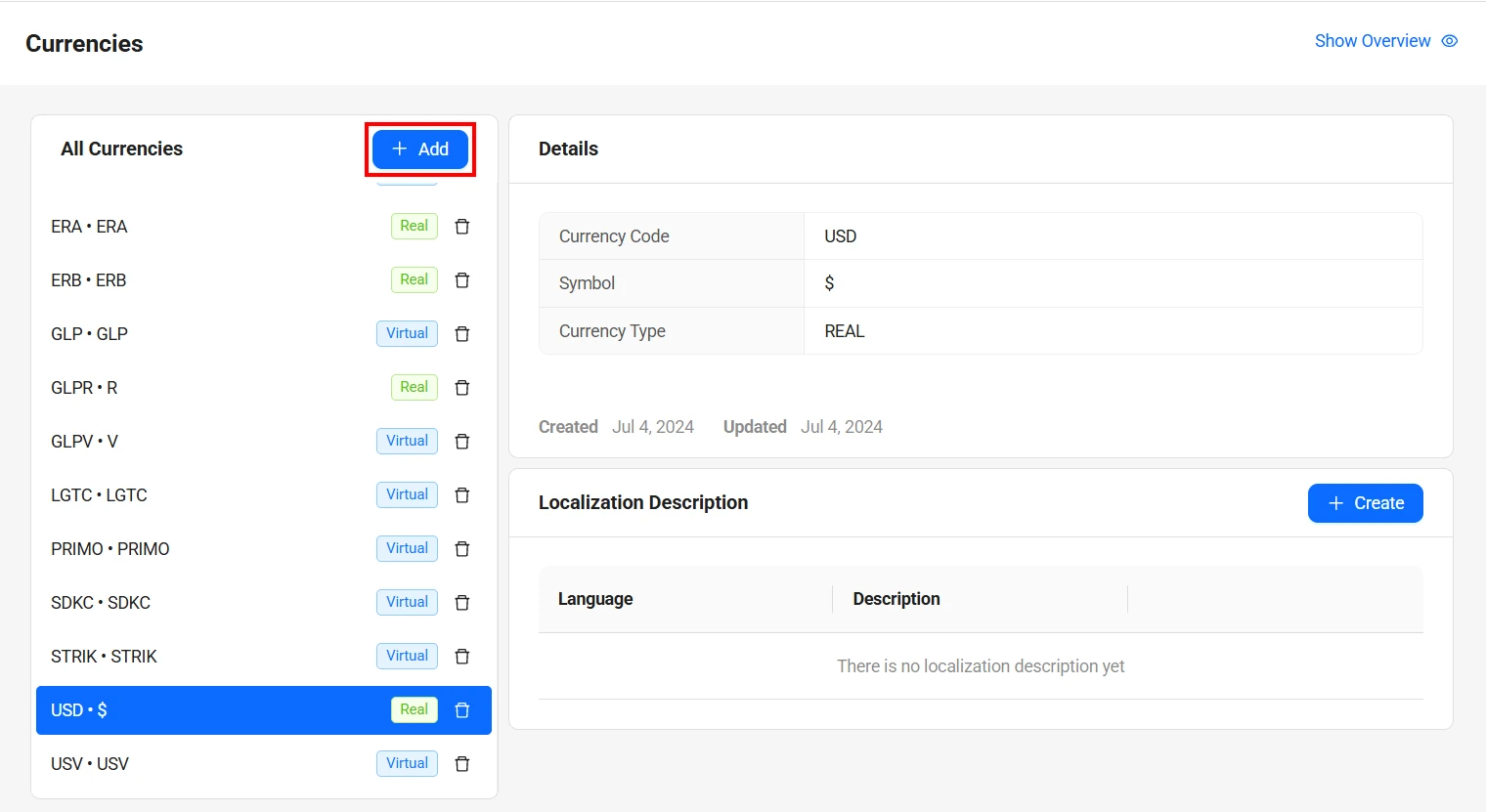
On the Currencies page, click Add to add a new currency.
-
The Add Currency form will open. Fill out the required fields:
- Real Currency will have two decimals when used in prices.
- Select the Currency Type and select Real to create a real currency.
- Input the unique identifying code for the currency in the Currency Code field. For real currencies, follow ISO_4217 standardization, such as USD for United States Dollar.
- Input the symbol associated with the currency in the Currency Symbol field, such as "$". To input a symbol that isn't on your keyboard, input the Unicode for that symbol.

-
Once completed, click Add. Your new currency will be added to the list.
Create the currency. Replace <YourNamespace> with your publisher or game namespace, <CurrencyCode> with the currency code, and <CurrencySymbol> with the currency symbol:
ags platform currencies create --namespace <YourNamespace> \
  --json '{"currencyType": "REAL", "currencyCode": "<CurrencyCode>", "currencySymbol": "<CurrencySymbol>", "decimals": 2}'
currencyCode: the Currency Code. Follow the ISO 4217 standard, such asUSDfor United States Dollar.currencySymbol: the Currency Symbol, such as$.decimals:2for a real currency. The Admin Portal sets this for you.
The command prints the new currency.
Manage virtual currencies
Creating a virtual currency will make that currency available to your players for transactions.
- Admin Portal
- AGS CLI
-
On the Admin Portal sidebar, go to Online > Wallets & Payments > Wallets > Currencies.
-
On the Currencies page, click Add to add a new currency. The Add Currency form appears.
-
Fill in the required information on the form:
- Select the Currency Type, and select Virtual to create a virtual currency.
- For virtual currencies, you can create your own currency code.
- Type in the symbol associated with the currency in the Currency Symbol field (e.g., "$"). To use a symbol that isn't on your keyboard, use the Unicode for that symbol. For virtual currencies, you can input any character combination you like, up to eight characters.
-
Click Add. Your new currency will be added to the list.
Create the currency. Replace <YourNamespace> with your publisher or game namespace, <CurrencyCode> with the currency code, and <CurrencySymbol> with the currency symbol:
ags platform currencies create --namespace <YourNamespace> \
  --json '{"currencyType": "VIRTUAL", "currencyCode": "<CurrencyCode>", "currencySymbol": "<CurrencySymbol>", "decimals": 0}'
currencyCode: the Currency Code. Use up to 20 uppercase letters, numbers, underscores (_), and hyphens (-). It must start with a letter and end with a letter or number.currencySymbol: the Currency Symbol, up to eight characters.decimals: must be0for a virtual currency. The Admin Portal sets this for you. If you leave it out, AGS defaults it to2, which is invalid for a virtual currency, so the request fails.
The command prints the new currency.
Retrieve Supported Currencies Using the SDKs
Our client SDKs for Unity and Unreal Engine, or Extend SDKs can also be used to allow game clients to retrieve information about the currencies you've configured.
- Unreal Engine
- Unity
- C# Extend SDK
- Go Extend SDK
- Java Extend SDK
- Python Extend SDK
FAccelByteModelsCurrencyList currencyListResult;
bool bGetCurrencyListDone = false;

FString Namespace = TEXT("sample-namespace");
TArray<FAccelByteModelsCurrencyList> GetCurrencyListAllTypeResult;

FApiClientPtr ApiClient = AccelByteOnlineSubsystemPtr->GetApiClient(TEXT("your-key"));
ApiClient->Currency.GetCurrencyList(Namespace,
THandler<TArray<FAccelByteModelsCurrencyList>>::CreateLambda([=]
(const TArray<FAccelByteModelsCurrencyList>& Result)
{
    // Do something if GetCurrencyList succeeds
    UE_LOG(LogTemp, Error, TEXT("   Success"));
}), FErrorHandler::CreateLambda([](int32 ErrorCode, const FString& ErrorMessage)
{
    // Do something if QueryUserAchievements fails
    UE_LOG(LogTemp, Error, TEXT("Error. Code: %d, Reason: %s"), ErrorCode, *ErrorMessage)
});
var currencies = AccelByteSDK.GetClientRegistry().GetApi().GetCurrencies();

Result<CurrencyList[]> currencyListResult = null;

// Check for CurrencyType
currencies.GetCurrencyList(result =>
{
    if (result.IsError)
    {
        // Do something if QueryUserAchievements fails
        Debug.Log($"Error GetCurrencyList, Error Code: {result.Error.Code} Error Message: {result.Error.Message}");
        return;
    }

        // Do something if GetCurrencyList succeeds
        currencyListResult = result;
});
var response = sdk.Platform.Currency.PublicListCurrenciesOp
    .Execute(sdk.Namespace);
if (response != null)
{
    //do something if success
}
currencyService := &platform.CurrencyService{
Client: factory.NewPlatformClient(&repository.ConfigRepositoryImpl{}),
TokenRepository: &repository.TokenRepositoryImpl{},
}
namespace := "mygame"
input := ¤cy.PublicListCurrenciesParams{
Namespace: namespace,
}
result, err := currencyService.PublicListCurrenciesShort(input)
Currency currencyWrapper = new Currency(sdk);
List<CurrencyInfo> response;
try {
    response = currencyWrapper.publicListCurrencies(PublicListCurrencies.builder()
        .namespace("<namespace>")
        .build());
} catch (Exception e) {
    // Do something when failed
    return;
}

if (response == null) {
    // Null response from server
} else {
    // Do something when successful
}
import accelbyte_py_sdk.api.platform as platform_service

result, error = platform_service.public_list_currencies(
    namespace=namespace,  # optional, gets the value from the global instance if unspecified
    sdk=sdk,  # optional, gets the global instance  if unspecified
)
if error:
    exit(error)