Configure customizations
Overview
AccelByte Gaming Services (AGS) Monetization customization allows you to add a custom server hosted by yourself, or choose an Extend App from the app list.
Goals
- Guide users through adding a custom server address or choosing an app, using the AGS Admin Portal or the AGS CLI.
Prerequisites
- The features that support customization are properly configured.
- The Extend App is created and properly configured or a custom server is set up.
- To follow the AGS CLI steps, you have installed the AGS CLI and signed in with an account that has permissions to manage service plugin configurations. See Install and sign in.
Set up a customization
- Admin Portal
- AGS CLI
-
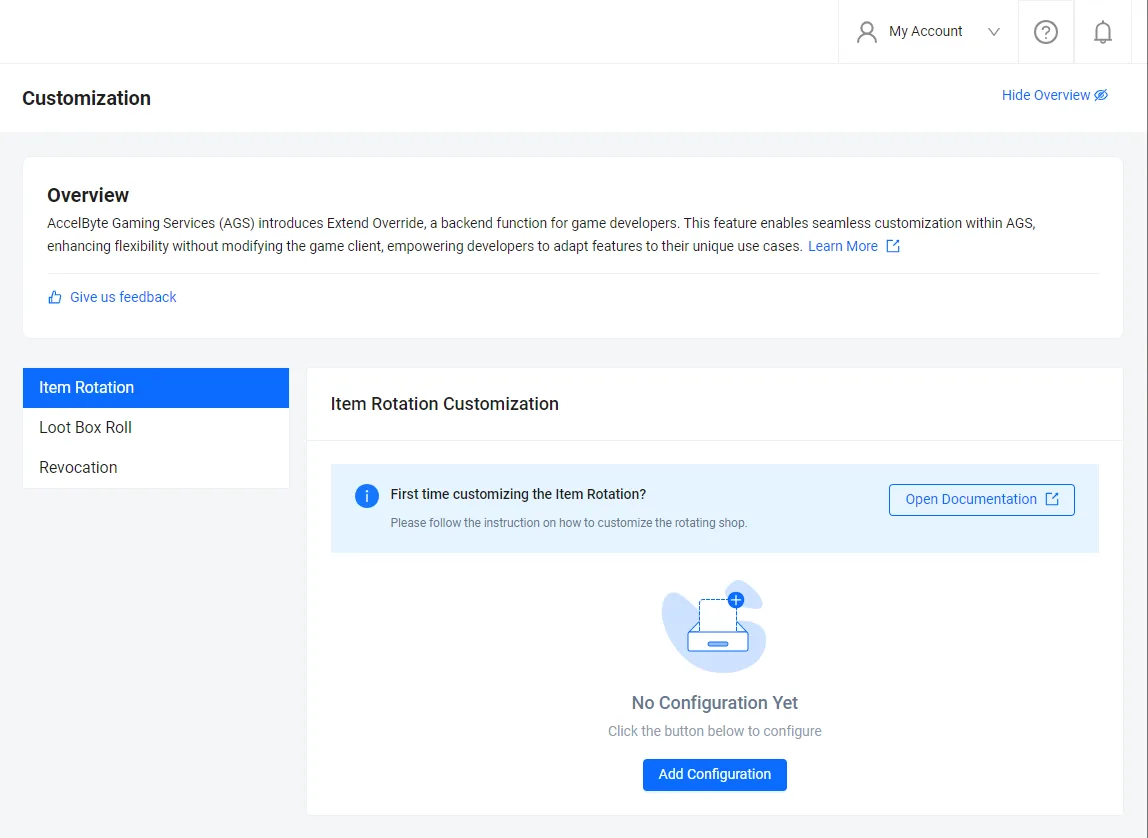
In the AGS Admin Portal, go to Online > Store & Catalog > Customization. Then, click on the feature you wish to add to your own customization. Notice that each feature needs to be configured individually, and each should have a dedicated app or a server address.
-
Click on Add Configuration and a pop-up window will appear. Choose an app from the dropdown. If the list is empty, you will need to go to the Extend service and create an app first. Click Create to save.

-
An added app can be changed or removed.
-
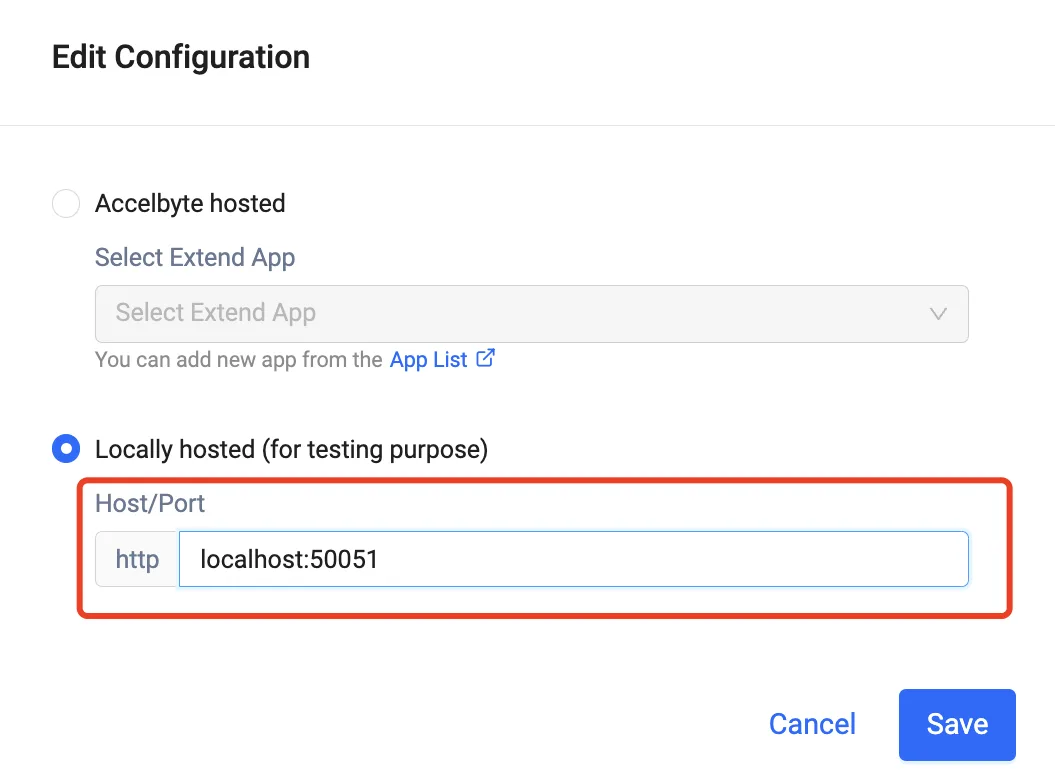
If you do not wish to use our Extend App, you may also input your own server address.
-
An added server address can be updated or removed by clicking the Edit button.
-
Exposed Method shows the exposed methods of the extend app (gRPC server). This is useful as a reminder of the features the app provides.
Exposed Methods are only viewable for admins with appropriate access levels.
Each feature is configured individually, with its own commands:
| Admin Portal feature | Command to add or change | Command to view | Command to remove |
|---|---|---|---|
| Item Rotation | ags platform plugin-config update-section | ags platform plugin-config get-section | ags platform plugin-config delete-loot-section |
| Loot Box Roll | ags platform plugin-config update-loot-box | ags platform plugin-config get-loot-box | ags platform plugin-config delete-loot-box |
| Revocation | ags platform plugin-config update-revocation | ags platform plugin-config get-revocation | ags platform plugin-config delete-revocation |
The examples below configure Loot Box Roll. For another feature, use its command from the table. Replace <YourNamespace> with your game namespace.
-
Add a configuration. Run one of the following commands. To change an existing configuration, run the command again with the new values.
-
To use an Extend App, replace
<YourExtendAppName>with the name of your app:ags platform plugin-config update-loot-box --namespace <YourNamespace> \
--json '{"extendType": "APP", "appConfig": {"appName": "<YourExtendAppName>"}}' -
To use your own server, replace
<YourServerAddress>with its host and port, such asgrpc.example.com:6565. SetconnectionTypetoINSECURE, as the Admin Portal does.ags platform plugin-config update-loot-box --namespace <YourNamespace> \
--json '{"extendType": "CUSTOM", "customConfig": {"grpcServerAddress": "<YourServerAddress>", "connectionType": "INSECURE"}}'
-
-
Check the configuration:
ags platform plugin-config get-loot-box --namespace <YourNamespace> -
To remove the configuration, run:
ags platform plugin-config delete-loot-box --namespace <YourNamespace>