Play test - Login with single platform auth - (Unreal Engine module)
Login with Steam
-
First, disable the
bAutoLoginin theConfig/DefaultEngine.inifile, so the player is able to click the button to log in.[/ByteWars/TutorialModule.AuthEssentials]
bAutoLogin=false -
Compile and open the project in Unreal Editor. Then, go to Edit > Editor Preferences > Level Editor > Play. Under the Play in Standalone Game section, add the launch parameter below in the Additional Launch Parameters field. This launch parameter tell the game to use the Steam build target
AccelByteWarsSteam.Target.cstheConfig/Custom/Steam/DefaultEngine.inifile to run the game.-target=AccelByteWarsSteam -customconfig=Steam -
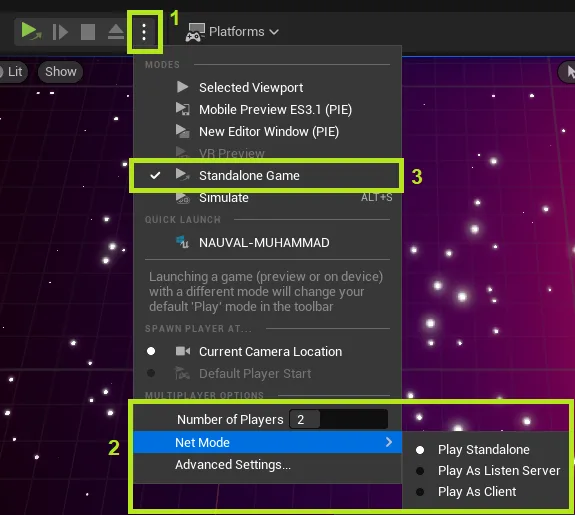
Ensure that you have Steam running and are logged in. Play your game in Standalone Game mode.
-
Click the
Login with Steambutton. If your implementation is correct, you will navigate to the Main Menu.
Login with Epic Online Services (EOS)
-
First, disable the
bAutoLoginin theConfig/DefaultEngine.inifile, so the player is able to click the button to log in.[/ByteWars/TutorialModule.AuthEssentials]
bAutoLogin=false -
Compile and open the project in Unreal Editor. Then, go to Edit > Editor Preferences > Level Editor > Play. Under the Play in Standalone Game section, add the launch parameter below in the Additional Launch Parameters field. This launch parameter tell the game to use the Steam build target
AccelByteWarsEOS.Target.cstheConfig/Custom/EOS/DefaultEngine.inifile to run the game.-target=AccelByteWarsEOS -customconfig=EOS -
If you publish your game to the Epic Games Launcher, the game will log in through the launcher. However, in this tutorial, you are testing the game from Unreal Editor, so you need to use the launch parameter
-AUTH_TYPE=AccountPortalto open the EOS Account Portal. You can learn more about EOS auth launch parameter and EOS auth credential types from the official Epic Online Services documentation. To add the launch parameter, go to Edit > Editor Preferences > Level Editor > Play. Under the Play in Standalone Game section, add the launch parameter below in the Additional Launch Parameters field. Your final launch parameter must look like this.-target=AccelByteWarsEOS -customconfig=EOS -AUTH_TYPE=AccountPortal -
Next, play your game in Standalone Game mode.
-
Click the
Login with EOSbutton. If your implementation is correct, you will navigate to the Main Menu.
Automatic login
-
For automatic login, follow the steps mentioned in the previous sections based on which platform you need. However, you need to enable the
bAutoLoginin the[ByteWars/TutorialModule.AuthEssentials]section of theConfig/DefaultEngine.inifile.[/ByteWars/TutorialModule.AuthEssentials]
bAutoLogin=true -
Next, compile and open the project in Unreal Editor. Ensure that you have run the platform launcher (e.g. Steam, Epic Games Launcher). Play your game in Standalone Game mode. If your implementation is correct, you will be automatically log in and navigate to the Main Menu.
Resources
- The files used in this tutorial section are available in the Byte Wars Unreal GitHub repository.