マッチ閲覧メニュー - 専用サーバーで参加可能なセッション - (Unreal Engine モジュール)
注釈:本資料はAI技術を用いて翻訳されています。
マッチセッション作成 UI と同様に、両方のサーバーモード(ピアツーピア (P2P) と専用サーバー (DS))を同時にサポートするには、メニューウィジェットと、メニューウィジェット内に表示されるセッション閲覧機能に接続するウィジェットを分離する必要があります。これらのウィジェットは、Browse Match ウィジェットと Browse Match DS ウィジェットです。
準備するウィジェットは Browse Match DS です。
Browse Match メニューについて
Browse Match メニューは、Byte Wars で使用されるウィジェットで、Browse Match メニューから作成されたすべてのセッションを表示し、それらに参加する方法を提供します。リソースセクションで利用可能で、2つの部分で構成されています:
BrowseMatchWidget: ほとんどの実装が行われる C++ クラス。- ヘッダーファイル:
\Source\AccelByteWars\TutorialModules\MatchSessionEssentials\UI\BrowseMatchWidget.h - CPP ファイル:
\Source\AccelByteWars\TutorialModules\MatchSessionEssentials\UI\BrowseMatchWidget.cpp
- ヘッダーファイル:
W_BrowseMatch: Unreal Motion Graphics (UMG) を使用して作成および設計されたウィジェット Blueprint クラス。- ウィジェット Blueprint ファイル:
\Content\TutorialModules\MatchSessionEssentials\UI\W_BrowseMatch.uasset
- ウィジェット Blueprint ファイル:
Browse Match メニューには6つの状態があります:
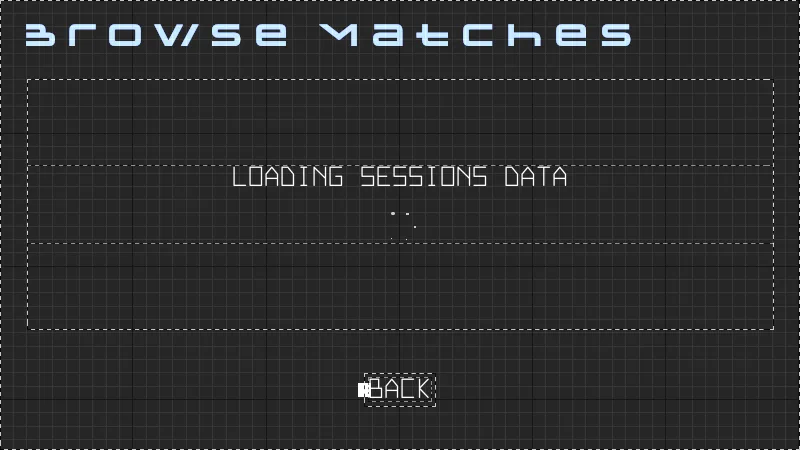
- Browse Loading: セッション閲覧の読み込み状態を表示します。
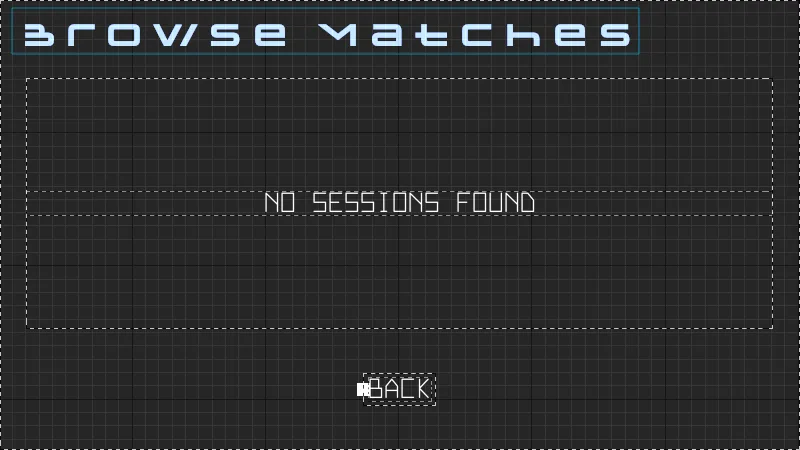
- Browse Empty: 現在利用可能なセッションがないことを示すテキストを表示します。
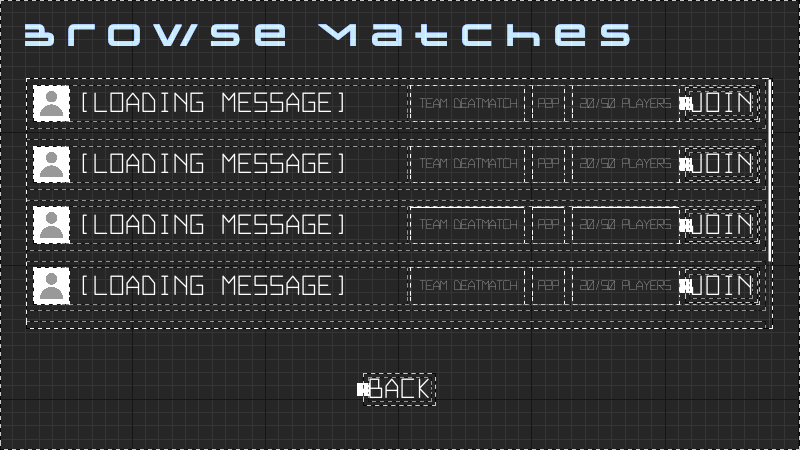
- Browse Not Empty: 利用可能なすべてのセッションのリストと、それぞれの参加ボタンを表示します。
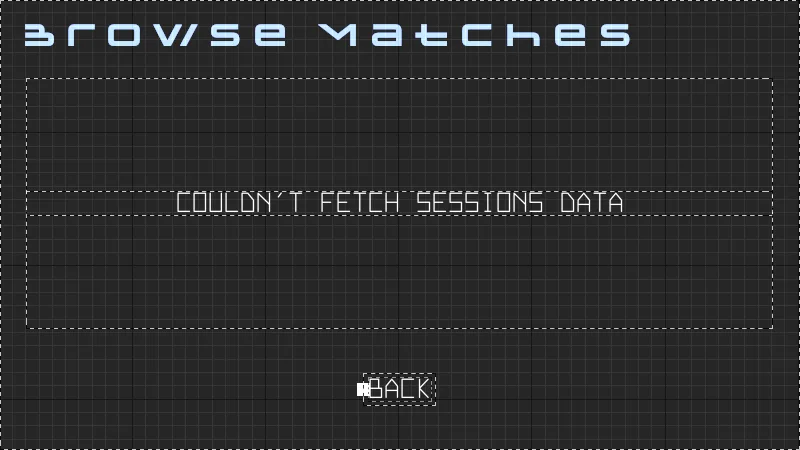
- Browse Error: セッション閲覧がエラーを返したときのエラーテキストを表示します。
- Join Loading: プレイヤーが参加ボタンをクリックしたときの現在の参加状態を表示します。
- Join Error: セッション参加がエラーを返したときのエラーテキストを表示します。
状態の変更は、Unreal Motion Graphics の Widget Switcher と AccelByteWars Widget Switcher の組み合わせを使用して可能になります。AccelByteWars Widget Switcher は、empty、loading、error、success という事前定義された状態を持つカスタム Widget Switcher です。以下は、ヘッダーファイルで言及されているコンポーネントの宣言です:
private:
// ...
	UPROPERTY(BlueprintReadOnly, meta = (BindWidget, BlueprintProtected = true, AllowPrivateAccess = true))
	UWidgetSwitcher* Ws_Root;
// ...
	UPROPERTY(BlueprintReadOnly, meta = (BindWidget, BlueprintProtected = true, AllowPrivateAccess = true))
	UAccelByteWarsWidgetSwitcher* Ws_Browse_Content;

	UPROPERTY(BlueprintReadOnly, meta = (BindWidget, BlueprintProtected = true, AllowPrivateAccess = true))
	UAccelByteWarsWidgetSwitcher* Ws_Joining;
状態を切り替えるために、Browse Match ウィジェットには次の関数があります。
void UBrowseMatchWidget::SwitchContent(const EContentType Type)
{
	bool bBrowseMenu = false;
	EAccelByteWarsWidgetSwitcherState State = EAccelByteWarsWidgetSwitcherState::Loading;

	bool bJoin_ShowBackButton = false;

	UWidget* FocusTarget = Btn_Back;

	switch (Type)
	{
	case EContentType::BROWSE_LOADING:
		bBrowseMenu = true;
		State = EAccelByteWarsWidgetSwitcherState::Loading;
		CameraTargetY = 600.0f;
		FocusTarget = Btn_Back;
		break;
	case EContentType::BROWSE_EMPTY:
		bBrowseMenu = true;
		State = EAccelByteWarsWidgetSwitcherState::Empty;
		CameraTargetY = 600.0f;
		FocusTarget = Btn_Back;
		break;
	case EContentType::BROWSE_NOT_EMPTY:
		bBrowseMenu = true;
		State = EAccelByteWarsWidgetSwitcherState::Not_Empty;
		CameraTargetY = 600.0f;
		FocusTarget = Lv_Sessions;
		break;
	case EContentType::BROWSE_ERROR:
		bBrowseMenu = true;
		State = EAccelByteWarsWidgetSwitcherState::Error;
		CameraTargetY = 600.0f;
		FocusTarget = W_ActionButtonsOuter->HasAnyChildren() ? W_ActionButtonsOuter->GetChildAt(0) : Btn_Back;
		break;
	case EContentType::JOIN_LOADING:
		bBrowseMenu = false;
		State = EAccelByteWarsWidgetSwitcherState::Loading;
		bJoin_ShowBackButton = false;
		CameraTargetY = 750.0f;
		FocusTarget = Ws_Joining;
		break;
	case EContentType::JOIN_ERROR:
		bBrowseMenu = false;
		State = EAccelByteWarsWidgetSwitcherState::Error;
		bJoin_ShowBackButton = true;
		CameraTargetY = 750.0f;
		FocusTarget = Btn_Joining_Back;
		break;
	}

	// Display the target widget. If the last switcher is different, enable force state to directly display the correct initial state.
	UWidget* TargetWidget = bBrowseMenu ? W_Browse_Outer : W_Joining_Outer;
	const bool bForceState = Ws_Root->GetActiveWidget() != TargetWidget;
	Ws_Root->SetActiveWidget(TargetWidget);
	UAccelByteWarsWidgetSwitcher* TargetWidgetSwitcher = bBrowseMenu ? Ws_Browse_Content : Ws_Joining;
	if (bBrowseMenu)
	{
		Ws_Browse_Content->SetWidgetState(State, bForceState);
	}
	else
	{
		Btn_Joining_Back->SetVisibility(bJoin_ShowBackButton ? ESlateVisibility::Visible : ESlateVisibility::Collapsed);
		Ws_Joining->SetWidgetState(State, bForceState);
	}

	// Refresh widget focus.
	DesiredFocusTargetButton = FocusTarget;
	FocusTarget->SetUserFocus(GetOwningPlayer());
	RequestRefreshFocus();

	// Set FTUE
	if (Type == EContentType::BROWSE_EMPTY || Type == EContentType::BROWSE_NOT_EMPTY)
	{
		InitializeFTUEDialogues(true);
	}
	else
	{
		DeinitializeFTUEDialogues();
	}
}
BrowseMatchWidget ヘッダーファイルを見てください。W_ActionButtonsOuter という変数が表示されます。これは、このモジュールで後ほど準備する Browse Match DS ウィジェットを格納する Panel Widget です。
private:
// ...
	UPROPERTY(BlueprintReadOnly, meta = (BindWidget, BlueprintProtected = true, AllowPrivateAccess = true))
	UPanelWidget* W_ActionButtonsOuter;
Browse Loading 状態
この状態は、任意のメッセージに設定できるテキストで構成されています。これを行うには、SwitchContent(EContentType::BROWSE_LOADING) を呼び出す直前に、const bool bBrowse パラメータを true にして SetLoadingMessage を呼び出します。
void UBrowseMatchWidget::SetLoadingMessage(const FText& Text, const bool bBrowse, const bool bEnableCancelButton) const
{
	if (bBrowse)
	{
		Ws_Browse_Content->LoadingMessage = Text;
	}
	else
	{
		Ws_Joining->LoadingMessage = Text;
		Ws_Joining->bEnableCancelButton = bEnableCancelButton;
	}
}
Browse Empty 状態
この状態は、現在利用可能なセッションがないことを示す静的テキストで構成されています。
Browse Not Empty 状態
ここでは、プレイヤーは利用可能なすべてのセッションのリストを表示し、そのうちの1つに参加できます。これは List View のみで構成されており、そのポインタは GetListViewWidgetComponent を使用して取得できます。UMatchSessionData という UObject は、List View のエントリウィジェットにデータを渡すために AccelByteWarsOnlineSessionModels.h にあります。
public:
// ...
	UListView* GetListViewWidgetComponent() const { return Lv_Sessions; }
Browse Error 状態
この状態は、任意のメッセージに設定できるテキストエラーメッセージで構成されています。これを行うには、SwitchContent(EContentType::BROWSE_ERROR) を呼び出す直前に、const bool bBrowse パラメータを true にして SetErrorMessage を呼び出します。
void UBrowseMatchWidget::SetErrorMessage(const FText& Text, const bool bBrowse) const
{
	if (bBrowse)
	{
		Ws_Browse_Content->ErrorMessage = Text;
	}
	else
	{
		Ws_Joining->ErrorMessage = Text;
	}
}
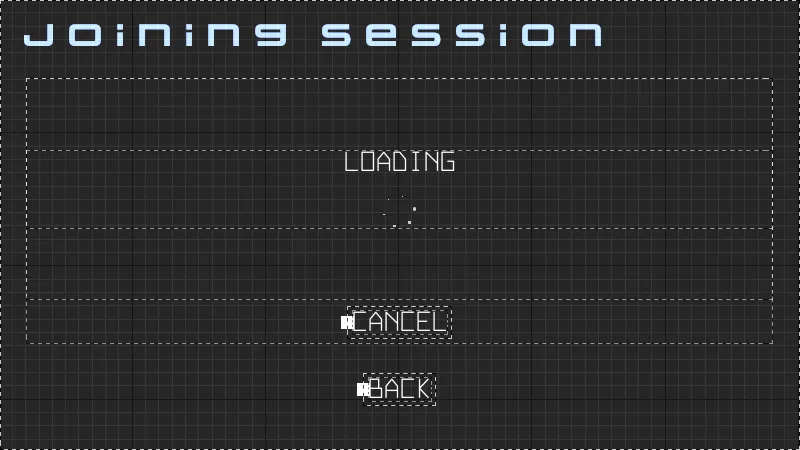
Join Loading 状態
この状態は、キャンセルボタンと任意のメッセージに設定できるテキストで構成されています。これを行うには、Browse Loading 状態と同じ方法で SetLoadingMessage を呼び出しますが、SwitchContent(EContentType::BROWSE_LOADING) を呼び出す直前に const bool bBrowse パラメータを false に設定します。
Join Error 状態
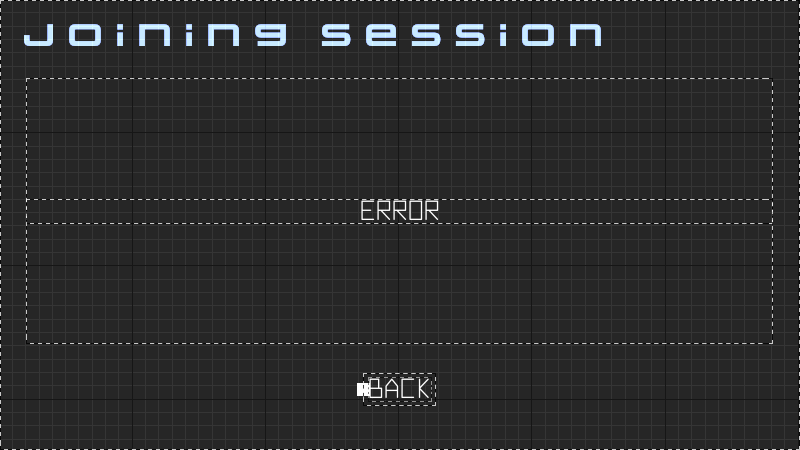
任意のメッセージに設定できるエラーメッセージで構成されています。これを行うには、SwitchContent(EContentType::JOIN_ERROR) を呼び出す直前に、const bool bBrowse パラメータを false にして SetErrorMessage を呼び出します。
Browse Match DS について
Browse Match DS ウィジェットは、Browse Match メニュー内に生成される1つのボタンのみで構成されています。このウィジェットは、Browse Match メニューウィジェットを制御する責任を持ちます。
Browse Match DS ウィジェットは2つの部分で構成されています:
BrowseMatchDSWidget_Starter: ほとんどの実装が行われる C++ クラス。- ヘッダーファイル:
\Source\AccelByteWars\TutorialModules\Play\MatchSessionDS\UI\BrowseMatchDSWidget_Starter.h - CPP ファイル:
\Source\AccelByteWars\TutorialModules\MatchSessionDS\UI\BrowseMatchDSWidget_Starter.cpp
- ヘッダーファイル:
W_BrowseMatchDS_Starter: Unreal Motion Graphics (UMG) を使用して作成および設計されたウィジェット Blueprint クラス。- ウィジェット Blueprint ファイル:
\Content\TutorialModules\MatchSessionDS\UI\W_BrowseMatchDS_Starter.uasset
- ウィジェット Blueprint ファイル:
ヘッダーファイルには、セッション機能へのゲートウェイである OnlineSession、ボタン自体、および親ウィジェットへのポインタが表示されます。
protected:
// ...
	UPROPERTY()
	UAccelByteWarsOnlineSessionBase* OnlineSession;
private:
	UPROPERTY(BlueprintReadOnly, meta = (BindWidget, BlueprintProtected = true, AllowPrivateAccess = true))
	UCommonButtonBase* Btn_Refresh;

	UPROPERTY()
	UBrowseMatchWidget* W_Parent;
Online Session クラスと親ウィジェットを割り当てるコードは、NativeOnActivated() 関数で確認できます。
void UBrowseMatchDSWidget_Starter::NativeOnActivated()
{
// ...
	// Get online session
	UOnlineSession* BaseOnlineSession = GetWorld()->GetGameInstance()->GetOnlineSession();
	if (!ensure(BaseOnlineSession))
	{
		return;
	}
	OnlineSession = Cast<UAccelByteWarsOnlineSessionBase>(BaseOnlineSession);
	ensure(OnlineSession);

	// Get parent menu widget
	W_Parent = GetFirstOccurenceOuter<UBrowseMatchWidget>();
	if (!ensure(W_Parent))
	{
		return;
	}
// ...
}
以下は、Browse Match DS ウィジェットのプレビューです:

Browse Match DS ウィジェットを準備する
Browse Match DS ウィジェットに必要な機能は、Browse Session、Cancel Joining Session、および Join Session です。これらの機能のためにウィジェットを準備します。
-
BrowseMatchDSWidget_Starterヘッダーファイルを開き、次の関数宣言を追加します:protected:
void FindSessions(const bool bForce) const;
void OnFindSessionComplete(const TArray<FMatchSessionEssentialInfo> SessionEssentialsInfo, bool bSucceeded); -
BrowseMatchDSWidget_StarterCPP ファイルを開き、以下の実装を追加します。FindSessions()では、Browse Match メニューウィジェットの状態を Browse Loading 状態に変更します。OnCreateSessionComplete()が成功し、SessionEssentialsInfo配列が空でない場合は、メニューウィジェットの状態を Browse Not Empty に遷移し、親ウィジェットの List View にデータを入力します。成功したがSessionEssentialsInfoが空の場合は、Browse Empty 状態に遷移します。それ以外の場合は、Browse Error 状態に遷移します。void UBrowseMatchDSWidget_Starter::FindSessions(const bool bForce) const
{
W_Parent->SetLoadingMessage(TEXT_LOADING_DATA, true, false);
W_Parent->SwitchContent(UBrowseMatchWidget::EContentType::BROWSE_LOADING);
Btn_Refresh->SetIsEnabled(false);
// ...
}void UBrowseMatchDSWidget_Starter::OnFindSessionComplete(const TArray<FMatchSessionEssentialInfo> SessionEssentialsInfo, bool bSucceeded)
{
Btn_Refresh->SetIsEnabled(true);
if (bSucceeded)
{
if (SessionEssentialsInfo.IsEmpty())
{
W_Parent->SwitchContent(UBrowseMatchWidget::EContentType::BROWSE_EMPTY);
}
else
{
TArray<UMatchSessionData*> MatchSessionDatas;
for (const FMatchSessionEssentialInfo& SessionEssentialInfo : SessionEssentialsInfo)
{
UMatchSessionData* MatchSessionData = NewObject<UMatchSessionData>();
MatchSessionData->SessionEssentialInfo = SessionEssentialInfo;
MatchSessionData->OnJoinButtonClicked.BindUObject(this, &ThisClass::JoinSession);
MatchSessionDatas.Add(MatchSessionData);
}
W_Parent->GetListViewWidgetComponent()->ClearListItems();
W_Parent->GetListViewWidgetComponent()->SetListItems<UMatchSessionData*>(MatchSessionDatas);
W_Parent->SwitchContent(UBrowseMatchWidget::EContentType::BROWSE_NOT_EMPTY);
}
}
else
{
W_Parent->SetErrorMessage(TEXT_FAILED_TO_RETRIEVE_DATA, true);
W_Parent->SwitchContent(UBrowseMatchWidget::EContentType::BROWSE_ERROR);
}
} -
参加をキャンセルする機能については、
BrowseMatchDSWidget_Starterヘッダーファイルに戻り、次の関数宣言を追加します:protected:
// ...
void CancelJoining() const;
void OnCancelJoiningComplete(FName SessionName, bool bSucceeded) const; -
BrowseMatchDSWidget_StarterCPP ファイルを開き、以下の関数実装を追加します。CancelJoiningSession()では、キャンセルボタンを無効にした状態でメニューの状態を Join Loading に変更します。OnCancelJoiningSessionComplete()が成功した場合は、Browse Not Empty 状態に戻ります。それ以外の場合は、Join Error 状態に遷移します。void UBrowseMatchDSWidget_Starter::CancelJoining() const
{
W_Parent->SetLoadingMessage(TEXT_LEAVING_SESSION, false, false);
W_Parent->SwitchContent(UBrowseMatchWidget::EContentType::JOIN_LOADING);
// ...
}void UBrowseMatchDSWidget_Starter::OnCancelJoiningComplete(FName SessionName, bool bSucceeded) const
{
// Abort if not a game session.
if (!SessionName.IsEqual(OnlineSession->GetPredefinedSessionNameFromType(EAccelByteV2SessionType::GameSession)))
{
return;
}
if (bSucceeded)
{
W_Parent->SwitchContent(UBrowseMatchWidget::EContentType::BROWSE_NOT_EMPTY);
}
else
{
W_Parent->SetErrorMessage(TEXT_FAILED_TO_LEAVE_SESSION, false);
W_Parent->SwitchContent(UBrowseMatchWidget::EContentType::JOIN_ERROR);
}
} -
セッション参加の UI ロジックを実装します。
BrowseMatchDSWidget_Starterヘッダーファイルに戻り、次の関数宣言を追加します:protected:
// ...
void JoinSession(const FOnlineSessionSearchResult&SessionSearchResult) const;
void OnJoinSessionComplete(FName SessionName, EOnJoinSessionCompleteResult::Type CompletionType) const; -
BrowseMatchDSWidget_StarterCPP ファイルを開き、以下の実装を追加します。JoinSession()は、メニューウィジェットを Join Loading 状態に遷移します。OnJoinSessionComplete()は、失敗しない限り何もしませんが、失敗した場合は Join Error に遷移し、エラーメッセージにエラータイプを表示します。void UBrowseMatchDSWidget_Starter::JoinSession(const FOnlineSessionSearchResult& SessionSearchResult) const
{
if (OnlineSession->ValidateToJoinSession.IsBound() &&
!OnlineSession->ValidateToJoinSession.Execute(SessionSearchResult))
{
return;
}
W_Parent->SetLoadingMessage(TEXT_JOINING_SESSION, false, false);
W_Parent->SwitchContent(UBrowseMatchWidget::EContentType::JOIN_LOADING);
// ...
}void UBrowseMatchDSWidget_Starter::OnJoinSessionComplete(
FName SessionName,
EOnJoinSessionCompleteResult::Type CompletionType) const
{
// Abort if not a game session.
if (!SessionName.IsEqual(OnlineSession->GetPredefinedSessionNameFromType(EAccelByteV2SessionType::GameSession)))
{
return;
}
bool bSucceeded;
FText ErrorMessage;
switch (CompletionType)
{
case EOnJoinSessionCompleteResult::Success:
bSucceeded = true;
ErrorMessage = FText();
break;
case EOnJoinSessionCompleteResult::SessionIsFull:
bSucceeded = false;
ErrorMessage = TEXT_FAILED_SESSION_FULL;
break;
case EOnJoinSessionCompleteResult::SessionDoesNotExist:
bSucceeded = false;
ErrorMessage = TEXT_FAILED_SESSION_NULL;
break;
case EOnJoinSessionCompleteResult::CouldNotRetrieveAddress:
bSucceeded = false;
ErrorMessage = TEXT_FAILED_TO_JOIN_SESSION;
break;
case EOnJoinSessionCompleteResult::AlreadyInSession:
bSucceeded = false;
ErrorMessage = TEXT_FAILED_ALREADY_IN_SESSION;
break;
case EOnJoinSessionCompleteResult::UnknownError:
bSucceeded = false;
ErrorMessage = TEXT_FAILED_TO_JOIN_SESSION;
break;
default:
bSucceeded = true;
ErrorMessage = FText();
}
W_Parent->SetErrorMessage(ErrorMessage, false);
W_Parent->SetLoadingMessage(TEXT_JOINING_SESSION, false, true);
W_Parent->SwitchContent(bSucceeded ?
UBrowseMatchWidget::EContentType::JOIN_LOADING :
UBrowseMatchWidget::EContentType::JOIN_ERROR);
} -
専用サーバーの準備ができたとき、またはエラーが発生したときにプレイヤーに知らせることもできます。
BrowseMatchDSWidget_Starterヘッダーファイルに戻り、この関数宣言を追加します:protected:
// ...
void OnSessionServerUpdateReceived(
const FName SessionName,
const FOnlineError& Error,
const bool bHasClientTravelTriggered) const; -
BrowseMatchDSWidget_StarterCPP ファイルを開き、以下の関数実装を追加します。この関数が成功した場合は、読み込みメッセージを変更します。それ以外の場合は、エラーを表示します。void UBrowseMatchDSWidget_Starter::OnSessionServerUpdateReceived(
const FName SessionName,
const FOnlineError& Error,
const bool bHasClientTravelTriggered) const
{
// Abort if not a game session.
if (!SessionName.IsEqual(OnlineSession->GetPredefinedSessionNameFromType(EAccelByteV2SessionType::GameSession)))
{
return;
}
if (Error.bSucceeded && !bHasClientTravelTriggered)
{
// Keep showing the loading state until the client travels to the server.
W_Parent->SetLoadingMessage(TEXT_JOINING_SESSION, false, false);
W_Parent->SwitchContent(UBrowseMatchWidget::EContentType::JOIN_LOADING);
}
else if (!bHasClientTravelTriggered && !Error.bSucceeded)
{
W_Parent->SetErrorMessage(TEXT_FAILED_TO_JOIN_SESSION, false);
W_Parent->SwitchContent(UBrowseMatchWidget::EContentType::JOIN_ERROR);
}
} -
すべての関数が宣言および実装されたら、ウィジェットコンポーネントをこれらの関数にバインドします。
BrowseMatchDSWidget_StarterCPP ファイルで、NativeOnActivated()関数に移動し、以下のコードを追加します。この関数でFindSessions()が呼び出されていることに注意してください。これにより、プレイヤーがメニューウィジェットを開くたびにその関数がトリガーされます。void UBrowseMatchDSWidget_Starter::NativeOnActivated()
{
// ...
Btn_Refresh->OnClicked().AddUObject(this, &ThisClass::FindSessions, true);
W_Parent->GetJoiningWidgetComponent()->OnCancelClicked.AddUObject(this, &ThisClass::CancelJoining);
FindSessions(false);
} -
バインディングが完了したら、ウィジェットが使用されなくなったときにバインドを解除するコードを実装します。CPP ファイルで、
NativeOnDeactivated()に移動し、次のコードを追加します。void UBrowseMatchDSWidget_Starter::NativeOnDeactivated()
{
// ...
Btn_Refresh->OnClicked().RemoveAll(this);
W_Parent->GetJoiningWidgetComponent()->OnCancelClicked.RemoveAll(this);
} -
次に、プロジェクトをビルドし、Unreal Editor で開きます。
-
Unreal Editor で、Content Browser から
Content\TutorialModules\Play\MatchSessionDS\UI\に移動し、W_BrowseMatchDS_Starterを開きます。Bind Widgets タブですべてのウィジェットが適切にバインドされており、Parent class がBrowseMatchDSWidget_Starterに設定されていることを確認します。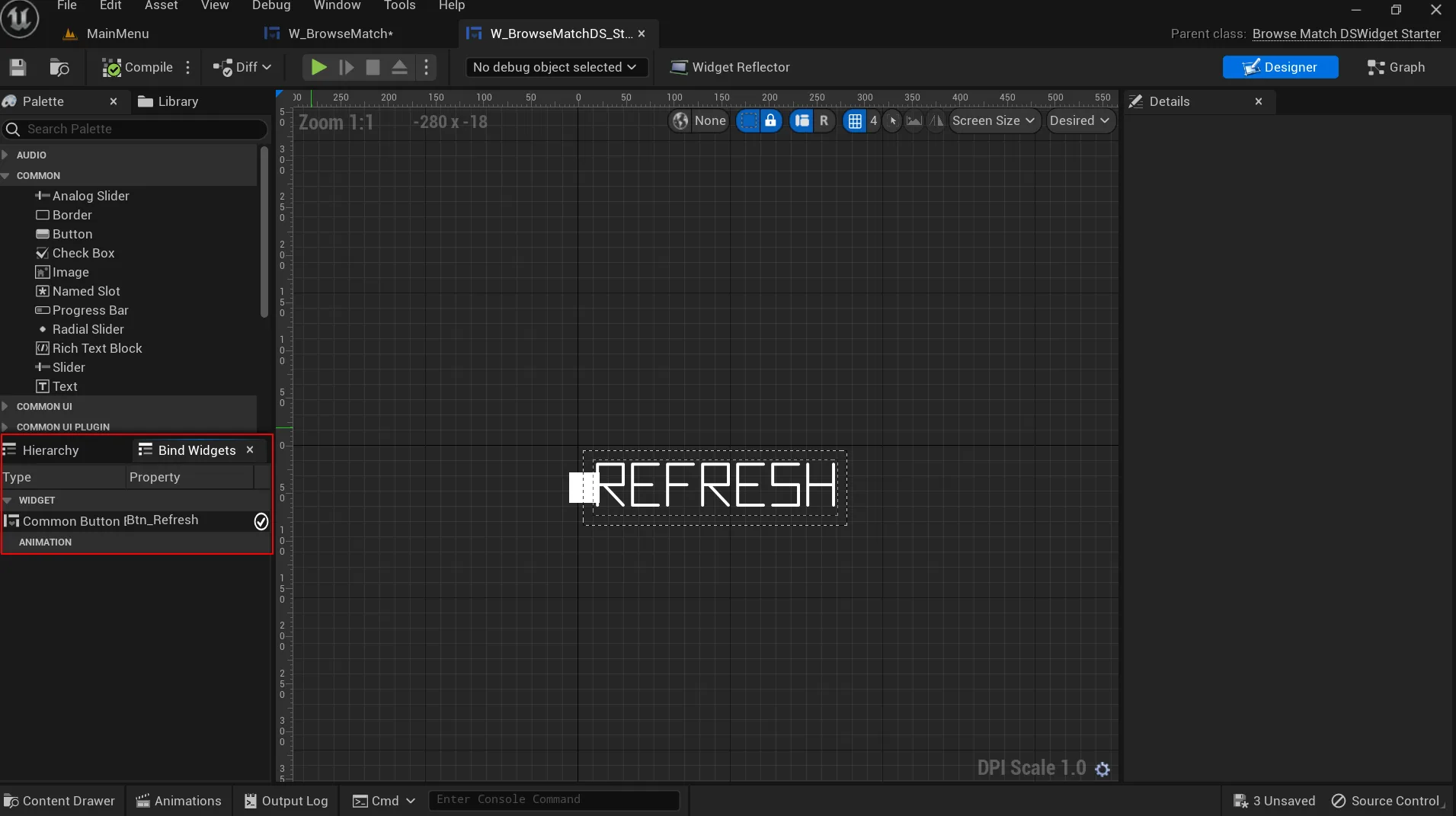
-
Content\TutorialModules\Play\MatchSessionDS\DA_MatchSessionDSEssentials.uassetを開き、Is Starter Mode Activeを有効にします。Data Asset を保存します。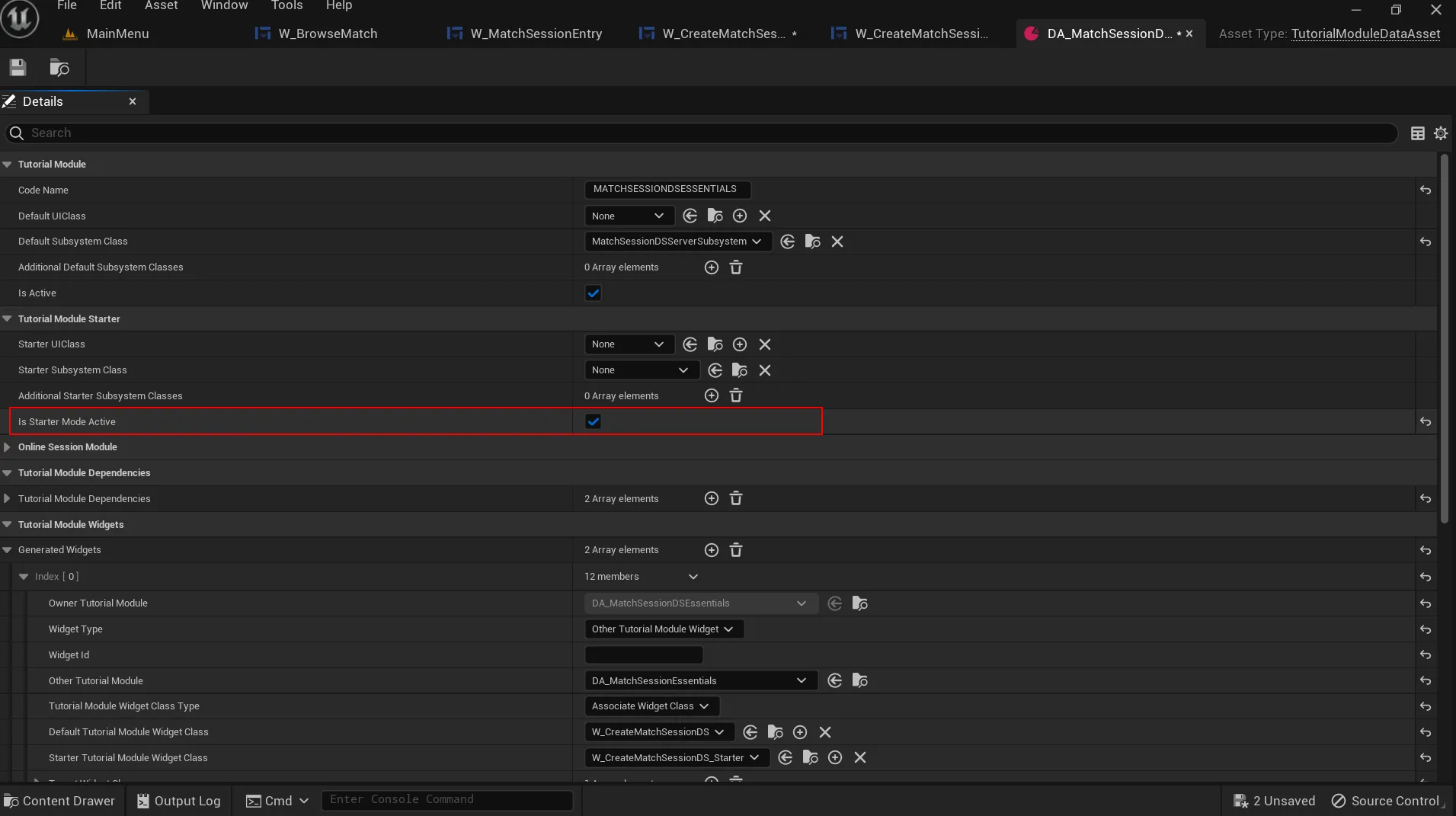
-
エディタで Play をクリックします。Online Play > Play Online > Browse Match に移動します。正しく実装されていれば、UI が表示されます。
リソース
- このチュートリアルセクションで使用されているファイルは、Byte Wars GitHub リポジトリで利用できます。
- AccelByteWars/Content/TutorialModules/Play/MatchSessionDS/UI/W_BrowseMatchDS_Starter.uasset
- AccelByteWars/Source/AccelByteWars/TutorialModules/Play/MatchSessionDS/UI/BrowseMatchDSWidget_Starter.h
- AccelByteWars/Source/AccelByteWars/TutorialModules/Play/MatchSessionDS/UI/BrowseMatchDSWidget_Starter.cpp
- AccelByteWars/Content/TutorialModules/Play/MatchSessionDS/UI/DA_MatchSessionDSEssentials.uasset