Ban and restrict accounts
Introduction
The user ban feature allows you to restrict a user's access to your game or specific features in your game. You can ban players and lift existing bans in the AccelByte Gaming Services (AGS) Admin Portal or with the AGS CLI.
AGS allows you to impose the following banning methods:
- Account Ban: Revoke the access and refresh tokens of banned players and restrict their access to the platform. An Account Ban has two restrictions:
LOGIN: Block the player from logging in at all.GAMEPLAY_BLOCKED: Block the player from gameplay while still allowing them to log in with a minimal set of permissions, such as access to personal data and GDPR-related requests.
- Feature Ban: Restrict a player's access to a selected feature, such as chat or matchmaking.
- Device Ban: Block a specific device using its unique ID. Any player who logs in on that device is blocked, regardless of which account they use.
All ban actions, except Device Ban, will revoke existing access tokens.
- If it's an Account Ban, the refresh_token will also be revoked. This means the user can't use a refresh_token to get a new access token.
- With the
LOGINrestriction, the user also can't log in using their credentials. - With the
GAMEPLAY_BLOCKEDrestriction, the user must log in again and receives only a minimal set of permissions. For more information, see Account Ban restrictions.
- With the
- If it's a Feature Ban, the refresh_token will still be valid. This means the user can use the refresh_token to get a new access token that reflects the latest ban state. The AGS Game SDK handles this refresh automatically.
- If the ban is on the game namespace, it will only affect that game namespace.
- If the ban is on the publisher namespace, it will affect both the publisher and the game namespace.
Account Ban restrictions
An Account Ban has two restrictions. Choose the one that matches how much access you want the player to keep.
| Restriction | Description |
|---|---|
LOGIN | Player's account is prohibited from logging in to the platform, preventing access to the system entirely, including personal data such as GDPR-related requests. |
GAMEPLAY_BLOCKED | Player's gameplay access is blocked entirely. Login is still permitted with a basic set of permissions to allow access to personal data, such as GDPR-related requests. |
Both restrictions revoke the player's existing access and refresh tokens. With LOGIN, the player can't log in at all. With GAMEPLAY_BLOCKED, the player logs in again and gets a token with a minimal set of permissions. They can't call gameplay APIs, but they can still submit a personal data request or delete their own account.
Ideally, use GAMEPLAY_BLOCKED if you need to honor player privacy requirements, such as GDPR. With it, the player can still log in, so your game client can offer a privacy UI for self-service data access and deletion. With LOGIN, players are blocked entirely from game access, so your support team must handle those requests on the player's behalf.
Your game client could detect GAMEPLAY_BLOCKED after login and route the player to your privacy screens. For more information, see Manage User Data Portability & Erasure. For the game client implementation, see Check whether a player is blocked from gameplay.
Prerequisites
-
Make sure you have access to the Admin Portal.
-
In Private Cloud, make sure you have the following permissions:
Usage Permissions Action Ban a player ADMIN:NAMESPACE:{namespace}:BAN:USER:{userId}CREATEEnable or disable a player's Ban ADMIN:NAMESPACE:{namespace}:BAN:USER:{userId}UPDATERetrieve ban types and reasons ADMIN:BANREADView a player's devices and device bans ADMIN:NAMESPACE:{namespace}:DEVICEREADBan a device ADMIN:NAMESPACE:{namespace}:DEVICECREATEEnable or disable a device ban ADMIN:NAMESPACE:{namespace}:DEVICEUPDATE -
To follow the AGS CLI steps, you have installed the AGS CLI and signed in with an account that has the permissions above. See Install and sign in. The examples use a Bash shell.
Ban scope
-
If you ban a player at the publisher namespace level, the ban will apply to all the namespaces in it.
AGS Public CloudIn Public Cloud tier, this applies to the studio namespace, which has the same function as the publisher namespace in the Private Cloud tier.
-
If you ban a player at the game namespace level, the ban only applies to the specific game namespace.
Ban a player by account
- Admin Portal
- AGS CLI
-
On the Admin Portal sidebar, go to Foundations > Users.
-
Search for the player you want to ban using the corresponding credentials.
-
Click View in Action to open the account. The user account details appear.
-
Click Bans, and then click Add Ban to ban the selected user.

The Add Ban settings appear.
Find the player's userId. See Search for a user.
Add the user ban details
- Admin Portal
- AGS CLI
-
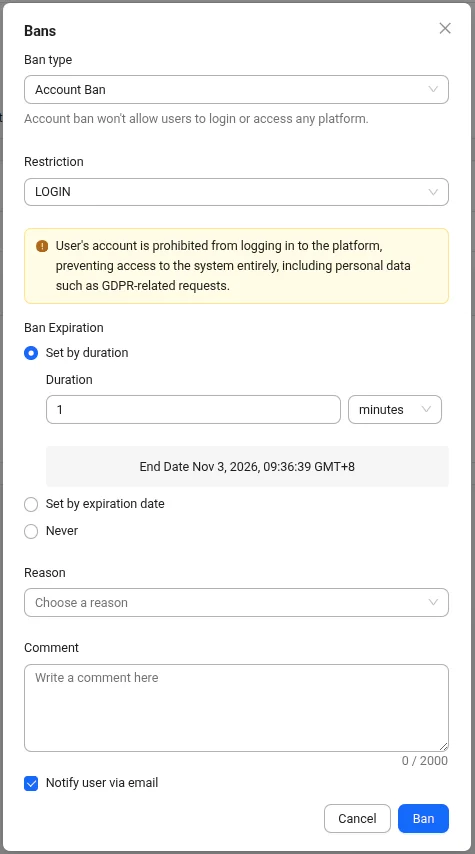
Choose the Ban type, and then choose the Restriction.
Account Ban Details
If you choose Account Ban, you must choose one of two restrictions:
LOGINorGAMEPLAY_BLOCKED. For more information, see Account Ban restrictions.Feature Ban Details
If you choose Feature Ban, you must choose the feature you want to restrict. A list of the features that players can be banned from can be found in the following table.
Feature Restriction Description CHAT_SENDPlayer is banned from sending a message CHAT_ALLPlayer is banned from both sending and receiving messages ORDER_AND_PAYMENTPlayer is banned from making purchases in-game STATISTICSPlayer will not have their statistics recorded LEADERBOARDPlayer will not appear on any leaderboards MATCHMAKINGPlayer is banned from matchmaking -
In Ban Expiration, select one of the following:
-
Set by duration: Enter the number of minutes, hours, or days you want the player to be banned for. The ban expires after this duration.
-
Set by expiration date: Enter the date and time you want the ban to expire.
-
Never: Set a permanent ban.
-
-
In Reason, choose a reason for the ban.
Reason Details
The following table lists the reasons available for a ban:
Reason Description VIOLENCEPlayer is banned for posting violent content HARASSMENTPlayer is banned for harassing other players HATEFUL_CONDUCTPlayer is banned for acting hatefully towards other players OFFENSIVE_USERNAMEPlayer is banned for having an offensive username IMPERSONATIONPlayer is banned for impersonating other players MALICIOUS_CONTENTPlayer is banned for posting malicious content such as spam, scams, etc. SEXUALLY_SUGGESTIVEPlayer is banned for posting sexually explicit or suggestive content SEXUAL_VIOLENCEPlayer is banned for acting sexually violent or exploiting other players EXTREME_VIOLENCEPlayer is banned for extremely violent content, such as gore UNDERAGE_USERPlayer is banned for being underage CHEATINGPlayer is banned for cheating TOS_VIOLATIONPlayer is banned for violating the Terms of Service -
Type a comment to include any relevant information about the ban.
-
Select the Notify user via email checkbox to send a ban notification to the player via email.
importantPlayers that log into your game using third-party credentials may only have a headless account in the Admin Portal. This means their account won't have an associated email address. Only players that have registered an account in your game (or platform), or have upgraded their headless account by registering an email address in your game, will be able to receive an email notification if they're banned. For more information, see How accounts work.
Ban email example

-
Click Ban. The new ban appears in the Bans list.

-
Find the ban to apply. For each entry,
typeshows whether it's an Account Ban or a Feature Ban, andbanis the value to send, such asLOGIN,GAMEPLAY_BLOCKED, orCHAT_SEND:ags iam bans list-types --namespace <YourNamespace> -
Find the reason for the ban. Copy its
reason, such asCHEATING:ags iam bans list-reasons -
Create a JSON file with the ban details. Any file name works. This example uses
ban.json:{
"ban": "<Ban>",
"reason": "<Reason>",
"endDate": "<EndDate>",
"comment": "<Comment>",
"skipNotif": false
}ban: thebanvalue from step 1.reason: thereasonfrom step 2.endDate: when the ban expires, as a UTC date and time in ISO 8601 format, such as2026-12-31T00:00:00Z. For a ban that never expires, use2099-12-31T00:00:00Z, the date that the Admin Portal uses for Never.skipNotif:falsesends the player a ban notification email, the same as Notify user via email. To not send the email, set it totrue.
-
Ban the player. After
@, pass the path to your JSON file:ags iam users ban --namespace <YourNamespace> --user-id <UserId> --json @ban.json
Ban a player by device
A Device Ban blocks a specific device using its unique ID. Any player who logs in on a banned device is blocked, regardless of which account they use. Unlike an Account Ban, which applies to a single player account, a Device Ban applies to the device itself.
The device ban feature is only available in game namespaces.
- Admin Portal
- AGS CLI
-
On the Admin Portal sidebar, go to Foundations > Users.
-
Search for the player you want to ban using their credentials. The search results appear.

-
Click View in Action to open the account. The user account details appear.

-
Click Bans, and then click Add Ban to ban the selected user. The Add Ban settings appear.

Find the player's userId. See Search for a user.
Add the device ban details
- Admin Portal
- AGS CLI
-
In Ban type, choose Device Ban.
-
In Device ID, choose the device you want to ban. A list of the devices used to log in by this player appears in this menu.
-
In Ban Expiration, select one of the following:
- Set by duration: Enter the number of minutes, hours, or days you want the player to be banned for. The ban expires after this duration.
- Set by expiration date: Enter the date and time you want the ban to expire.
- Never: Set a permanent ban.
-
In Reason, choose a reason for the ban dropdown list.
-
Type a Comment to include any relevant information about the ban.
-
Click Ban. The ban appears in the Bans list.
-
List the devices that the player used to log in. Copy the
deviceId,deviceType, andextof the device that you want to ban:ags iam devices list --namespace <YourGameNamespace> --user-id <UserId> -
Find the reason for the ban. Copy its
reason, such asCHEATING:ags iam bans list-reasons -
Create a JSON file with the ban details. Any file name works. This example uses
device-ban.json:{
"deviceId": "<DeviceId>",
"deviceType": "<DeviceType>",
"ext": {},
"reason": "<Reason>",
"endDate": "<EndDate>",
"comment": "<Comment>",
"enabled": true
}deviceId,deviceType, andext: the device's values from step 1. If the device has noext, keep{}.reason: thereasonfrom step 2.endDate: when the ban expires, as a UTC date and time in ISO 8601 format, such as2026-12-31T00:00:00Z. For a ban that never expires, use2099-12-31T00:00:00Z, the date that the Admin Portal uses for Never.
-
Ban the device. After
@, pass the path to your JSON file:ags iam devices ban --namespace <YourGameNamespace> --json @device-ban.json
Enable and disable ban
You can reactivate an expired or disabled ban on a player, or lift an existing ban on a player. To do this:
- Admin Portal
- AGS CLI
-
On the Admin Portal sidebar, go to Foundations > Users.
-
Search the user account to view the account edit history. The search results appear.
-
Browse the list to find the account you are looking for and click View in the Action column of the account listing to open it.
-
Click Bans to ban the selected user. All the bans that have ever been applied to the player are displayed.
-
Click Disable under the Action column of the selected ban to disable the ban or click Enable under the Action column to enable the selected ban.

-
The Disable Ban confirmation message appears. Click Enable or Disable to ban or un-ban the player.

-
After you disable the ban, the player will be able to access the game or the feature they were banned from. If you enable a ban for a player, the player will now be banned from accessing the game or from the specific feature.
-
Find the player's
userId. See Search for a user. -
List the player's bans. The
enabledfield shows whether each ban is active.-
For account and feature bans, copy the
banIdof the ban:ags iam users list-bans --namespace <YourNamespace> --user-id <UserId> -
For device bans, copy the
idof the ban:ags iam devices list-banned-user --namespace <YourGameNamespace> --user-id <UserId>
-
-
Enable or disable the ban. Set
enabledtotrueto enable the ban or tofalseto disable it.-
For an account or feature ban, replace
<BanId>with thebanIdfrom step 2. SettingskipNotiftofalsesends the player an email, the same as Notify user via email. To not send the email, set it totrue.ags iam users update-ban --namespace <YourNamespace> --user-id <UserId> --ban-id <BanId> \
--json '{"enabled": false, "skipNotif": false}' -
For a device ban, replace
<BanId>with theidfrom step 2:ags iam devices update-banned --namespace <YourGameNamespace> --ban-id <BanId> --json '{"enabled": false}'
-
Ban or un-ban a player server-side
Use the following server-side code to ban a player.
- Unity
- C# Extend SDK
- Go Extend SDK
- Java Extend SDK
- Python Extend SDK
string playerUserID = "exampleuserid2434";
BanType banType = BanType.LOGIN;
BanReason banReason = BanReason.CHEATING;
var banEndDate = System.DateTime.UtcNow.AddDays(value: 365);
banEndDate = banEndDate.AddDays(365);
string comment = "This player was caught cheating";
bool notifyUserEmail = false;
string banId = string.Empty;

AccelByteSDK.GetServerRegistry().GetApi().GetUserAccount().BanUser(playerUserID, banType, banReason, banEndDate, comment, notifyUserEmail, result =>
{
    if (!result.IsError)
    {
        Debug.Log("Success. The player is banned.");
    }
    else
    {
        Debug.Log("Failed to ban the player. Error : " + result.Error.ToString());
    }
});
string userId = "<user id>";

//ban for 1 year
string endDate = DateTime.Now.AddYears(1).ToString("o");

var response = sdk.Iam.Users.AdminBanUserV3Op
    .Execute(new ModelBanCreateRequest()
    {
        Ban = "LOGIN",
        Reason = "CHEATING",
        Comment = "This player caught cheating",
        SkipNotif = true,
        EndDate = endDate
    }, sdk.Namespace, userId);
if (response != null)
{
    string banId = response.BanId!;
    //do something when success
}
usersService := &iam.UsersService{
    Client:          factory.NewIamClient(&repository.ConfigRepositoryImpl{}),
    TokenRepository: &repository.TokenRepositoryImpl{},
}
userId := "exampleuserid2434"
ban := "LOGIN"
reason := "CHEATING"
endDate := "2024-12-31T00:00:00"
comment := "This player caught cheating"
skipNotif := true
input := &users.AdminBanUserV3Params{
    Body:      &iamclientmodels.ModelBanCreateRequest {
        Ban: &ban,
        Reason: &reason,
        EndDate: &endDate,
        Comment: &comment,
        SkipNotif: &skipNotif,
    },
    Namespace: namespace,
    UserID:    userId,
}
result, err := usersService.AdminBanUserV3Short(input)
Users usersWrapper = new Users(sdk);

String userId = "<user id>";
//ban for 1 year
LocalDateTime now = LocalDateTime.now();
LocalDateTime nextYear = now.plusYears(1);
String endDate = nextYear.format(DateTimeFormatter.ISO_LOCAL_DATE_TIME);

ModelBanCreateRequest body = ModelBanCreateRequest.builder()
    .ban("LOGIN")
    .reason("CHEATING")
    .comment("This player caught cheating")
    .skipNotif(true)
    .endDate(endDate)
    .build();
ModelUserBanResponseV3 response;
try {
    response = usersWrapper.adminBanUserV3(AdminBanUserV3.builder()
        .namespace("<namespace>")
        .userId(userId)
        .body(body)
        .build());
} catch (Exception e) {
    // Do something when failed
    return;
}

if (response == null) {
    // Null response from server
} else {
    // Do something when successful
}
result, error = iam_service.admin_ban_user_v3(
    body=iam_models.ModelBanCreateRequest()
        .with_ban("LOGIN")
        .with_comment("This player was caught cheating.")
        .with_end_date("2030-12-31T00:00:00.000Z")
        .with_reason("CHEATING")
        .with_skip_notif(False),
    user_id=user_id,
    namespace=namespace,  # optional, gets the value from the global instance if unspecified
    sdk=sdk,  # optional, gets the global instance  if unspecified
)
if error:
    exit(error)
banId could be used to unban the player.
- Unity
- C# Extend SDK
- Go Extend SDK
- Java Extend SDK
- Python Extend SDK
AccelByteSDK.GetServerRegistry().GetApi().GetUserAccount().ChangeUserBanStatus(
    userId: playerUserID,
    banId: banId,
    enabled: false,
    (result) =>
    {
        if (result.IsError)
        {
            Debug.Log("Success. Player is unbanned.");
        }
        else
        {
            Debug.Log("Failed to un-ban the player. Error : " + result.Error.ToString());
        }
    }
);
string userId = "<user id>";
string banId = "<ban id>";

var response = sdk.Iam.Users.AdminUpdateUserBanV3Op
    .Execute(new ModelBanUpdateRequest()
    {
        Enabled = false,
        SkipNotif = false
    }, banId, sdk.Namespace, userId);
if (response != null)
{
    //do something when success
}
usersService := &iam.UsersService{
    Client:          factory.NewIamClient(&repository.ConfigRepositoryImpl{}),
    TokenRepository: &repository.TokenRepositoryImpl{},
}
input := &users.AdminUpdateUserBanV3Params{
    Body:      &iamclientmodels.ModelBanUpdateRequest{
        Enabled: &enabled,
    },
    BanID:     banId,
    Namespace: namespace,
    UserID:    userId,
}
result, err := usersService.AdminUpdateUserBanV3Short(input)
Users usersWrapper = new Users(sdk);

String userId = "<user id>";
String banId = "<ban id>";
ModelBanUpdateRequest body = ModelBanUpdateRequest.builder()
    .enabled(false)
    .skipNotif(false)
    .build();
ModelUserBanResponseV3 response;
try {
    response = usersWrapper.adminUpdateUserBanV3(AdminUpdateUserBanV3.builder()
            .namespace("<namespace>")
            .userId(userId)
            .banId(banId)
            .body(body)
            .build());
} catch (Exception e) {
    // Do something when failed
    return;
}

if (response == null) {
    // Null response from server
} else {
    // Do something when successful
}
result, error = iam_service.admin_update_user_ban_v3(
    body=iam_models.ModelBanUpdateRequest()
    .with_enabled(False)
    .with_skip_notif(False),
    ban_id="BanId",
    user_id=user_id,
    namespace=namespace,  # optional, gets the value from the global instance if unspecified
    sdk=sdk,  # optional, gets the global instance  if unspecified
)
if error:
    exit(error)
Ban Notifications
Use the following code to implement ban notifications on the client side. Using this method, players can be told that they have been banned and the reason why.
- Unity
- C# Extend SDK
- Go Extend SDK
- Java Extend SDK
- Python Extend SDK
AccelByteSDK.GetClientRegistry().GetApi().GetLobby().UserBannedNotification += result =>
{
    Debug.Log("You have been banned. Reason: " + result.Value.reason);
};
LobbyService lobby = new LobbyService(sdk.Configuration);
lobby.RedirectAllReceivedMessagesToMessageReceivedEvent = true;
lobby.OnMessageReceived = (message) =>
{
    if (message.MessageType == "userBannedNotification")
    {
        //do something here
    }
};

//connect and listen to lobby websocket
await lobby.Connect(true);
connMgr := &integration.ConnectionManagerImpl{}
connection, errcon := connectionutils.NewWebsocketConnection(configRepo, tokenRepo, func(dataByte []byte) {

    msg := decodeWSMessage(string(dataByte))

    if v, ok := msg["type"]; ok {
        msgType = v
    }
    switch msgType {
    case model.TypeNotificationMessage:
    }
})
if errcon != nil {
    logrus.Error(errcon)

    return
}

connMgr.Save(connection)

lobbyService := &service.LobbyServiceWebsocket{
    ConfigRepository:  configRepo,
    TokenRepository:   tokenRepo,
    ConnectionManager: connMgr,
}
err := lobbyService.UserBannedNotification()
if err != nil {
    logrus.Error(err)

    return
}
import static net.accelbyte.sdk.core.util.Helper.parseWSM;
import static net.accelbyte.sdk.core.util.Helper.getWSMType;

final WebSocketListener listener =
    new WebSocketListener() {
        @Override
        public void onMessage(@NotNull WebSocket webSocket, @NotNull String text) {
            final Map<String, String> message = parseWSM(text);
            final String messageType = getWSMType(message);
            if (messageType.equals("userBannedNotification")) {
                // Do something here
            }
        }
    };

final int RECONNECT_DELAY_MS = 60000;  // 1m (0 to disable)
final int MAX_NUM_RECONNECT_ATTEMPTS = 10; // -1 for unlimited reconnect attempts (RECONNECT_DELAY_MS must be > 0 to enable)

final int PING_INTERVAL_MS = 30000;  // 30s (0 to disable)

final LobbyWebSocketClient ws =
        LobbyWebSocketClient.create(
            new DefaultConfigRepository(), DefaultTokenRepository.getInstance(), listener, RECONNECT_DELAY_MS, MAX_NUM_RECONNECT_ATTEMPTS, PING_INTERVAL_MS);

ws.connect();
import accelbyte_py_sdk.api.lobby.wss_models import lobby_wss_models

async def on_receive(message: str):
    wsm, error = lobby_wss_models.parse_wsm(message)
    if not error:
        if wsm.get_type() == "userBannedNotification":
            print(f"You have been banned.")

# ws_client = WebsocketsWSClient(...)

ws_client.listeners.append(on_receive)

await ws_client.connect()

# do something

await ws_client.disconnect()
Refer to Manually connect to the Lobby on how to connect to lobby using Python Extend SDK.