Manage system transient notifications
Overview
The system transient notifications feature of AccelByte Gaming Services (AGS) Chat allows game developers to create categories which later become a hook to system messages or events that can be momentarily displayed as a pop-up inside the game. This article explains how to manage system transient notifications in the AGS Admin Portal or with the AGS CLI.
Prerequisites
Administrators must have the following permissions to manage system transient notifications:
| Permissions | Action | Usage |
|---|---|---|
ADMIN:NAMESPACE:{namespace}:CHAT:CATEGORY | CREATE, READ, UPDATE, DELETE | To hook system message or event to the category |
ADMIN:NAMESPACE:{namespace}:CHAT:INBOX | CREATE, READ, UPDATE, DELETE | To create system message |
To follow the AGS CLI steps, install the AGS CLI and sign in with an account that has the permissions above. See Install and sign in. The examples use a Bash shell.
Transient notifications flow
The following diagrams show more information on how the feature works:
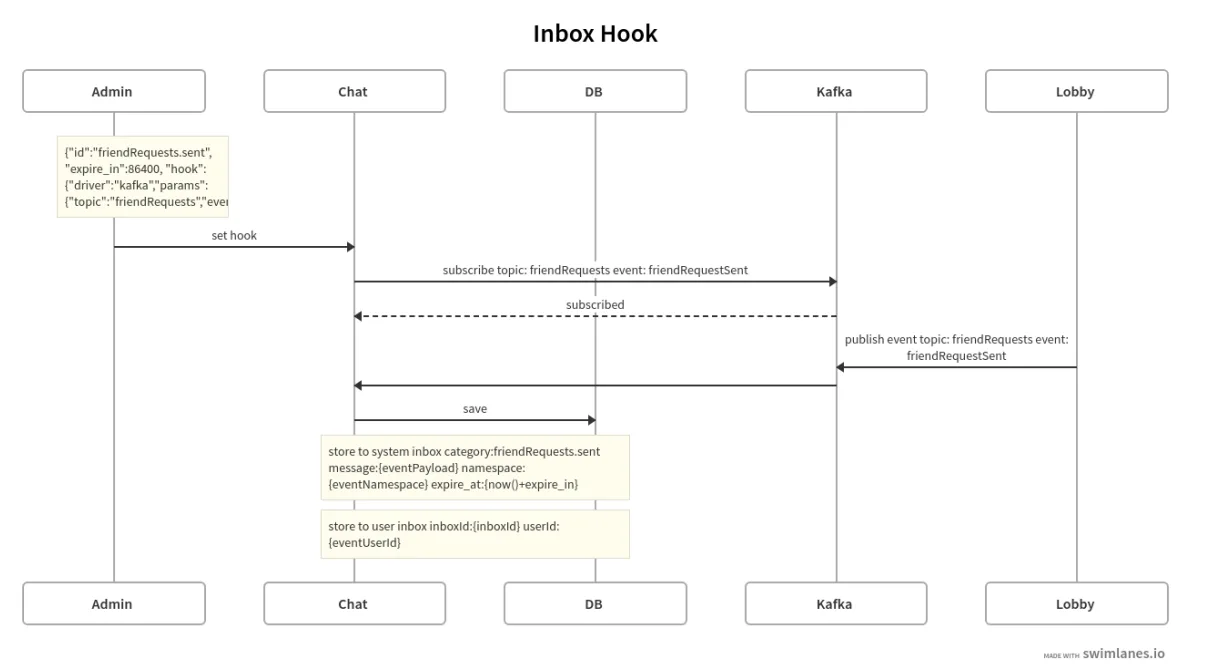
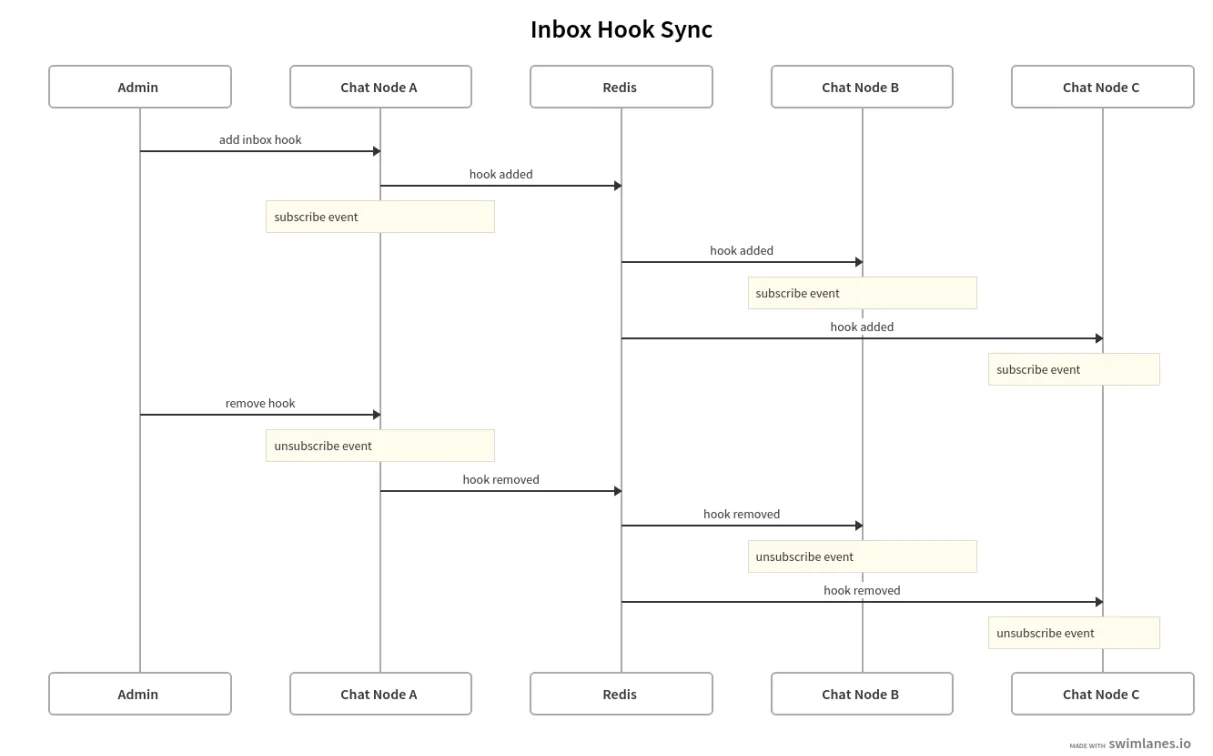
Access the Transient Messages page
To access the management and configuration options outlined in the following sections, log in to your AGS Admin Portal and go to your game namespace dashboard. Then, go to Multiplayer > Chat > Transient Messages.
Manage categories
The following sections detail the management of transient notification categories.
Create new category
To create a new category for system transient notifications, follow these steps:
- Admin Portal
- AGS CLI
-
On the Transient Messages page, open the Categories tab.
-
Click + Create new.
-
Fill out the Create New Category page with the required information.
-
Click Create.
-
Create a JSON file with the category's settings. Any file name works. This example uses
category.json:{
"name": "<CategoryName>",
"expiresIn": 3600000000000,
"saveInbox": false,
"sendNotification": true,
"enabled": true
}name: letters, numbers, spaces,-,_, and.only. You can't change it later.expiresIn: how long messages in this category last, in nanoseconds. The Admin Portal takes this value in seconds, so multiply your seconds by 1,000,000,000. The example is one hour.sendNotification: keep thistrue. The Admin Portal always sets it totrue.
These fields match the other Admin Portal settings:
Admin Portal setting Request body field Saved In Inbox saveInboxDriver, Topic, Event Name, and User ID Path hook:{"driver": "KAFKA", "params": {"topic": "<Topic>", "eventName": "<EventName>", "userIdsPath": "<UserIdPath>"}}. Leavehookout for no driver.jsonSchema jsonSchema -
Create the category. After
@, pass the path to your JSON file:ags chat inbox create-category --namespace <YourNamespace> --json @category.json
Edit a category
- Admin Portal
- AGS CLI
To edit a category, return to the Transient Messages page. Under the Categories tab, click your category's name under the Categories section to make your desired changes, then click Update when you're done.
-
List the categories:
ags chat inbox list-categories --namespace <YourNamespace> --format json -
Copy your category's object from the output into a JSON file, such as
category.json, and edit the settings you want to change. See Create new category for the fields. -
Update the category. Replace
<CategoryName>with the category'sname:ags chat inbox update-category --namespace <YourNamespace> --category <CategoryName> --json @category.jsonwarningEvery update overwrites all of the category's settings. A field you leave out of the file is reset, so keep every field from step 2 in the file.
Delete a category
- Admin Portal
- AGS CLI
You can delete a category by going to the Transient Messages page under the Categories tab, finding your category listed in the Categories section, and clicking the Delete option that's next to it under the Action column.
To delete a category, run the following command. Replace <CategoryName> with the category's name:
ags chat inbox delete-category --namespace <YourNamespace> --category <CategoryName>
Manage messages
The following sections detail the management of transient notification messages.
Create a new message
To create a new message for system transient notifications, follow these steps:
- Admin Portal
- AGS CLI
-
On the Transient Messages page, open the Messages tab.
-
Click + Create new.
-
Fill out the Create New Message page with the content, recipient, and category of your message.
-
Click Save as Draft to send the message later, or click Send to send the message right away.
-
Create a JSON file with the message. Any file name works. This example uses
message.json:{
"category": "<CategoryName>",
"message": {"body": "<MessageBody>"},
"scope": "USER",
"userIds": ["<UserId>"],
"expiredAt": <ExpiredAt>,
"status": "DRAFT"
}category: the name of the category. To see your categories, runags chat inbox list-categories --namespace <YourNamespace>.message: the content of the message.bodyholds the text that you type in the Admin Portal.scopeanduserIds: to send the message to specific players, setscopetoUSERand list their user IDs inuserIds. To send it to all players, setscopetoNAMESPACEanduserIdsto[]. The Admin Portal also accepts usernames and emails, but the AGS CLI only accepts user IDs.expiredAt: when the message expires, as a Unix timestamp in seconds. The Admin Portal sets it to the current time plus the category's expiry time. It must be in the future. On Linux,date -d '+1 day' +%sprints the timestamp for one day from now.status:DRAFTto save the message as a draft, orSENTto send it right away.
-
Create the message. After
@, pass the path to your JSON file:ags chat inbox create-message --namespace <YourNamespace> --json @message.jsonThe command prints the new message, including its
id.
Edit and send draft messages
- Admin Portal
- AGS CLI
You can find your messages on the Transient Messages page under the Messages tab listed under the Message List section. You can edit draft messages by clicking into their names. You can save your changes by clicking Save as Draft, or send the messages right away by clicking Send.
-
Find the ID of the draft message:
ags chat inbox list-messages --namespace <YourNamespace> --transient true --status DRAFT -
To edit the draft, create a JSON file with the message's new settings. This example uses
message.json:{
"message": {"body": "<MessageBody>"},
"scope": "USER",
"userIds": ["<UserId>"],
"expiredAt": <ExpiredAt>
}The fields work the same as in Create a new message. You can't change the category.
warningEvery update overwrites the message, its recipients, and its expiry time. Include all four fields, even the ones you don't change.
-
Save your changes. Replace
<MessageId>with the draft'sidfrom step 1. After@, pass the path to your JSON file:ags chat inbox update-message --namespace <YourNamespace> --message-id <MessageId> --json @message.json -
To send the draft, run:
ags chat inbox send-message --namespace <YourNamespace> --message-id <MessageId>
Unsend a sent message
- Admin Portal
- AGS CLI
You can find your messages on the Transient Messages page under the Messages tab listed under the Message List section. To unsend a message, find the message you want to unsend and click the ellipsis menu next to it under the Action column and click Unsend. Then, type UNSEND to confirm.
-
Find the ID of the sent message:
ags chat inbox list-messages --namespace <YourNamespace> --transient true --status SENT -
Unsend the message. Replace
<MessageId>with the message'sid:ags chat inbox unsend-message --namespace <YourNamespace> --inbox <MessageId> --json '{"userIds": []}'An empty
userIdslist unsends the message from every recipient and marks it as unsent. To unsend it from specific players only, list their user IDs instead.
Duplicate a sent message as draft
- Admin Portal
- AGS CLI
You can find your messages on the Transient Messages page under the Messages tab listed under the Message List section. To duplicate a sent message and save it as a draft, find the message you want to duplicate and click the ellipsis menu next to it under the Action column and click Duplicate as Draft. Then, click Duplicate to confirm.
-
Get the message that you want to duplicate. Replace
<MessageId>with the message'sid, whichags chat inbox list-messages --namespace <YourNamespace> --transient truelists:ags chat inbox list-messages --namespace <YourNamespace> --message-id <MessageId> --format json -
Create a JSON file, such as
message.json, with thecategory,message,scope, anduserIdsvalues from the output. SetstatustoDRAFTandexpiredAtto a new time in the future. See Create a new message for the fields. -
Create the draft:
ags chat inbox create-message --namespace <YourNamespace> --json @message.json