View and manage dedicated server logs and artifacts
Introduction
The AccelByte Multiplayer Servers (AMS) Logs and Artifacts component in the AccelByte Gaming Services (AGS) Admin Portal provides two ways to access your dedicated server logs:
- Live Logs: View real-time logs from currently running dedicated servers
- Collected Artifacts: Download logs and other artifacts from dedicated servers that have exited
- AMS refers to any file generated by a dedicated server as an artifact.
- AMS currently supports logs, core dumps, and any custom artifacts your dedicated server outputs to
${artifact_path}.
This article walks you through how to:
- View live logs from running dedicated servers
- View, download, and delete collected artifacts in the AccelByte Admin Portal or with the AGS CLI
- Monitor your artifact usage and storage limits
Prerequisites
Before you begin this guide, you must have:
- Access to your game's namespace and account in the AccelByte Admin Portal.
- Integrated a dedicated server with the AGS Server SDK.
- Upload a dedicated server build to AMS.
- To follow the AGS CLI steps, install the AGS CLI and sign in with an account that has access to these features. See Install and sign in. The examples use a Bash shell.
Live Logs
While a dedicated server is running, you can access a stream of its logs in real-time through the Admin Portal. To view it, navigate to the dedicated server details page and select the "Logs" tab. Note that live logs are only available for dedicated servers that are currently running. Once a server exits or crashes, you'll need to use the artifact collection system to access its logs.
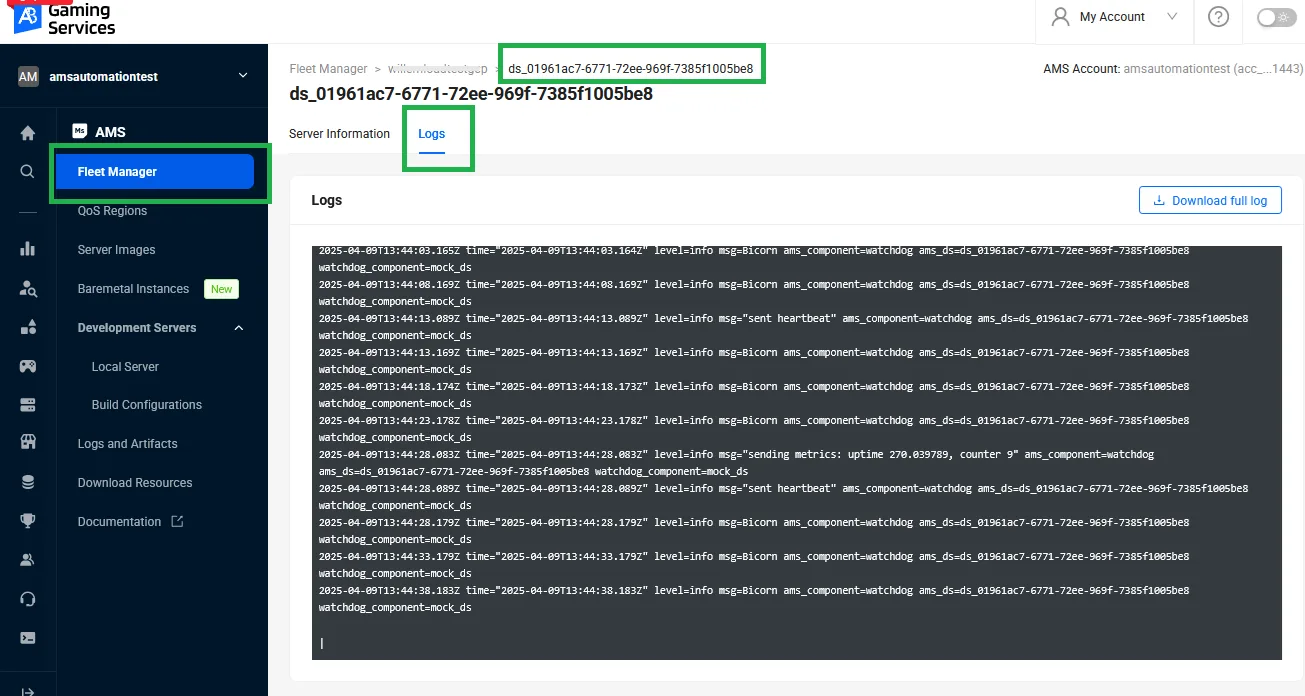
If your dedicated server doesn't connect to AMS (Watchdog) at all due to misimplementation, these live logs will not be available. If so, test that your dedicated server connects to AMS first, using AMS Simulator locally.
Fleet configuration
To configure your fleet, see step 12 of the Create a fleet to manage dedicated server allocation article.
If you have an existing fleet you want to configure, you need to deactivate it before you can modify the sampling rules, then re-activate it to start collecting artifacts.
View artifacts
- Admin Portal
- AGS CLI
You can view and manage artifacts on the Logs and Artifacts page. To go to the Logs and Artifacts page, click on AccelByte Multiplayer Servers > Logs and Artifacts on the sidebar.
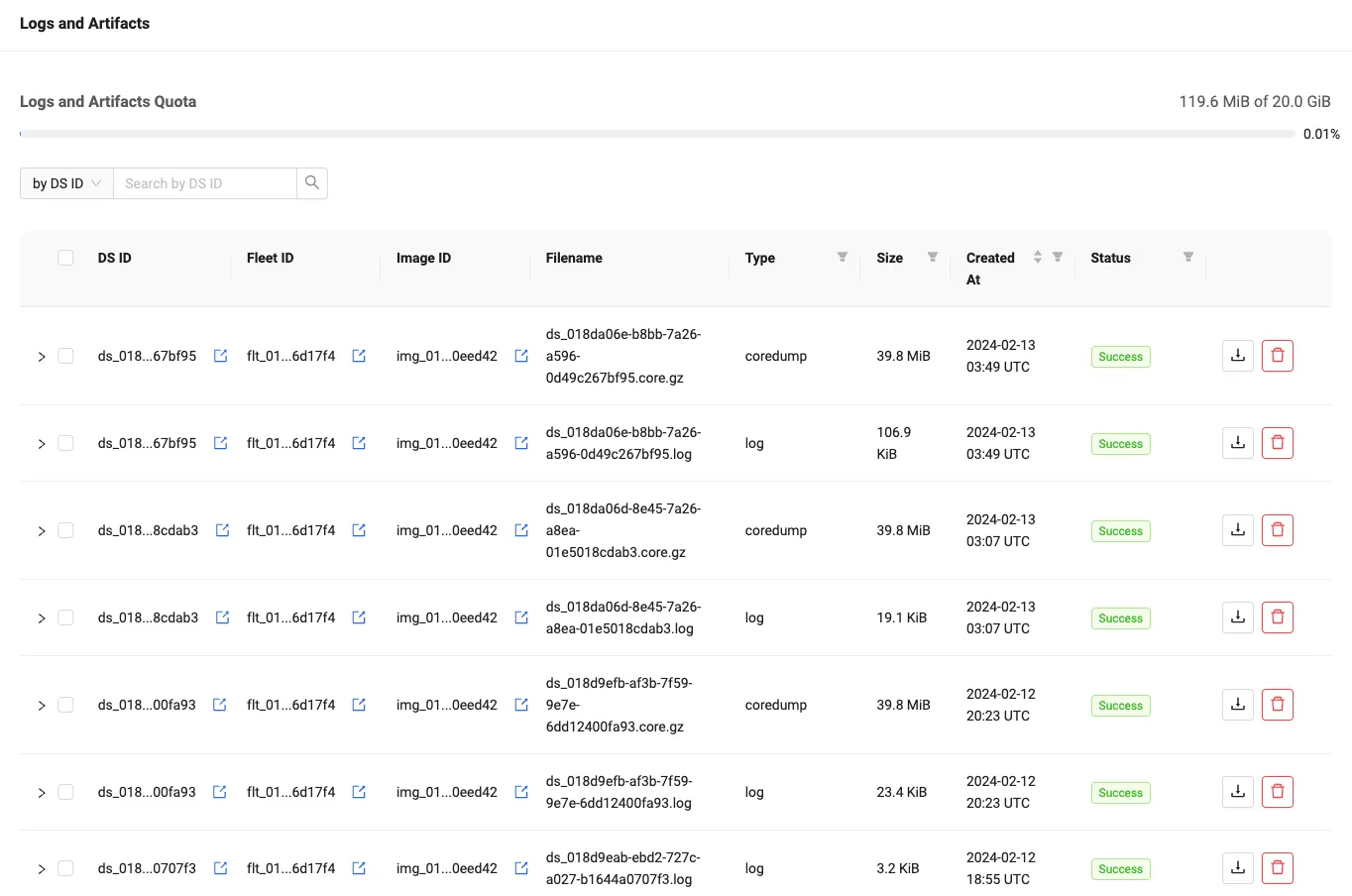
The list on the page shows artifact collection records for all fleets in the namespace.
An artifact collection record can have one of the following statuses:
Success: an artifact was collected and can be downloaded.Skipped: an artifact was not collected because of the sampling rule.Failed: an error occurred while attempting to collect the artifact.
By default, artifacts are retained for 30 days from the time they are collected.
Use the search bar to find artifacts for specific fleets, images, or dedicated servers. The list can also be filtered by type, status, date range, and size.
Each row can be expanded to show more details about the artifact.
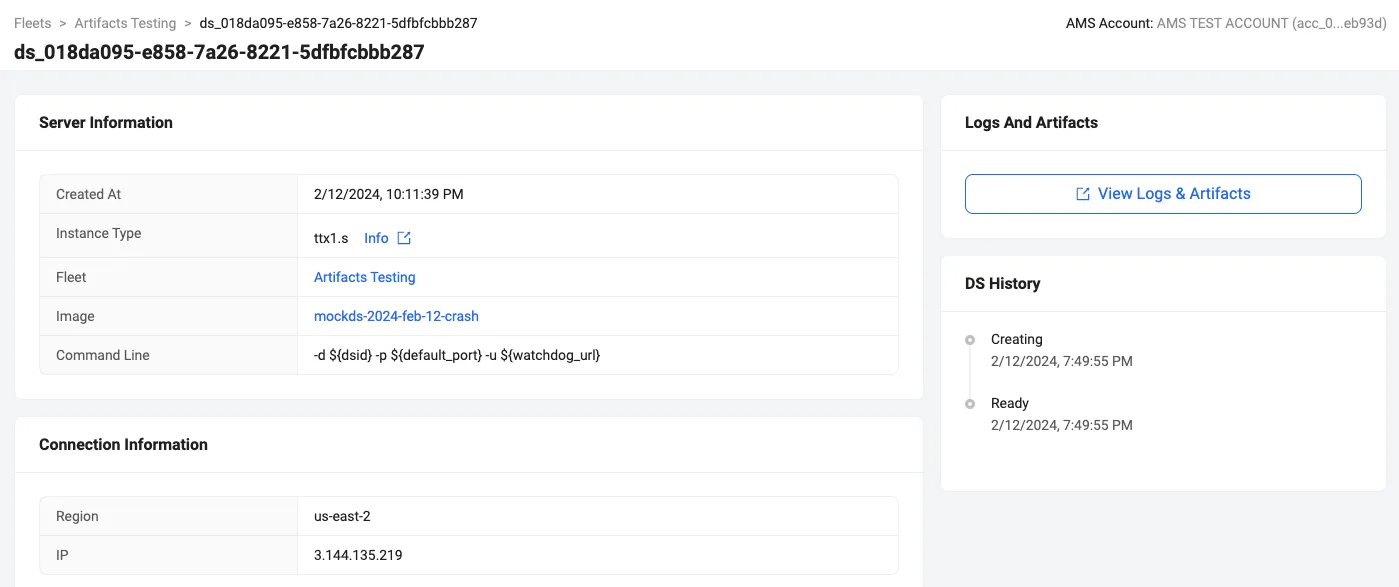
You can also view artifacts for a given dedicated server by navigating to the dedicated server details page and clicking on the View Logs & Artifacts button in the upper right.
-
List the artifact collection records in your namespace, newest first. Replace
<YourNamespace>with your namespace:ags ams artifacts get --namespace <YourNamespace>The command returns up to 100 records. To see more, add
--offsetwith the number of records to skip. -
To narrow the list, add filters. For example, to show only the artifacts collected from one dedicated server:
ags ams artifacts get --namespace <YourNamespace> --server-id <DedicatedServerId>These flags match the Admin Portal filters:
Admin Portal filter Flag Search by fleet, image, or dedicated server --fleet-id,--image-id, or--server-idType --artifact-type:logorcoredumpStatus --status:success,skipped_sample,skipped_usage, orfailedDate range --start-dateand--end-date, inYYYY-MM-DDformatSize --min-sizeand--max-size, in bytesEach record in the
dataarray includes the artifactid, itsstatus, and the fleet, image, and dedicated server it came from.
Download artifacts
- Admin Portal
- AGS CLI
You can download artifacts one at a time or in bulk. To download a single artifact, click on its corresponding Download button. To download multiple artifacts at once, click on the checkboxes of the artifacts you want to download, then click the Download button at the top of the list.
-
Find the ID of the artifact you want to download. See View artifacts. You can only download an artifact with the
successstatus. -
Get a download link for the artifact:
ags ams artifacts get-download-url --namespace <YourNamespace> --artifact-id <ArtifactId>The command returns a
url. Open it in a browser or with any download tool to download the file. The link is temporary, so use it right away.
To download multiple artifacts, repeat step 2 for each artifact.
Delete artifacts
Deleting an artifact will remove it from the listing and delete the file from storage, if applicable. This operation cannot be reverted.
- Admin Portal
- AGS CLI
To delete an artifact, click its corresponding Delete button. To delete multiple artifacts, select their corresponding checkboxes on the left, then click the Delete button at the top of the list.
-
Find the ID of the artifact you want to delete. See View artifacts.
-
Delete the artifact:
ags ams artifacts delete --namespace <YourNamespace> --artifact-id <ArtifactId>
To delete multiple artifacts, repeat step 2 for each artifact.
Deleting an artifact has no effect on your current monthly usage.
Monitor logs and artifacts usage
- Admin Portal
- AGS CLI
Your current logs and artifacts usage and quota is displayed in the Logs and Artifacts Quota section of the listing page. AMS periodically scans and deletes logs and artifacts that are more than 30 days old.
To check your current usage and quota, run:
ags ams artifacts get-usage --namespace <YourNamespace>
The command returns usedBytes, quotaBytes, and remainingBytes, in bytes. AMS periodically scans and deletes logs and artifacts that are more than 30 days old.
Frequently Asked Questions (FAQs)
Why don't I see any artifacts in the Logs and Artifacts page?
Artifacts are only collected when a dedicated server exits and if the sampling rules are met. If you are not seeing any artifacts, then:
- Make sure that the sampling rules are configured correctly. If the sampling rules are not active, no artifacts will be collected and no records will be shown in Logs and Artifacts.
- Make sure that the dedicated server is exiting with the expected status. If the dedicated server is not exiting with the expected status, no artifacts will be collected and no records will be shown in Logs and Artifacts.
When are artifacts collected?
Artifacts are collected when a dedicated server exits and the sampling rules are met.
How long are artifacts stored?
Artifacts are stored for 30 days or until they are manually deleted, whichever comes first. Artifacts that are automatically deleted will still appear in the Logs and Artifacts page for tracking purposes but won't be available for download.
What happens if I reach my storage limit?
The usage limit is currently not enforced and is presented for informative purposes only. This may change in the future.
My sampling rules are set to ~50% but more (or less) than half of my artifacts are being collected. Why?
The sampling rule value is a percentage of chance to collect an artifact when a dedicated server exits. The actual number of artifacts collected will vary but should be close to the configured value over time.
How do I collect artifacts under Unreal Engine's saved folder?
Add the DS command line parameter -UserDir=${artifact_path} to the fleet configuration. This will override Unreal Engine's default saved
folder to the artifact collection path.
Glossary
- Artifact Collection Record: a record of an artifact collection attempt. It includes a status and an artifact if one was collected.
- Artifact: a file generated by a game server that can be collected. AMS currently supports logs, core dumps, and custom artifacts.
- Sampling rule: a rule that determines when to collect an artifact. Each rule is defined for a specific fleet, artifact type and dedicated server exit status. The value of each rule is a percentage of artifacts to collect.