Configure season passes
Overview
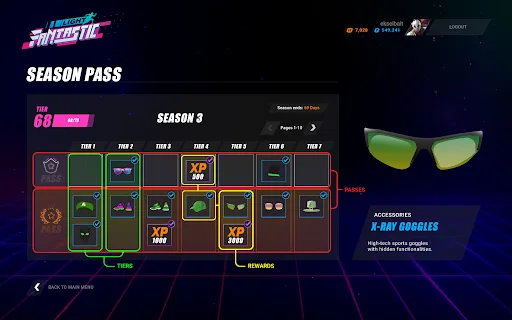
The season pass service offered by AccelByte Gaming Services (AGS) enables you to have a seasonal progression system within your game. Players can progress through the season by earning experience points to level up the tiers and unlocking rewards at various tiers. Season passes not only add revenue streams, but they also foster player engagement by offering a sense of accomplishment as they progress to unlock the rewards throughout the season. This guide will show you how to configure a season pass.
You can configure a season pass in the AGS Admin Portal or with the AGS CLI.
Prerequisites
- Access to the AGS Admin Portal.
- Access to the AccelByte Season Pass API documentation.
- Access to the AccelByte ECommerce API to configure the required information.
- To follow the AGS CLI steps, you must have installed the AGS CLI and signed in with an account that has access to these features. See Install and sign in. The examples use a Bash shell.
Set up a season pass item
Before you can create a season pass, you need to define the pass item, tier item, and reward item in the store. Pass and tier items enable you to monetize the season pass. Purchasing a premium pass item grants players with a premium season pass with a more exclusive rewards, including unique in-game items, which will help the player fully immerse into the game. On the other hand, purchasing tier items helps players to advance through the season faster without the necessity of manually clearing the tier. The reward item is the in-game item or coin that a player can obtain upon clearing a tier.
To configure store items, see Create an item in a store. After creating items in the draft store, you can skip publishing the store. Publishing the store can be done right before publishing the season.
Create a pass item
To create a pass item, follow these steps:
- Admin Portal
- AGS CLI
-
Go to the Create Item page inside the Store.

-
Choose item type Season, and select PASS under Item.
-
Fill in the Store Configuration section. To fill in the section, see Create an item in a store.
-
Click Create to create the pass item.
-
Find the ID of your draft store. In the output, it's the
storeIdof the store withpublishedset tofalse. Note itsdefaultLanguageanddefaultRegiontoo.ags platform stores list --namespace <YourNamespace> --format json -
Find the
categoryPathof the category for the item:ags platform categories list --namespace <YourNamespace> --store-id <StoreId> --format json -
Create a JSON file with the item's settings. Any file name works. This example uses
pass-item.json:{
"itemType": "SEASON",
"seasonType": "PASS",
"name": "<ItemName>",
"categoryPath": "<CategoryPath>",
"entitlementType": "DURABLE",
"localizations": {
"<DefaultLanguage>": { "title": "<ItemName>" }
},
"regionData": {
"<DefaultRegion>": [
{ "currencyNamespace": "<CurrencyNamespace>", "currencyCode": "<CurrencyCode>", "price": 500 }
]
}
}localizations: replace<DefaultLanguage>with the store'sdefaultLanguage.regionData: replace<DefaultRegion>with the store'sdefaultRegion. To see the currencies in a namespace, runags platform currencies list --namespace <CurrencyNamespace> --format json.price: a whole number, with the currency'sdecimalsas its last digits. For example, for a currency with two decimals,500is 5.00.
To set more fields, add them to the file. To see every field, run
ags platform items create --skeleton. -
Create the item. After
@, pass the path to your JSON file:ags platform items create --namespace <YourNamespace> --store-id <StoreId> --json @pass-item.jsonThe command prints the new item. Its
itemIdis the pass item ID.
Create a tier item
To create a tier item, follow these steps:
- Admin Portal
- AGS CLI
-
Go to the Create Item page inside the Store.
-
Choose the item type Season, and select TIER under Item.
-
Fill in the Store Configuration section. To fill in the section, see Create an item in a store.
-
Click Create to create the tier item.
Follow the AGS CLI steps in Create a pass item, but set seasonType to TIER.
Create a season pass
- Admin Portal
- AGS CLI
To create a season in the Admin Portal, follow these steps:
-
In your game namespace, go to Online > Season Pass.

-
In the Season Pass tab, click the Create Draft Season button.

-
The Create Season Pass form appears. Fill in the required fields.
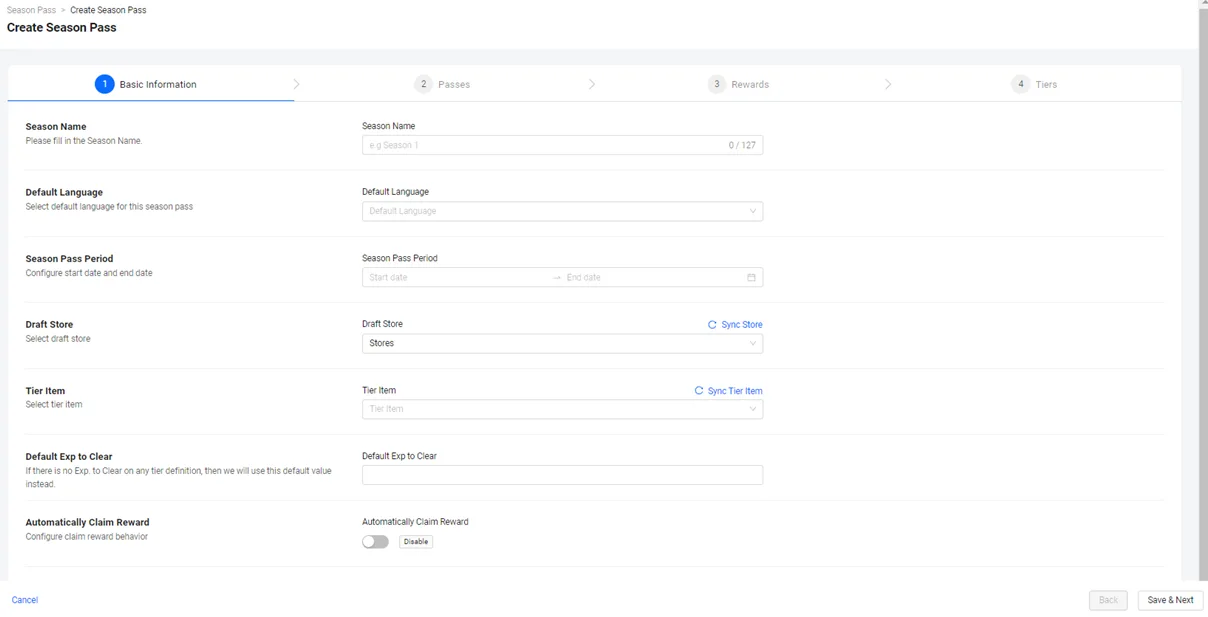
- Add the Season Name.
- Select the default language for localization in the Default Language field. After creating your season, you'll be able to add additional languages for localization.
- Select the date and time period when this season will start and end in the Season Pass Period field.
- Select the Draft Store where the items related to the season are located.
- Select the tier item in the Tier Item field.
- Input the default experience (exp.) to clear each tier in the Default Exp. field.
- Select the Automatically claim reward option if you prefer to automatically grant rewards to the players. Otherwise, players will need to manually claim rewards from inside the game.
-
Click Save & Next.
-
After filling out the Create Season form, you will be directed to the Passes tab. From this point, you have the options to do the following:
a. In the Passes tab, add a pass to you season. To do so, follow 3&ndash5 in the Configure a pass section. Then, click Next to go to the Rewards tab. b. In the Rewards tab, add a reward to your season. To do so, follow steps 3&ndash5 in the Configure a reward section. Then, click Next to go to the Tiers tab. c. In the Tiers, add a tier to your season. To do so, follow steps 3&ndash5 in the [Configure a tier](#configure-a-tier section). Proceed to the next step.
infoYou can skip these options for now and configure them at a later time, after you save your season. Keep selecting Skip until you reach the Tiers tab. Proceed to the next step.
-
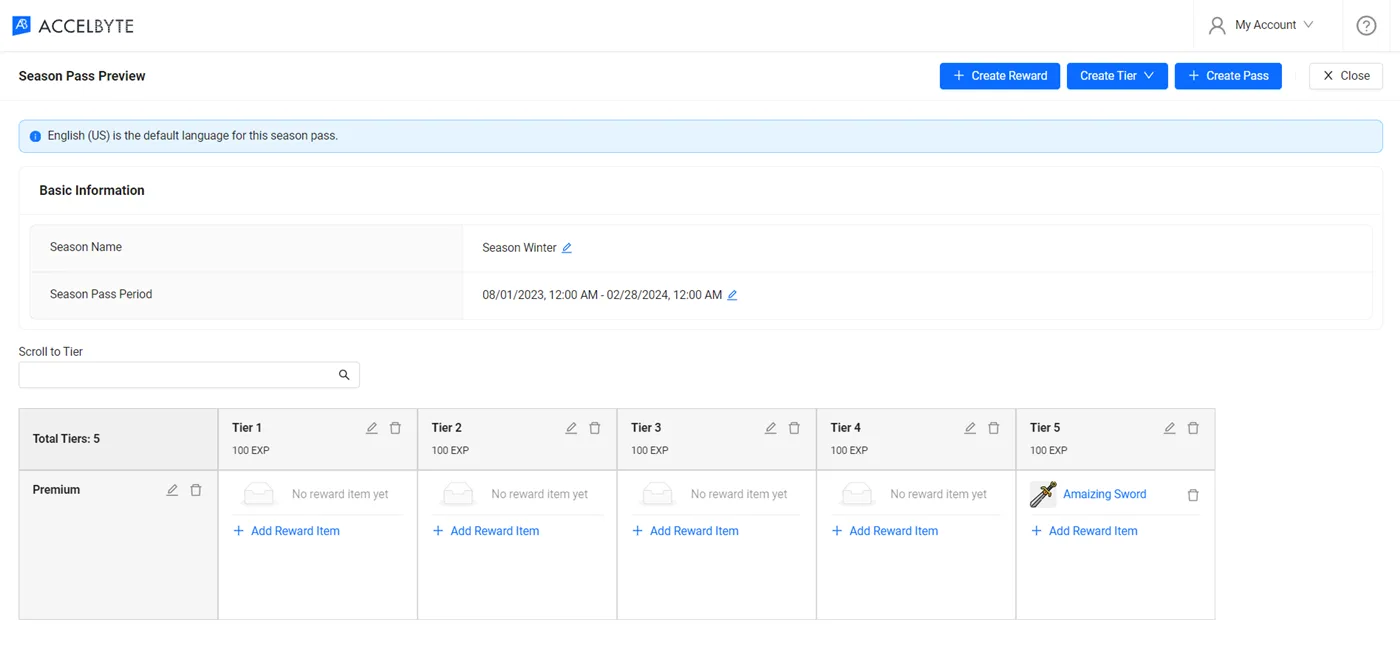
In the Tiers tab, click Create to create and save your season as a draft season. If any, the passes, rewards, and tiers that you created will also be added to draft season. The preview page of your created season appears.
 info
infoYou can adjust name, period, passes, rewards and tiers in the preview directly.
-
As a next step, you can:
-
Find the ID of your draft store. In the output, it's the
storeIdof the store withpublishedset tofalse.ags platform stores list --namespace <YourNamespace> --format json -
Find the ID of your tier item. In the output, it's the
itemIdof the item withseasonTypeset toTIER.ags platform items list --namespace <YourNamespace> --store-id <StoreId> --item-type SEASON --format json -
Create a JSON file with the season's settings. Any file name works. This example uses
season.json:{
"name": "<SeasonName>",
"defaultLanguage": "en",
"localizations": {
"en": { "title": "<SeasonTitle>", "description": "<SeasonDescription>" }
},
"start": "<StartDateTime>",
"end": "<EndDateTime>",
"draftStoreId": "<StoreId>",
"tierItemId": "<TierItemId>",
"defaultRequiredExp": 100,
"autoClaim": false
}defaultLanguage: the Default Language.localizationsmust have an entry for it, with the season's title and description in that language.startandend: the Season Pass Period, as ISO 8601 date-times, such as2027-01-01T00:00:00Z.defaultRequiredExp: the Default Exp. to clear each tier.autoClaim:trueto grant rewards to players automatically, like the Automatically claim reward option.
-
Create the season. After
@, pass the path to your JSON file:ags season-pass seasons create --namespace <YourNamespace> --json @season.jsonThe command prints the new draft season. Its
idis the season ID. -
Add passes, rewards, and tiers to the season. See the AGS CLI steps in Configure a season pass.
ags workflow run season-pass --namespace <YourNamespace> creates a complete sample season pass in one command: season items in your draft store, a season with a free and a premium pass, rewards, and three tiers. It then publishes all pending changes in your draft store and publishes the season right away. Only use it in a test namespace that has no published season.
View published and draft seasons
To view published and draft seasons, follow these steps:
- Admin Portal
- AGS CLI
-
In your game namespace, go to Online > Season Pass.
-
In the Season Pass page, you can view your published seasons in the Published Seasons and your draft seasons in the Draft Season tab.
List your seasons. To see published seasons, set --status to PUBLISHED. For draft seasons, use DRAFT.
ags season-pass seasons list --namespace <YourNamespace> --status <Status>
Configure a season pass
You can configure the pass, reward, and tier of any draft season.
Configure a pass
- Admin Portal
- AGS CLI
To configure a pass in the Admin Portal, follow these steps:
-
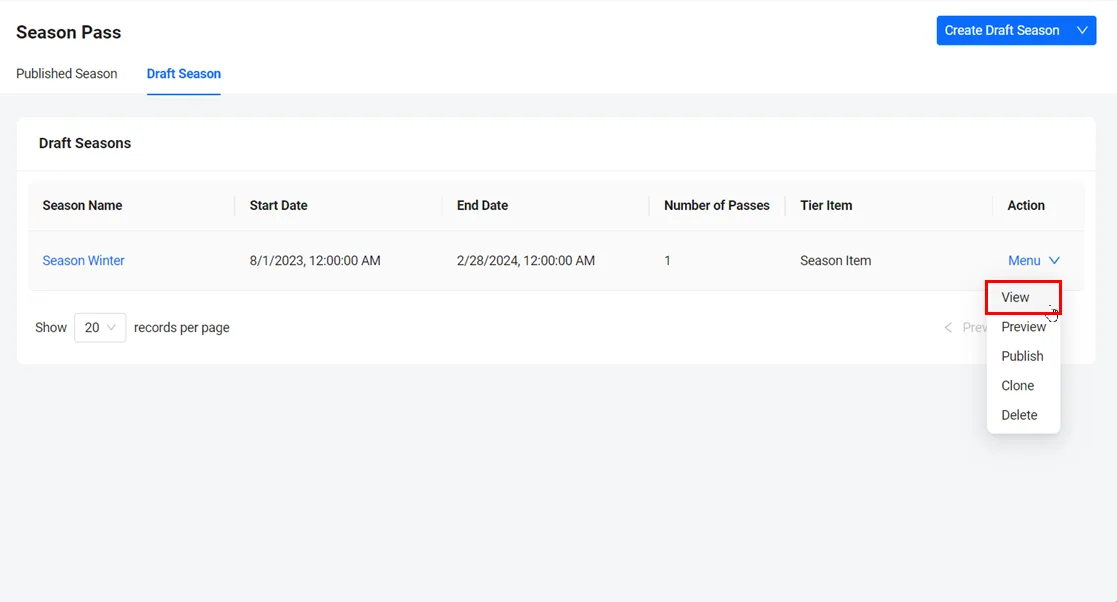
In the Draft Seasons tab, find the season you want to configure. Hover over the menu next to it and click View. The Season Details page appears.
-
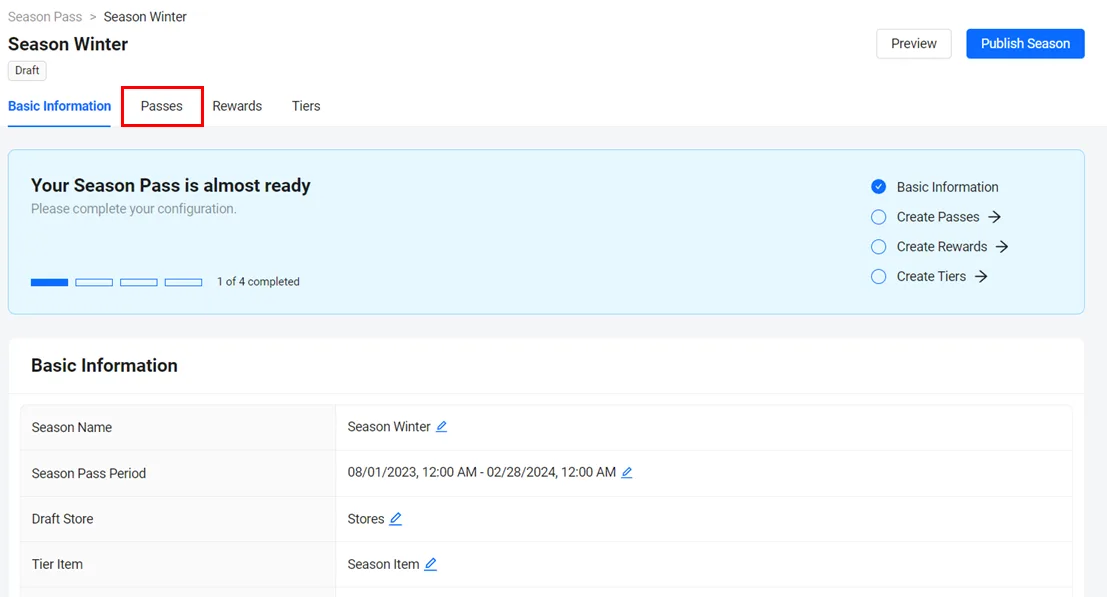
On the Season Details page, go to the Passes tab.
-
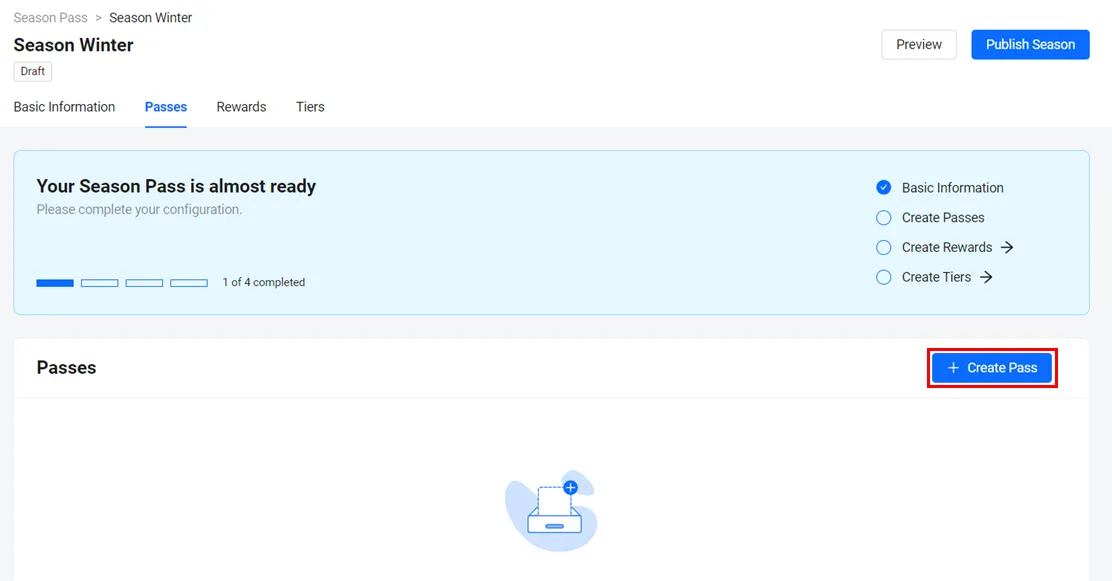
To create a pass, click the Create Pass button.
-
The Create Pass form will appear. Fill in the required fields.
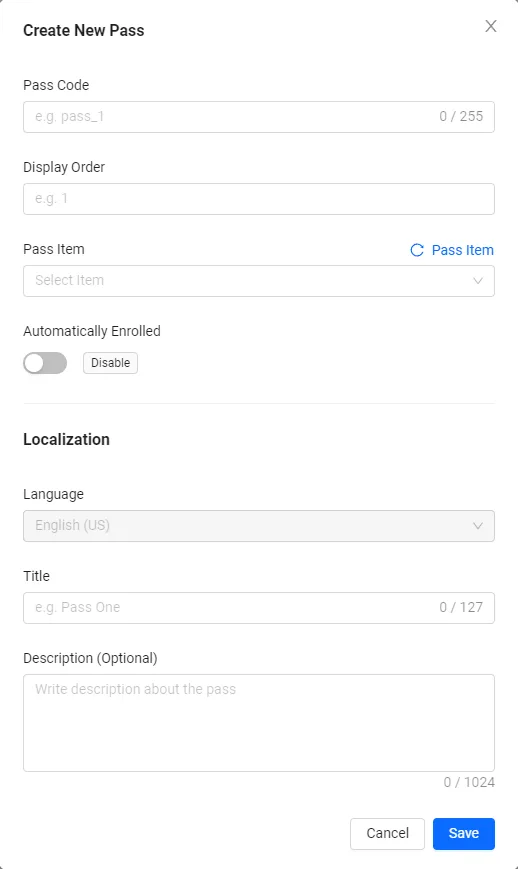
- In the Pass Code field, add the unique identifier.
- In the Display Order field, add the position you want this pass to occupy in the game. A pass with a Display Order of 1 will appear at the top of the list, 2 will appear under 1, and so on.
- In the Pass Item dropdown, select the item that you want to associate with this pass.
- Select Automatically Enrolled if you want all players who participate in the season event to be automatically granted this pass without purchasing the pass item. For a free pass, you can check Automatically Enrolled. Otherwise, for a premium pass, you should leave Automatically Enrolled unchecked.
- The Language selection is the same as the default language for the related season and cannot be changed.
- In the Title field, add the default name for the pass in the Title field.
- In the Description field, add the default description of the pass.
-
When you're finished, click the Create button. The new pass will be added to the list of passes in the season.
-
Find the ID of your draft season. In the output, it's the season's
id.ags season-pass seasons list --namespace <YourNamespace> --status DRAFT --format json -
Find your season's draft store. In the output, note the
draftStoreId.ags season-pass seasons get --namespace <YourNamespace> --season-id <SeasonId> --format json -
Find the ID of your pass item. Replace
<StoreId>with thedraftStoreId. In the output, the pass item ID is theitemIdof the item withseasonTypeset toPASS.ags platform items list --namespace <YourNamespace> --store-id <StoreId> --item-type SEASON --format json -
Create a JSON file with the pass's settings. Any file name works. This example uses
pass.json:{
"code": "<PassCode>",
"displayOrder": 1,
"passItemId": "<PassItemId>",
"autoEnroll": false,
"localizations": {
"<DefaultLanguage>": { "title": "<PassTitle>", "description": "<PassDescription>" }
}
}autoEnroll:truefor a free pass, like the Automatically Enrolled option.falsefor a premium pass.localizations: replace<DefaultLanguage>with the season'sdefaultLanguage.
-
Create the pass. After
@, pass the path to your JSON file:ags season-pass passes create --namespace <YourNamespace> --season-id <SeasonId> --json @pass.json
- You can edit and delete the passes in a draft season.
- When you delete a pass, all the rewards tied to that pass will be removed.
- Deleting a season pass may not delete items associated with it (such as wallets or virtual currencies). Recreating a season pass with the configurations of a previously-deleted one will reconnect the items tied to it and reinstate their histories.
Configure a reward
- Admin Portal
- AGS CLI
To configure a reward in the Admin Portal, you can follow these steps:
-
In your game namespace, go to Online > Season Pass.
-
In the Draft Seasons tab, find the season you want to configure. Hover over the menu next to it and click View. The Season Details page appears.
-
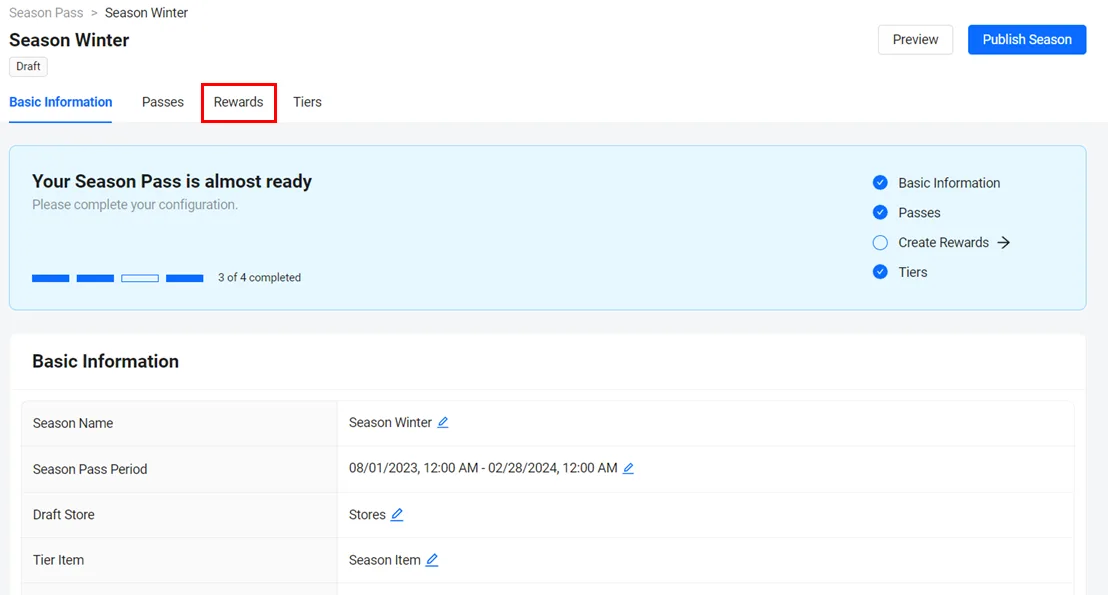
On the Season Details page, go to the Rewards tab.
-
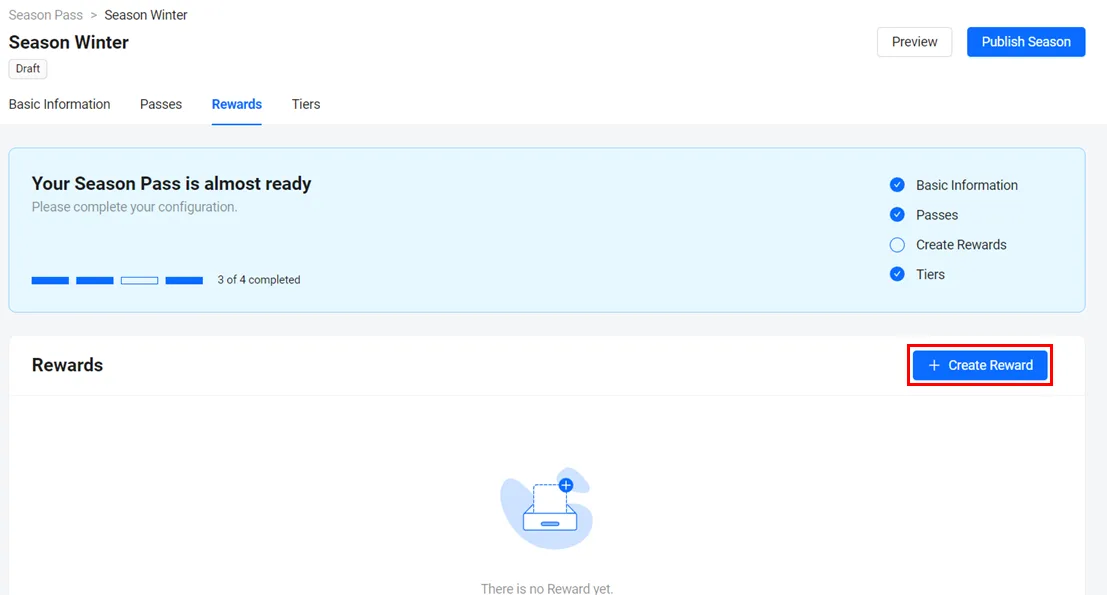
On the Rewards page, click on the Create Reward button. The Create New Reward form appears
-
Fill in the required information:

- In the Reward Code field, add a unique identifier for the code.
- Open the Reward Item Type dropdown, then select a reward item type that will be awarded to players. The options are Items, Coins, and Bundles. For more information about item types, see Item Store.
- Open the Reward Item dropdown, choose the item that will be awarded to players.
- In the Reward Item Quantity field, type in the quantity of the item that will be awarded to players.
- Click + Upload to upload an image for the item.
-
When you're finished, click the Save button. The new reward will be added to the list of rewards in the season.
-
Find the ID of your draft season. In the output, it's the season's
id.ags season-pass seasons list --namespace <YourNamespace> --status DRAFT --format json -
Find your season's draft store. In the output, note the
draftStoreId.ags season-pass seasons get --namespace <YourNamespace> --season-id <SeasonId> --format json -
Find the ID of the item to award. Replace
<StoreId>with thedraftStoreId, and<ItemName>with the item's name. In the output, note the item'sitemId.ags platform items list --namespace <YourNamespace> --store-id <StoreId> --item-name <ItemName> --format json -
Create the reward. Replace
<RewardCode>with a unique code and<Quantity>with the Reward Item Quantity:ags season-pass rewards create --namespace <YourNamespace> --season-id <SeasonId> \
--json '{"code": "<RewardCode>", "type": "ITEM", "itemId": "<ItemId>", "quantity": <Quantity>}'Keep
typeset toITEMfor items, coins, and bundles alike. To add an image, add animageobject withimageUrlset to the address of an image that is already hosted. To see its fields, runags season-pass rewards create --skeleton.
- Once you've created a reward, you can edit or delete it when it is no longer needed.
- While you can edit a reward, the reward's Reward Code cannot be changed.
Configure a tier
- Admin Portal
- AGS CLI
To configure a tier in the Admin Portal, follow these steps:
-
In the Draft Seasons tab, find the season you want to update. Hover over the menu next to it and click View. The Season Details page appears.
-
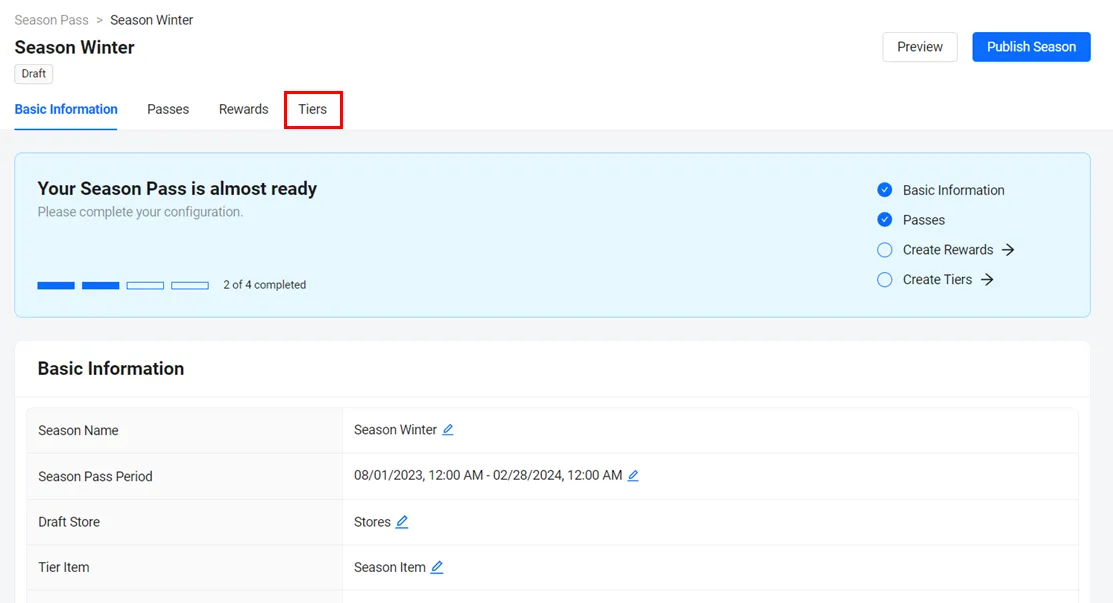
On the Season Details page, go to the Tiers tab.
-
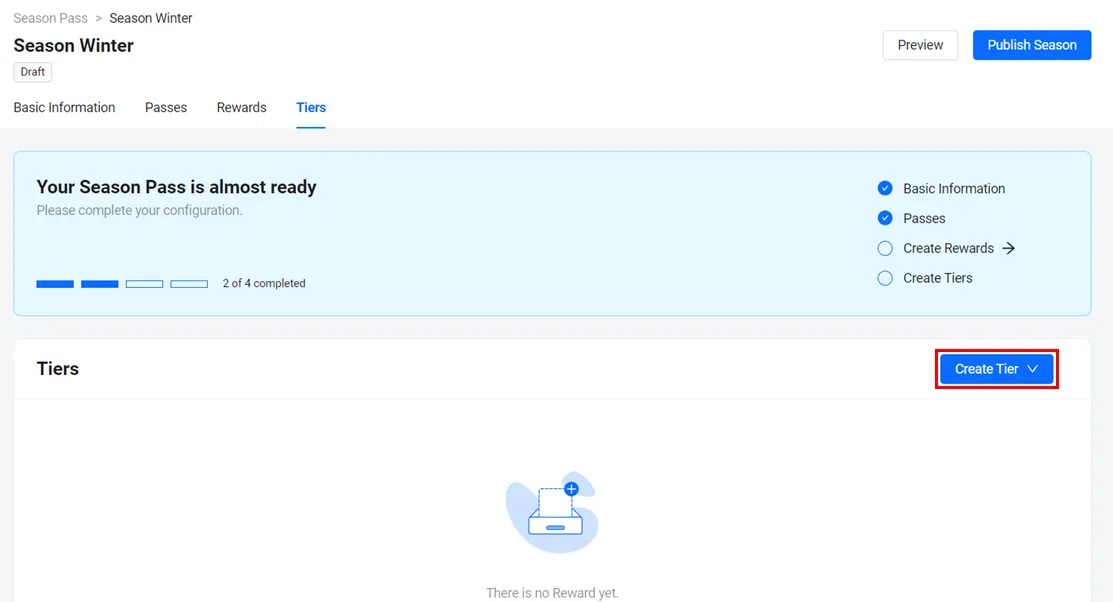
To create a tier, click the Create Tier dropdown. Then, do one of the following:
- Select Create Tier to create a single tier
- Select Bulk Create Tier to create a bulk tier.
-
Depending on what you chose in step 3, the corresponding form appears. Fill in the required fields.
Create single tier
- In the Tier Order Number field, type in the tier number you want this season to have.
- In the Exp to Clear field, add the amount of experience (exp.) a player needs to clear each tier.
- Fill in each field by choosing the rewards that you want to bind to that specific pass. You can select multiple rewards for a single pass.

Create bulk tier
- In the Tier Amount field, type in the number of tiers you want this season to have.
- In the Exp. to Clear field, add the amount of experience (exp.) a player needs to clear each tier.

-
Once completed, click the Create button. The new tier will be added to the list of rewards in the season.
-
Find the ID of your draft season. In the output, it's the season's
id.ags season-pass seasons list --namespace <YourNamespace> --status DRAFT --format json -
Create a JSON file with the tier's settings. Any file name works. This example uses
tier.json:{
"index": 0,
"tier": {
"requiredExp": 100,
"rewards": {
"<PassCode>": ["<RewardCode>"]
}
}
}index: the Tier Order Number minus one, so the first tier is0. To add the tier at the end, leave it out.requiredExp: the Exp to Clear. If you leave it out, the tier uses the season'sdefaultRequiredExp.rewards: for each pass code, the codes of the rewards that the tier grants on that pass.
-
Create the tier. After
@, pass the path to your JSON file:ags season-pass tiers create --namespace <YourNamespace> --season-id <SeasonId> --json @tier.jsonTo create several tiers at once, like Bulk Create Tier, set
quantityto the Tier Amount instead:ags season-pass tiers create --namespace <YourNamespace> --season-id <SeasonId> \
--json '{"quantity": 10, "tier": {"requiredExp": 100}}'
Associate rewards with passes and tiers
Once you've created rewards, you'll need to associate them with the corresponding passes and tiers. To do this, follow these steps:
- Admin Portal
- AGS CLI
-
In the Draft Seasons tab, find the season you want to update. Hover over the menu next to it and click View. The Season Details page appears.
-
On the Season Details page, go to the Tiers tab.
-
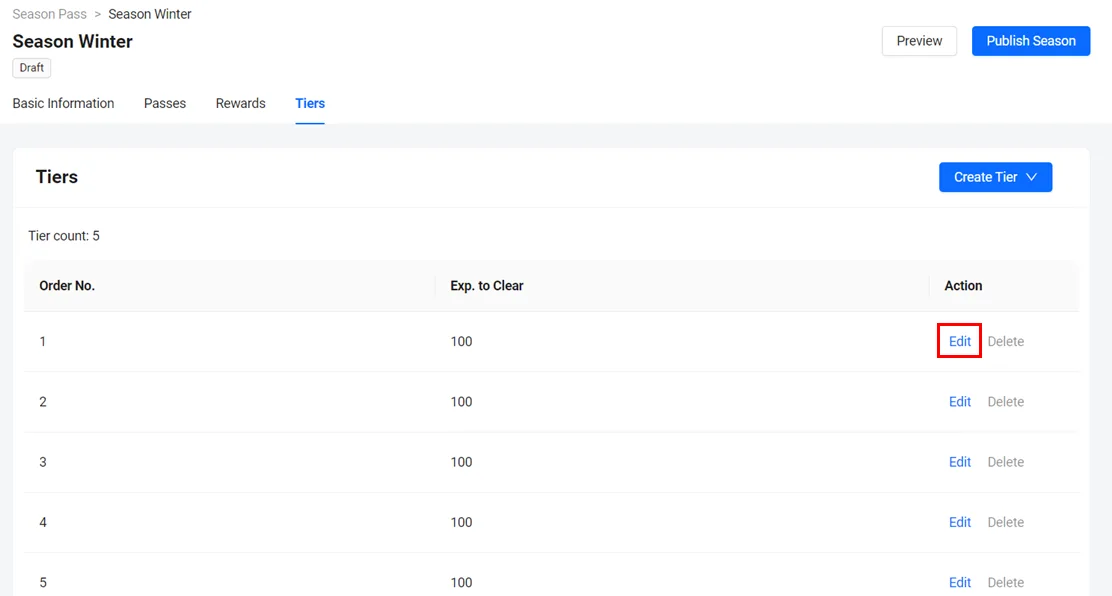
Then, click the Edit button next to your desired tier's Action column.
-
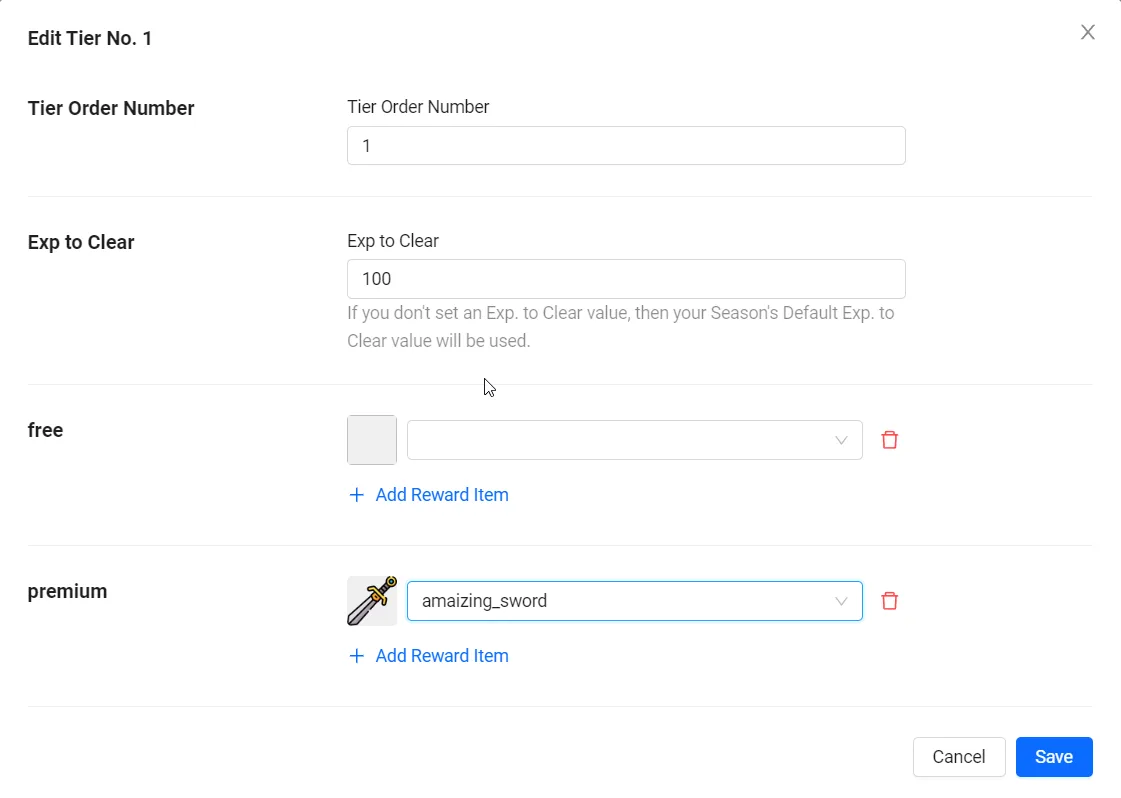
The Edit Tier No. 1 form will appear. Fields will appear for each pass in this season. Fill in each field by choosing the rewards that you want to bind to that specific pass. You can select multiple rewards for a single pass.
-
When you're finished, click the Save button. The rewards will be tied to the pass in this tier.
-
Find the ID of your draft season. In the output, it's the season's
id.ags season-pass seasons list --namespace <YourNamespace> --status DRAFT --format json -
Find the ID of the tier. The output lists the tiers in order, so the first tier is tier 1. Note the tier's
idandrequiredExp.ags season-pass tiers list --namespace <YourNamespace> --season-id <SeasonId> --limit 300 --format json -
Create a JSON file with the tier's rewards. Any file name works. This example uses
tier-rewards.json:{
"requiredExp": 100,
"rewards": {
"<PassCode>": ["<RewardCode>", "<RewardCode>"]
}
}warningThis file replaces the tier's settings. Set
requiredExpto the tier's current value, and list every reward that the tier keeps on each pass. -
Update the tier. After
@, pass the path to your JSON file:ags season-pass tiers update --namespace <YourNamespace> --season-id <SeasonId> --id <TierId> --json @tier-rewards.json
Publish a season
To start a season, it must be published before its start date.
You can only have one Published Season at a time.
To publish a draft season, follow these steps:
- Admin Portal
- AGS CLI
-
In your game namespace, go to Online > Season Pass.
-
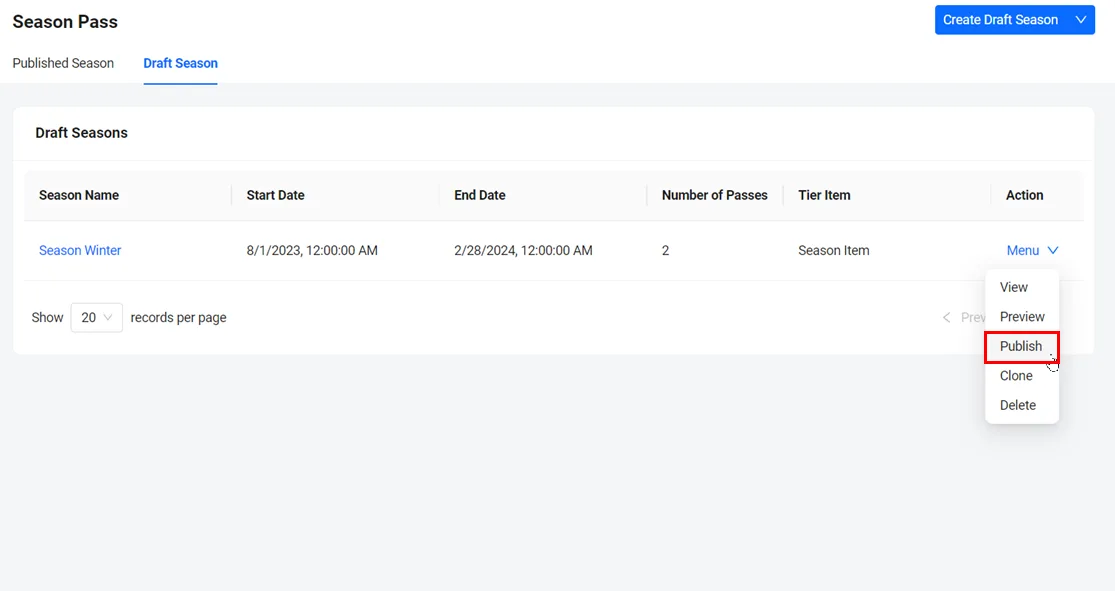
In the Draft Seasons tab, find the season you want to update. Hover over the menu next to it and click Publish. The Publish Season form appears.
-
To publish the season, type PUBLISH into the available field and click the Publish button. The draft season is published.

-
Find the ID of your draft season. In the output, it's the season's
id.ags season-pass seasons list --namespace <YourNamespace> --status DRAFT --format json -
Publish the season:
ags season-pass seasons publish --namespace <YourNamespace> --season-id <SeasonId>