Generate invoices
Overview
The AccelByte Gaming Services (AGS) Invoices service allows you to track the sales of items and their details during a set period of time.
This article walks you through how to:
- Generate invoices within the AGS Admin Portal or with the AGS CLI.
- Download generated invoices.
Prerequisite
- Access to your publisher and game namespaces in the AGS Admin Portal.
- To follow the AGS CLI steps, you have installed the AGS CLI and signed in. See Install and sign in.
Generate invoices
Follow these steps to view a list of invoices from within a set period of time.
- Admin Portal
- AGS CLI
-
On the Admin Portal sidebar, go to Online > Wallets & Payment > Sales > Invoices.
-
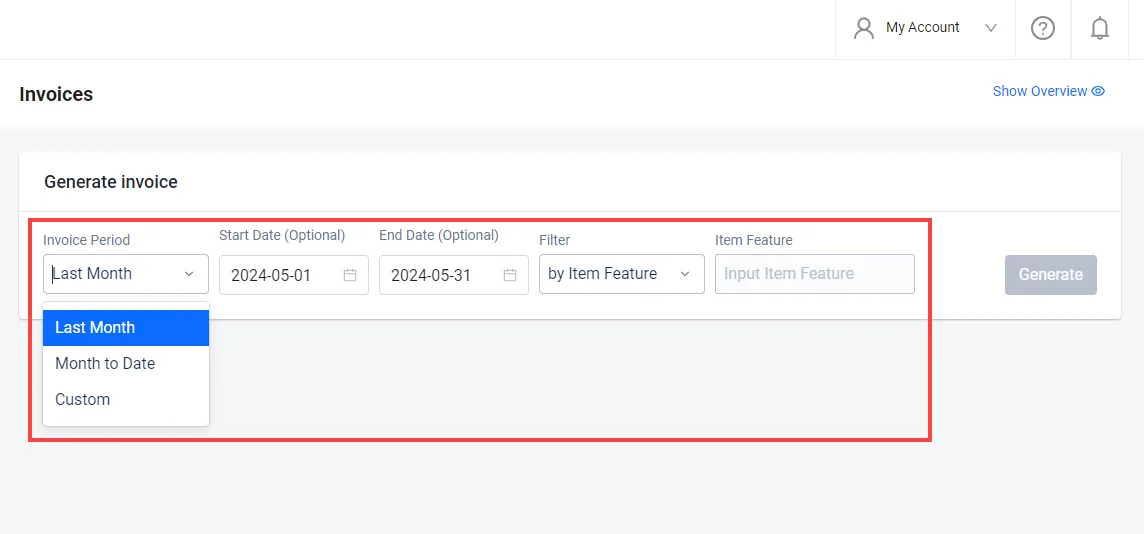
In the filters, you can choose to see invoices from the last month, month to date, or within a custom time period. If you choose a custom period, enter the start date and end date.
-
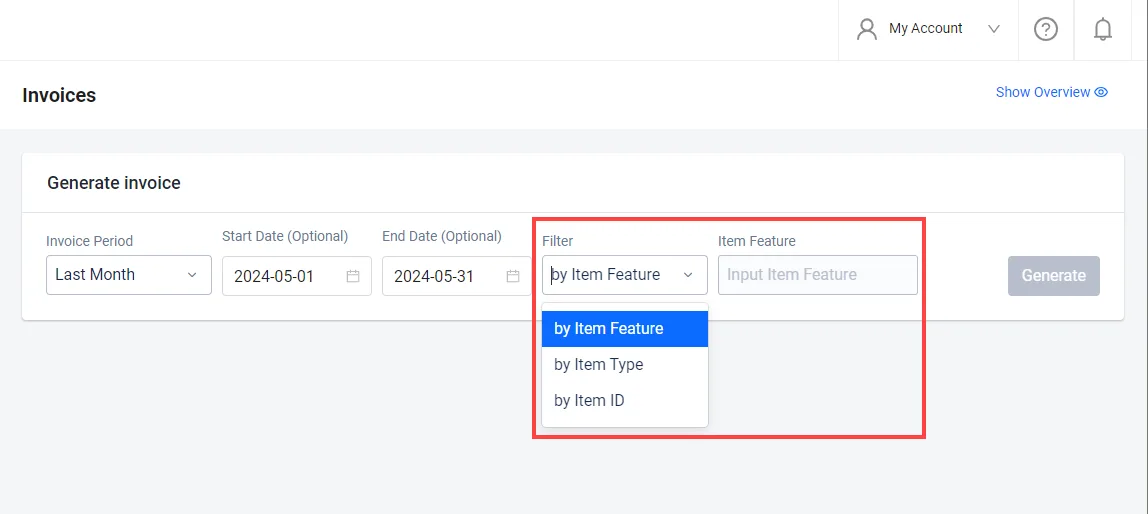
Filter the results by item feature, item type, or item ID.
noteYou can find an item's Item ID on its details page in your store.
-
Click the Generate button to retrieve invoices according to your parameters.
-
Run the following command to see the invoice summary of a time period for one item type. Replace the placeholders:
--start-time: the first day of the period, at 00:00 UTC. For example,2026-09-01T00:00:00Z. The start time is inclusive.--end-time: the day after the last day of the period, at 00:00 UTC. For example,2026-10-01T00:00:00Zcovers all of September. The end time is exclusive.--item-type: the type of item to include. See the table in step 2.
ags platform invoices generate-summary --namespace <YourNamespace> \
  --start-time <StartTime> --end-time <EndTime> \
  --item-type <ItemType> --feature '' --item-id ''
The empty
--featureand--item-idvalues mean that the summary doesn't filter by item feature or item ID. The command prints the sales volume, subtotal, tax, and total for each currency. -
Choose the item type from this table. For what each type is, see Create store items.
Admin Portal item type --item-typevalueApp APPBundle BUNDLECode CODECoins COINSExtension EXTENSIONIn-game Item INGAMEITEMLoot Box LOOTBOXMedia MEDIAOption Box OPTIONBOXSeason SEASONThe Admin Portal doesn't offer the
SUBSCRIPTIONtype for invoices, so don't use it.
To filter invoices by item feature or item ID, use the Admin Portal tab.
Download invoices
You can download a list of invoices from within a set period of time.
- Admin Portal
- AGS CLI
-
Generate an invoice based on your selected period and filters.
-
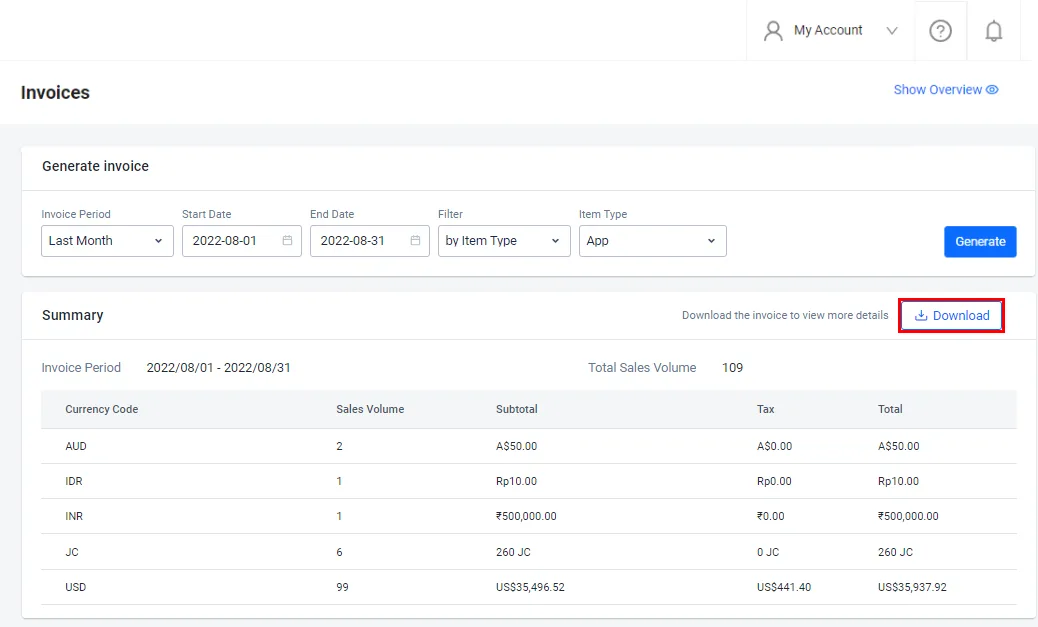
Click the Download button at the top of the generated invoice list. Your invoice will be downloaded in .csv format.
-
Run the following command with the same period and item type you used to generate the summary. The
--outputoption saves the invoice as a.csvfile with the name you give it:ags platform invoices download --namespace <YourNamespace> \
--start-time <StartTime> --end-time <EndTime> \
--item-type <ItemType> --feature '' --item-id '' \
--output invoice.csv