Manage orders
Overview
With AccelByte Gaming Services (AGS), players can purchase and place an order for an item in your store. After a player finishes the payment process, the fulfillment service is triggered and the player is granted the item they ordered. Player orders can be viewed and refunded from the AGS Admin Portal or with the AGS CLI.
Goals
- Explain what an order is.
- Guide users to manage and process orders.
Prerequisites
- Access to the AGS Admin Portal.
- Appropriate namespaces are created.
- To follow the AGS CLI steps, you have installed the AGS CLI and signed in. See Install and sign in.
Query an order
- Admin Portal
- AGS CLI
-
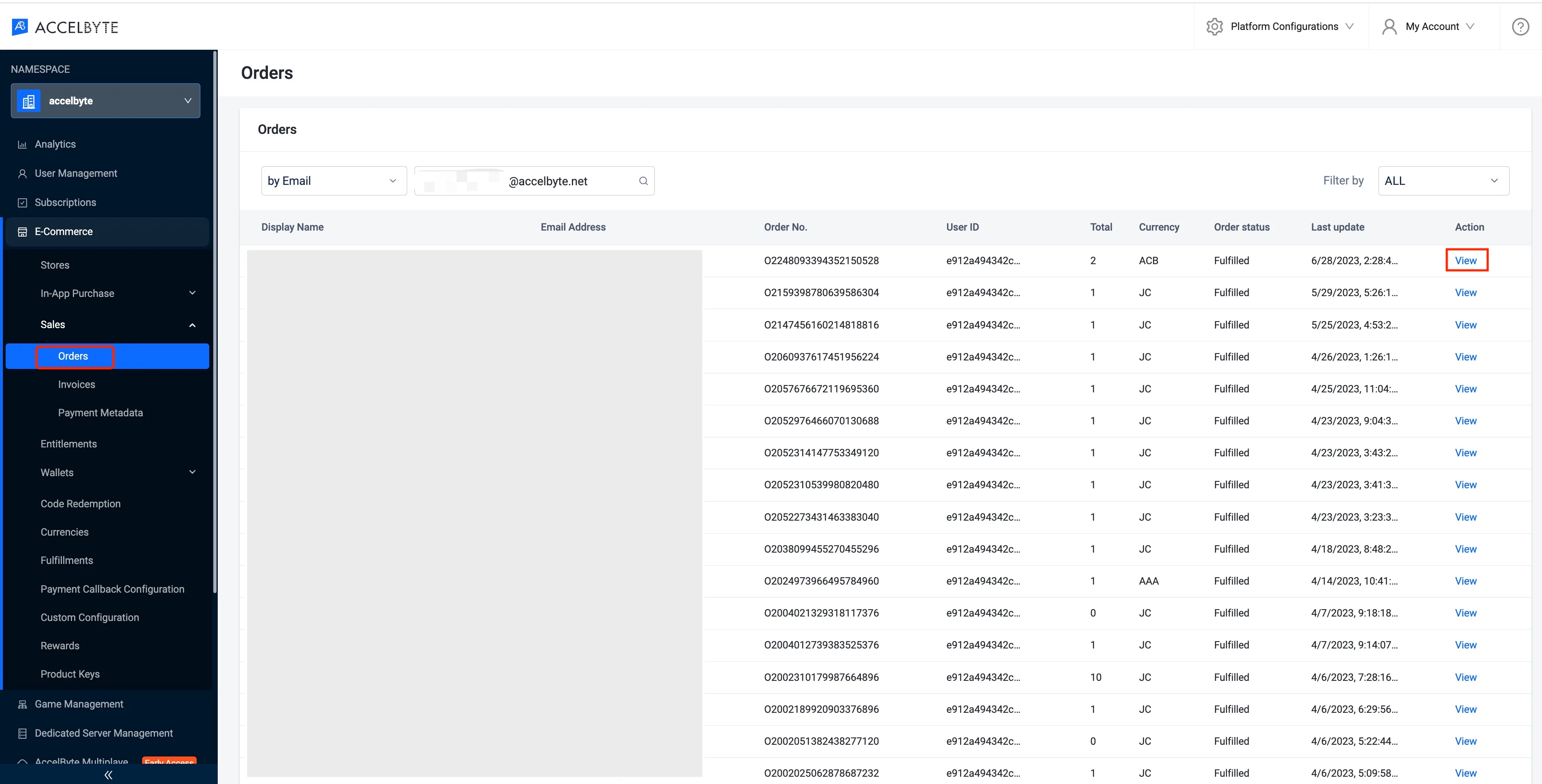
On the Admin Portal sidebar, go to Online > Wallets & Payment > Sales > Orders.
-
In the Orders menu, find the desired order using one of the follow:
- The Email address of the player who made the order.
- The full Order ID of the order.
- The User ID of the player who made the order.
- The Payment Processor Reference ID.
AGS Public CloudThe Payment Processor Reference ID filter is not yet supported in AGS Public Cloud.
You can also filter your search by Order Status. When you finish setting your search parameters, press Enter to search.

-
The list of orders will appear. Click View in an order's Action column to open more detailed information about that order.
-
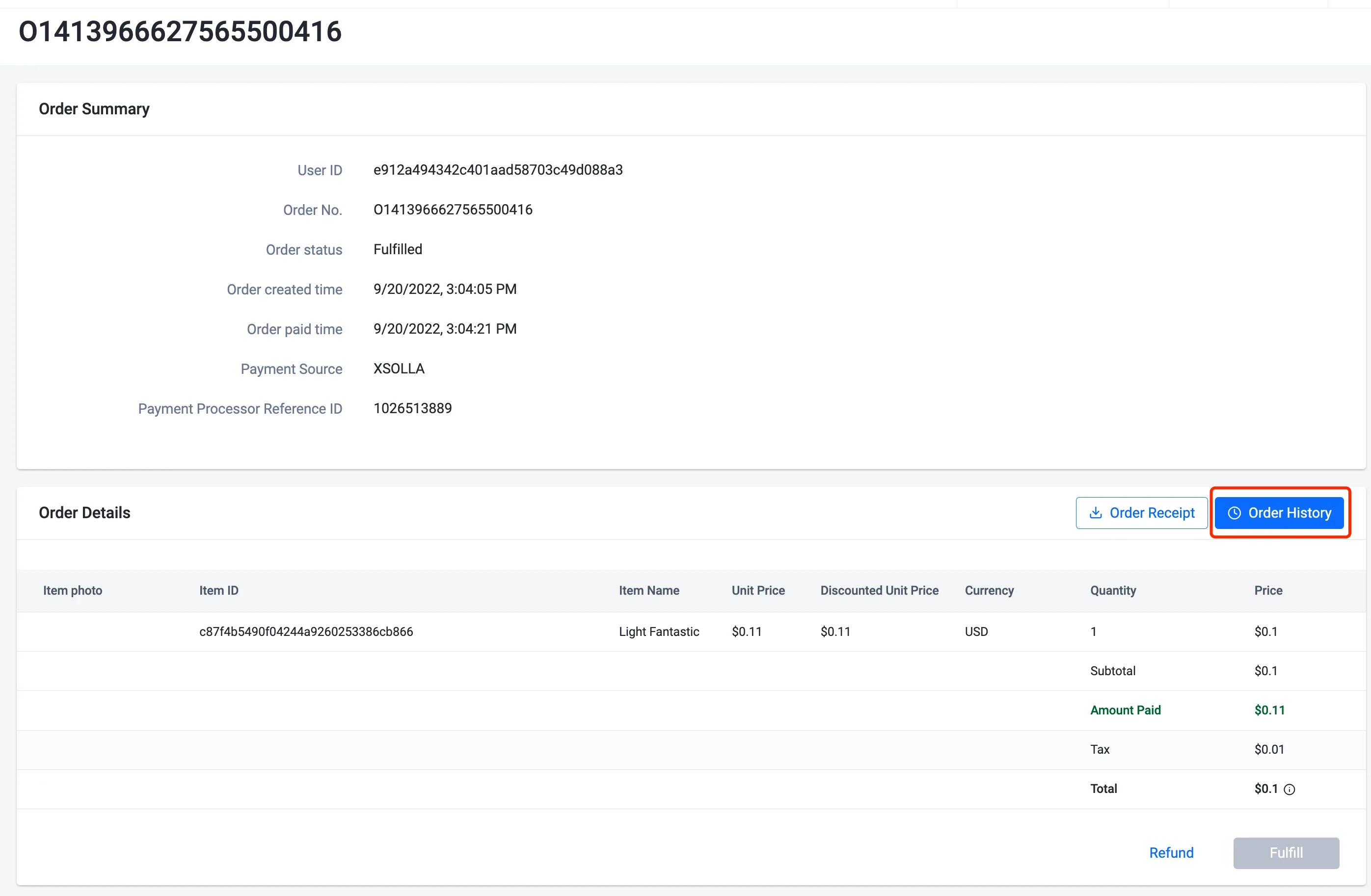
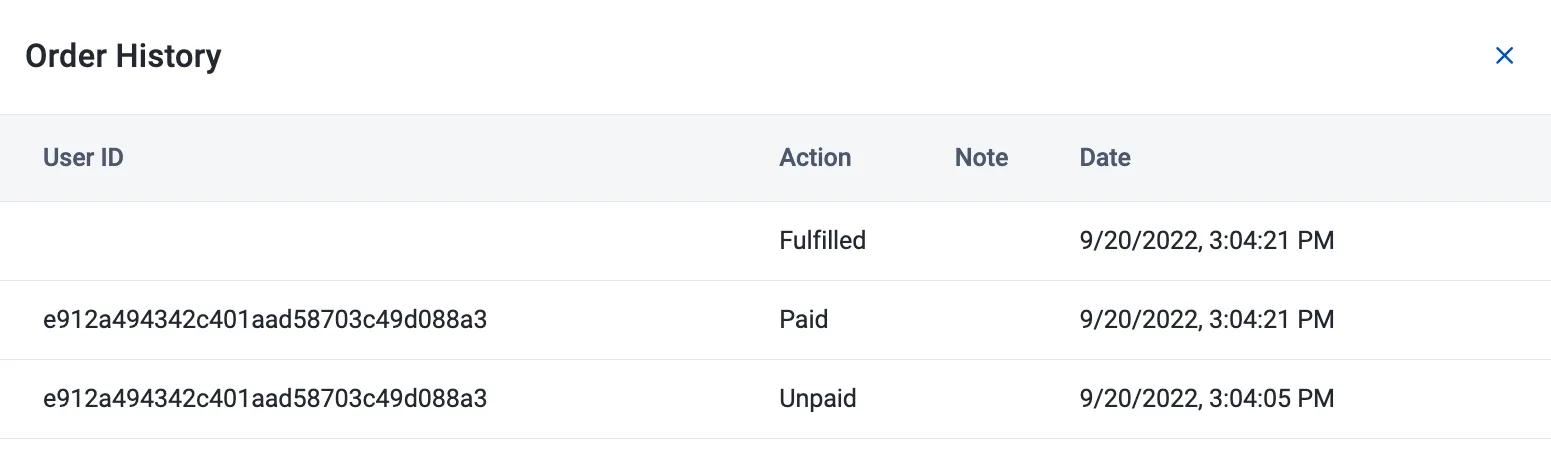
The Order Details page will appear. You can open the player's order history by clicking the Order History button.
-
Find the order using one of the following:
-
Order ID: get the order directly.
ags platform orders get --namespace <YourNamespace> --order-no <OrderNo> -
User ID: list the orders of the player.
ags platform orders list-user --namespace <YourNamespace> --user-id <UserId> -
Email address: get the player's
userId, then list the orders with the User ID command.ags iam users get-by-email --namespace <YourNamespace> --email-address <PlayerEmail> -
Payment Processor Reference ID: get the order numbers that match the reference ID.
ags platform payment list-orders-by-external-transaction-id --namespace <YourNamespace> --ext-tx-id <PaymentProcessorReferenceId>Then list those orders. Pass the order numbers to
--order-nos, separated by commas. Replace<OrderNo1>and<OrderNo2>with your order numbers, and add more if needed.ags platform orders list --namespace <YourNamespace> --order-nos <OrderNo1>,<OrderNo2>
Replace
<YourNamespace>with the namespace of the player. The commands print the order details.AGS Public CloudThe Payment Processor Reference ID filter is not yet supported in AGS Public Cloud.
-
-
To filter the list by order status, add
--statustoags platform orders list-userorags platform orders list. For example, add--status CHARGED. To page through the results, add--offsetand--limit. -
To see the order history of the player's order, run:
ags platform orders get-history --namespace <YourNamespace> --user-id <UserId> --order-no <OrderNo>
Order detail for flexible pricing bundle
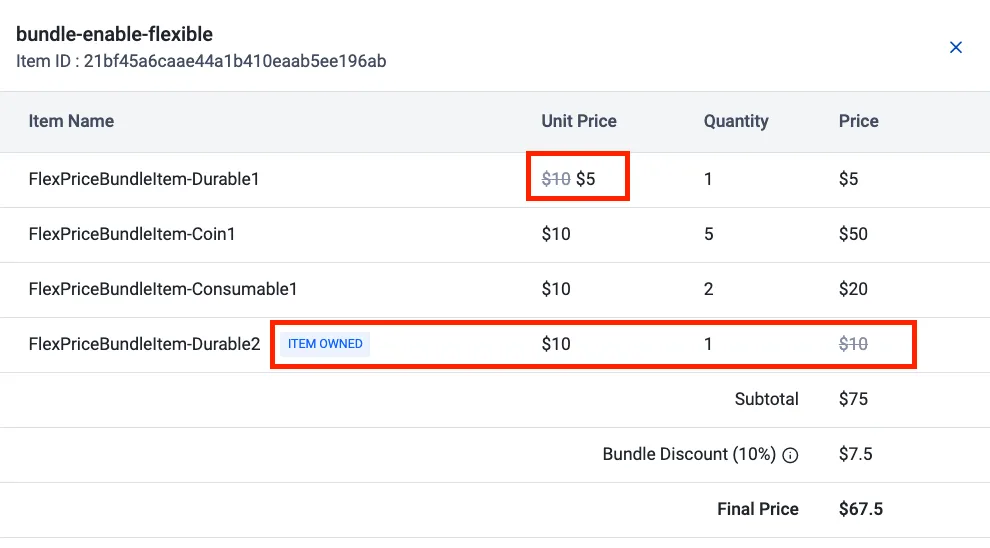
For flexible pricing bundle, the final bundle price will be reduced or discounted if the customer already owns any item in the bundle.
To check if an item in the bundle is already owned by the customer, follow these steps:
-
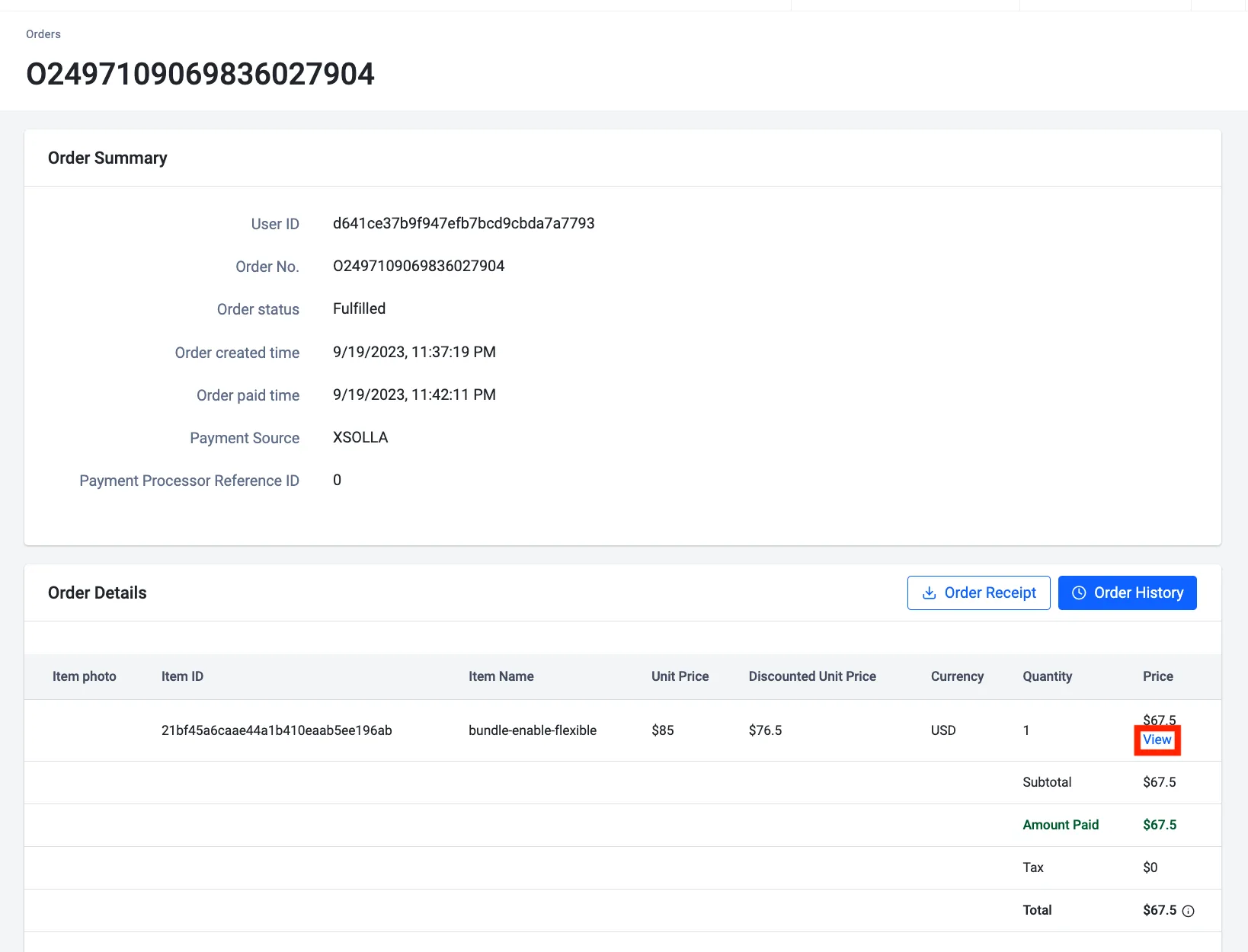
In Order Details, click View on the price of a bundle.
-
You can see the first item is discounted, while the last item already owned, therefore the subtotal is $75.
Download an order receipt
- Admin Portal
- AGS CLI
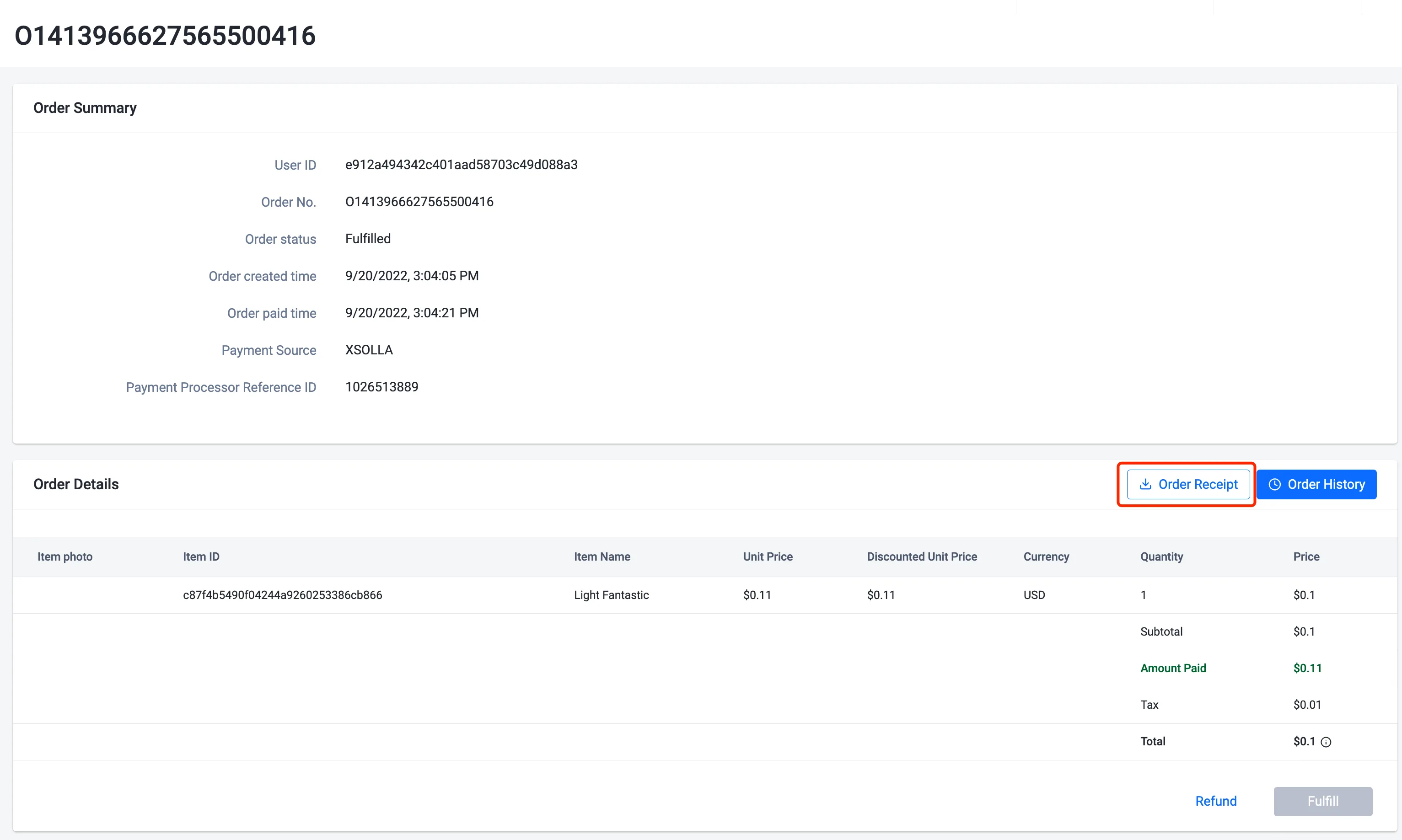
In the Order Details panel, click the Order Receipt button. The download will start immediately. The order receipt will be saved as a ``.csv` file.
Only orders that involve real currencies are available for download.
-
Run the following command. The
--outputoption saves the receipt to the file you name:ags platform orders download-receipt --namespace <YourNamespace> --user-id <UserId> --order-no <OrderNo> --output receipt.pdfnoteOnly orders that involve real currencies are available for download.
Refund an order
- Admin Portal
- AGS CLI
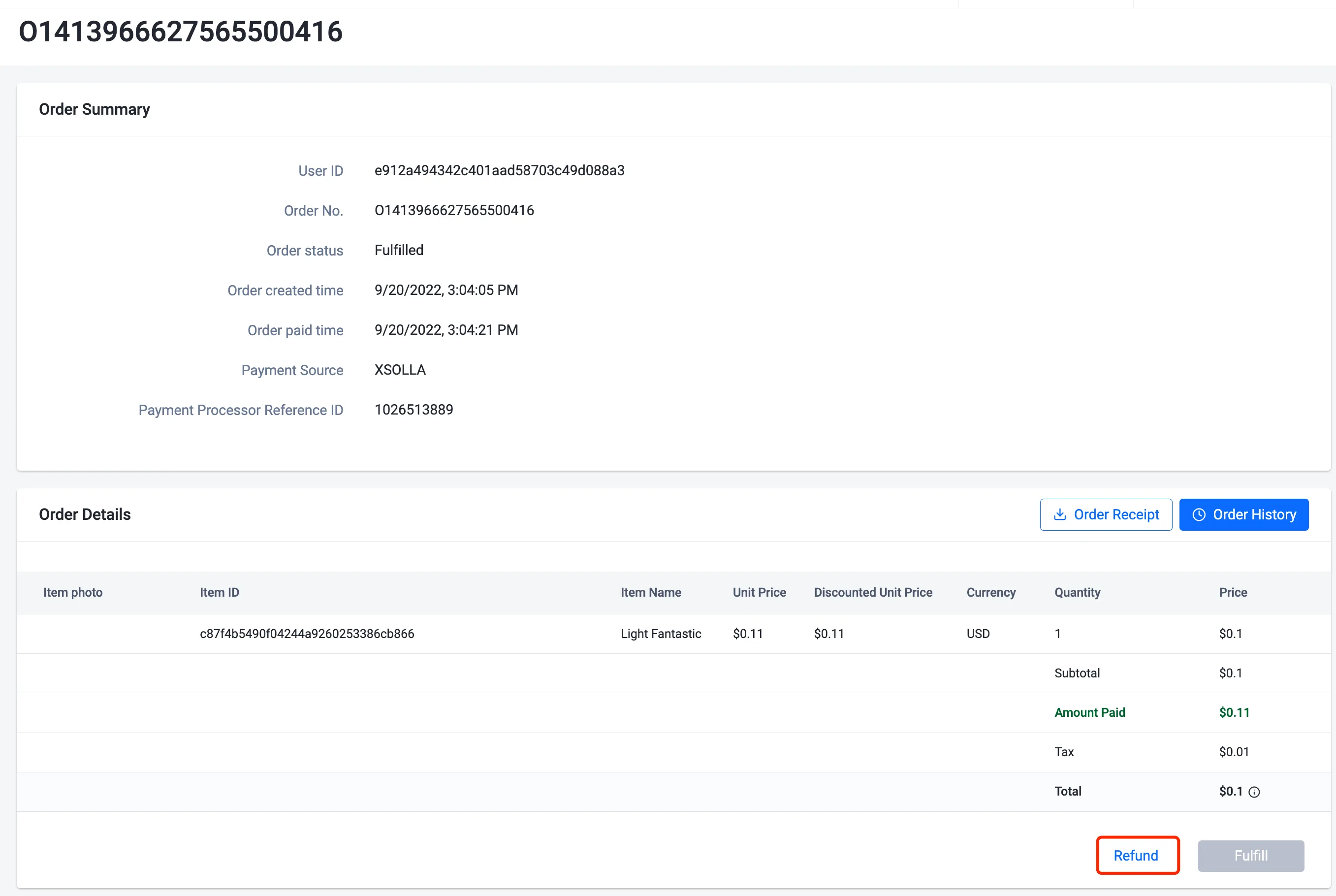
In the Order Details panel, click the Refund button. The Refund Order form will appear. Type the reason for the refund in the Reason field. Once completed, click Refund.

-
Refund the order. In
description, type the reason for the refund:ags platform orders refund --namespace <YourNamespace> --order-no <OrderNo> \
--json '{"description": "<RefundReason>"}'noteYou can refund an order only when its status is
CHARGEDorFULFILLED.