Set up P2P transport using Unity SDK
This guide covers the Unity P2P-specific transport setup and host connection behavior for a matched game session.
For the shared Matchmaking flow, including creating match tickets, handling match results, and joining the game session, see Integrate matchmaking (Unity). When you reach the host connection step in that guide, choose the P2P tab and use this page for the transport prerequisites.
Prerequisites
- Configure the match pool to use a session template with the P2P session type. See Configure P2P.
- Set up IAM Clients with the permissions required by Matchmaking, Session V2, Lobby, and TURN Manager. Follow the steps in Manage access control for application.
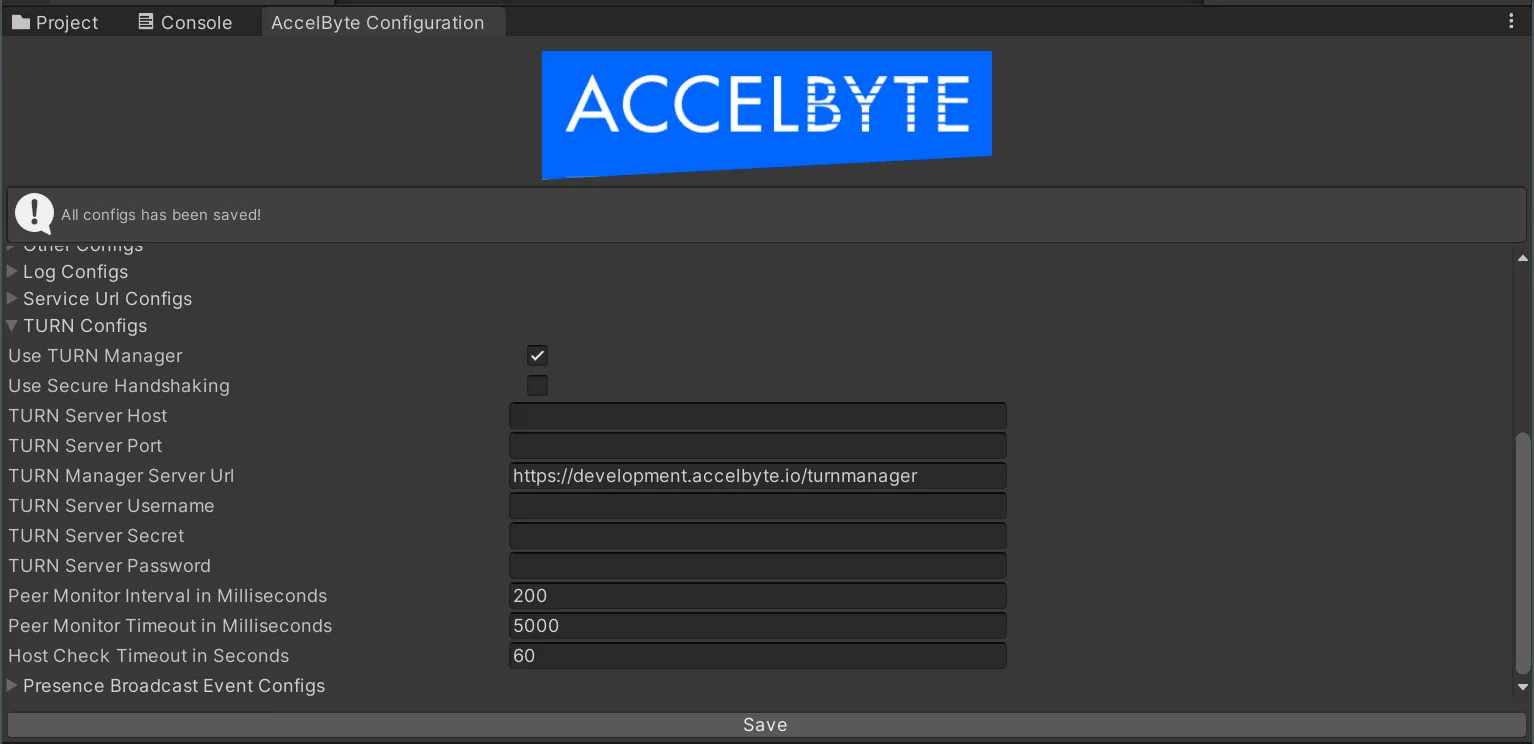
- Enable P2P related settings in the AGS Unity SDK configuration. For Turn Manager server URL, change it to your environment-specific URL. Turn server host, port, username, secret, and password are optional. These settings are only used when using static auth key for the TURN server. In this example, we use dynamic auth key and the mentioned settings are left empty.
Initialize AccelByte network transport
Before initializing the network transport of the game client, log in to AGS and connect to Lobby first. The following snippet shows how to connect and initialize network transport.
var apiClient = AccelByteSDK.GetClientRegistry().GetApi();
var user = apiClient.GetUser();
var lobby = apiClient.GetLobby();

AccelByteNetworkTransportManager transportManager = gameObject.AddComponent<AccelByteNetworkTransportManager>();

lobby.Connected += () =>
{
    transportManager.Initialize(apiClient);
};

user.LoginWithEmailV4("email", "password", result =>
{
    if (result.IsError)
    {
        Debug.Log($"Login Failed: {result.Error.error_description}");
        return;
    }

    lobby.Connect();
});
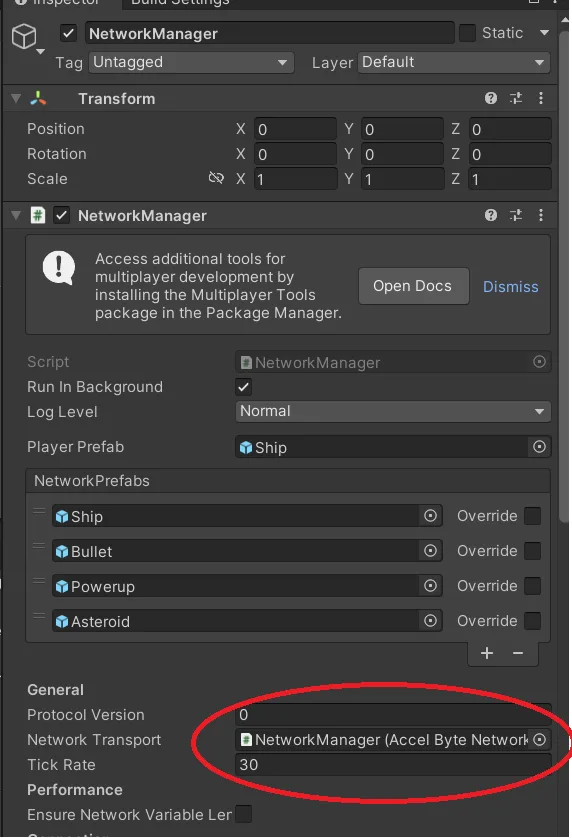
If you have Unity Netcode in your scene's singleton, you can pass the component's reference to the NetworkTransport selection.
Connect after joining a P2P game session
After the shared Matchmaking flow joins the game session, compare the game session leader ID with the current player ID. The leader starts as host. Other members target the leader and start as clients.
string gameSessionLeaderId = joinGameSessionResult.Value.leaderId;
string currentUserId = GetCurrentAccelByteUserId();

if (gameSessionLeaderId == currentUserId)
{
    transportManager.StartServer();
}
else
{
    transportManager.SetTargetHostUserId(gameSessionLeaderId);
    transportManager.StartClient();
}
Replace GetCurrentAccelByteUserId() with the user ID from your authenticated AGS user session.
Keep one initialized AccelByteNetworkTransportManager for the local player flow. In a production scene, initialize the transport once, register Lobby callbacks once, and unregister callbacks when the scene or object is destroyed.
Send data to peer without Unity Netcode
To send data to peer, use this method in your game client:
byte[] data = System.Text.Encoding.ASCII.GetBytes("sample data");
ulong peerId = 0;
transportManager.Send(peerId, new ArraySegment<byte>(data), NetworkDelivery.Reliable);
Receive data from peer without Unity Netcode
To receive data from peer, you can set the game client to listen to the previously registered callback for OnTransportEvent, or, alternatively, poll the events using this method:
var networkEvent = transportManager.PollEvent(out ulong clientId, out ArraySegment<byte> payload, out float receiveTime);
Troubleshooting
- To confirm that P2P connection has been established, check the transport event raised from the ICE/WebRTC data channel. Listen to
OnTransportEventor polltransportManager.PollEvent(...)and treatNetworkEvent.Connectas the network-level signal that the peer connection is established. A connected Lobby websocket or a successfulJoinGameSession()only confirms service/session connectivity; it does not prove that the P2P data channel is connected. After receivingNetworkEvent.Connect, you can send a small gameplay ping to validate bidirectional traffic. - If the wrong player starts as host, verify that the value compared with
leaderIdis the current AGS user ID or member ID expected by your SDK version. - If clients join the game session but cannot exchange gameplay traffic, verify the Unity Netcode transport selection, TURN Manager server URL, and P2P settings in the AccelByte SDK configuration.
- If relay behavior is inconsistent, use the TURN Manager APIs to list available TURN servers and check latency to each region.