Manage player achievements from the Admin Portal
Overview
AccelByte Gaming Services (AGS) allow you to browse and manage user achievements data from the AGS Admin Portal. Managing user achievements data is essential for maintaining accurate and up to date information. Here are some common reasons for these actions:
- Development phase: If you need to manually lock and unlock your testing user achievement data during integration/development phase
- Error correction: If there is a technical glitch in the game that prevents the player from unlocking the achievement and you need to manually correct the issue
- Community engagement: If you need to manually recognize outstanding contributions from your players by giving an achievement
This article walks you through how to browse and manage player achievements from the AGS Admin Portal or with the AGS CLI.
Prerequisites
You must have access to the AGS Admin Portal and AGS Achievement API documentation.
To follow the AGS CLI steps, you must have installed the AGS CLI and signed in with an account that has access to these features. See Install and sign in. The examples use a Bash shell.
View a player's achievements
- Admin Portal
- AGS CLI
-
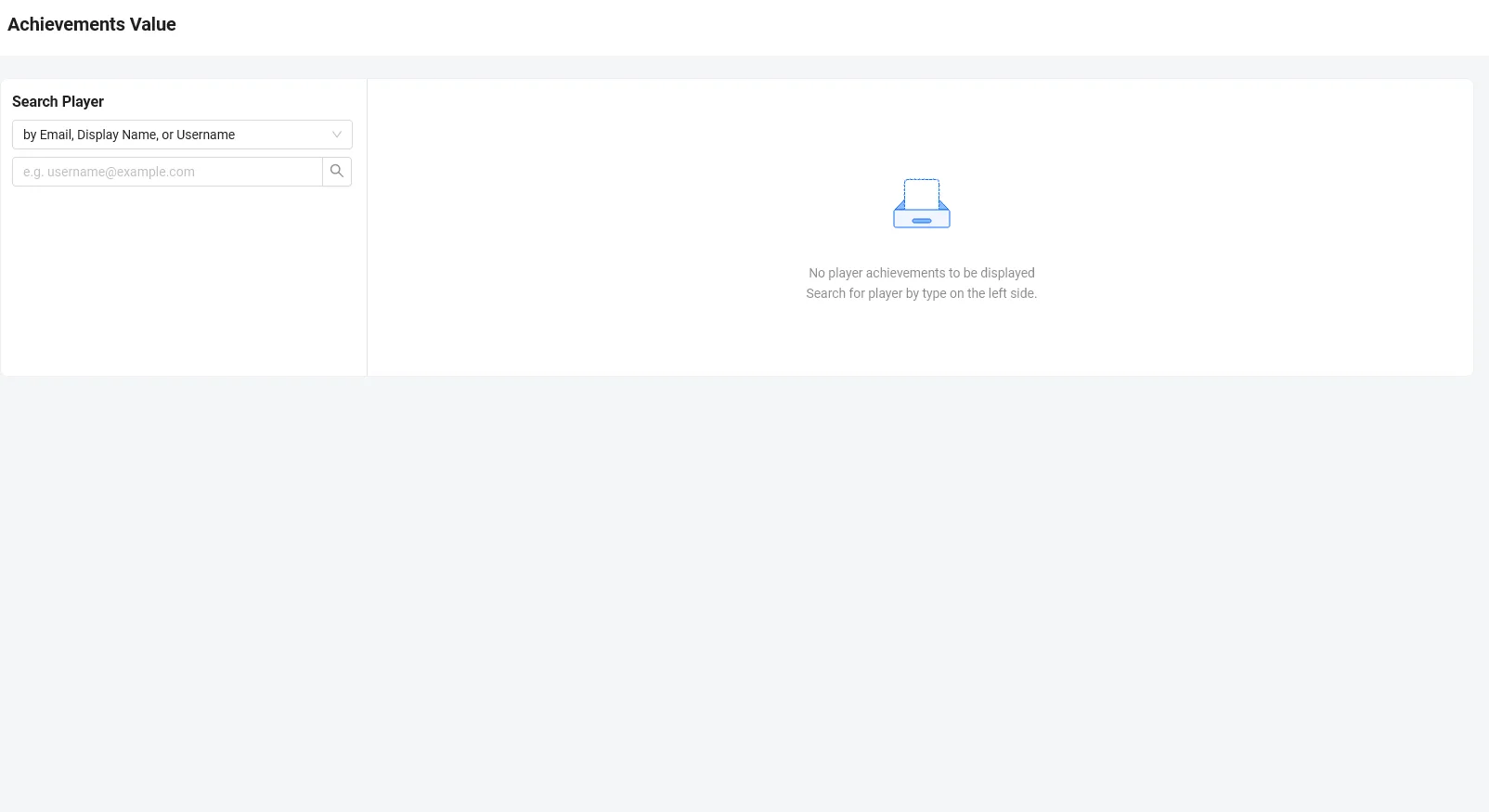
On the Admin Portal sidebar, go to Engagements > Achievements > Lookup Achievements.
-
On the Achievements Value page, search for a player using any of the following options:
-
Email, Display name or Username
-
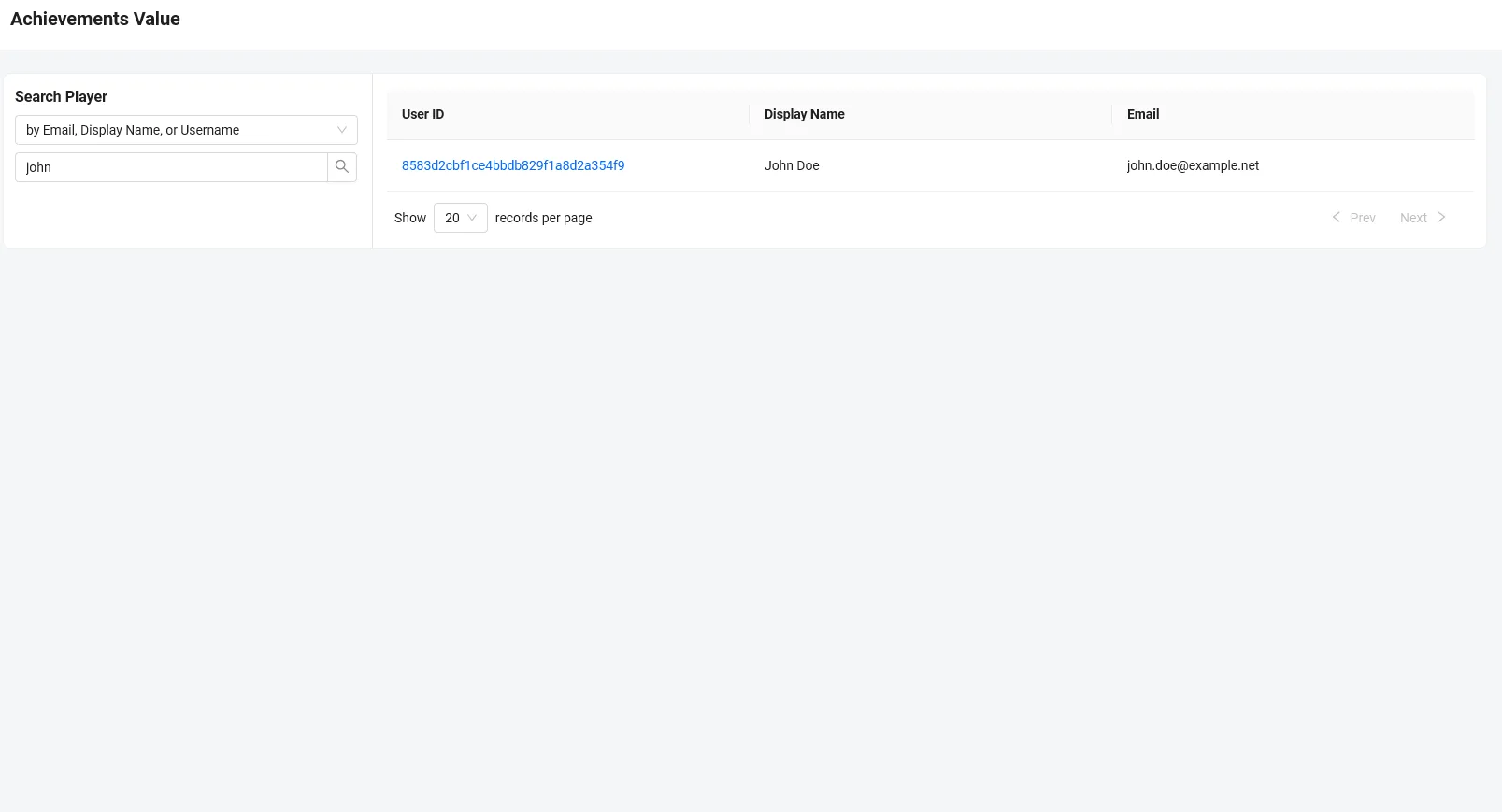
Type in a keyword. The list of users is displayed.
-
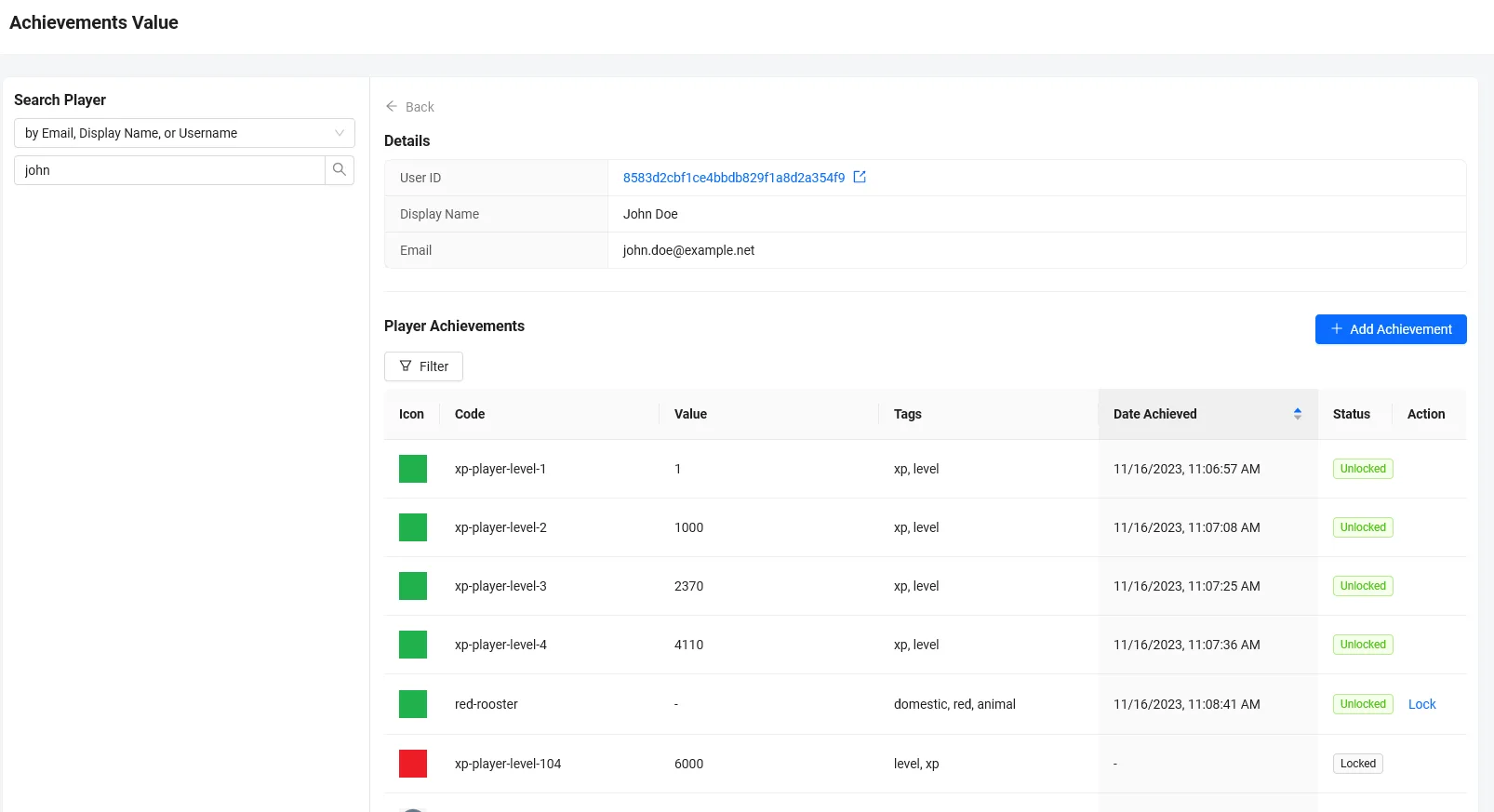
Select the player with the achievements you want to view by clicking on their user ID. The list of achievements for the player is displayed on the Player Achievements page.
-
-
User ID: Use the player's user ID. The list of achievements for the player is displayed on the Player Achievements page.
-
-
Find the player's user ID. Replace
<PlayerEmailOrUsername>with the player's email address, username, or display name. A partial value works too:ags iam users search --namespace <YourNamespace> --query <PlayerEmailOrUsername>In the output, find the player's account and note its
userId. If you already know the user ID, skip this step. -
List the player's achievements. Unlocked achievements come first:
ags achievement user-progress list --namespace <YourNamespace> --user-id <UserId> --prefer-unlocked true
Unlock player achievements
- Admin Portal
- AGS CLI
-
Search for the player with the achievements you want to update.
-
On the Player Achievements list, click Add Achievement to add an achievement to the user.
-
On the Add Achievement form, type in the code of the achievement you want to add and click Search.

The Achievement Configuration summary displays.
 info
infoThe Achievement Configuration that can be added to the user from the Admin Portal is a non-incremental achievement, and does not rely on the player's statistic values.
-
Click Add to continue. The achievement is added to the user's achievements list.
-
Unlock the achievement. You can only unlock non-incremental achievements:
ags achievement user-progress unlock --namespace <YourNamespace> --user-id <UserId> --achievement-code <AchievementCode>
Lock player achievements
- Admin Portal
- AGS CLI
-
Search for the player with the achievements you want to update.
-
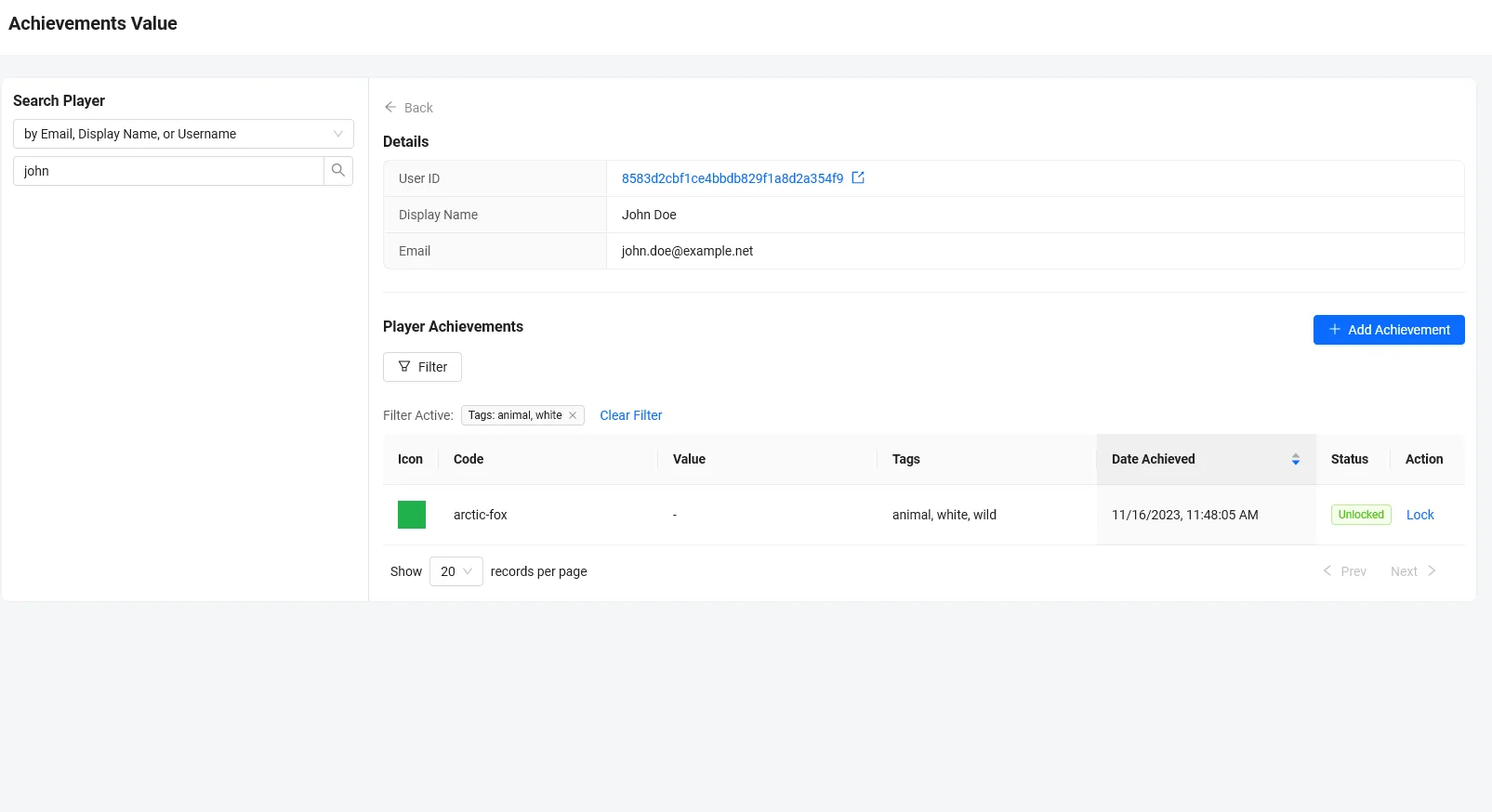
On the Player Achievements list, find the achievement you want to lock and click on its Lock option.
-
On the confirmation message, click Lock to confirm. The achievement will is immediately removed from the player's achievements list.

-
Lock the achievement. In the AGS CLI, this action is called
reset. It removes the achievement from the player's achievements list:ags achievement user-progress reset --namespace <YourNamespace> --user-id <UserId> --achievement-code <AchievementCode>