Release 0.5.2
Overview
AGS CLI 0.5.2 is a patch release on top of 0.5.1. Each item below is tagged with the area it affects: [Extend] or [General].
Existing scripts keep working without changes. To upgrade from 0.5.1, run ags update --install.
Highlights
[Extend] Stream an Extend app's logs (early preview)
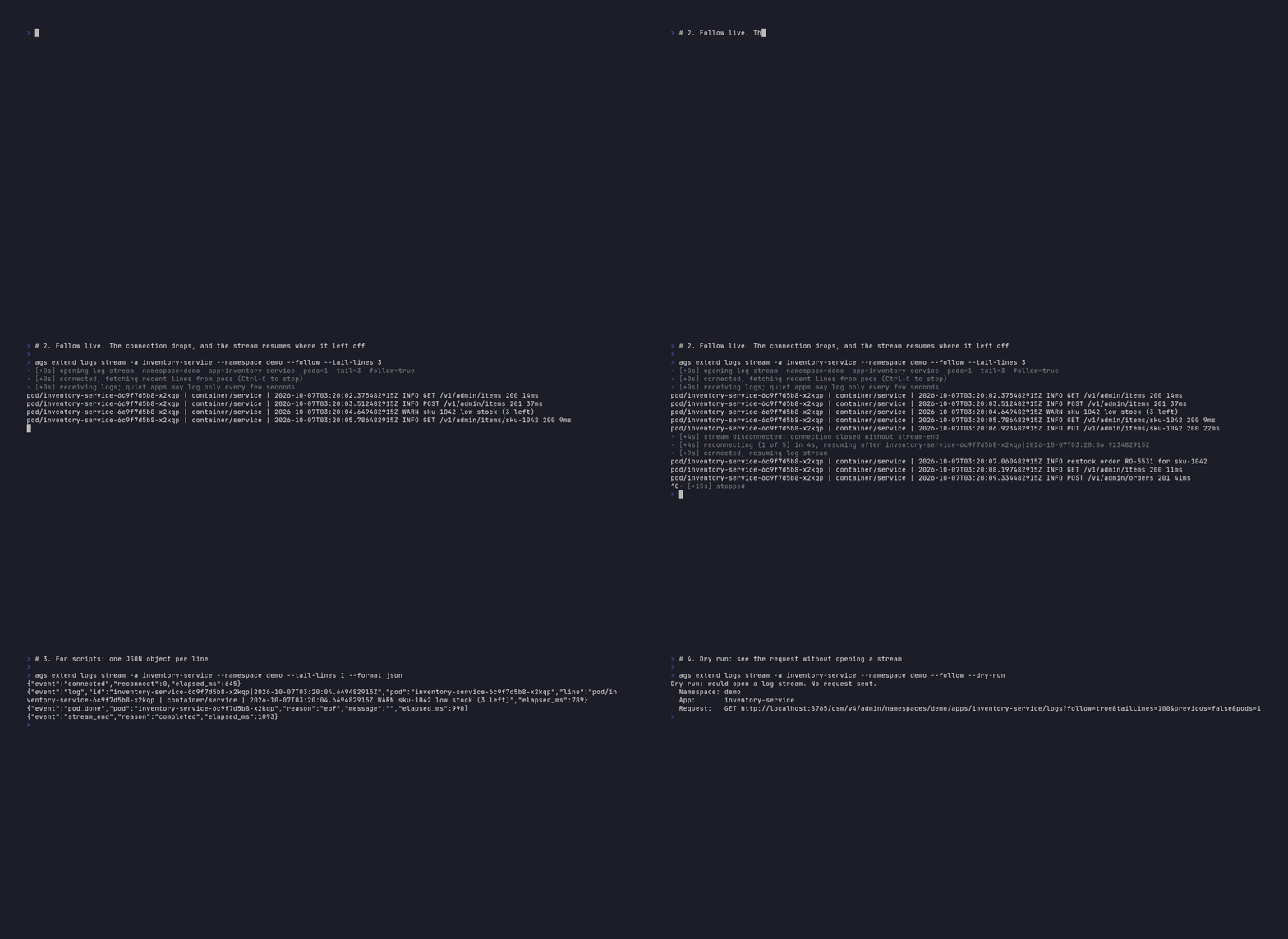
You can read an Extend app's container logs from the terminal. The command can print the most recent lines or follow new lines live.
ags extend logs stream --app my-app --namespace my-game             # recent lines, then exit
ags extend logs stream --app my-app --namespace my-game --follow    # keep streaming until Ctrl+C
Without --follow, the command prints the most recent lines, 100 per pod by default (set with --tail-lines), and exits when the stream ends. With --follow, it keeps the connection open and prints new lines as they arrive until you press Ctrl+C.
Log lines go to standard output and status lines go to standard error, so > app.log captures only the logs. In a script, use --format json: every event, including each log line, is one JSON object per line.
The platform closes a long connection about every ten minutes. With --follow, the command reconnects by itself, resumes after the last line it printed, and does not print a line twice. It reconnects up to five times in one run, then exits with code 4. Run it again to continue.
--pods sets how many pods to stream from (default 1; the server accepts up to five). --since-seconds limits the output to recent lines. --previous prints the logs of each pod's previous container, so you can see why a container crashed before it restarted.
The command needs the permission ADMIN:NAMESPACE:{namespace}:EXTEND:APP [READ]. A namespace can have up to ten log streams open at once. A stream you stop with Ctrl+C still counts toward that limit for about a minute.
This command replaces extend-helper-cli logs stream. See Migrate from extend-helper-cli.
[General] Create the IAM client from the login prompt
ags auth login needs a public IAM client with http://127.0.0.1:8080 as its redirect URI. If you don't have one yet, create it from the login prompt:
-
Press Enter at the Client ID prompt. The CLI prints a link to the IAM client form in the Admin Portal. The link selects the AGS CLI template.
-
Open the link and create the client. If your Admin Portal doesn't have the AGS CLI template yet, the form opens empty, and the CLI lists what to enter:
If the form is empty, enter:
    Client Type:   Public
    Client Name:   AGS CLI
    Redirect URI:  http://127.0.0.1:8080
If you log in with
--portand a port other than8080, set the client's redirect URI tohttp://127.0.0.1:<port>. This applies whether the form uses the AGS CLI template or opens empty. The CLI prints the same reminder under the link. The redirect URI in its list also uses your port. -
Paste the new client's ID at the Client ID prompt.
The link uses the namespace from --namespace, AGS_NAMESPACE, or your profile. If none is set, the CLI asks for one. This applies to browser login only. Client-credentials login (--grant client-credentials) is unchanged.
Improvements
- [General] When you log in with
--portand a port other than 8080, the CLI warns that the IAM client's redirect URI must behttp://127.0.0.1:<port>. IAM sends the browser to the client's registered redirect URI, so a mismatch used to leave the login waiting until it timed out, with no hint why.
Full release notes
See the 0.5.2 release on GitHub for the complete list of changes.