Extend app lifecycle
Overview
This article explains the standard workflow for managing the lifecycle of an Extend app, covering four major operations: Create, Deploy, Stop, and Delete. Each operation has a fallback mechanism to handle errors and timeouts. You can monitor operation status in the Admin Portal or query it via API.
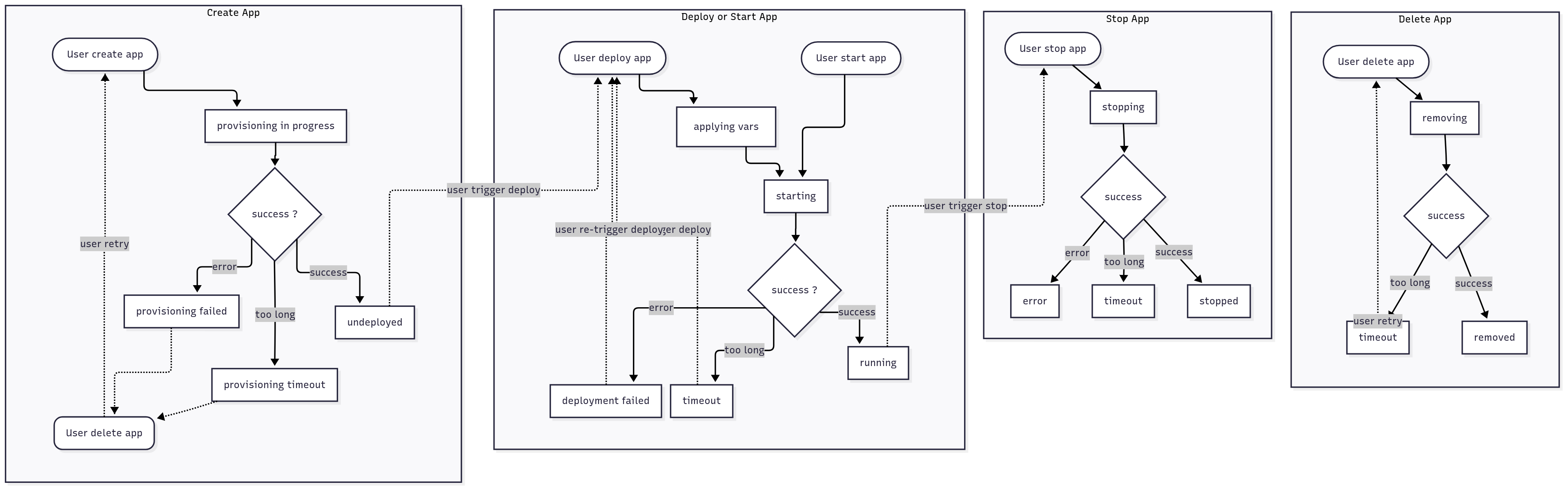
Creating an Extend App
The lifecycle begins when you click Create App. This triggers the Extend runtime to start provisioning a new app.
Provisioning Lifecycle
- Initiation
When you trigger the creation action, the app status is set to
provisioning in progress. The Extend runtime continuously monitors the provisioning workflow. - Possible Outcomes
The provisioning process can result in one of the following states:
undeployed: Indicates the application was successfully created and is now ready for deployment.provisioning failed: Signifies an error occurred during the creation process.provisioning timeout: Indicates the operation exceeded the maximum allowed time (e.g., one hour) without a result.
Timeout Handling
If a timeout occurs, the Extend runtime retries status polling automatically. If the process still fails, delete and recreate the app to start fresh.
Failure Handling
If creation fails, delete the app and try again. If the issue persists, contact AccelByte support.
Deploying or Starting an Extend App
Once your app is created and at least one image is uploaded, you can deploy or start it. When you trigger deployment, the app status changes to starting. During this phase, all updated environment variables and secrets are applied. If deployment completes successfully, the app transitions to the running state.
Deployment States
During deployment, the application may enter one of the following states:
running: Indicates that the application has started successfully.deployment failed: Signifies that an error occurred during the deployment process.timeout: Indicates that the deployment exceeded the configured timeout period.
Timeout Handling
If a timeout occurs, the Extend runtime rechecks the deployment status and retries where possible.
Failure Handling
If a deployment fails or times out, trigger a redeployment to retry. If the issue persists, check your app logs in Grafana. If the problem is unclear, contact AccelByte support.
Stopping an Extend App
When you stop a running app, the app status changes to stopping. The system then attempts to shut down the app gracefully.
Stopping Lifecycle
-
Shutdown Process During the stopping state, the Extend runtime performs a controlled shutdown of the application.
-
Possible Outcomes
stopped: Indicates that the application has been successfully terminated.error: An error occurred that prevented a successful shutdown.timeout: The shutdown process exceeded the expected duration.
Timeout Handling
If a timeout occurs, the Extend runtime polls the app state and retries the shutdown automatically.
Manual Control
You retain full control over your app’s runtime state and can trigger start or stop actions at any time.
Deleting an Extend App
The final step in the application lifecycle is deletion. When you click Remove App, the app transitions to the removing status while AGS deletes all associated configurations and resources.
Deletion Lifecycle
-
Removal Process During the removing state, the system performs cleanup of the application's metadata, images, and infrastructure resources.
-
Possible Outcomes
removed: The application was successfully deleted and will soon be excluded from the application list.timeout: The deletion process exceeded the expected duration, possibly due to infrastructure-related delays.
Timeout Handling
If a timeout occurs, retry the removal manually to ensure the app is fully deleted.