Configure a group role
Overview
You can use AccelByte Gaming Services (AGS) Group Service, through the AGS Admin Portal or the AGS CLI, to manage roles and permissions for Group members, such as controlling access to actions like inviting or removing members.
Prerequisites
You will need access to:
- The AGS Admin Portal.
- The AccelByte Group API documentation.
- The AGS CLI, if you follow the AGS CLI steps. Sign in with an account that can manage group roles. See Install and sign in.
Configure a group
To create a group role and add permissions to it, follow these steps in the Admin Portal or the AGS CLI:
Create a group role
- Admin Portal
- AGS CLI
-
On the Admin Portal sidebar, go to Multiplayer > Guilds & Clans > Configuration.
-
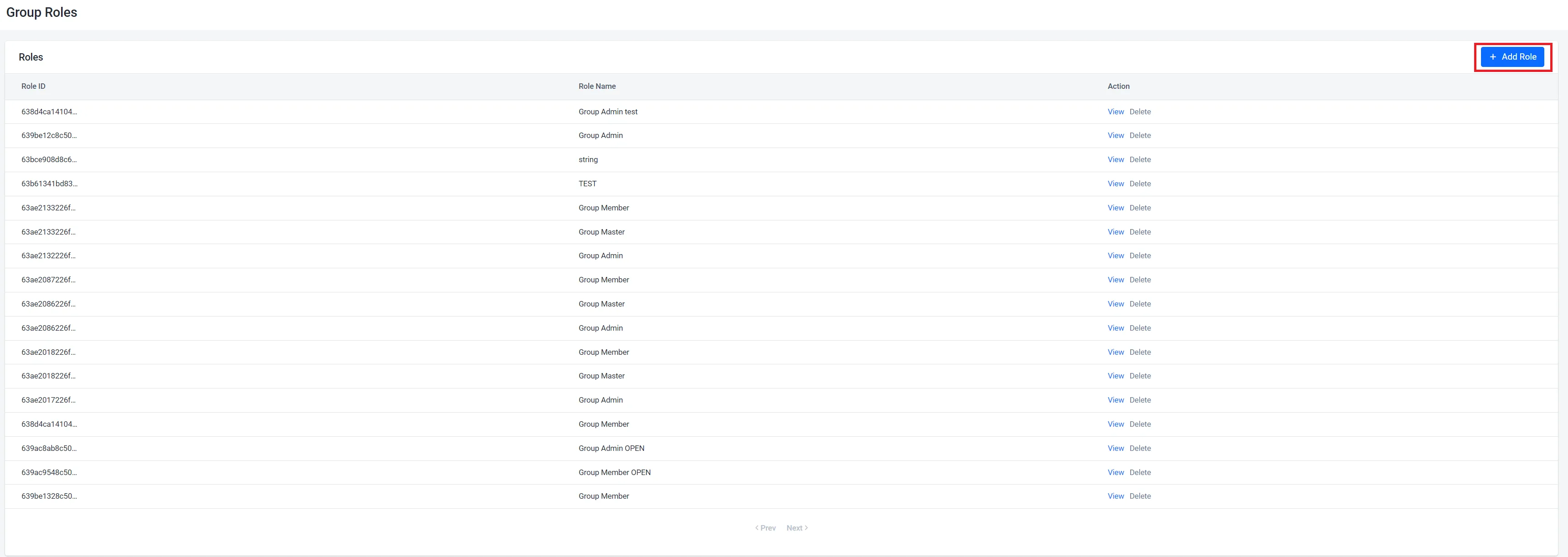
On the Group Roles page, click the Add Role button. A pop-up will appear.
-
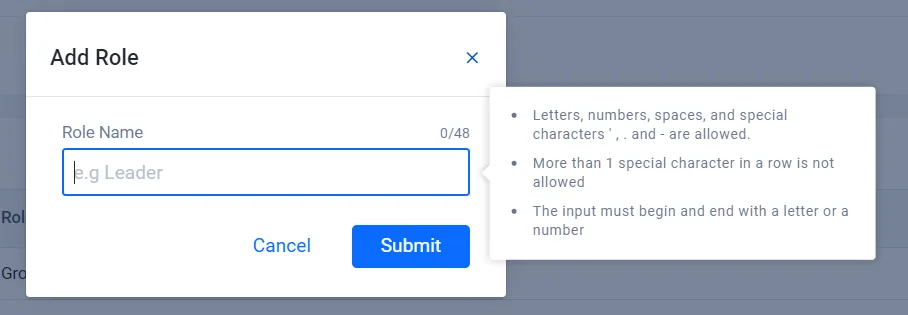
Enter the Role Name for your new role.
-
Click Submit to save the group role.
Create the role. Replace <RoleName> with the name of your new role:
ags group roles create --namespace <YourNamespace> \
  --json '{"memberRoleName": "<RoleName>", "memberRolePermissions": []}'
The command prints the new role. Note its memberRoleId, which you need to add permissions to the role and to create a group configuration.
Add permissions to a group role
- Admin Portal
- AGS CLI
-
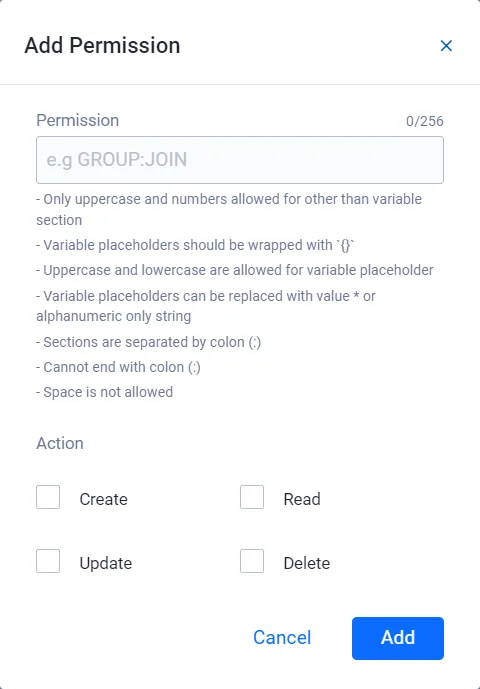
In the Admin Portal, go to the group role you want to add permissions to. On its Group Role Detail page, click the Add Permission button. A pop-up will appear.

-
Enter the Permission name for your new permission.
 note
noteThe role will appear when you add the group configuration.
-
Click Add to save the permission.
The AGS CLI replaces a role's whole permission list, so you start from the role's current permissions.
-
Find the ID of the role you want to add permissions to:
ags group roles list --namespace <YourNamespace>Each role in the
datalist has amemberRoleIdand amemberRoleName. The list shows up to 25 roles. To see more, add--limitand--offset. -
Save the role to a JSON file. Any file name works. This example uses
group-role.json:ags group roles get --namespace <YourNamespace> --member-role-id <MemberRoleId> --format json > group-role.json -
In the file, delete every field except
memberRolePermissions. Then add your new permission to the list, and keep the permissions that are already there. In this example, the role already hasGROUP:INVITE, andGROUP:ROLEis the new permission:{
"memberRolePermissions": [
{"resourceName": "GROUP:INVITE", "action": 1},
{"resourceName": "GROUP:ROLE", "action": 2}
]
}warningMake sure you delete
memberRoleId. If the file still has it, the AGS CLI updates the role in the file instead of the role you pass to--member-role-id.resourceName: the Permission name, such asGROUP:ROLE. List each resource only once.action: the sum of the actions you want:1(Create),2(Read),4(Update), and8(Delete). For example,3is Create and Read, and15is all four.
-
Send the updated permission list. After
@, pass the path to your JSON file:ags group roles update-permissions --namespace <YourNamespace> --member-role-id <MemberRoleId> --json @group-role.jsonwarningThis command replaces the role's permissions with the list in the file. A permission you leave out of the file is removed from the role.