Create a group configuration for a single or multiple group system
Overview
You can use AccelByte Gaming Services (AGS) Group Service to create group configurations for single and multiple group systems. A configuration defines the kinds of groups players can form, such as open, public, or private groups. It also sets the group member roles and the maximum number of members in each group. You can create a configuration in the AGS Admin Portal or with the AGS CLI.
Prerequisites
You will need access to:
- The AGS Admin Portal.
- The AccelByte Group API documentation.
- The AGS CLI, if you follow the AGS CLI steps. Sign in with an account that can manage group configurations and group roles. See Install and sign in.
Create a group configuration
To create a group configuration for a single clan system or a multiple group system, follow these steps in the Admin Portal or the AGS CLI:
- Admin Portal
- AGS CLI
-
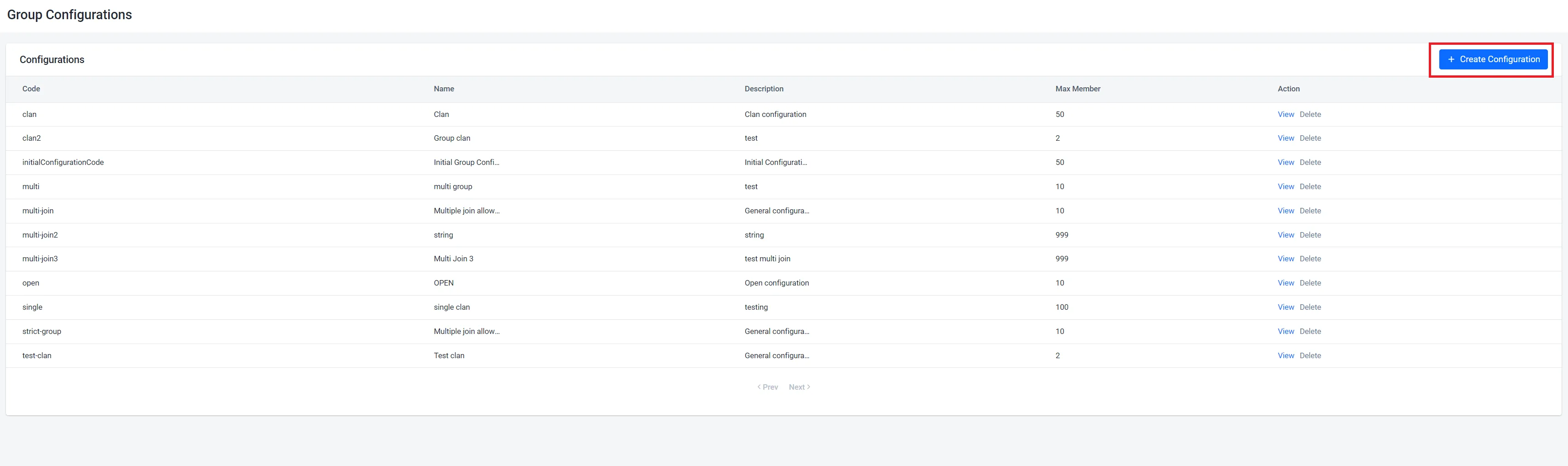
On the Admin Portal sidebar, go to Multiplayer > Guilds & Clans > Configuration.
-
On the Group Roles page, click the Create Configuration button. A pop-up will appear.
-
Fill in the required fields:
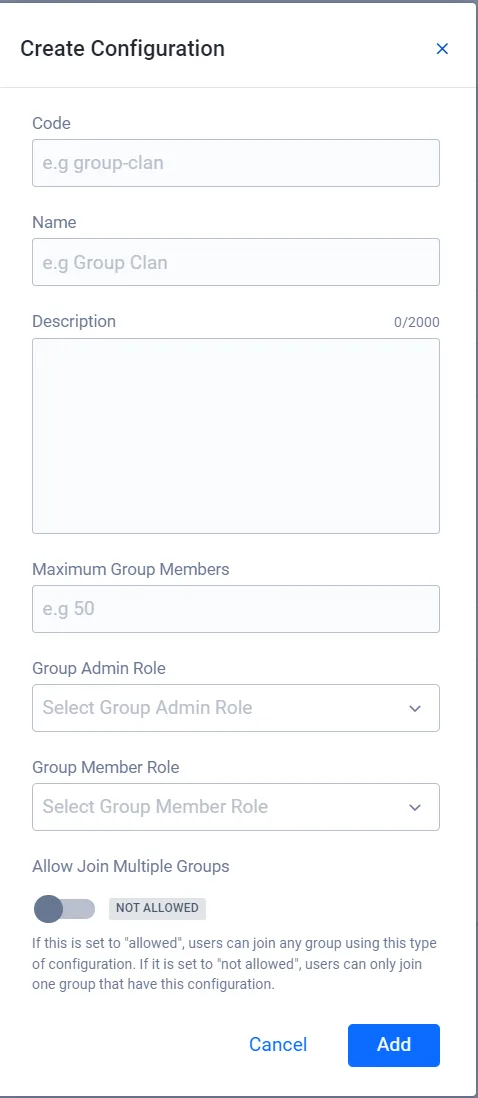
- Fill in Code with a unique identifier in an appropriate format (e.g., "group-clan").
- Fill in the Name and Description to provide extra information about the group configuration you're creating.
- Set the limit of the number of members that are allowed to join the group by filling in the Maximum Group Members.
- Use the dropdowns for Group Admin Role and Group Member Role to select a role for each from a list of roles that have been created.
- You can specify your group configuration to allow or disallow players to join a multiple groups at the same time by toggling Allow Join Multiple Groups.
- If it is set to ALLOWED, users can join any group using this type of configuration.
- If it is set to NOT ALLOWED, users can only join one group that has this configuration.
-
Click Add to complete and create your group configuration.
-
Find the IDs of the roles you want to use as the group admin role and the group member role:
ags group roles list --namespace <YourNamespace>Each role in the
datalist has amemberRoleIdand amemberRoleName. The list shows up to 25 roles. To see more, add--limitand--offset. To create a role, see Configure a group role. -
Create a JSON file with the configuration's settings. Any file name works. This example uses
group-config.json:{
"configurationCode": "<ConfigurationCode>",
"name": "<ConfigurationName>",
"description": "<Description>",
"groupMaxMember": 50,
"groupAdminRoleId": "<AdminRoleId>",
"groupMemberRoleId": "<MemberRoleId>",
"allowMultiple": false,
"globalRules": [{"allowedAction": "createGroup", "ruleDetail": []}]
}Admin Portal field Request body field Code configurationCode: a unique identifier of up to 32 characters, such asgroup-clanName nameDescription descriptionMaximum Group Members groupMaxMemberGroup Admin Role groupAdminRoleId: amemberRoleIdfrom step 1Group Member Role groupMemberRoleId: amemberRoleIdfrom step 1Allow Join Multiple Groups allowMultiple:truefor ALLOWED,falsefor NOT ALLOWEDThe Admin Portal always sends
globalRuleswith an emptycreateGrouprule, so the file does the same. -
Create the configuration. After
@, pass the path to your JSON file:ags group group-definitions create --namespace <YourNamespace> --json @group-config.json