Using HTTP Toolkit for Intercepting and Debugging Extend SDK HTTPS Requests
Overview
HTTP Toolkit is a tool for intercepting, debugging, and mocking HTTP and HTTPS traffic. You can use it to inspect the requests your Extend app sends to AccelByte services, which helps you understand SDK behavior, identify issues, and test different scenarios.
Setting Up HTTP Toolkit
-
Download and install HTTP Toolkit. Visit the HTTP Toolkit website and download the version for your operating system. Follow the installation instructions.
-
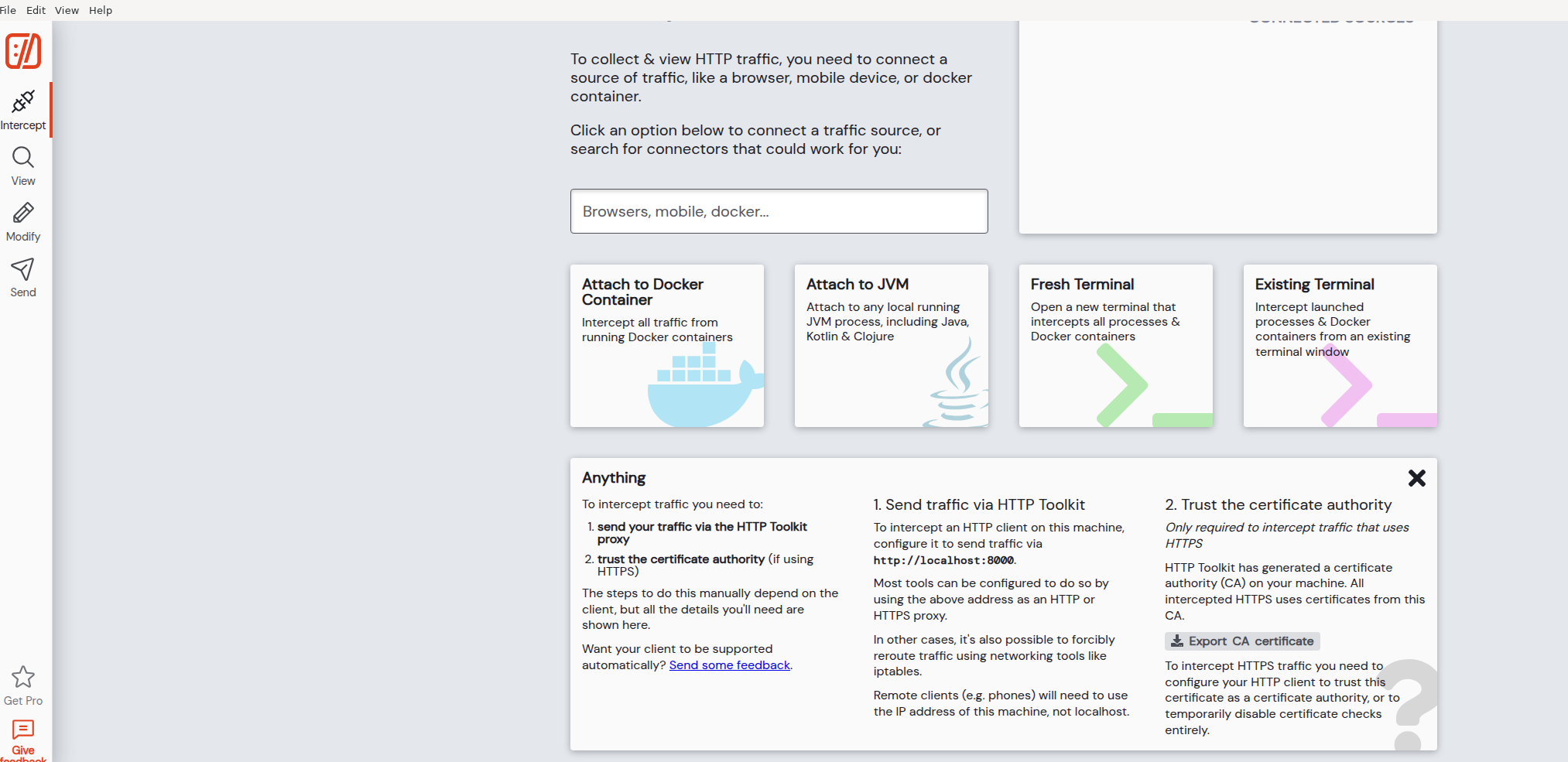
Export the HTTP Toolkit CA certificate. Because the Extend SDK makes HTTPS requests, HTTP Toolkit must decrypt the traffic using its CA certificate. To export it, open HTTP Toolkit, go to the Anything panel, and click Export CA Certificate.
-
Configure your SDK language. After exporting the certificate, follow the instructions for your language:
C#
Linux
-
Install the CA certificate (one-time setup, tested on Ubuntu 20.04):
sudo cp /path/to/http-toolkit-ca-certificate.crt /usr/local/share/ca-certificates/
sudo update-ca-certificates -
Set the proxy environment variable:
export HTTPS_PROXY="http://127.0.0.1:8000" -
Run your C# app normally.
macOS
-
Install the CA certificate (one-time setup):
sudo security add-trusted-cert -d -r trustRoot \
  -k /Library/Keychains/System.keychain \
/path/to/http-toolkit-ca-certificate.crt -
Set the proxy environment variable:
export HTTPS_PROXY="http://127.0.0.1:8000" -
Run your C# app normally.
Windows
-
Install the CA certificate (one-time setup). Run PowerShell as Administrator:
Import-Certificate -FilePath "C:\path\to\http-toolkit-ca-certificate.crt" `
-CertStoreLocation Cert:\LocalMachine\Root -
Set the proxy environment variable:
$env:HTTPS_PROXY = "http://127.0.0.1:8000" -
Run your C# app normally.
Go
Linux
-
Install the CA certificate (one-time setup, tested on Ubuntu 20.04):
sudo cp /path/to/http-toolkit-ca-certificate.crt /usr/local/share/ca-certificates/
sudo update-ca-certificates -
Set the proxy environment variable:
export HTTPS_PROXY="http://127.0.0.1:8000" -
Run your Go app normally.
macOS
-
Install the CA certificate (one-time setup):
sudo security add-trusted-cert -d -r trustRoot \
  -k /Library/Keychains/System.keychain \
/path/to/http-toolkit-ca-certificate.crt -
Set the proxy environment variable:
export HTTPS_PROXY="http://127.0.0.1:8000" -
Run your Go app normally.
Windows
-
Install the CA certificate (one-time setup). Run PowerShell as Administrator:
Import-Certificate -FilePath "C:\path\to\http-toolkit-ca-certificate.crt" `
-CertStoreLocation Cert:\LocalMachine\Root -
Set the proxy environment variable:
$env:HTTPS_PROXY = "http://127.0.0.1:8000" -
Run your Go app normally.
Java
Java uses a Java KeyStore (JKS) file instead of the OS certificate store. The keytool utility included with Java creates the keystore, so this approach works the same way on all operating systems.
Linux and macOS
-
Create a JKS keystore containing the HTTP Toolkit CA certificate (one-time setup). When prompted, enter a password and confirm that you trust the certificate:
keytool -import -file /path/to/http-toolkit-ca-certificate.crt \
  -keystore /path/to/http-toolkit-ca-certificate.jks \
-storepass 000000 -
Configure Java to use the HTTP Toolkit proxy and the keystore you created. Make sure the
.jkspath and password match what you used in step 1:export _JAVA_OPTIONS="-DproxySet=true -Dhttps.proxyHost=127.0.0.1 -Dhttps.proxyPort=8000 -Djavax.net.ssl.trustStore=/path/to/http-toolkit-ca-certificate.jks -Djavax.net.ssl.trustStorePassword=000000" -
Run your Java app normally.
Windows
-
Create a JKS keystore containing the HTTP Toolkit CA certificate (one-time setup). Run the following in PowerShell. When prompted, enter a password and confirm that you trust the certificate:
keytool -import -file "C:\path\to\http-toolkit-ca-certificate.crt" `
  -keystore "C:\path\to\http-toolkit-ca-certificate.jks" `
-storepass 000000 -
Configure Java to use the HTTP Toolkit proxy and the keystore you created. Make sure the
.jkspath and password match what you used in step 1:$env:_JAVA_OPTIONS = "-DproxySet=true -Dhttps.proxyHost=127.0.0.1 -Dhttps.proxyPort=8000 -Djavax.net.ssl.trustStore=C:\path\to\http-toolkit-ca-certificate.jks -Djavax.net.ssl.trustStorePassword=000000" -
Run your Java app normally.
Python
Python uses certifi as its CA bundle. You append the HTTP Toolkit CA certificate to certifi's bundle so Python trusts it.
Linux and macOS
-
Locate the certifi CA bundle path (one-time setup per virtual environment):
pip install certifi
python -c "import certifi; print(certifi.where())" -
Append the HTTP Toolkit CA certificate to the certifi CA bundle. Replace
/path/to/cacert.pemwith the path printed in step 1:cat /path/to/http-toolkit-ca-certificate.crt >> /path/to/cacert.pem -
Set the proxy environment variable:
export HTTPS_PROXY="http://127.0.0.1:8000" -
Run your Python app normally.
Windows
-
Locate the certifi CA bundle path (one-time setup per virtual environment):
pip install certifi
python -c "import certifi; print(certifi.where())" -
Append the HTTP Toolkit CA certificate to the certifi CA bundle. Replace
C:\path\to\cacert.pemwith the path printed in step 1:Get-Content "C:\path\to\http-toolkit-ca-certificate.crt" | Add-Content "C:\path\to\cacert.pem" -
Set the proxy environment variable:
$env:HTTPS_PROXY = "http://127.0.0.1:8000" -
Run your Python app normally.
Viewing Intercepted Requests
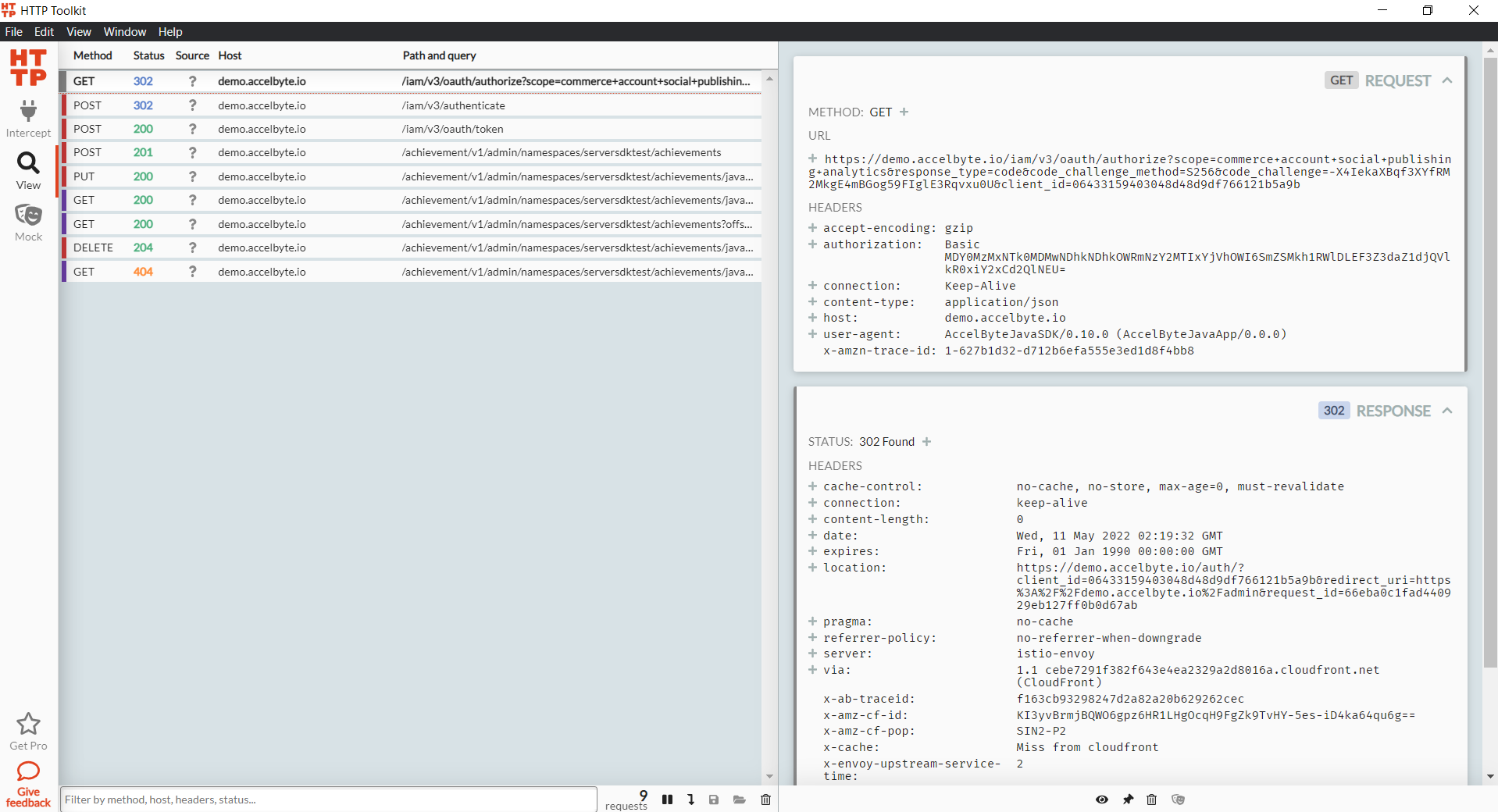
The following screenshot shows HTTP Toolkit displaying intercepted HTTPS requests from the Extend SDK to AccelByte services.
Always unset HTTPS_PROXY when you are done. If you leave it set, other tools that respect the variable—such as curl, wget, and pip—will route their traffic through HTTP Toolkit and fail once you close it.
- Linux/macOS:
unset HTTPS_PROXY - Windows (PowerShell):
Remove-Item Env:HTTPS_PROXY
On Linux and macOS, you can prefix a single command with environment variables to avoid setting and unsetting them manually. The variable applies only to that one command:
HTTPS_PROXY='http://127.0.0.1:8000' AB_USERNAME='XXX' AB_PASSWORD='XXX' ./sample-apps login ...