Extend App UI
注釈:本資料はAI技術を用いて翻訳されています。
AGS CLI は AGS 向けの統一コマンドラインツールであり、Extend と AMS のツールも含まれるようになりました。このページの手順は現在も有効です。統合ツールの詳細は AGS CLI のドキュメント を参照してください。
概要
Extend App UI を使用すると、Extend アプリ用のカスタム Web インターフェースを構築し、AccelByte Gaming Services (AGS) Admin Portal に直接埋め込むことができます。Extend アプリはバックエンドサービスであり、具体的には Service Extension または Event Handler が AGS を通じてデプロイおよび管理されます。Swagger ドキュメントや Postman で管理する代わりに、目的に特化した UI(例: トーナメント管理ページやチャレンジエディタ)を作成し、Admin Portal のメニュー項目として表示できます。
UI アセットは AGS 上でホストされるため、自分でホスティングを用意する必要はありません。プロジェクトのスキャフォールディングからアップロードまで、一連のワークフローは Extend Helper CLI を使用してターミナル内で完結します。
重要な用語
-
AGS Public Cloud: AccelByte がインフラをホストし、複数のスタジオが同一環境を共有する AGS のマルチテナントデプロイメントです。各スタジオには独立した専用の名前空間が割り当てられます。権限管理には Admin Portal の権限グループを使用します。
-
AGS Private Cloud: 1 つの顧客専用の AGS のシングルテナントデプロイメントです。名前空間と権限は IAM 権限文字列を通じて直接管理します。
-
IAM permissions: ユーザーまたはクライアントがどの AGS リソースに対して操作できるかを決定するアクセス制御ルールです。前提条件で参照されている権限グループは、名前空間内で App UI を作成、読み取り、更新できるユーザーを制御します。
前提条件
始める前に、以下を用意してください。
- Extend Helper CLI バージョン 0.0.11 以上。前提条件の手順とインストールに従ってください。
- AGS 環境へのアクセス。以下の値を控えておいてください。
- ベース URL (
<YourAGSBaseURL>): AGS 環境の URL。例:- AGS Public Cloud:
https://spaceshooter-game.prod.gamingservices.accelbyte.io - AGS Private Cloud:
https://dev.customer.accelbyte.io
- AGS Public Cloud:
- クライアント ID とクライアントシークレット (
<YourClientID>、<YourClientSecret>): ゲームの名前空間内にある機密の IAM クライアント から取得した認証情報です。これらの権限は Extend Helper CLI が使用する IAM クライアントに追加する必要があります。この IAM クライアントに以下の権限を追加してください。- AGS Public Cloud: Extend App UI Management 権限グループの下で Create、Read、Update アクションを有効にします。
- AGS Private Cloud:
ADMIN:NAMESPACE:{namespace}:EXTEND:APPUIリソースに対する Create、Read、Update アクションを有効にします。
- 名前空間 (
<YourGameNamespace>): AGS 内でのゲームの一意な識別子です。形式はデプロイメントによって異なります。- AGS Public Cloud:
{studio}-{game}の形式です。例:spaceshooter-game(spaceshooterはスタジオの名前空間 ID、gameはゲームの名前空間 ID)。この値はベース URL のサブドメインにも表示されます。 - AGS Private Cloud: ゲームの名前空間 ID のみです。例:
mygame
- AGS Public Cloud:
- App UI 名 (
<YourAppUIName>): 名前空間内で Extend App UI に付ける識別子です。appui createで App UI を登録する際に使用し、その後の CLI コマンドで UI をアップロードおよび管理する際にも使用します。
- ベース URL (
- Node.js バージョン 24 以上。
テンプレートを選択する
3 つの公式テンプレートが用意されており、それぞれ前のテンプレートを基盤としています。
| テンプレート | 用途 |
|---|---|
react-minimal | AGS API 呼び出しを行わない Hello World App UI。まずはここから始めてください。 |
react | 1 つの Extend サービスを呼び出す App UI。Swagger 仕様からの型付きコード生成が含まれます。Extend アプリ仕様からコードを生成するを参照してください。 |
react-multiple-extend-apps | 2 つ以上の Extend サービスを呼び出す App UI で、それぞれに生成されたクライアントを持ちます。1 つの App UI で複数の Extend アプリを対象にするを参照してください。 |
以下のクイックスタートでは react-minimal を使用します。ライブ API 呼び出しが必要になったら、別のテンプレートを選択してください。
クイックスタート
まず、公式テンプレートからプロジェクトをスキャフォールディングします。
extend-helper-cli clone-template --scenario "Extend App UI" --template react-minimal -d react-minimal
cd react-minimal
次に、前提条件の値を使用して環境変数を設定します。Extend Helper CLI はこれらの値を読み取るため、一度エクスポートすればその後のすべてのコマンドが問題なく動作します。
- Bash
- PowerShell
export AB_BASE_URL='<YourAGSBaseURL>'
export AB_CLIENT_ID='<YourClientID>'
export AB_CLIENT_SECRET='<YourClientSecret>'
export AB_NAMESPACE='<YourGameNamespace>'
export AB_APPUI_NAME='<YourAppUIName>'
$env:AB_BASE_URL = '<YourAGSBaseURL>'
$env:AB_CLIENT_ID = '<YourClientID>'
$env:AB_CLIENT_SECRET = '<YourClientSecret>'
$env:AB_NAMESPACE = '<YourGameNamespace>'
$env:AB_APPUI_NAME = '<YourAppUIName>'
同じターミナルセッションで、App UI を登録し依存関係をインストールします。
- Bash
- PowerShell
extend-helper-cli appui create --namespace $AB_NAMESPACE --name $AB_APPUI_NAME
npm install
extend-helper-cli appui create --namespace $env:AB_NAMESPACE --name $env:AB_APPUI_NAME
npm install
create コマンドは、Admin Portal が後でアセットを提供するために使用する App UI エントリを名前空間内に登録します。appui コマンドグループは、すべてのフロントエンド UI 操作を管理します。
| コマンド | 説明 |
|---|---|
appui create | 名前空間に新しい App UI エントリを登録します |
appui upload | npm run build を実行し、dist/ の出力を AGS にアップロードします |
appui setup-env | ローカル開発用に .env.local を作成または更新します |
ここから 2 つの選択肢があります。
- ホットリロード付きのローカル開発サーバーを起動するには、
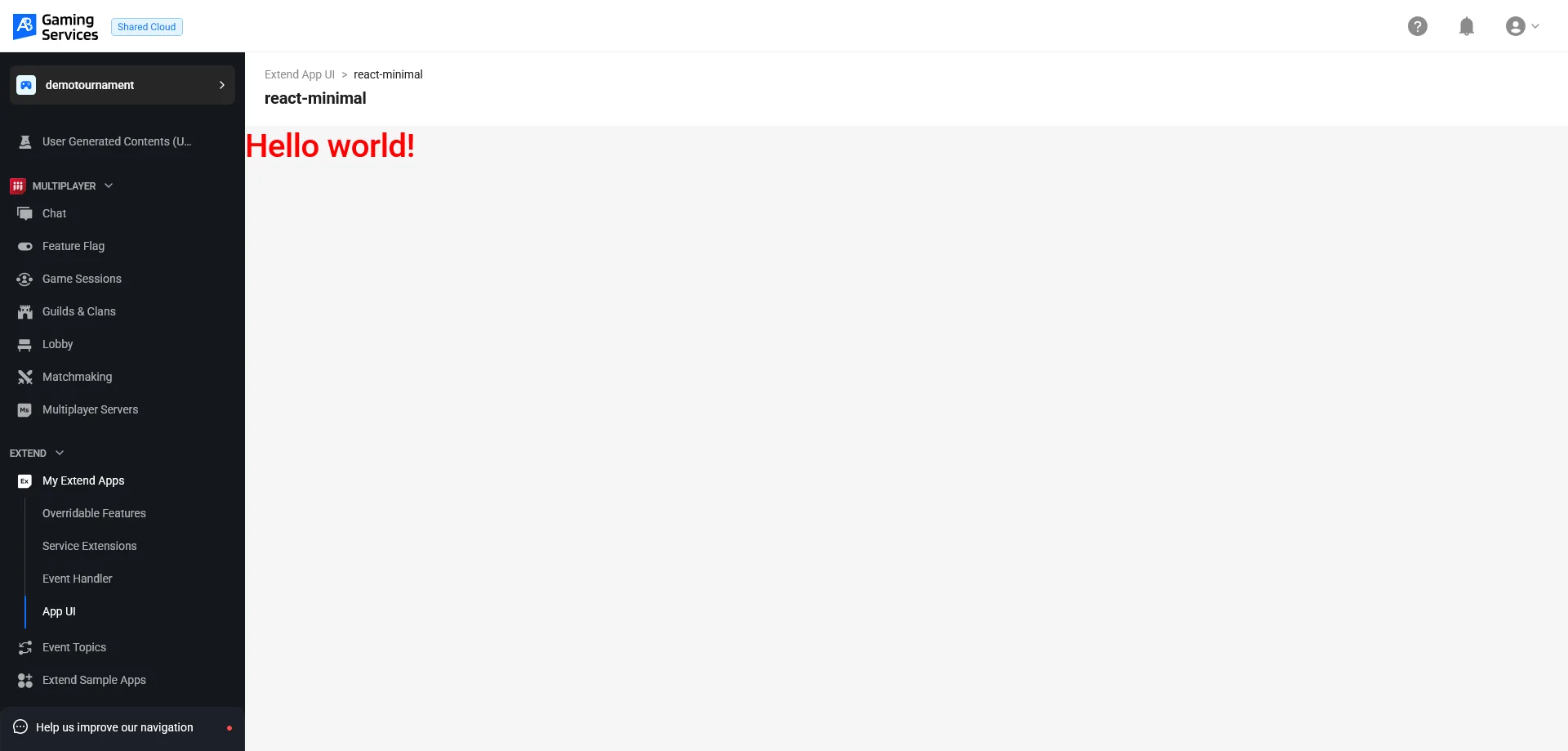
npm run devを実行します。ターミナルに表示される URL(通常はhttp://localhost:5173)を開くと、「Hello world!」ページが表示されます。お好みの IDE でテキストを更新すると、変更が即座に反映されます。react-minimalテンプレートはライブの AGS API 呼び出しを行わないため、ローカル開発にdevProxyPluginや追加の認証設定は不要です。 - AGS にデプロイして Admin Portal で表示するには、アップロードコマンドを実行します。内部的には
npm run buildを実行し、dist/の出力を AGS にアップロードします。
- Bash
- PowerShell
extend-helper-cli appui upload --namespace $AB_NAMESPACE --name $AB_APPUI_NAME
extend-helper-cli appui upload --namespace $env:AB_NAMESPACE --name $env:AB_APPUI_NAME
アップロードが完了したら、Admin Portal に移動し、Extend > My Extend Apps > App UI に移動します。アプリのテーブル行にある Open UI をクリックします。ゲームの名前空間にアクセスできるユーザーであれば、誰でも App UI を閲覧できます。Admin Portal は Runtime Module Federation を使用して App UI をマイクロフロントエンドとして読み込み、ブラウザにレンダリングします。
Admin Portal が App UI を読み込む仕組み
Admin Portal はホストアプリケーションであり、アップロードされたバンドルはリモートモジュールです。ユーザーが Open UI をクリックすると、Admin Portal は次の処理を行います。
- モジュールバンドルをダウンロードします。
- モジュールの
mount(container, context)関数を呼び出し、HTML コンテナ要素と、SDK 設定および権限チェッカーを含むHostContextオブジェクトを渡します。 - ユーザーが離脱すると、
mount()から返されたクリーンアップ関数を呼び出してアプリをアンマウントします。
公式テンプレートからスキャフォールディングした場合、この規約は既に処理済みです。AppUIModule と HostContext の完全な型定義については、API リファレンスを参照してください。
次のステップ
- Extend アプリ仕様からコードを生成する: App UI が Extend アプリの API を直接呼び出す必要がある場合。
- 1 つの App UI で複数の Extend アプリを対象にする: 1 つのインターフェースから複数の Extend サービスを管理したい場合。
- Extend App UI SDK API リファレンス:
@accelbyte/sdk-extend-app-uiによってエクスポートされるコンポーネントと関数の完全なリファレンス。 - Extend App UI のトラブルシューティング: App UI に関する一般的な問題を診断し修正します。