Extend Key Value Store
The Extend Key Value Store is currently in closed alpha.
Overview
Extend Key Value Store allows Extend Apps to store data in a Redis-compatible key-value database backed by AWS ElastiCache Valkey Serverless. It provides a fully managed, scalable, low-latency data store that eliminates the complexity of setting up and maintaining your own cache or key-value infrastructure. This allows developers to focus on building game features instead of managing infrastructure.
Extend Key Value Store can be attached to all types of Extend Apps and is suitable for use cases that need fast, low-latency access to small pieces of data, such as caching, session state, counters, and other key-based lookups.
Extend Key Value Store uses a single logical database per cluster. If multiple Extend Apps are integrated with the same cluster, those apps share the same keyspace. There is no per-application database name or collection-level isolation.
Provision Extend Key Value Store Cluster
You can provision the Extend Key Value Store cluster once you have been approved as a Closed Alpha tester. This action can be performed at the Publisher or Studio namespace level.
-
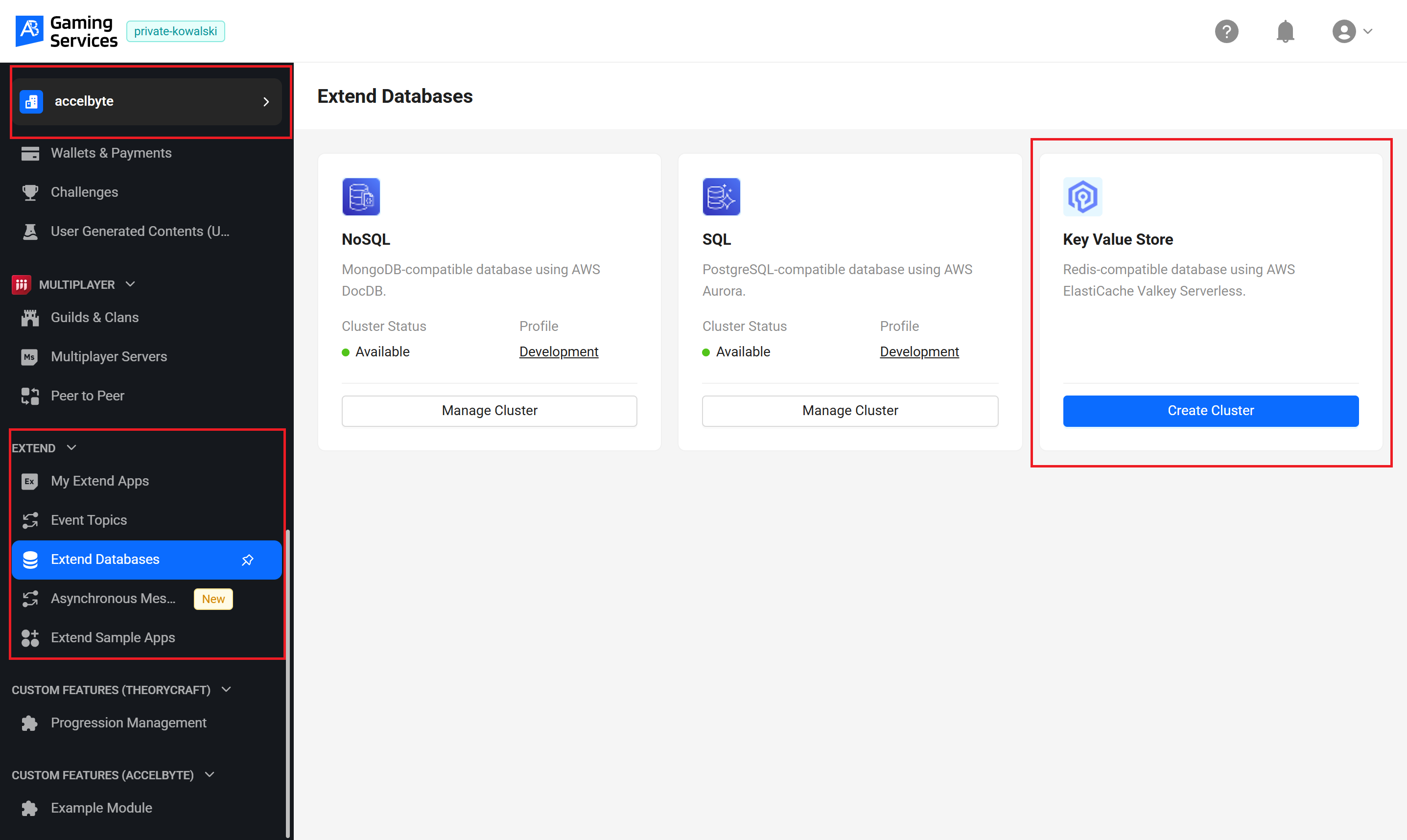
Go to the Extend Databases menu in the Admin Portal.
-
In the Extend Databases page, locate the Key Value Store card, then click the Create Cluster button.
-
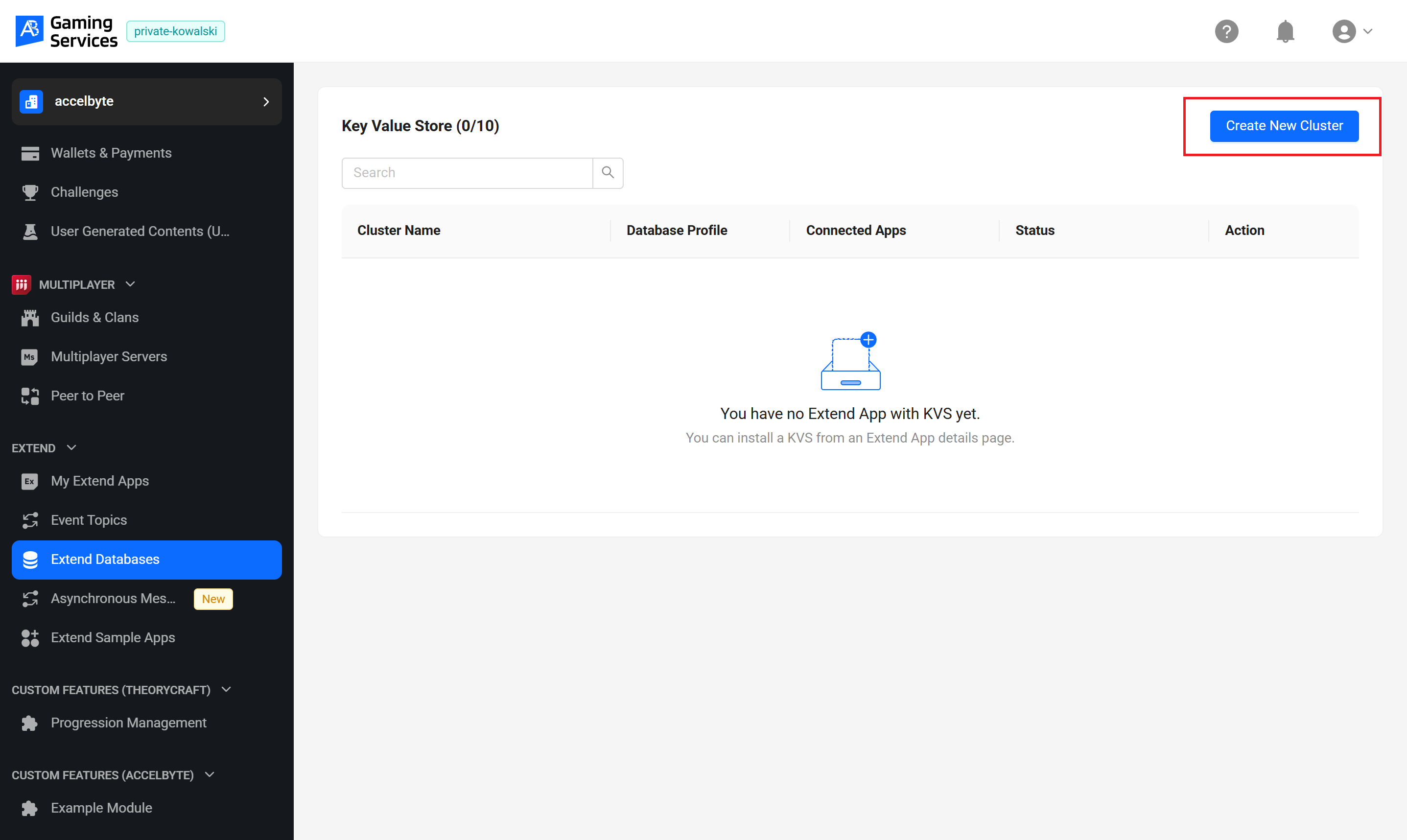
Click the Create New Cluster button.
-
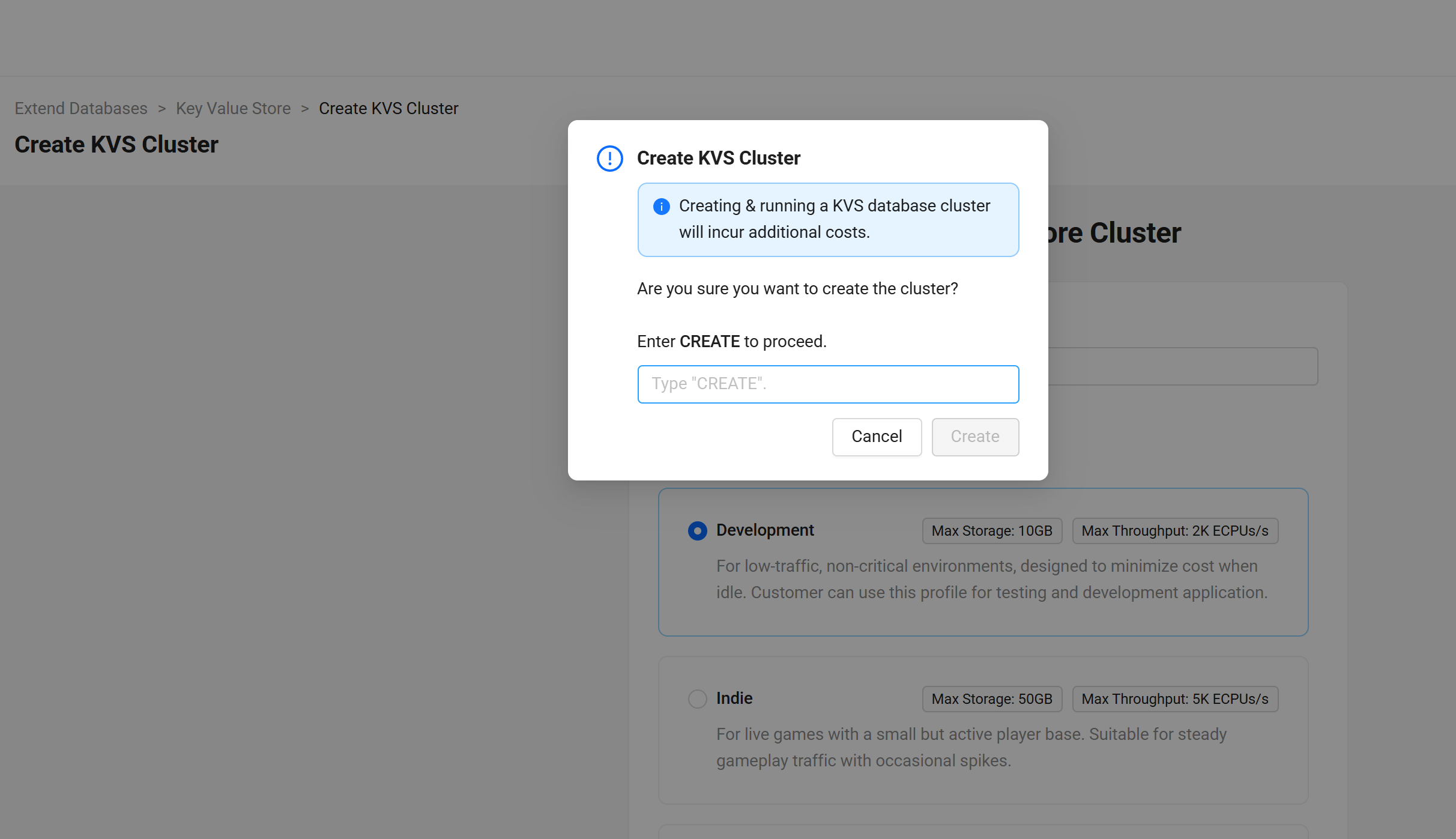
Select the Key Value Store database profile based on your needs, then click the Create Cluster button. In the confirmation dialog, type
CREATEand click the Create button.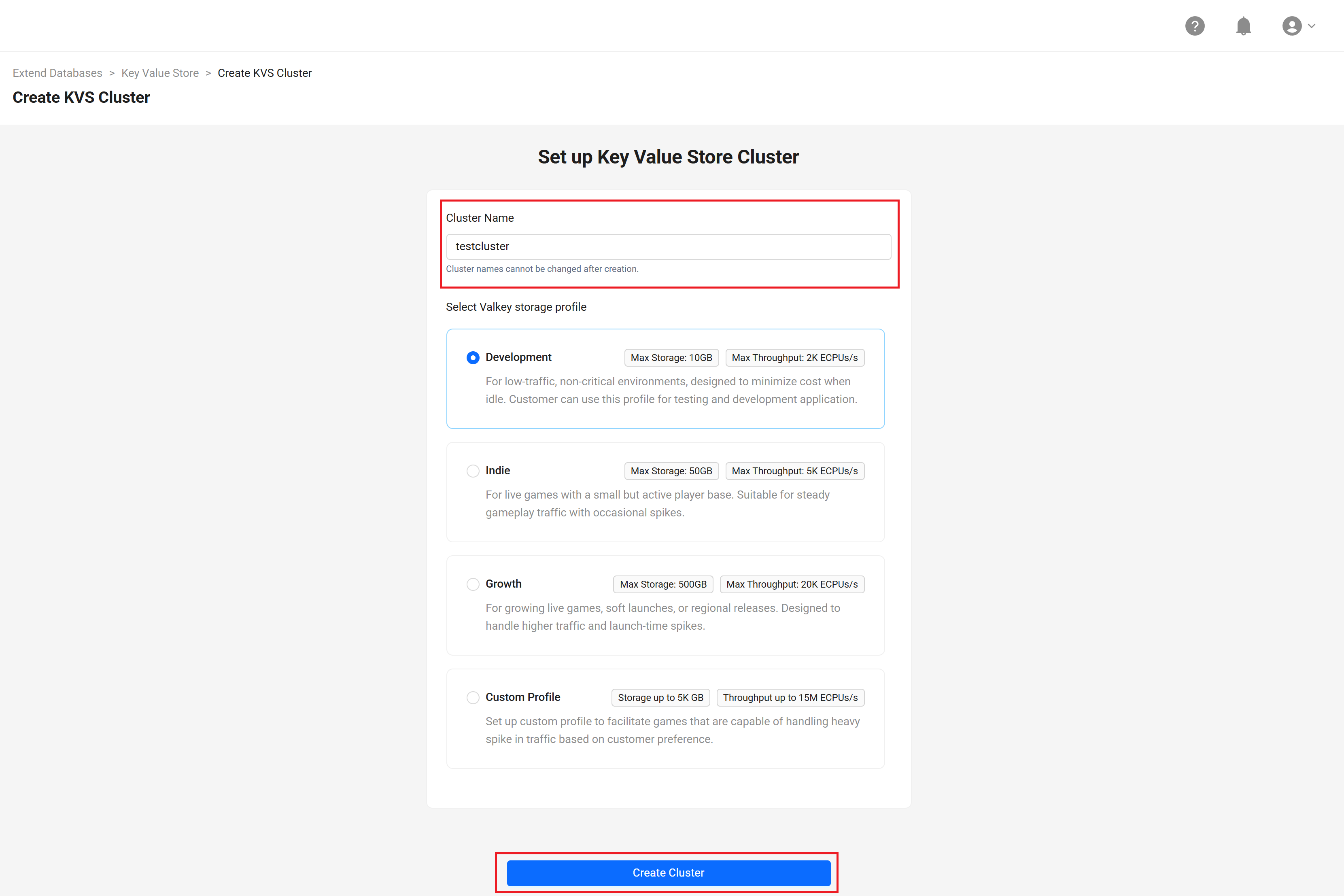
-
Wait for the cluster to be provisioned for 5-10 minutes.
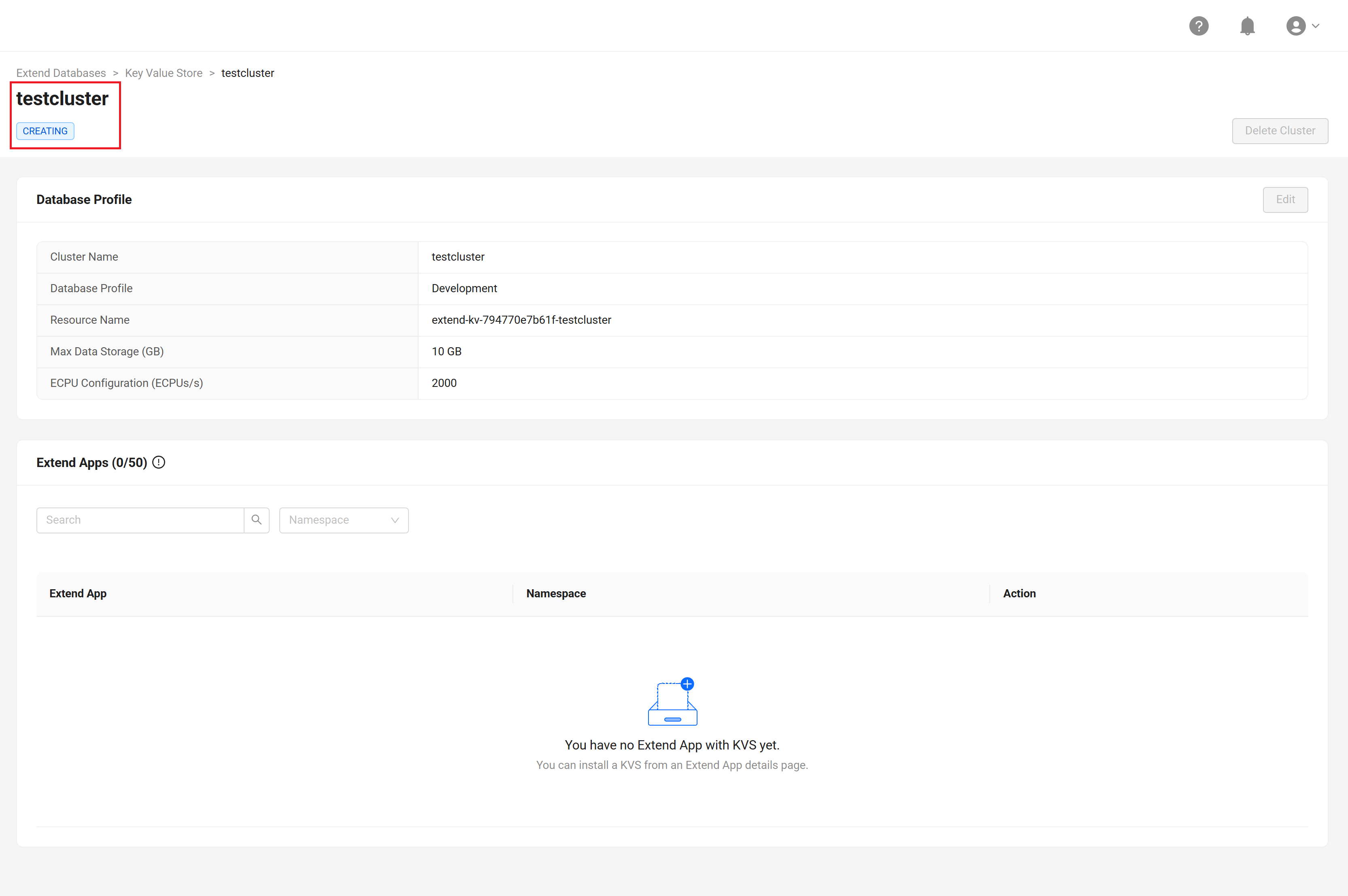
-
The status changes to
AVAILABLEonce the cluster is provisioned.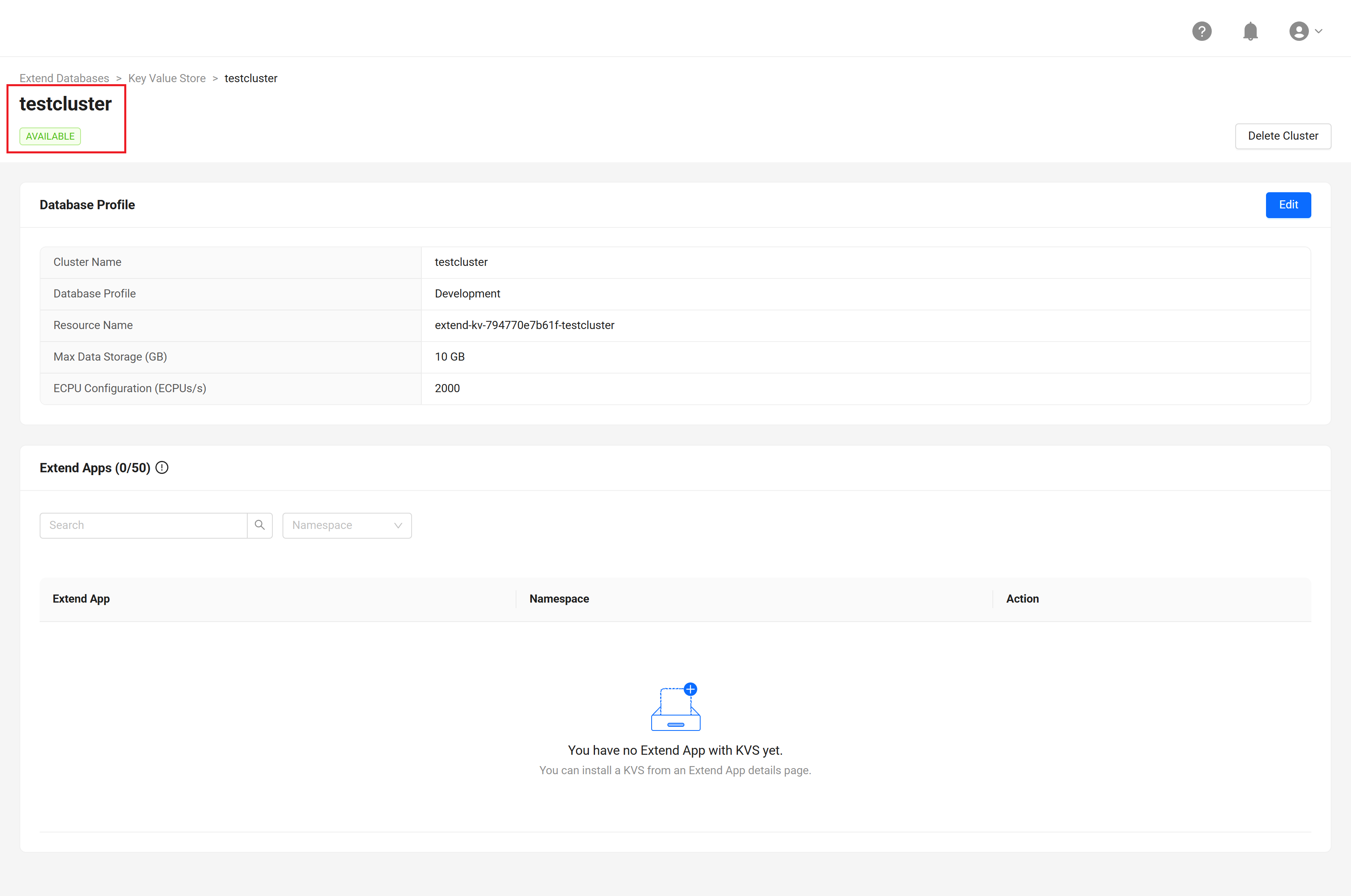
-
To integrate your Extend App with the Extend Key Value Store, proceed to the Setting up Extend Key Value Store for your Extend App section.
Update Extend Key Value Store Cluster Database Profile
You can update the database profile if you need to change the capacity or performance of a cluster. This action can be performed at the Publisher or Studio namespace level.
-
In the Extend Databases menu, click the Key Value Store card and then click the Manage Cluster button.
-
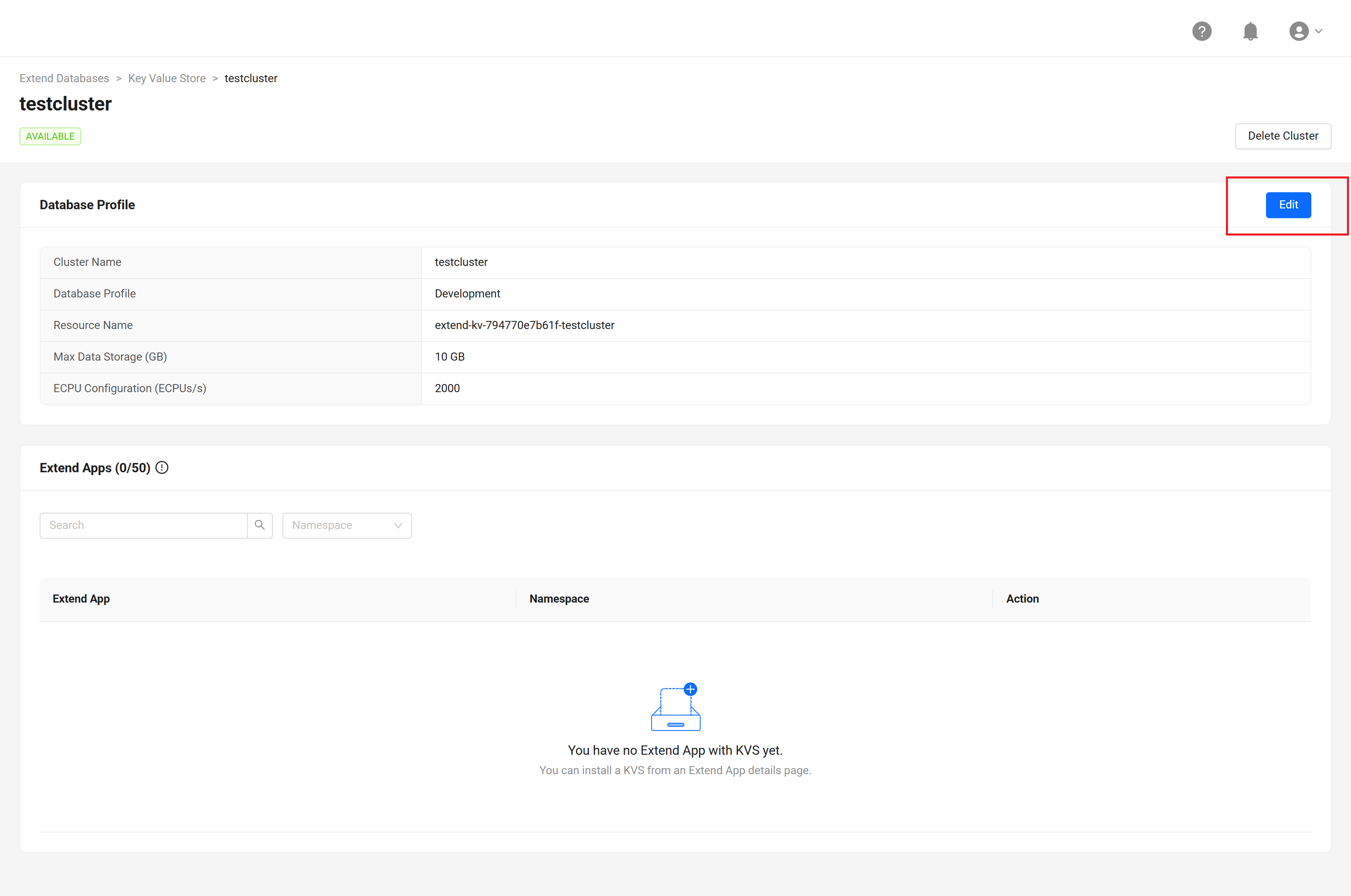
Click the cluster that you want to update and then click the Edit button.
-
Select the new Key Value Store database profile based on your needs, then click the Save button.
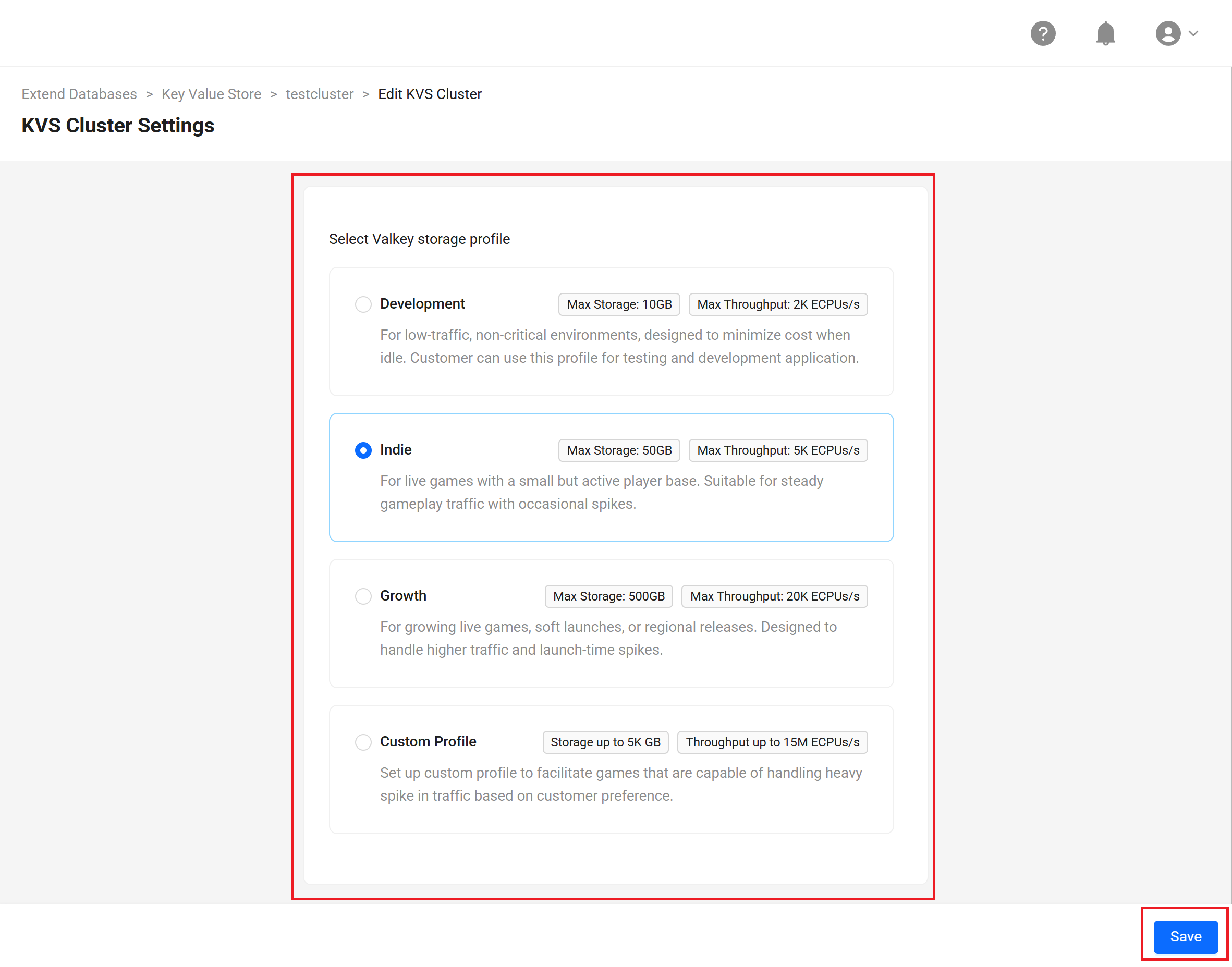
-
In the confirmation dialog, type
UPDATEto confirm the action and click the Update button.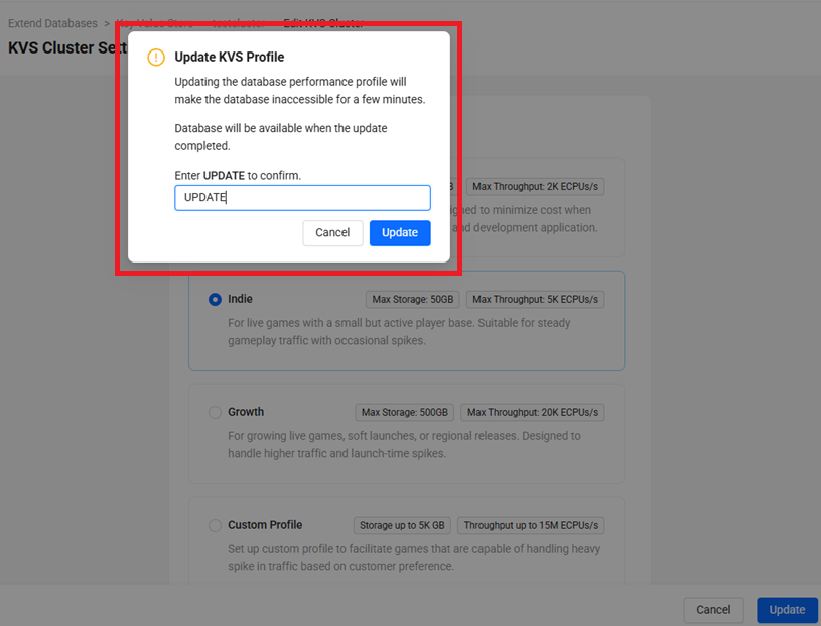
-
Wait for the cluster to be updated.
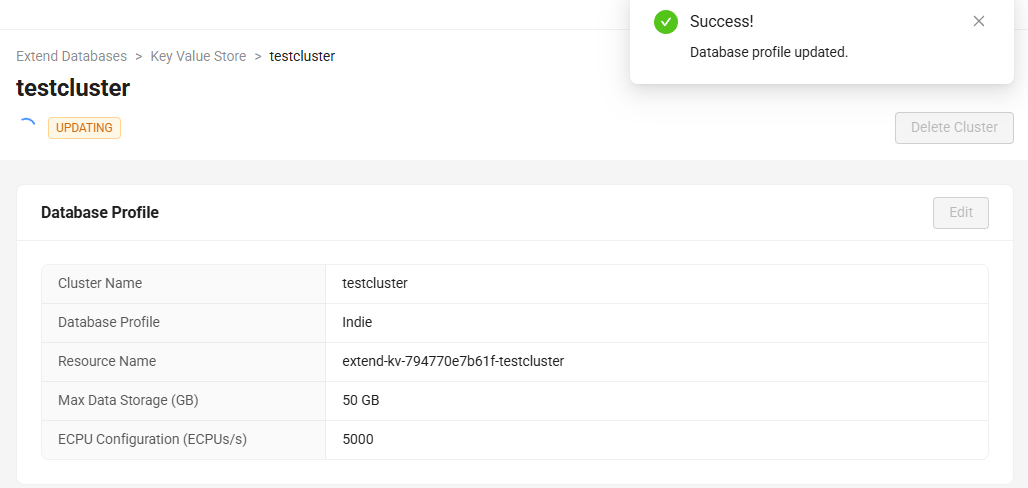
-
The status changes back to
AVAILABLEonce the cluster is updated.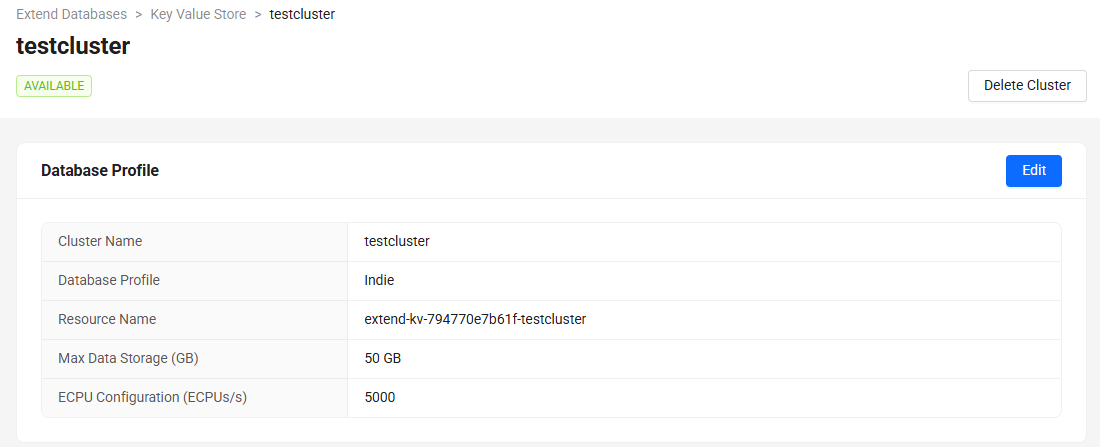
Delete Extend Key Value Store Cluster
You can delete the cluster when you no longer need it. A cluster can only be deleted when it is in AVAILABLE status or CREATE-FAILED. This action can be performed at the Publisher or Studio namespace level.
-
In the Extend Databases menu, click the Key Value Store card and then click the Manage Cluster button.
-
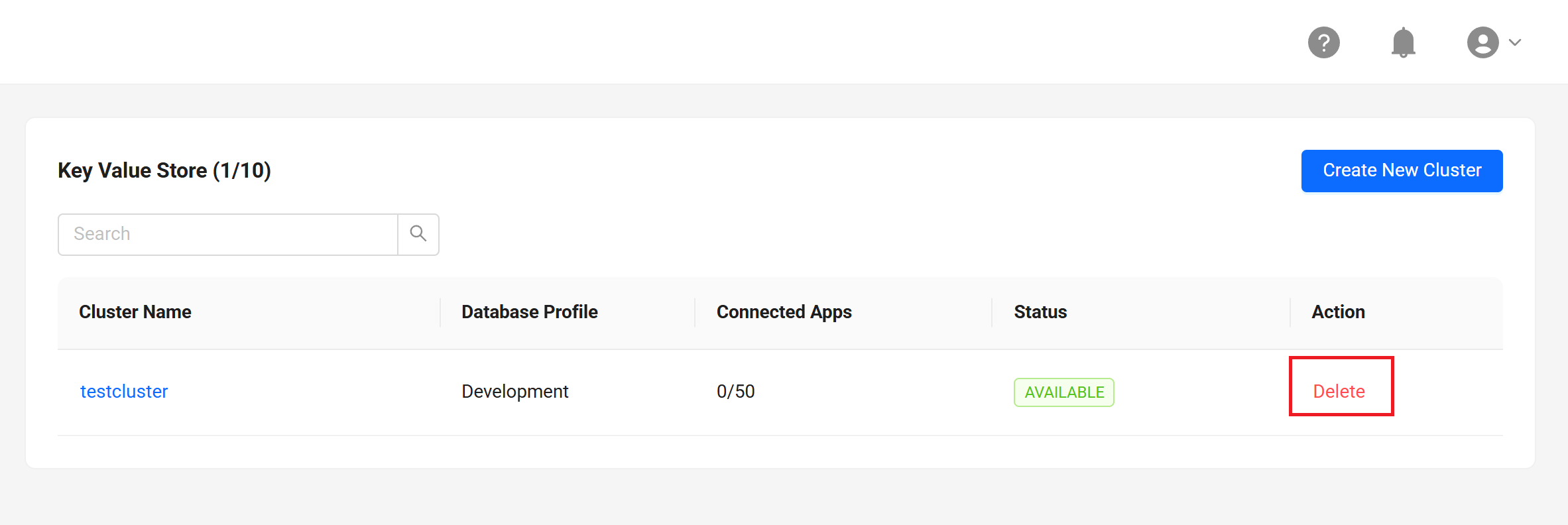
Click the Delete button for the selected cluster.
-
In the confirmation dialog, type
DELETEto confirm the action and click the Delete Cluster button.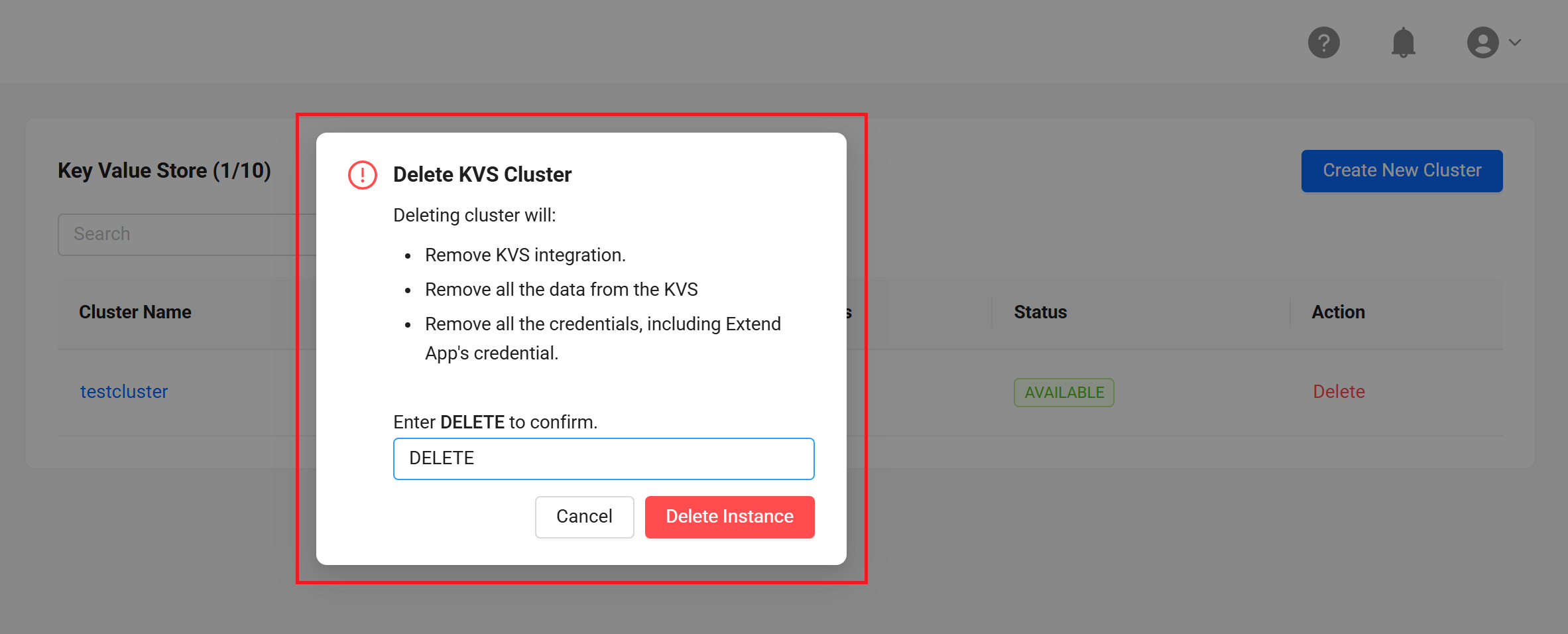
-
The deletion process takes approximately 5 to 10 minutes.
The delete cluster operation removes the cluster along with all integrated Extend Apps, including their data and credentials.
Setting up Extend Key Value Store for your Extend App
This action can be performed at the Game namespace level. You can only create a Key Value Store integration when the cluster is in AVAILABLE status.
-
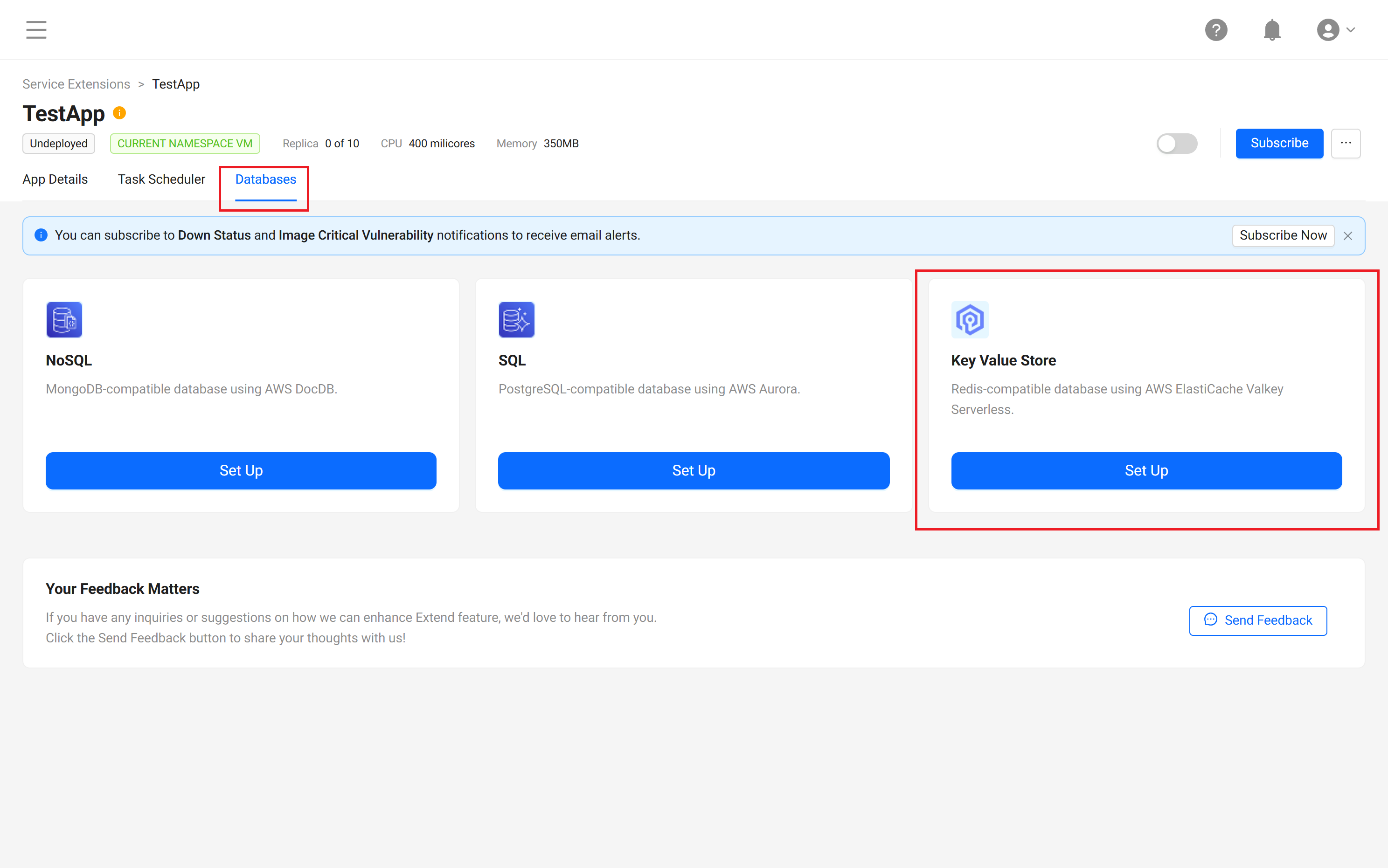
In your Extend App details page, switch to the Databases tab.
-
On the Key Value Store card, click the Set Up button.
-
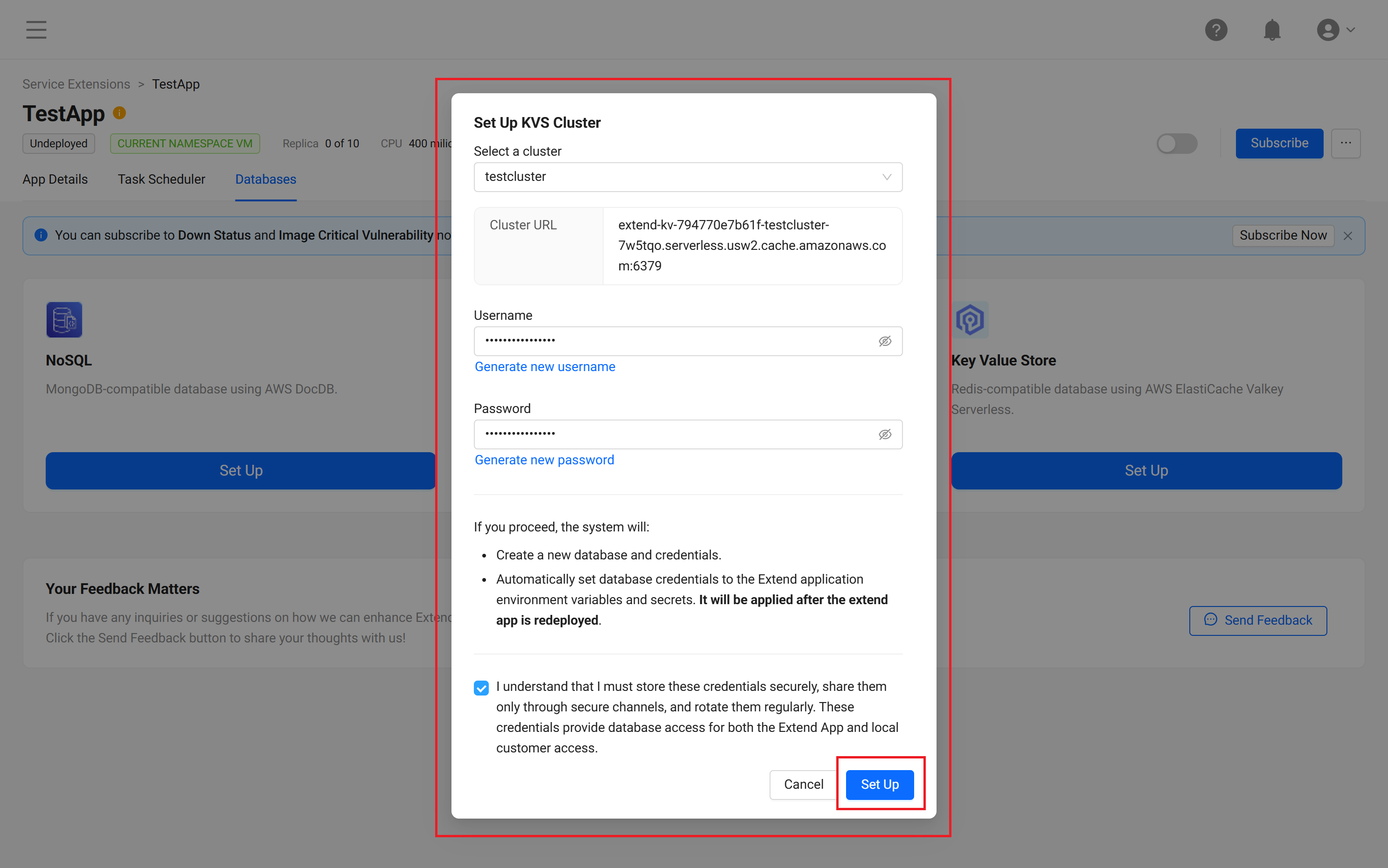
Select the cluster, generate the username and password, then review the secure credential handling acknowledgment and click the Set Up button.
-
Click the Copy button to save the connection information shown on the Database Summary page. You can use the username and password from step 3 to connect from your app or through TCP Tunneling.
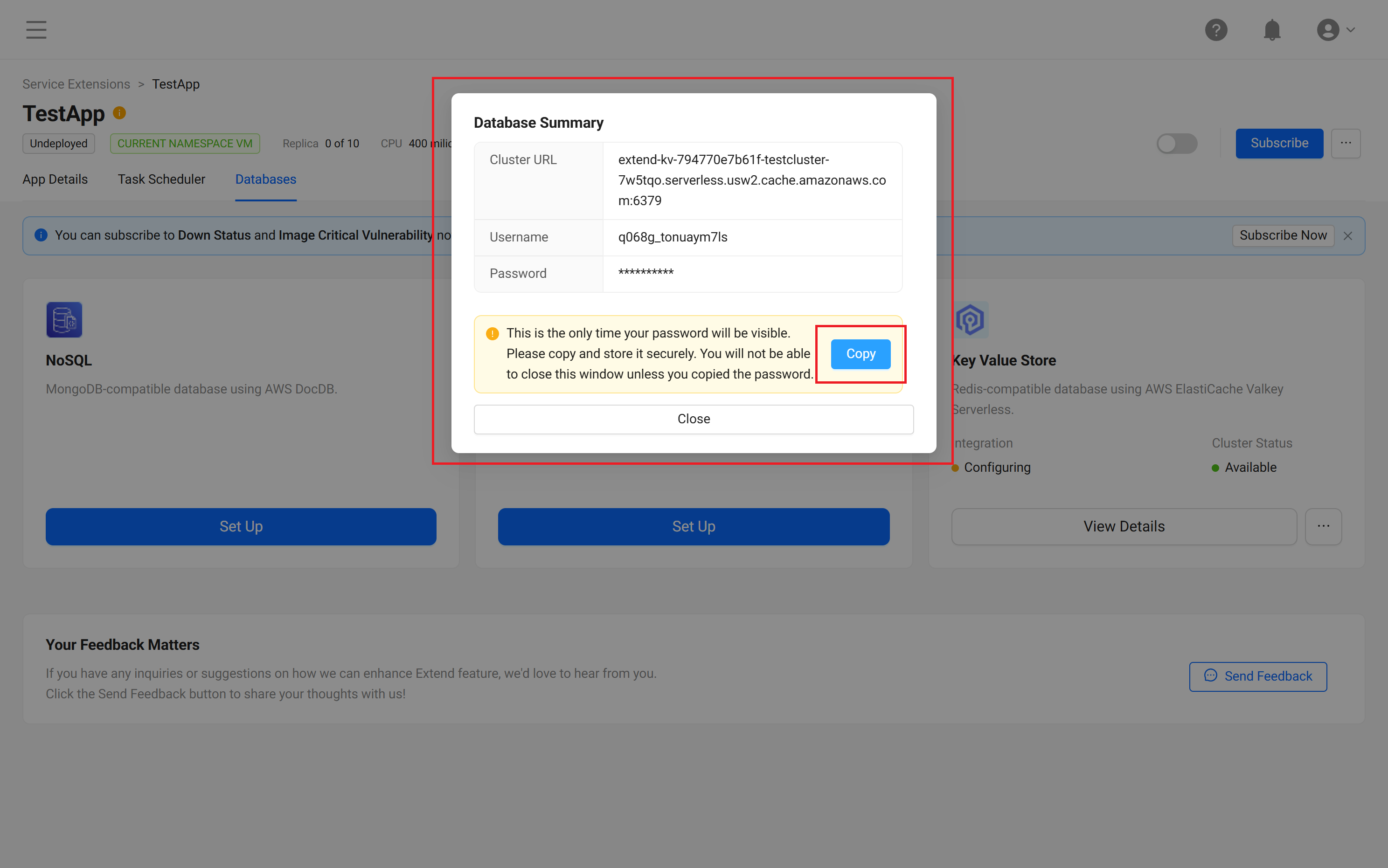
The connection information is automatically added to your Extend App secrets and variables as:
REDIS_HOSTREDIS_PORTREDIS_USERNAMEREDIS_PASSWORD
These variables are used by your Extend App to connect securely to the Key Value Store cluster.
-
Wait until the Integration Status changes from Configuring to Ready. Once it is ready, you can start using the Key Value Store or create a new deployment of your Extend App.
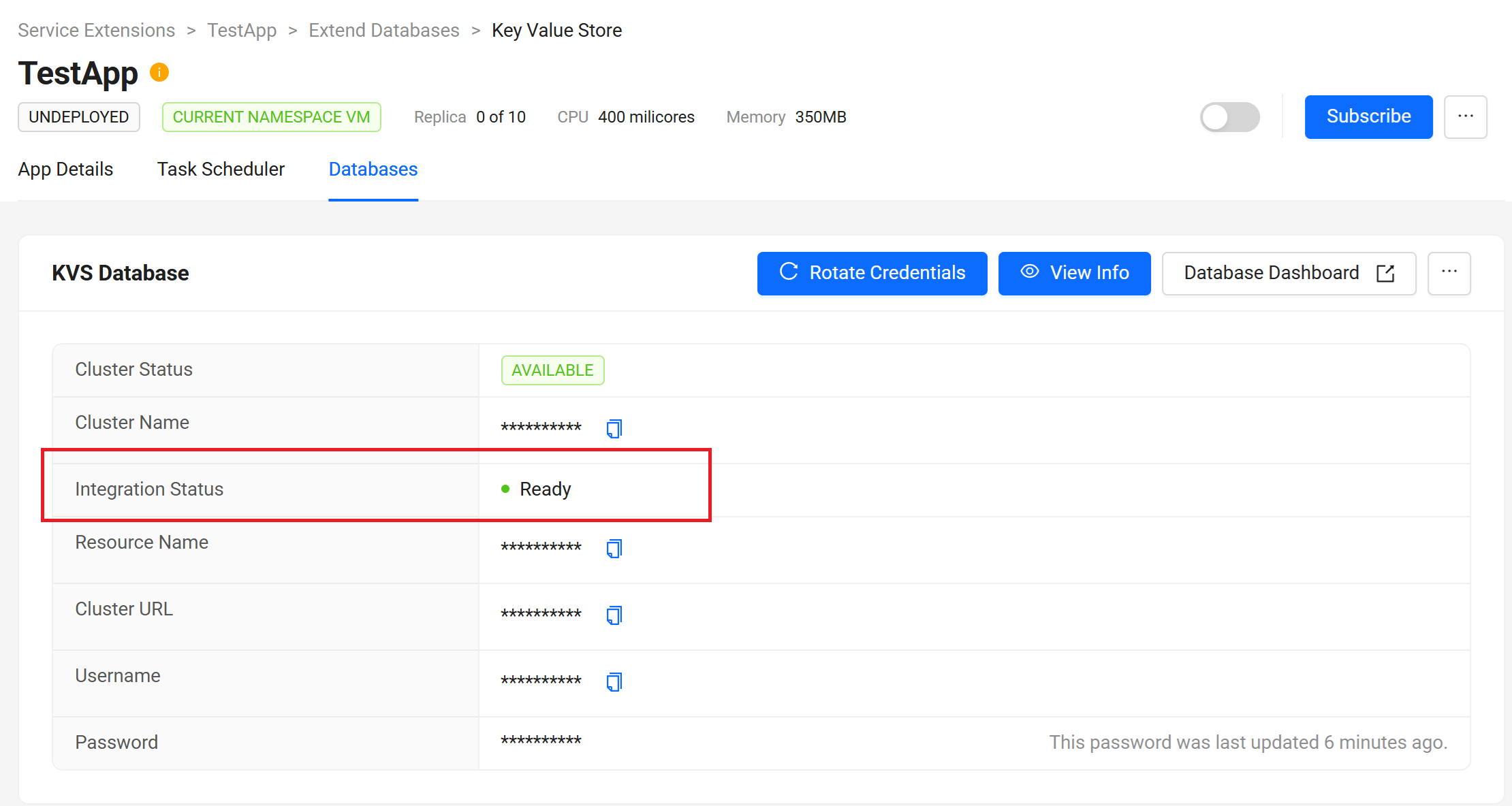
Key Value Store is a key-value service and does not have the concept of database names like SQL or NoSQL. All data is stored in a single logical datastore per cluster.
A Key Value Store cluster uses a single shared keyspace. If multiple Extend Apps are integrated with the same cluster, all apps read and write in that same keyspace (no per-app database isolation). Customers are responsible for key naming conventions, preventing key collisions, and implementing logical separation at the application level (for example, key prefixes per app, namespace, or feature).
Credential Rotation
The following steps show how to rotate Key Value Store credentials for your Extend App.
-
In your Extend App details page, switch to the Databases tab.
-
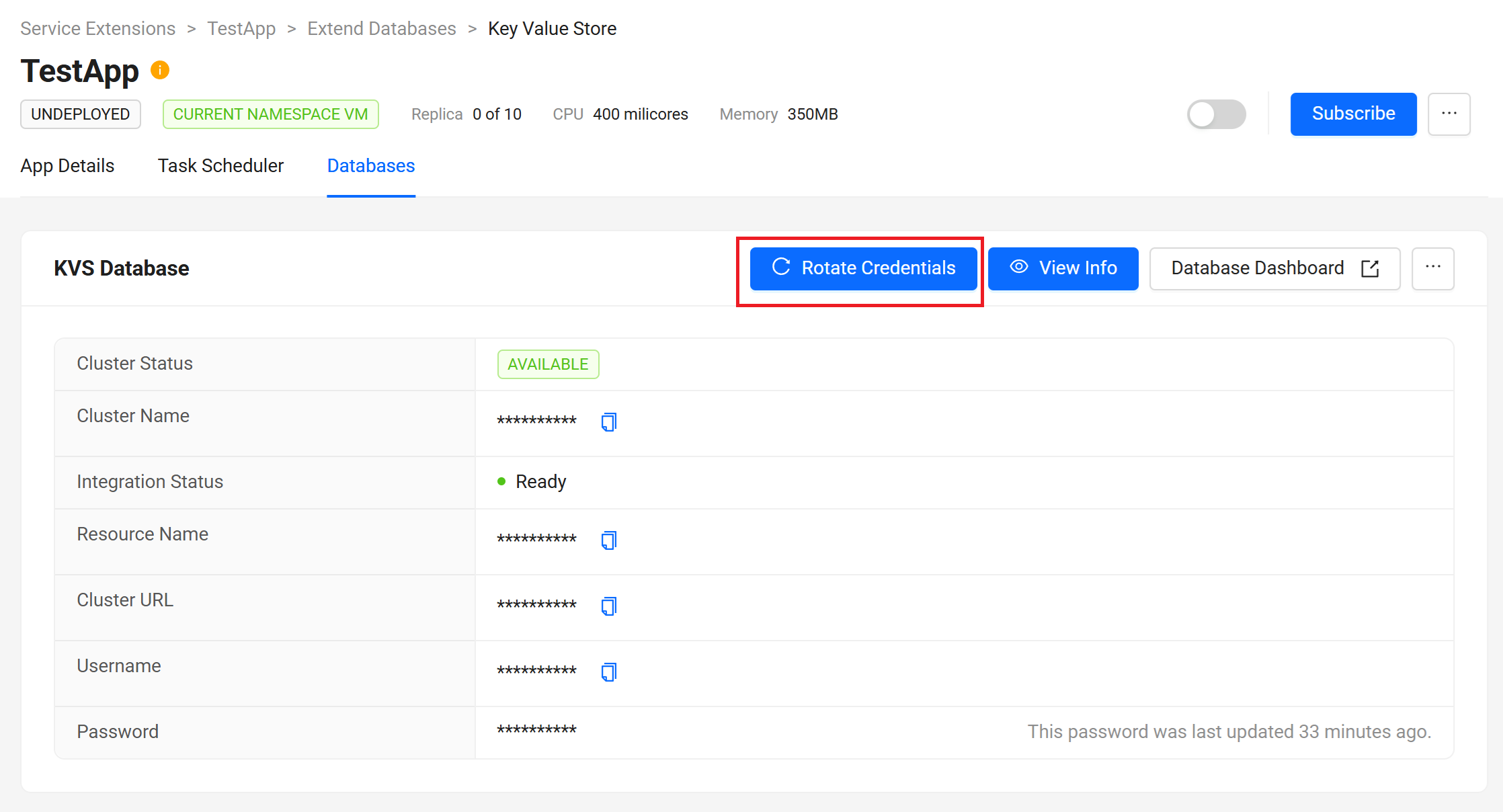
On the Key Value Store detail page click Rotate Credentials.
-
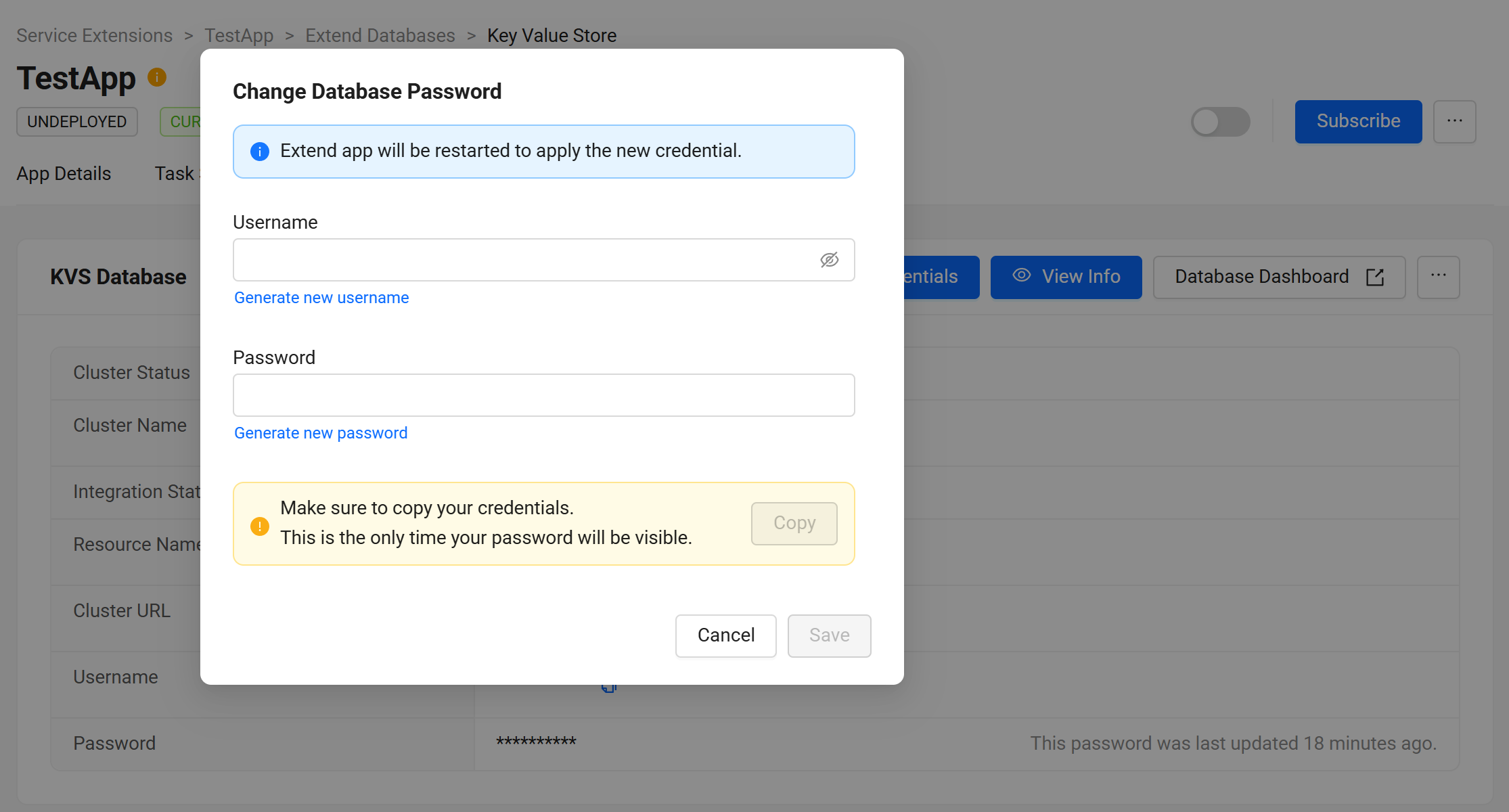
On the Change Database Password modal, generate the new username and password, then click the Copy button to save the credentials.
-
Integration Status will change to Modifying and the process will take approximately 5 to 10 minutes for the Integration Status to change to Ready.
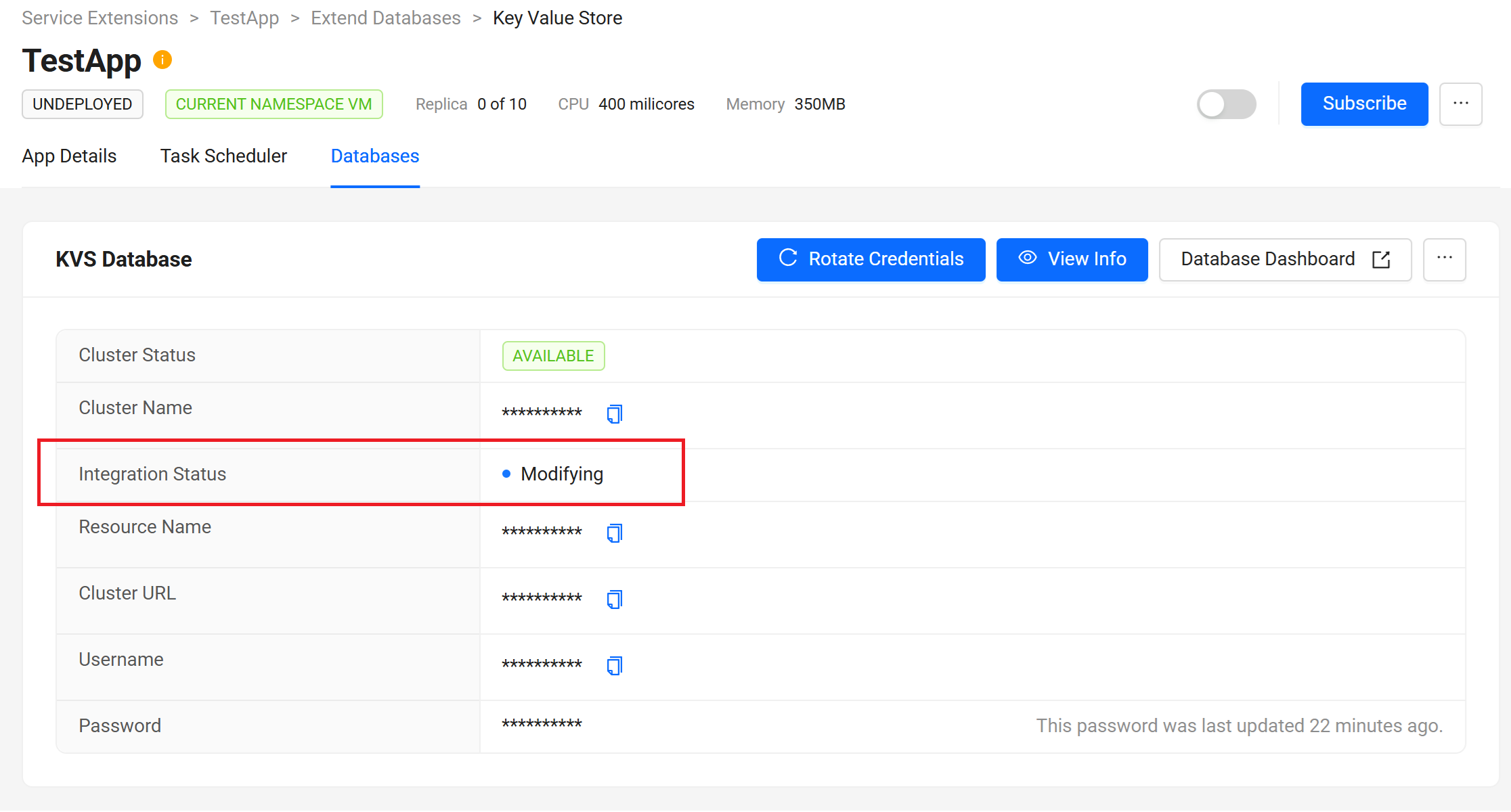
If the Extend App is currently running, credential rotation automatically restarts it to apply the updated credentials.
Connecting your Extend App to Extend Key Value Store
This example shows how to connect a Go-based Extend Service Extension to the Key Value Store using the injected environment variables.
-
Add the Go Redis client (compatible with Valkey) to your Extend App.
- Go
Run the following
go getcommand to install the latest version of the Redis Go driver.go get github.com/redis/go-redis/v9Run the
go mod tidycommand afterward.go mod tidy -
Configure the Redis/Valkey client to connect to the Key Value Store. Use the
REDIS_HOST,REDIS_PORT,REDIS_USERNAME, andREDIS_PASSWORDenvironment variables to construct the client configuration.- Go
import (
    ...
    "context"
    "crypto/tls"
    "fmt"
    "os"
    "time"

    "github.com/redis/go-redis/v9"
    ...
)

...

redisHost := os.Getenv("REDIS_HOST")
redisPort := os.Getenv("REDIS_PORT")
redisUsername := os.Getenv("REDIS_USERNAME")
redisPassword := os.Getenv("REDIS_PASSWORD")

addr := fmt.Sprintf("%s:%s", redisHost, redisPort)

client := redis.NewClient(&redis.Options{
    Addr:     addr,
    Username: redisUsername,
    Password: redisPassword,
    TLSConfig: &tls.Config{
        MinVersion: tls.VersionTLS12,
    },
    MinIdleConns: 5,
    PoolSize:     30,
})

ctx, cancel := context.WithTimeout(context.Background(), 5*time.Second)
defer cancel()

if err := client.Ping(ctx).Err(); err != nil {
    // replace with proper error handling in production
}

... -
Use the client in your handlers or services to store and retrieve key-value data.
- Go
...
ctx := context.Background()

err := client.Set(ctx, "player:123:session", "active", 10*time.Minute).Err()
if err != nil {
    // replace with proper error handling in production
}

value, err := client.Get(ctx, "player:123:session").Result()
if err != nil {
    // replace with proper error handling in production
}

fmt.Println(value)
...
TLS is enabled by default on the cluster. Make sure your Redis client is configured to use TLS.
To learn more commands and patterns, check out the go-redis documentation.
Accessing the Extend Key Value Store through Extend TCP Tunneling
You can connect to your Extend Key Value Store from a local development environment using Extend TCP Tunneling via the Extend Helper CLI. You can only perform this action when the cluster is in AVAILABLE status.
-
Make sure the Extend Helper CLI is set up. Then add the following permission to the IAM client you use with it.
- For AGS Private Cloud customers:
ADMIN:NAMESPACE:{namespace}:EXTEND:TUNNEL [READ]
- For AGS Shared Cloud customers:
- Extend > TCP Tunneling (Read)
- For AGS Private Cloud customers:
-
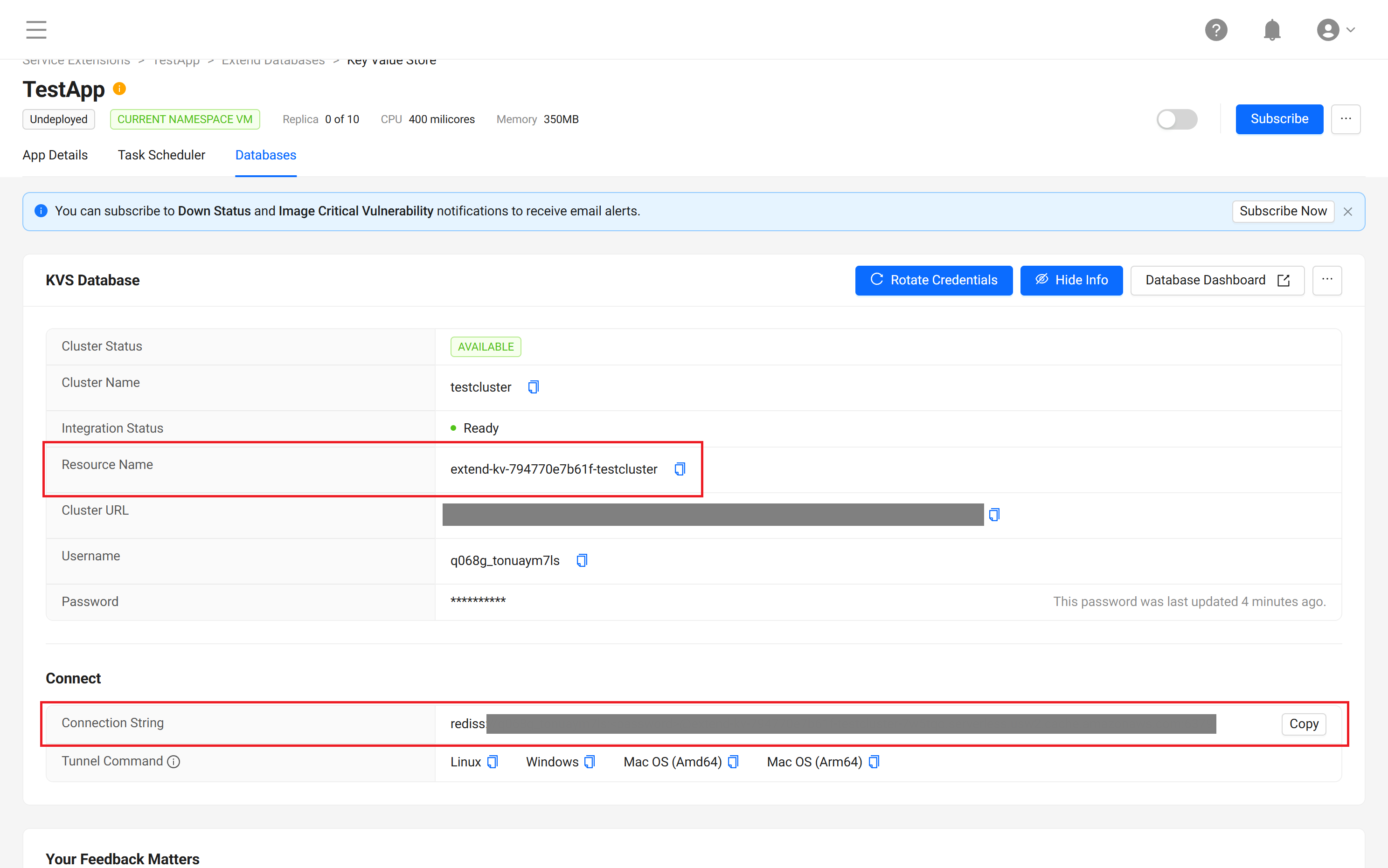
Copy the Resource Name information from the Key Value Store tab in your Extend App.
-
Start Extend TCP Tunneling to the Key Value Store using Extend Helper CLI. Pass the Resource Name information from step 2 or from the KVS Database detail page as the
--resource-nameoption parameter.extend-helper-cli tunnel --resource-name <Resource Name> --namespace <namespace> --local-port <port>importantAuthentication may fail if your system clock is not synchronized. Ensure your local time is accurate before running the command.
tipYou can also copy the full command from the Tunnel Command information in the KVS Database section under the Databases tab.
-
Use your Redis-compatible client (such as
redis-cli, Valkey CLI, or GUI clients that support TLS) to connect to the Key Value Store through the local port you specified in step 3. Copy the Connection String from the KVS Database detail page, or use a format similar to the following:redis-cli -u "rediss://<username>:<password>@localhost:<port>"Or configure your client to connect to
localhost:<port>with TLS enabled.
Samples
The sample Extend App below is an Extend Service Extension that uses the Extend Key Value Store for caching and key-value operations.
git clone https://github.com/AccelByte/extend-event-handler-with-kvs-go.git
Observability
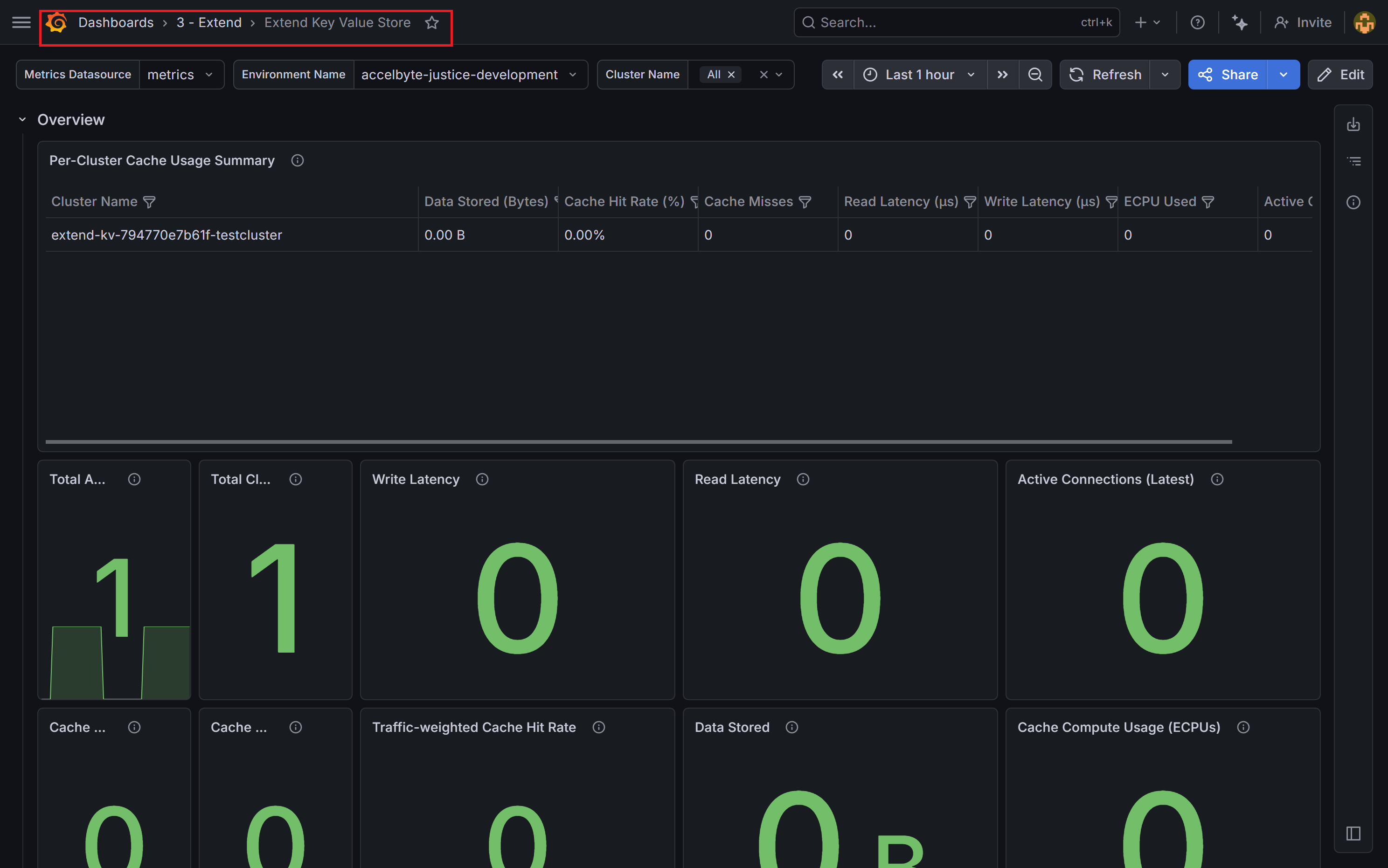
You can monitor your Key Value Store cluster performance through a Grafana Cloud dashboard. The dashboard provides panels displaying key performance metrics including CPU utilization, latency, commands per second, cache hit rate, and connection statistics, allowing you to identify bottlenecks and optimize your application's usage.
-
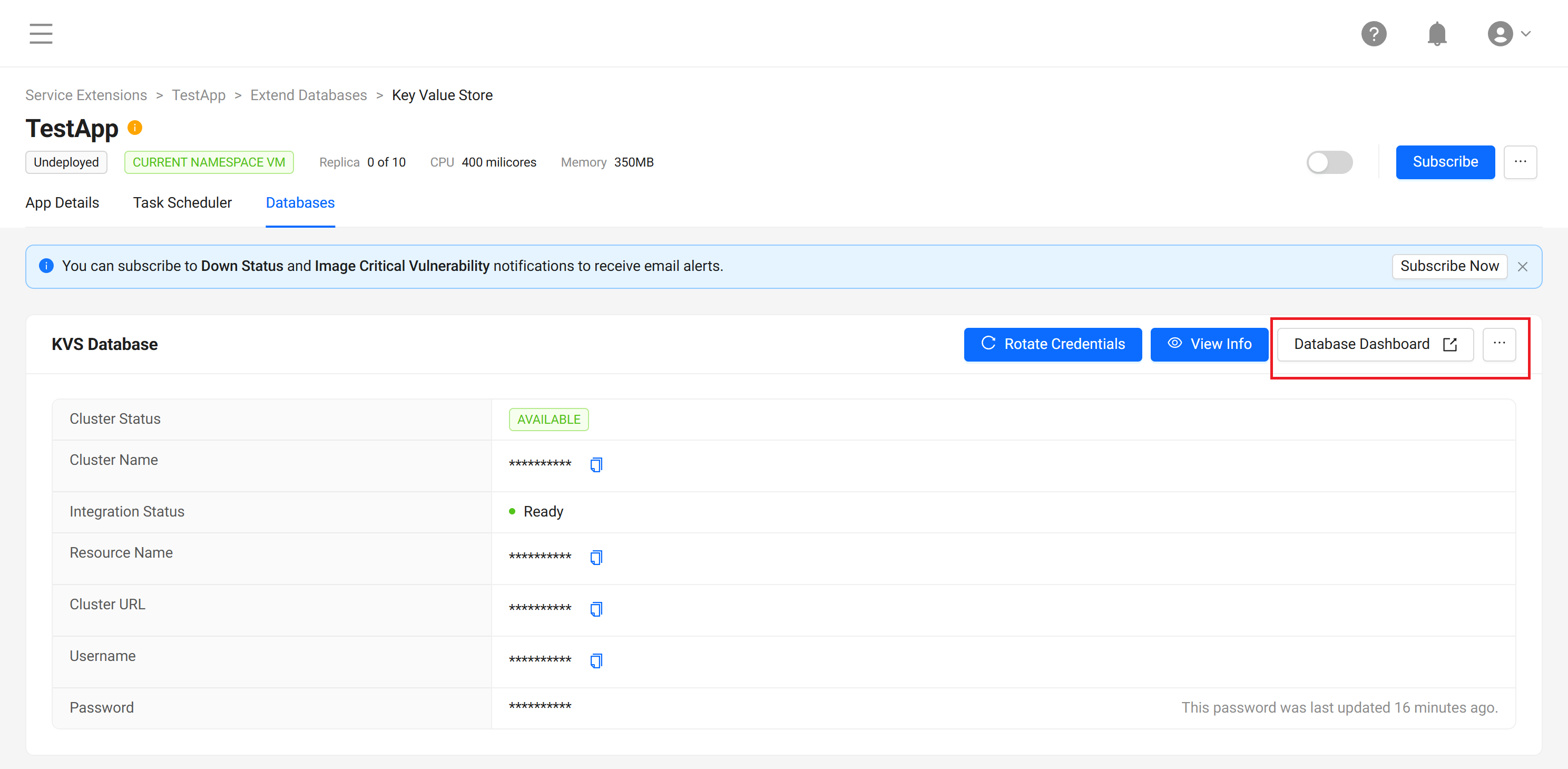
In the Databases tab of your Extend App, click the extra ... menu button on the Key Value Store card, then select Database Dashboard.
-
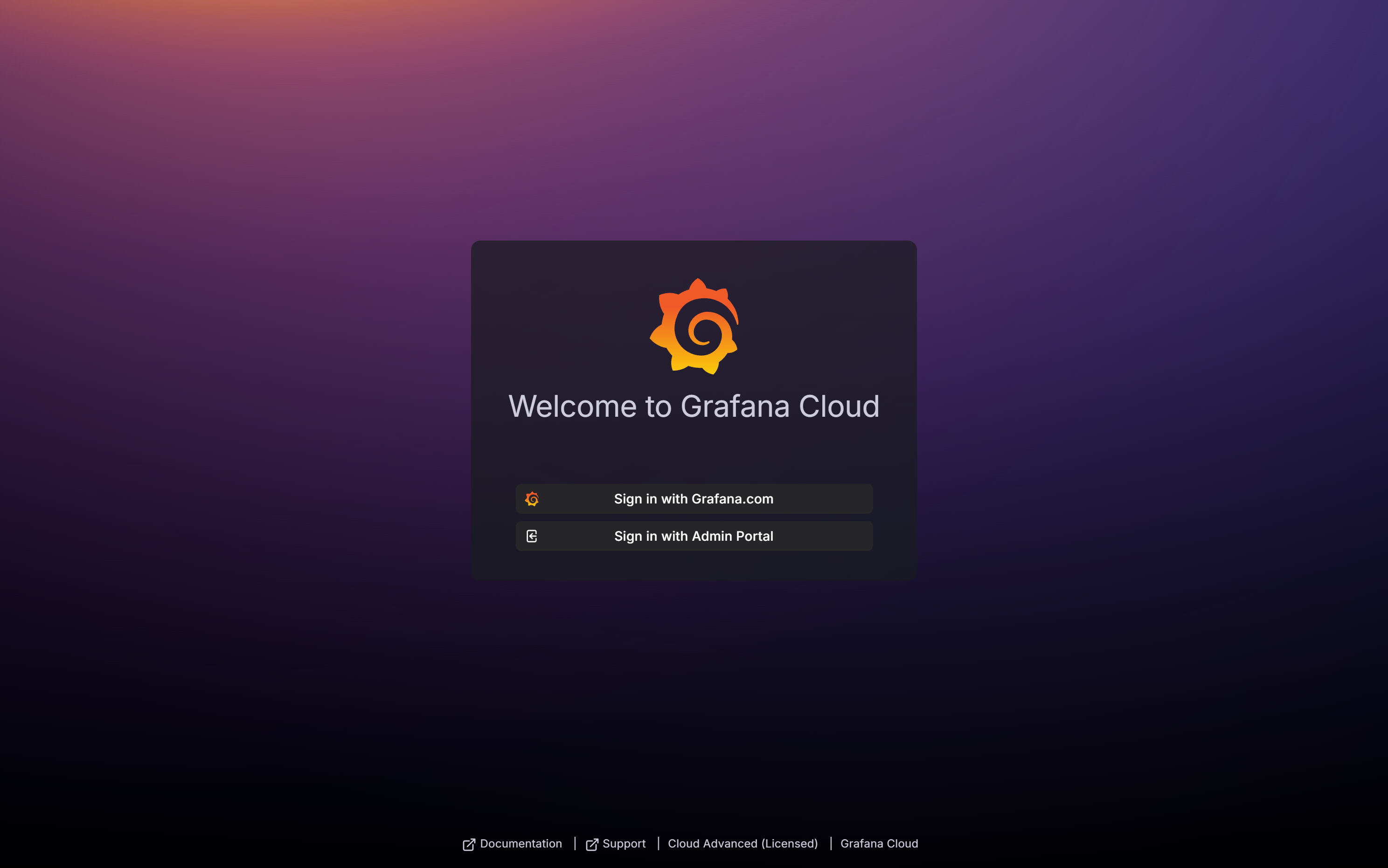
A new tab opens with the Grafana Cloud login page. Log in with your AccelByte credentials by clicking the Sign in with Admin Portal button.
-
Once you are logged in, you can view the Key Value Store dashboard.