Managing Content History from Admin Portal
Overview
The AccelByte Gaming Service (AGS) User Generated Content (UGC) service allows you to restore content to the previous version from the AGS Admin Portal. Restoring content is crucial for preserving players' creative work and to safeguard their investments in time, resources and creativity they have spent.
In this guide, you will learn how to restore content data from the Admin Portal or with the AGS CLI.
Goals
This guide will show:
- how to view content history
- how to restore content to the previous version
Prerequisites
You must have:
- access to the Admin Portal
- access to AccelByte User Generated Content (UGC) API documentation
To follow the AGS CLI steps, install the AGS CLI and sign in with an account that has access to these features. See Install and sign in. The examples use a Bash shell.
View content history
You can see the list of available content history from the Admin Portal or with the AGS CLI by following the steps below:
- Admin Portal
- AGS CLI
-
On the Admin Portal sidebar, go to Online > UGC > UGC Lookup.
-
On the UGC Lookup page, find and open the content you want to update. Click on the View option next to it to open its details page. If you can't find the content you're looking for, use the Search and Filtering options for more precise results.

- You can search for content with Content Name, Type, Sub Type, Tags, Share Code, Content ID or User ID.
- You can filter the content by displaying only Community Content, Official Content or All Content.
-
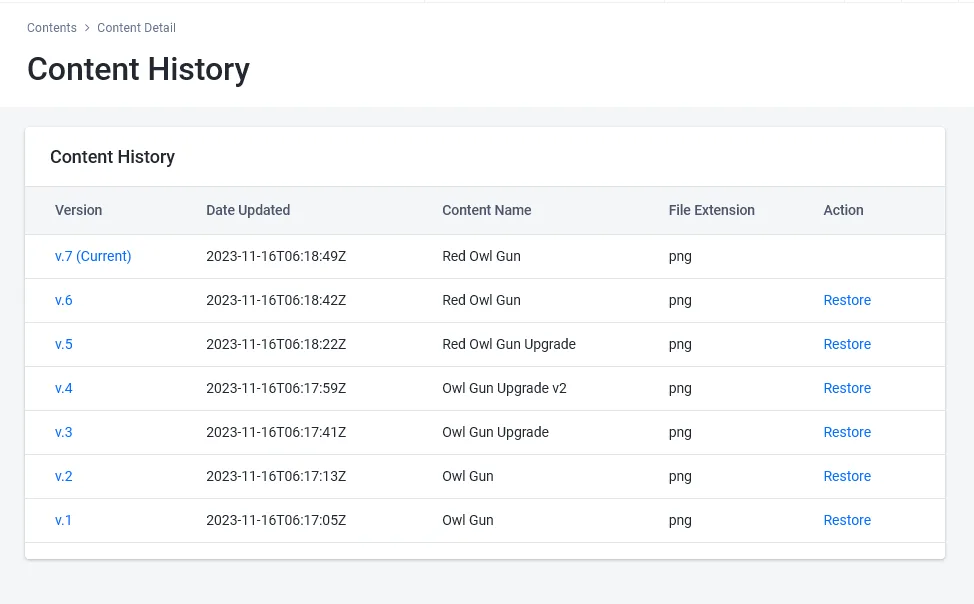
On the content's details page, click Content History. A list of the previous content versions is displayed.
-
If you don't know the content ID, list the content in your namespace and filter it by name. Replace
<YourNamespace>with your namespace and<ContentName>with the content name. Theidfield of each entry is its content ID. To narrow the results further, use--type,--sub-type,--tags, or--is-official.ags ugc content list --namespace <YourNamespace> --name "<ContentName>" -
List the versions of the content. Replace
<ContentId>with the content ID.ags ugc content list-versions --namespace <YourNamespace> --content-id <ContentId>The command returns up to 10 of the latest versions, newest first. The first entry is the current version. Each entry has an
id, aversionname, anupdatedAttimestamp, and acontentsnapshot of that version.
Restore content to previous version
You can restore the specific content version to the previous version from the Admin Portal or with the AGS CLI by following the steps below:
- Admin Portal
- AGS CLI
-
Search the content you want to restore and go to its content history list.
-
In the Content History list, select the version you want to restore from the list by clicking Restore under Action. A confirmation window is displayed.
-
Click Restore to continue.

Your content version is now updated to the previous version.
-
List the versions of the content, as described in View content history, and note the
idof the version you want to restore. Use theidfield, not theversionfield. Don't pick the first entry, because it's the current version.ags ugc content list-versions --namespace <YourNamespace> --content-id <ContentId> -
Restore the content to that version. Replace
<VersionId>with the version'sid. The command runs right away, without the confirmation window that the Admin Portal shows.ags ugc content rollback --namespace <YourNamespace> --content-id <ContentId> --version-id <VersionId>Your content version is now updated to the version you selected.