Manage UGC official in-game content
Overview
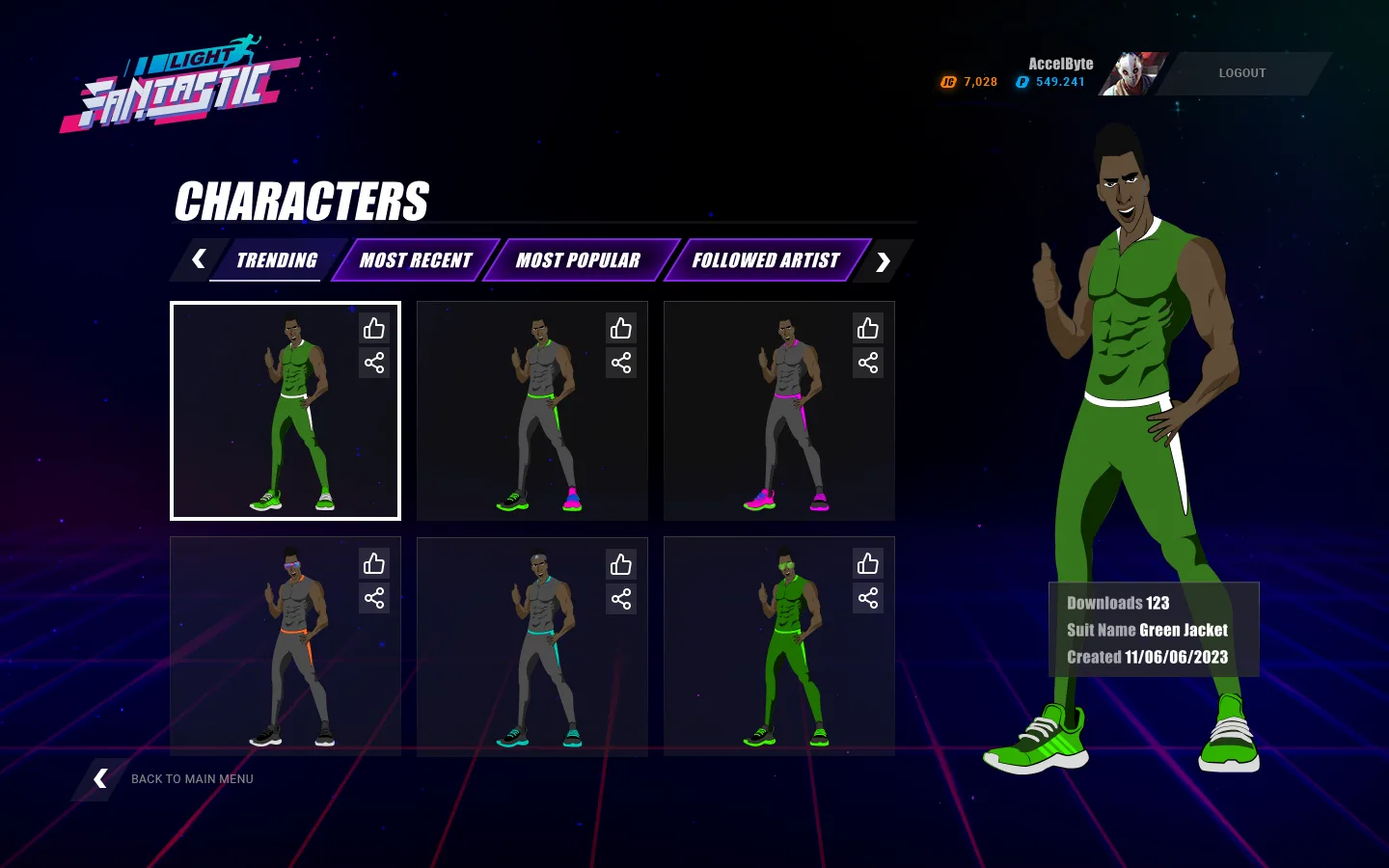
UGC can be a powerful way to increase engagement, retention, and loyalty among your customers, as well as to attract new ones. UGC could also provide players with a rich and diverse experience that suits their preferences and play styles, by offering a variety of official in-game content, such as game character customization, new aspects of a weapon, a variety of levels, and so much more.
Official in-game content is content that is created by the developers or official content creators. Official in-game content can have many advantages for both the players and the developers such as:
- Ensuring quality, consistency, and compatibility of the content, as it is tested and verified by the developers.
- Providing guidance, support, and feedback for the players, as they can learn from the best practices and examples of the developers.
- Enhancing the reputation, credibility, and authority of the developers, as they can showcase their skills and expertise in creating content for the players.
This article walks you through how to:
- Create, display, modify, and delete official in-game content through the AccelByte Gaming Services (AGS) Admin Portal or the AGS CLI
- Display official in-game content in your game client using the AGS SDK
Prerequisites
You will need access to:
- The AGS Admin Portal
- The AGS Unreal or Unity SDK
- The AGS UGC API documentation for reference.
To follow the AGS CLI steps, install the AGS CLI and sign in with an account that has access to these features. See Install and sign in. The examples use a Bash shell.
Create official in-game content
Official in-game content is created by the developers or official content creators. Official in-game content can have many advantages for both the players and the developers providing guidance, support, and feedback for the players. The other advantage is we can enhance the reputation, credibility, and creativity of the admin creators. There are 2 Steps for creating the official content from Admin Portal. First, we need to create the Channel to store the content and after that, we could create the content.
Create a channel to store the official in-game content
UGC service manages official content based on the channel. Channel is a generic entity that is used to categorize official content. We can use the channel to group contents by region, language, build version, patch, content category, or any other cases that are needed for the game scenario. If you want to store your official content in the channel, you can create and manage it using the Admin Portal.
To create a UGC channel that will store official in-game content, follow these steps:
- Admin Portal
- AGS CLI
-
On the Admin Portal sidebar, go to Online > UGC > Content Creators.

-
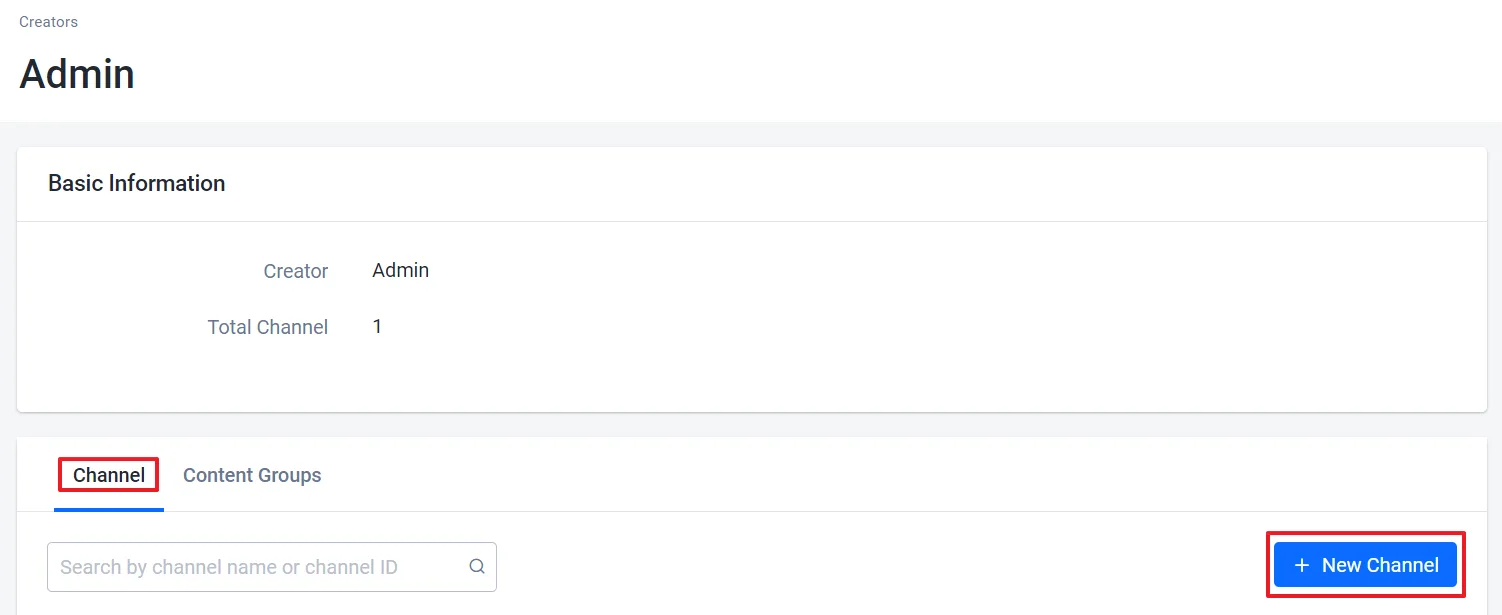
On the Creators page, open the Official tab.
-
From the creators list, find the Admin creator and click on the View button next to it. The details page of the creator appears.

-
In the Channel section, click on the + New Channel button.
-
On the Add New Channel form, type in a name for the new channel and click Add.

Run the following command. Replace <ChannelName> with a name for the new channel:
ags ugc channels create --namespace <YourNamespace> --json '{"name": "<ChannelName>"}'
The command prints the new channel. Its id is the channel ID that you use to add content to the channel.
Add official in-game content into a UGC Channel
If you want to create official in-game content in the UGC service, you need to create a file that contains all the customization options you have applied to your item. This file will store the information about your official in-game content.
To add official in-game content into a UGC channel, follow these steps:
- Admin Portal
- AGS CLI
-
On the Admin Portal sidebar, go to Online > UGC > Content Creators.
-
On the Creators page, open the Official tab.
-
From the creators list, find the creator with the channel you want to use and click on the View button next to it. The details page of the creator appears.
-
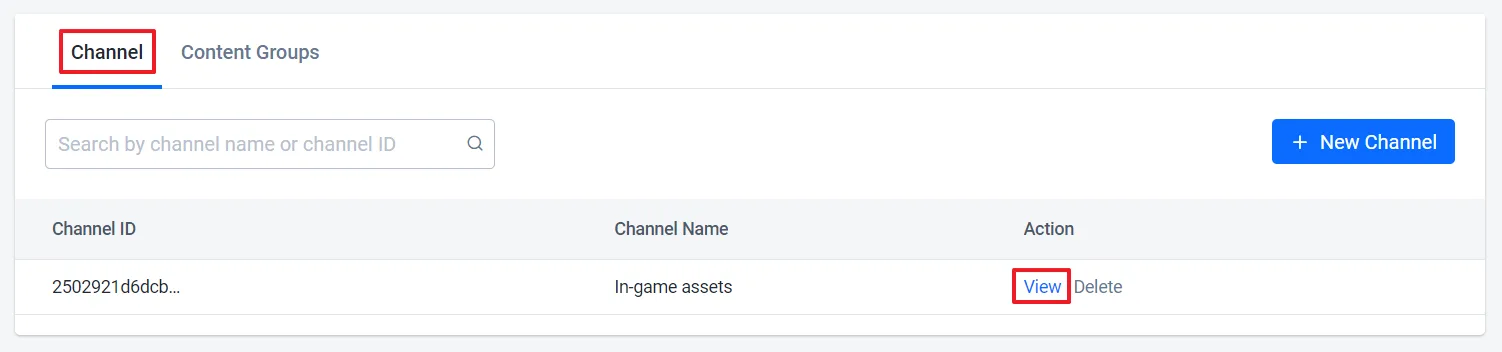
In the Channels section, find the channel you want to update and click on the View button next to it.
-
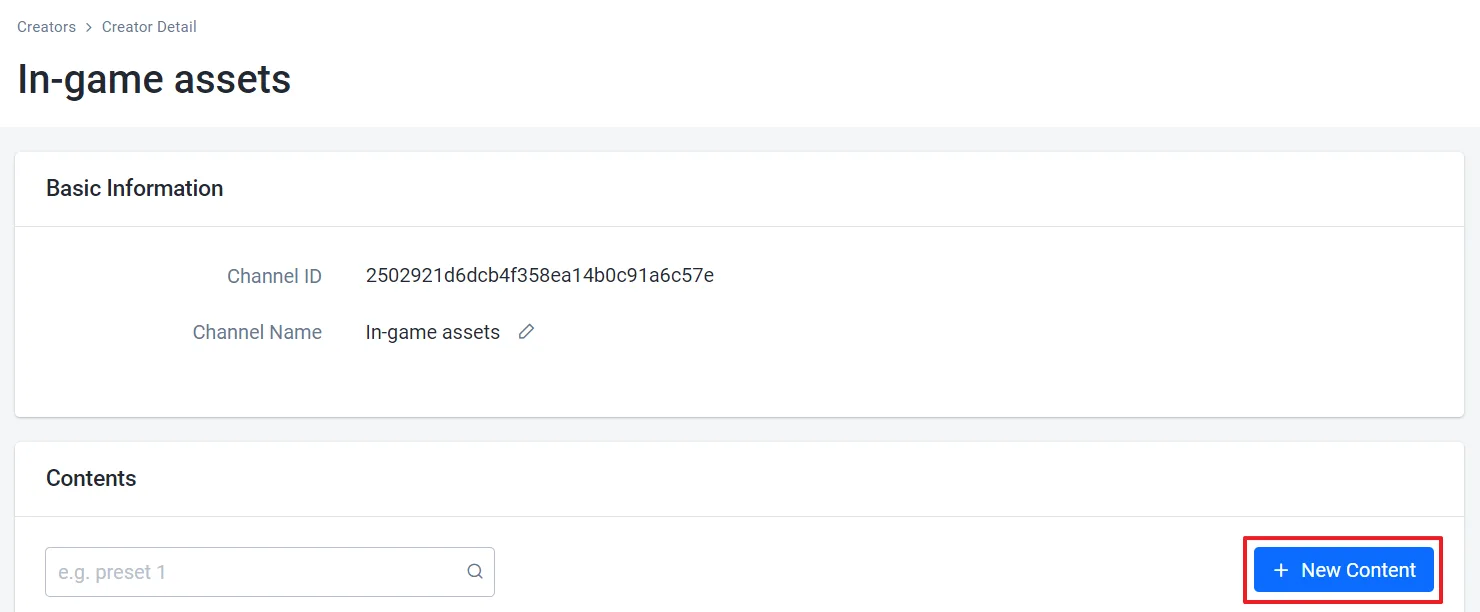
On the details page of the channel, click on the + New Content button.
-
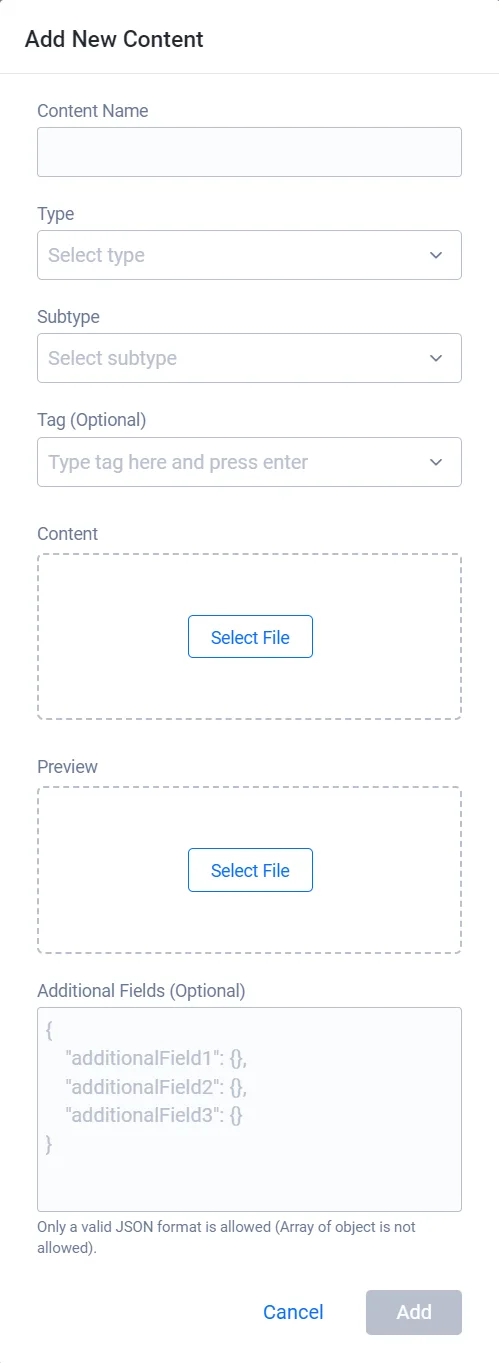
On the Add new content form, fill in the required information:
- Type in the name for the new content.
- Specify the content type and subtype.
- Add the content file.
- Add content preview.
- (Optional) Add tags and additional fields to provide more details of the new content.
-
Click Add. After the content is created, you can display the content in your game, making it available to your players.
-
Find the ID of the channel you want to use. The command returns 20 channels by default. To see more, add
--limit.ags ugc channels list --namespace <YourNamespace> -
Find the content types and subtypes that you can use. In the output, each
typelists its subtypes insubtype.ags ugc types list --namespace <YourNamespace> -
Create a JSON file with the content's details. Any file name works. This example uses
content.json:{
"name": "<ContentName>",
"type": "<ContentType>",
"subType": "<ContentSubtype>",
"fileExtension": "<FileExtension>",
"contentType": "<MimeType>",
"tags": [],
"customAttributes": {}
}typeandsubType: a type and one of its subtypes from step 2.fileExtension: the extension of the content file, in lowercase and without the dot, such aszip.contentType: the MIME type of the content file, such asapplication/zip. The Admin Portal takes it from the file you select. If you're not sure, useapplication/octet-stream.tags(optional): the content's tags. To see the existing tags, runags ugc tags list --namespace <YourNamespace>.customAttributes(optional): the Admin Portal's Additional Fields, as a JSON object.
-
Create the content. After
@, pass the path to your JSON file:ags ugc content create --namespace <YourNamespace> --channel-id <ChannelId> --json @content.jsonThe command prints the new content, including its
id. -
Upload the content file. The AGS CLI has no command to upload UGC files, so use the Admin Portal: open the content's details page and click Change Content.
Modify official in-game content
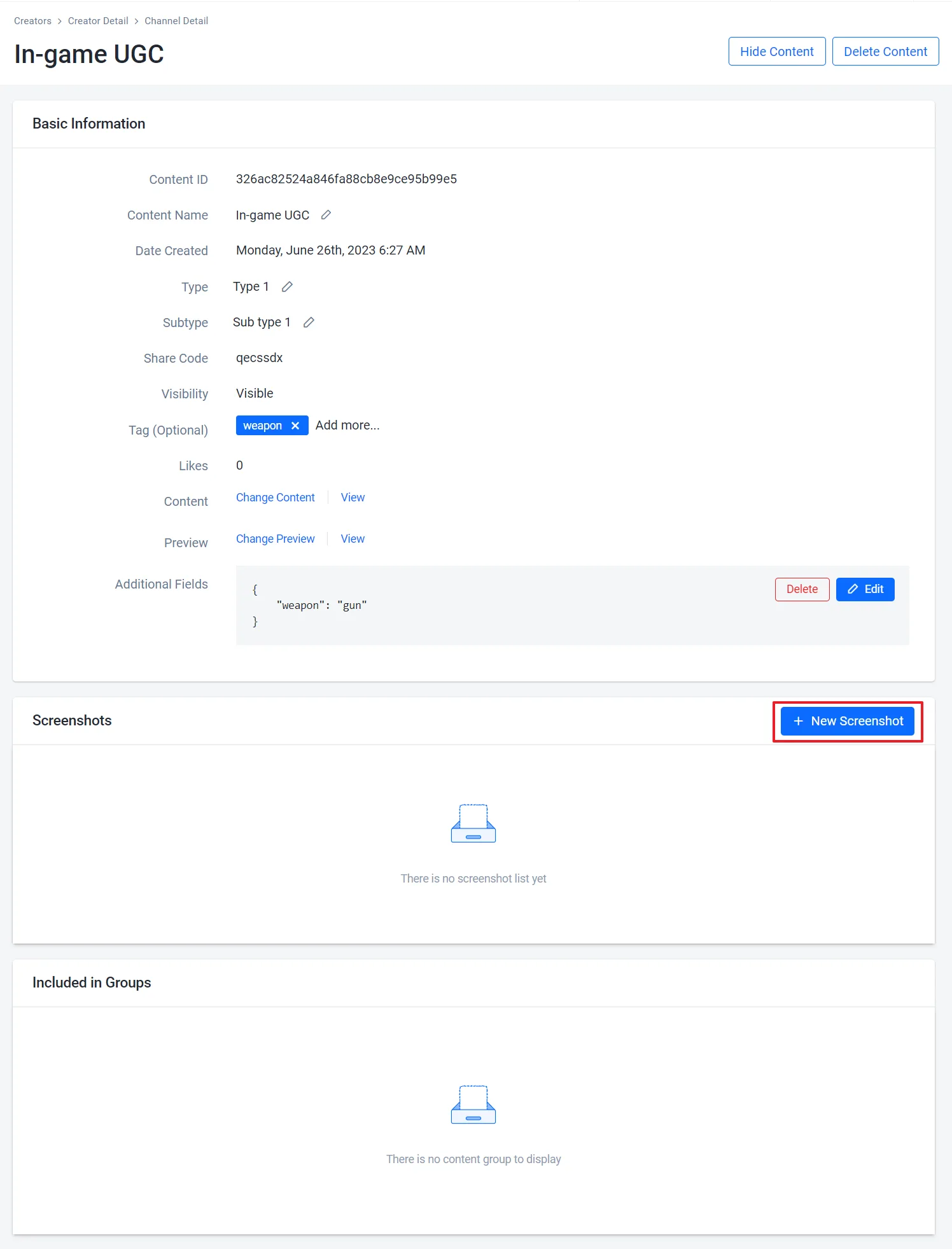
After creating the UGC content, one way to make your official in-game contents file more attractive and informative is to add a screenshot that shows how it looks in the game. A screenshot can capture the visual effects and details that you have created with your content file.
To update official in-game content in a UGC channel, follow these steps:
- Admin Portal
- AGS CLI
-
On the Admin Portal sidebar, go to Online > UGC > Content Creators.
-
On the Creators page, open the Official tab.
-
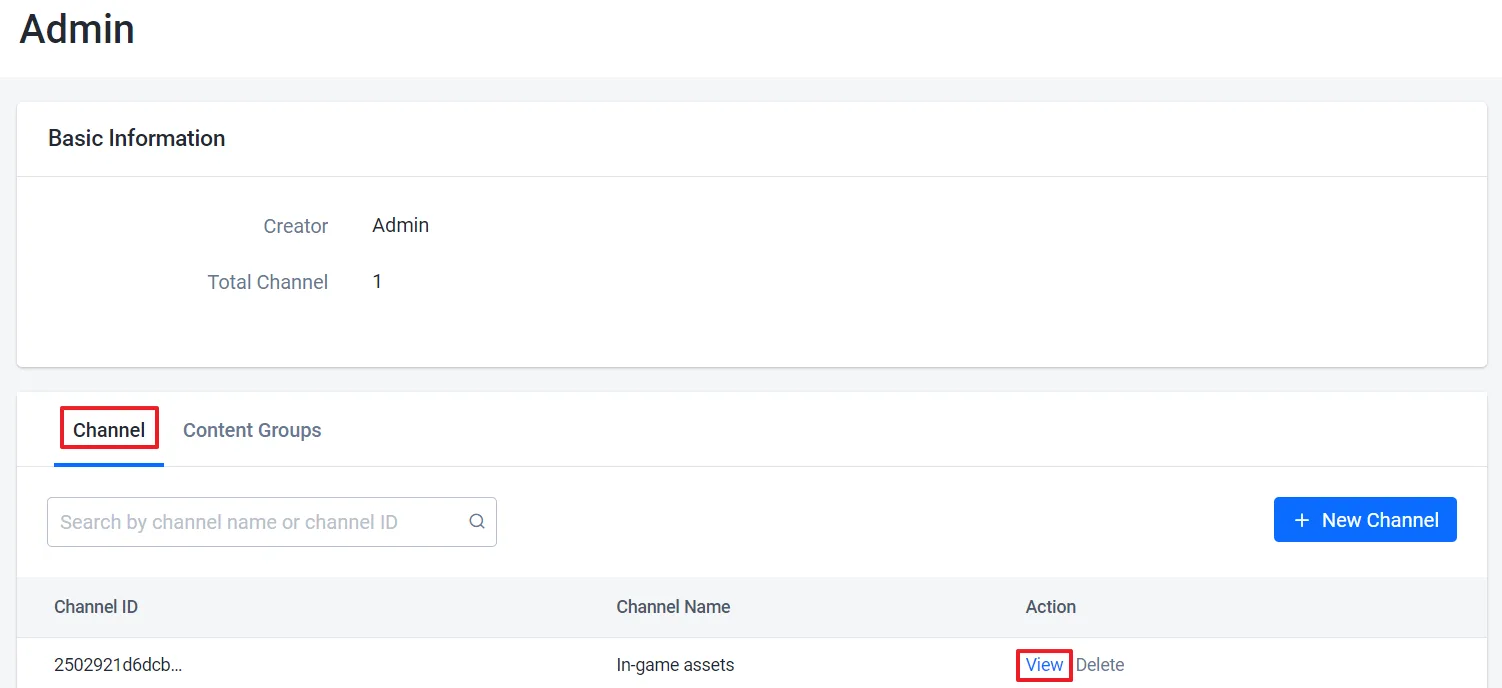
From the creators list, find the creator with the channel you want to use and click on the View button next to it. The details page of the creator appears.
-
In the Channels section, find the channel with the content you want to update and click on the View button next to it.
-
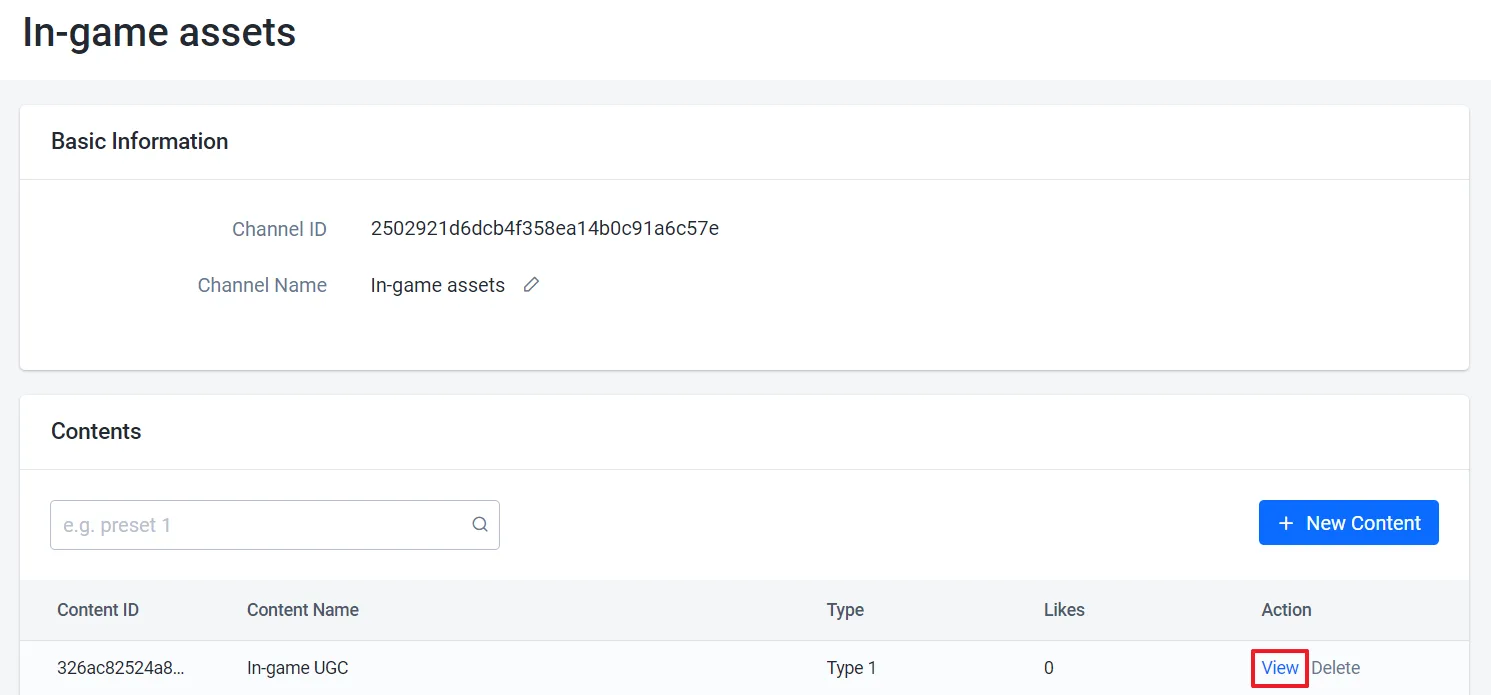
From the contents list, find the content you want to update.
-
Update the content as needed. You can edit its basic information and upload new screenshots.
-
Find the ID of the content you want to update. Replace
<ChannelId>with the ID of the content's channel. To find it, runags ugc channels list --namespace <YourNamespace>.ags ugc content list-channel --namespace <YourNamespace> --channel-id <ChannelId> -
Save the content's current settings to a file. Replace
<ContentId>with the content'sidfrom step 1:ags ugc content get --namespace <YourNamespace> --content-id <ContentId> --format json > content.json -
In
content.json, edit the fields you want to change:name,type,subType,tags, orcustomAttributes. Leave the other fields as they are. The update ignores them.warningEvery update replaces
type,subType,tags, andcustomAttributeswith the values in the file. If you remove one of these fields, the update clears it. -
Send the file back. After
@, pass the path to your JSON file:ags ugc content update --namespace <YourNamespace> --channel-id <ChannelId> --content-id <ContentId> \
--json @content.json
To change the content file or its screenshots, use the Admin Portal. The AGS CLI has no command to upload UGC files.
Display official in-game content
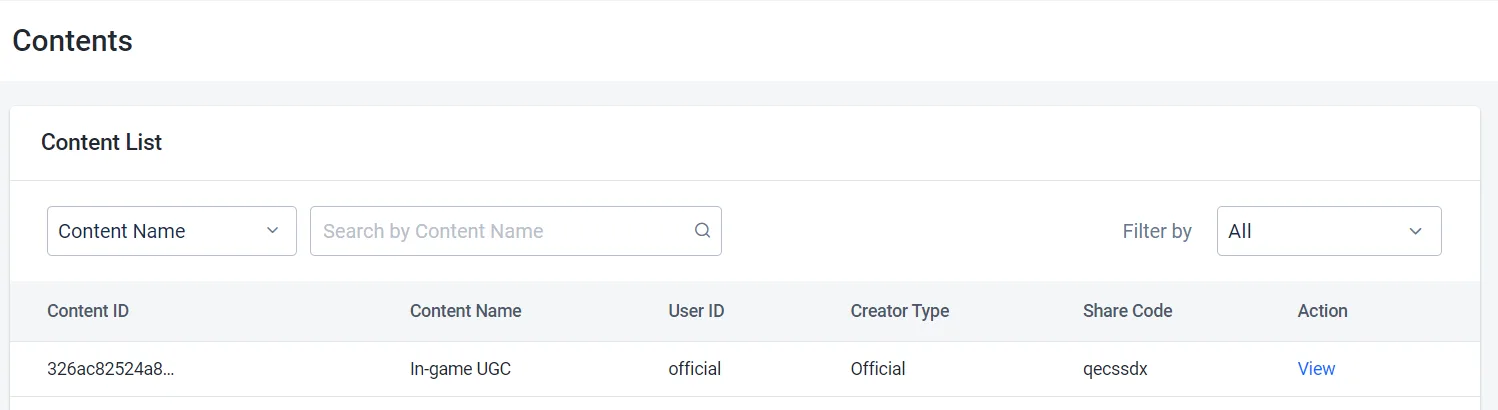
When creating the UGC official in-game content, the content result will auto-generate and admin creator can view their result through the Admin Portal. They can also display the created content in the game and the player can view or use it from the game.
To view UGC official in-game content, follow these steps:
- Admin Portal
- AGS CLI
-
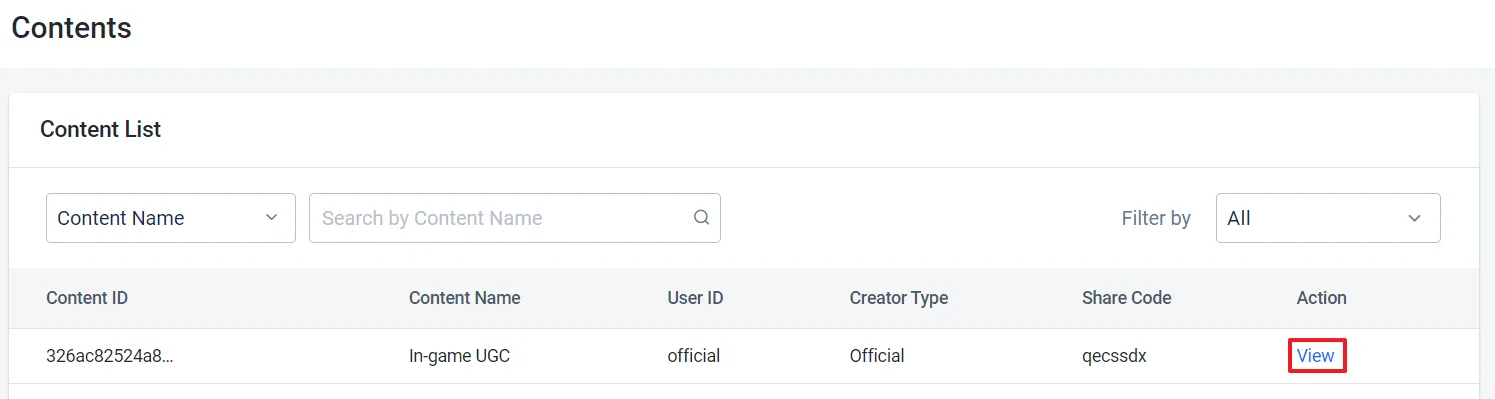
On the Admin Portal sidebar, go to Online > UGC > UGC Lookup.
-
On the UGC Lookup page, you can search for UGC official in-game content using content name, ID, type, subtype, tags, share code, and user ID.

-
From the results, find and open the content you want to view.
-
Search for official in-game content. This example searches by content name. You can also filter with
--type,--sub-type, and--tags, or leave out the filters to list all official content.ags ugc content list --namespace <YourNamespace> --is-official true --name '<ContentName>' -
View the content you want. Replace
<ContentId>with anidfrom the search results:ags ugc content get --namespace <YourNamespace> --content-id <ContentId>To find content by its share code instead, run:
ags ugc content get-by-share-code --namespace <YourNamespace> --share-code <ShareCode>
Display official in-game content by share code using Client SDK
This example shows how to retrieve the official in-game content using the share code:
- Unreal Engine
- Unity
- C# Extend SDK
- Go Extend SDK
- Java Extend SDK
- Python Extend SDK
FApiClientPtr ApiClient = AccelByteOnlineSubsystemPtr->GetApiClient();

FString ShareCode = "YourUGCShareCode";

ApiClient->UGC.GetV2ContentByShareCode(ShareCode, THandler<FAccelByteModelsUGCContentResponseV2>::CreateLambda([](const FAccelByteModelsUGCContentResponseV2& Result)
{
    // Do something if GetV2ContentByShareCode succeeds
}), FErrorHandler::CreateLambda([](int32 ErrorCode, const FString& ErrorMessage)
{
    // Do something if GetV2ContentByShareCode fails
}));
string shareCode = "YourUGCShareCode";

UGC ugc = AccelByteSDK.GetClientRegistry().GetApi().GetUgc();

ugc.GetContentByShareCodeV2(shareCode, result =>
{
    if (result.IsError)
    {
        // Do something if GetContentByShareCodeV2 fails
        Debug.Log($"Error GetContentByShareCodeV2, Error Code: {result.Error.Code} Error Message: {result.Error.Message}");
        return;
    }

    // Do something if GetContentByShareCodeV2 succeeds
});
string shareCode = "<YourUGCShareCode>";

var response = sdk.Ugc.PublicContentV2.PublicGetContentByShareCodeV2Op
    .Execute(sdk.Namespace, shareCode);
if (response != null)
{
    // Do something if successful
}
publicContentV2Service := &ugc.PublicContentV2Service{
    Client:          factory.NewUgcClient(&repository.ConfigRepositoryImpl{}),
    TokenRepository: &repository.TokenRepositoryImpl{},
}
namespace := "mygame"
shareCode := "mysharecode"
input := &public_content_v2.PublicGetContentByShareCodeV2Params{
    Namespace: namespace,
    ShareCode: shareCode,
}
result, err := publicContentV2Service.PublicGetContentByShareCodeV2Short(input)
final PublicContentV2 publicContentV2Wrapper = new PublicContentV2(sdk);

String shareCode = "<YourUGCShareCode>";
ModelsContentDownloadResponseV2 response;
try {
  response = publicContentV2Wrapper.publicGetContentByShareCodeV2(PublicGetContentByShareCodeV2.builder()
    .namespace("<namespace>")
    .shareCode(shareCode)
    .build());
} catch (Exception e) {
  // Do something if an error occurs
  return;
}

if (response == null) {
    // Null response from server
} else {
    // Do something if successful
}
import accelbyte_py_sdk.api.ugc as ugc_service

result, error = ugc_service.public_get_content_by_share_code_v2(
    share_code="YourUGCShareCode",
    namespace=namespace,  # optional, gets the value from the global instance if unspecified
    sdk=sdk,  # optional, gets the global instance  if unspecified
)
if error:
    exit(error)
Display list of official in-game content using Client SDK
This example shows how to retrieve a list of official in-game content:
Retrieve list of official in-game content
- Unreal Engine
- Unity
- C# Extend SDK
- Go Extend SDK
- Java Extend SDK
- Python Extend SDK
FApiClientPtr ApiClient = AccelByteOnlineSubsystemPtr->GetApiClient();

FString ContentName = "Content Name";
FString CreatorName = "Creator Name";
FString Type = "Content Type";
FString Subtype = "Content Subtype";
TArray<FString> Tags = { "UGC Tag1", "UGC Tag2" };
bool bIsOfficial = true;
FString UserId = "Player User Id";

int32 Limit = 1000;
int32 Offset = 0;

EAccelByteUgcSortBy SortBy = EAccelByteUgcSortBy::DATE;
EAccelByteUgcOrderBy OrderBy = EAccelByteUgcOrderBy::DESC;
ApiClient->UGC.SearchContents(ContentName, CreatorName, Type, Subtype, Tags, bIsOfficial, UserId,
	THandler<FAccelByteModelsUGCSearchContentsPagingResponse>::CreateLambda([](const FAccelByteModelsUGCSearchContentsPagingResponse& Result)
{
	// Do something if SearchContents succeeds
}), FErrorHandler::CreateLambda([](int32 ErrorCode, const FString& ErrorMessage)
{
	// Do something if SearchContents fails
}), SortBy, OrderBy, Limit, Offset);
SearchContentRequest filterRequest = new SearchContentRequest()
{
    name = "Content Name",
    type = "Content Type",
    subtype = "Content Subtype",
    tags = new[] { "UGC Tag1", "UGC Tag2" },
    limit = 1000,
    offset = 0,
    sortBy = UGCSortBy.DATE,
    orderBy = UGCOrderBy.DESC,
    isOfficial = true
};

UGC ugc = AccelByteSDK.GetClientRegistry().GetApi().GetUgc();

ugc.SearchContent(filterRequest, result =>
{
    if (result.IsError)
    {
        // Do something if SearchContent fails
        Debug.Log($"Error SearchContent, Error Code: {result.Error.Code} Error Message: {result.Error.Message}");
        return;
    }

    // Do something if SearchContent succeeds
});
var response = sdk.Ugc.PublicContentLegacy.PublicSearchContentOp
    .SetName("<content-name>")
    .SetCreator("<creator-name>")
    .SetSubtype("<content-subtype")
    .SetTags(new List<string>()
    {
        "UGC Tag1",
        "UGC Tag2"
    })
    .SetLimit(100)
    .SetOffset(0)
    .SetSortby("date")
    .SetOrderby("desc")
    .SetIsofficial("true")
    .Execute(sdk.Namespace);
if (response != null)
{
    // Do something if successful
}
publicContentLegacyService := &ugc.PublicContentLegacyService{
    Client:          factory.NewUgcClient(&repository.ConfigRepositoryImpl{}),
    TokenRepository: &repository.TokenRepositoryImpl{},
}
namespace := "mygame"
creator := "mycreator"
isofficial := "true"
limit := int64(100)
name := "mycontentname"
offset := int64(0)
orderby := "desc"
sortby := "date"
subtype := "mycontentsubtype"
tags := []string{ "UGC Tag1", "UGC Tag2" }
type_, _ := cmd.Flags().GetString("type")
userId, _ := cmd.Flags().GetString("userId")
input := &public_content_legacy.PublicSearchContentParams{
    Namespace:  namespace,
    Creator:    &creator,
    Isofficial: &isofficial,
    Limit:      &limit,
    Name:       &name,
    Offset:     &offset,
    Orderby:    &orderby,
    Sortby:     &sortby,
    Subtype:    &subtype,
    Tags:       tags,
    Type:       &type_,
    UserID:     &userId,
}
result, err := publicContentLegacyService.PublicSearchContentShort(input)
PublicContentLegacy oublicContentLegacyWrapper = new PublicContentLegacy(sdk);
ModelsPaginatedContentDownloadResponse response;
try {
    response = oublicContentLegacyWrapper.publicSearchContent(PublicSearchContent.builder()
        .namespace("<namespace>")
        .name("<content-name>")
        .creator("<creator-name>")
        .subtype("<content-subtype")
        .tags(List.of("UGC Tag1", "UGC Tag2"))
        .limit(100)
        .offset(0)
        .sortby("date")
        .orderby("desc")
        .isofficial("true")
        .build());
} catch (Exception e) {
    // Do something if an error occurs
    return;
}

if (response == null) {
    // Null response from server
} else {
    // Do something when report succeeds
}
import accelbyte_py_sdk.api.ugc as ugc_service

result, error = ugc_service.public_search_content(
    name="Content Name",
    creator="Creator Name",
    type_="Content Type",
    subtype="Content Subtype",
    tags=["UGC Tag1", "UGC Tag2"],
    isofficial="true",
    user_id="********************************",
    sortby="date",
    orderby="desc",
    limit=1000,
    offset=0,
    namespace=namespace,  # optional, gets the value from the global instance if unspecified
    sdk=sdk,  # optional, gets the global instance  if unspecified
)
if error:
    exit(error)
Display official in-game content by content ID using Client SDK
This example shows how to retrieve official in-game content using a content ID:
- Unreal Engine
- Unity
- C# Extend SDK
- Go Extend SDK
- Java Extend SDK
- Python Extend SDK
FApiClientPtr ApiClient = AccelByteOnlineSubsystemPtr->GetApiClient();

FString ContentId = "YourUGCContentId";

ApiClient->UGC.GetV2ContentByContentId(ContentId, THandler<FAccelByteModelsUGCContentResponseV2>::CreateLambda([](const FAccelByteModelsUGCContentResponseV2& Result)
{
    // Do something if GetV2ContentByContentId succeeds
}), FErrorHandler::CreateLambda([](int32 ErrorCode, const FString& ErrorMessage)
{
    // Do something if GetV2ContentByContentId fails
}));
string contentId = "YourUGCContentId";

UGC ugc = AccelByteSDK.GetClientRegistry().GetApi().GetUgc();

ugc.GetContentByContentIdV2(contentId, result =>
{
    if (result.IsError)
    {
        // Do something if GetContentByContentIdV2 fails
        Debug.Log($"Error GetContentByContentIdV2, Error Code: {result.Error.Code} Error Message: {result.Error.Message}");
        return;
    }

    // Do something if GetContentByContentIdV2 succeeds
});
string contentId = "<YourUGCContentId>";

var response = sdk.Ugc.PublicContentV2.PublicGetContentByIDV2Op
    .Execute(contentId, sdk.Namespace);
if (response != null)
{
    // Do something if successful
}
publicContentV2Service := &ugc.PublicContentV2Service{
    Client:          factory.NewUgcClient(&repository.ConfigRepositoryImpl{}),
    TokenRepository: &repository.TokenRepositoryImpl{},
}
contentId := "mycontentid"
namespace := "mygame"
input := &public_content_v2.PublicGetContentByIDV2Params{
    ContentID: contentId,
    Namespace: namespace,
}
result, err := publicContentV2Service.PublicGetContentByIDV2Short(input)
final PublicContentV2 publicContentV2Wrapper = new PublicContentV2(sdk);

String contentId = "<YourUGCContentId>";
ModelsContentDownloadResponseV2 response;
try {
    response = publicContentV2Wrapper.publicGetContentByIDV2(PublicGetContentByIDV2.builder()
        .namespace("<namespace>")
        .contentId(contentId)
        .build());
} catch (Exception e) {
    // Do something if an error occurs
    return;
}

if (response == null) {
    // Null response from server
} else {
    // Do something if successful
}
import accelbyte_py_sdk.api.ugc as ugc_service

result, error = ugc_service.public_get_content_by_idv2(
    content_id="YourUGCContentId",
    namespace=namespace,  # optional, gets the value from the global instance if unspecified
    sdk=sdk,  # optional, gets the global instance  if unspecified
)
if error:
    exit(error)
Display list of official in-game content through official channels using Client SDK
This example shows how to retrieve a list of official in-game content through official channels.
- Unreal Engine
- Unity
- C# Extend SDK
- Go Extend SDK
- Java Extend SDK
- Python Extend SDK
FApiClientPtr ApiClient = AccelByteOnlineSubsystemPtr->GetApiClient();

FString ChannelId = "YourUGCChannelId";

ApiClient->UGC.SearchV2ContentsSpecificToChannel(ChannelId, THandler<FAccelByteModelsUGCSearchContentsPagingResponseV2>::CreateLambda([](const FAccelByteModelsUGCSearchContentsPagingResponseV2& Result)
{
    // Do something if SearchV2ContentsSpecificToChannel succeeds
}), FErrorHandler::CreateLambda([](int32 ErrorCode, const FString& ErrorMessage)
{
    // Do something if SearchV2ContentsSpecificToChannel fails
}));
string channelId = "YourUGCChannelId";

UGC ugc = AccelByteSDK.GetClientRegistry().GetApi().GetUgc();

ugc.SearchContentsSpecificToChannelV2(channelId, result =>
{
    if (result.IsError)
    {
        // Do something if SearchContentsSpecificToChannelV2 fails
        Debug.Log($"Error SearchContentsSpecificToChannelV2, Error Code: {result.Error.Code} Error Message: {result.Error.Message}");
        return;
    }

    // Do something if SearchContentsSpecificToChannelV2 succeeds
});
string channelId = "<YourUGCChannelId>";

var response = sdk.Ugc.PublicContentV2.PublicGetContentByChannelIDV2Op
    .Execute(channelId, sdk.Namespace);
if (response != null)
{
    // Do something if successful
}
publicContentV2Service := &ugc.PublicContentV2Service{
    Client:          factory.NewUgcClient(&repository.ConfigRepositoryImpl{}),
    TokenRepository: &repository.TokenRepositoryImpl{},
}
channelId := "myChannelId"
namespace := "mygame"
input := &public_content_v2.PublicGetContentByChannelIDV2Params{
    ChannelID: channelId,
    Namespace: namespace,
}
result, err := publicContentV2Service.PublicGetContentByChannelIDV2Short(input)
final PublicContentV2 publicContentV2Wrapper = new PublicContentV2(sdk);

String channelId = "<YourUGCChannelId>";
ModelsPaginatedContentDownloadResponseV2 response;
try {
    response = publicContentV2Wrapper.publicGetContentByChannelIDV2(PublicGetContentByChannelIDV2.builder()
    .namespace("<namespace>")
    .channelId(channelId)
    .build());
} catch (Exception e) {
    // Do something if an error occurs
    return;
}

if (response == null) {
    // Null response from server
} else {
    // Do something if successful
}
import accelbyte_py_sdk.api.ugc as ugc_service

result, error = ugc_service.public_get_content_by_channel_idv2(
    content_id="YourUGCChannelId",
    namespace=namespace,  # optional, gets the value from the global instance if unspecified
    sdk=sdk,  # optional, gets the global instance  if unspecified
)
if error:
    exit(error)
Delete official in-game content
- Admin Portal
- AGS CLI
-
On the Admin Portal sidebar, go to Online > UGC > Content Creators.
-
On the Creators page, open the Official tab.
-
From the creators list, find the creator with the channel you want to update and click on the View button next to it. The details page of the creator appears.
-
In the Channels section, find the channel with the content you want to delete and click on the View button next to it.
-
From the contents list, find the content that you want to delete and click on the View button next to it.
-
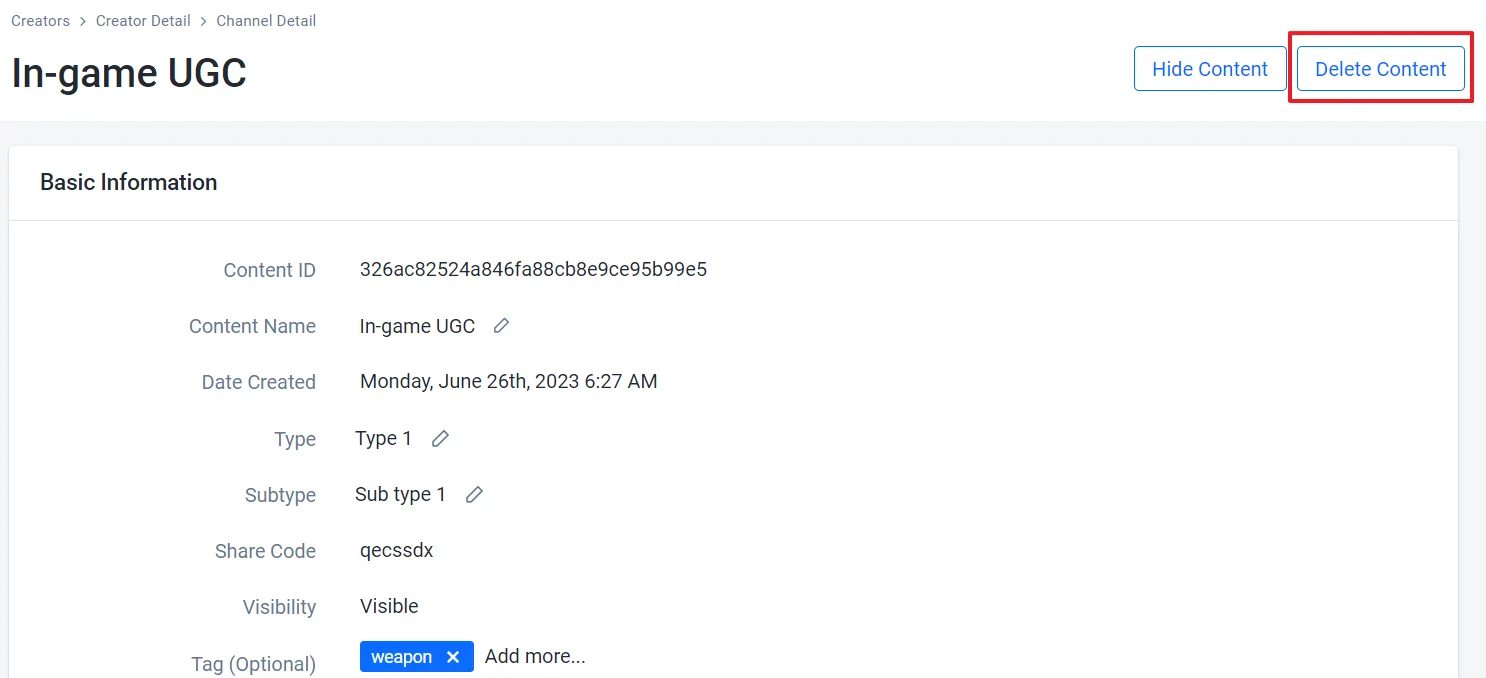
On the details page of the content, click on the Delete Content button.
-
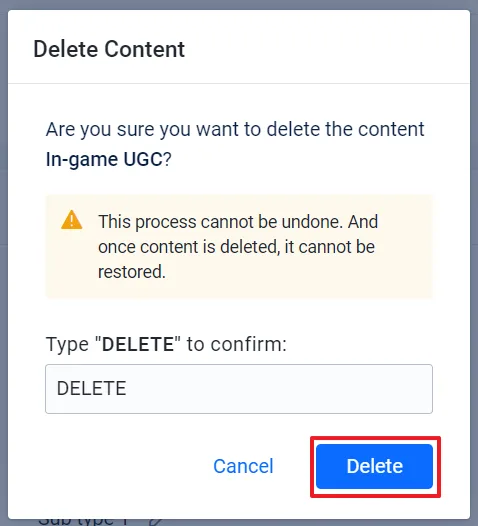
On the confirmation message, type DELETE and click the Delete button. The content is immediately deleted from the channel's contents list.
-
Find the ID of the content you want to delete. Replace
<ChannelId>with the ID of the content's channel. To find it, runags ugc channels list --namespace <YourNamespace>.ags ugc content list-channel --namespace <YourNamespace> --channel-id <ChannelId> -
Delete the content. Replace
<ContentId>with the content'sidfrom step 1. The AGS CLI asks you to confirm before it deletes the content.ags ugc content delete --namespace <YourNamespace> --channel-id <ChannelId> --content-id <ContentId>
Next step
Create content tags, types, and sub-type that you can assign to the in-game content of your UGC channels. See Configure content tags, types, and subtypes for more information.