Custom MCP Servers
Extending ADT AI Assistant in Hub with Custom MCP Servers
The ADT Hub now has ability to extend your AI Assistant by integrating your own Model Context Protocol (MCP) servers. While the default AccelByte MCP remains active to handle core tasks, this feature allows you to plug in your own internal tools, private services, and custom AI workflows directly into your environment.
Managing Your Servers
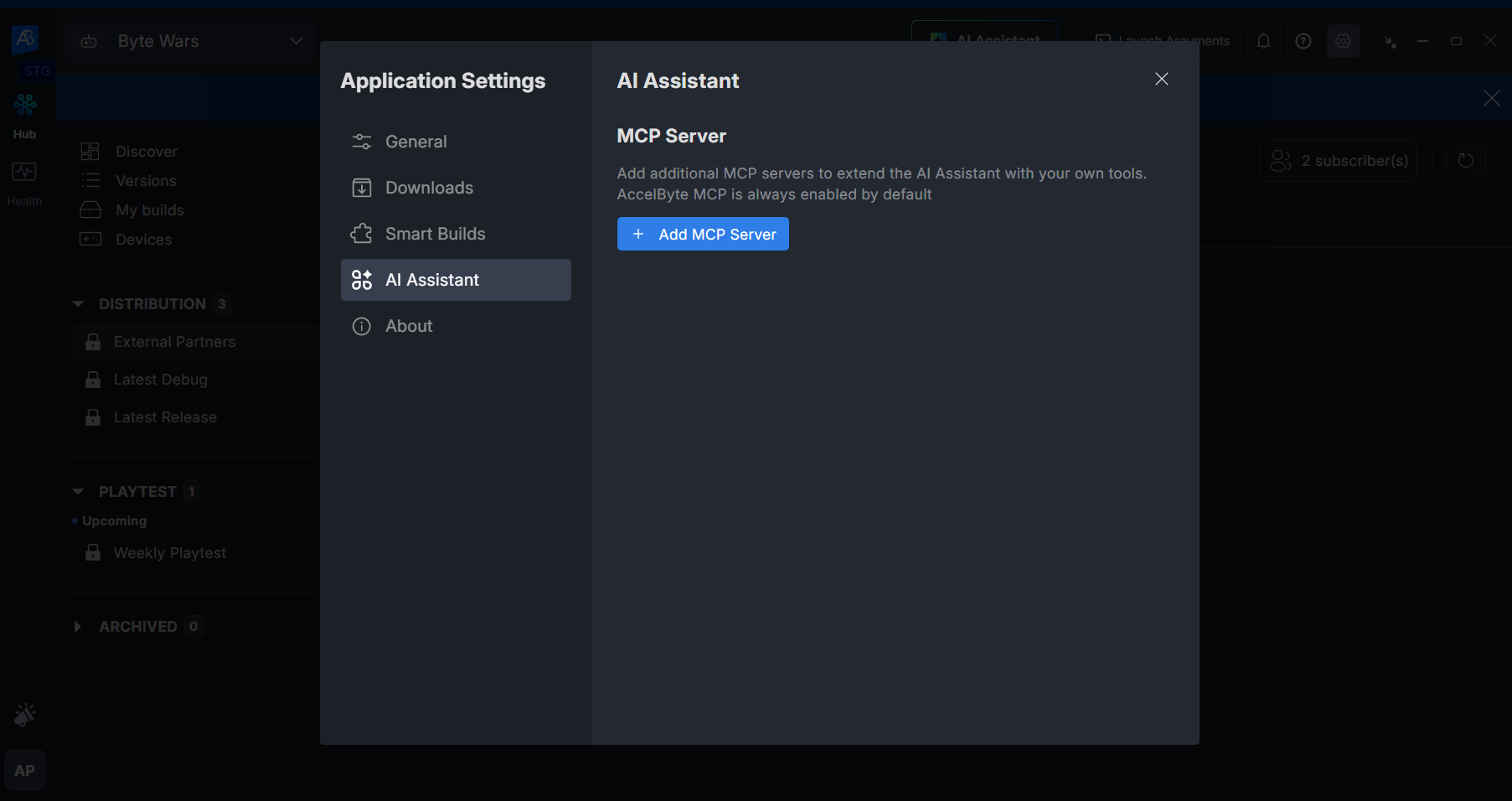
You can manage all your MCP settings by navigating to Application Settings and selecting the AI Assistant tab.
Selecting a Transport Type
You can connect your servers using two primary methods depending on your infrastructure requirements:
| Transport Type | Required Parameters | Technical Application |
|---|---|---|
| STDIO | Name, Command | Localized execution of scripts or binaries (e.g., Python, Node.js) running directly on your machine. |
| Streamable HTTP | Name, Server URL | Integration with remote microservices, hosted internal APIs, or cloud-based tool providers. |
Adding a New Server
-
Open the ADT Hub and go to the Application Settings.
-
In the AI Assistant menu, click the + Add MCP Server button.
-
Choose your preferred Transport Type.
-
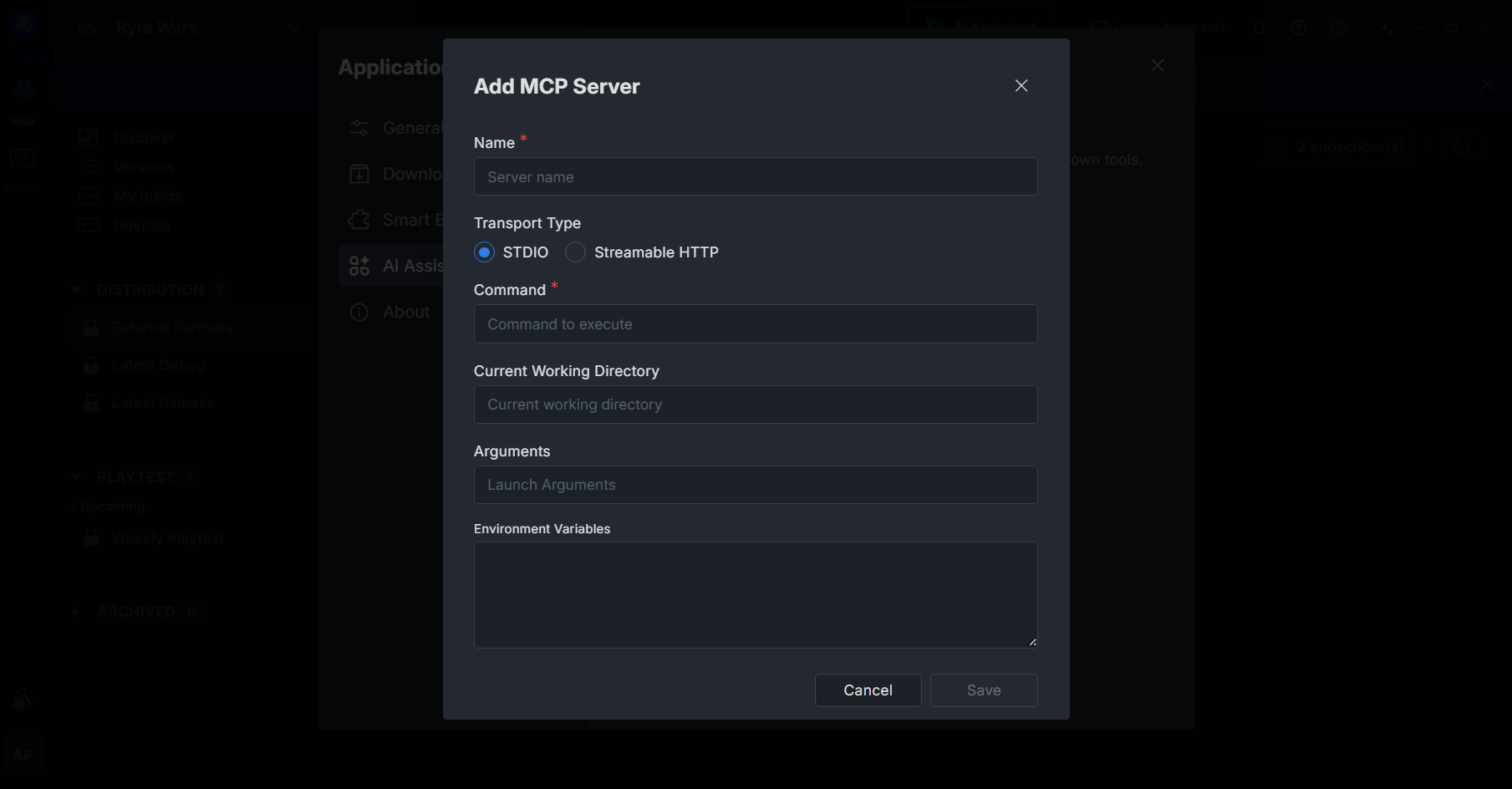
For STDIO Connections:
- Enter the Server name.
- Enter the Command to execute.
- (Optional) Define the Current Working Directory where the command should run.
- (Optional) Add Arguments and Environment Variables (key-value pairs) for runtime context.
-
For Streamable HTTP Connections:
- Enter your Server name.
- Enter the Server URL.
- (Optional) Add Headers (Key/Value) required for your request, such as authentication tokens or content types.
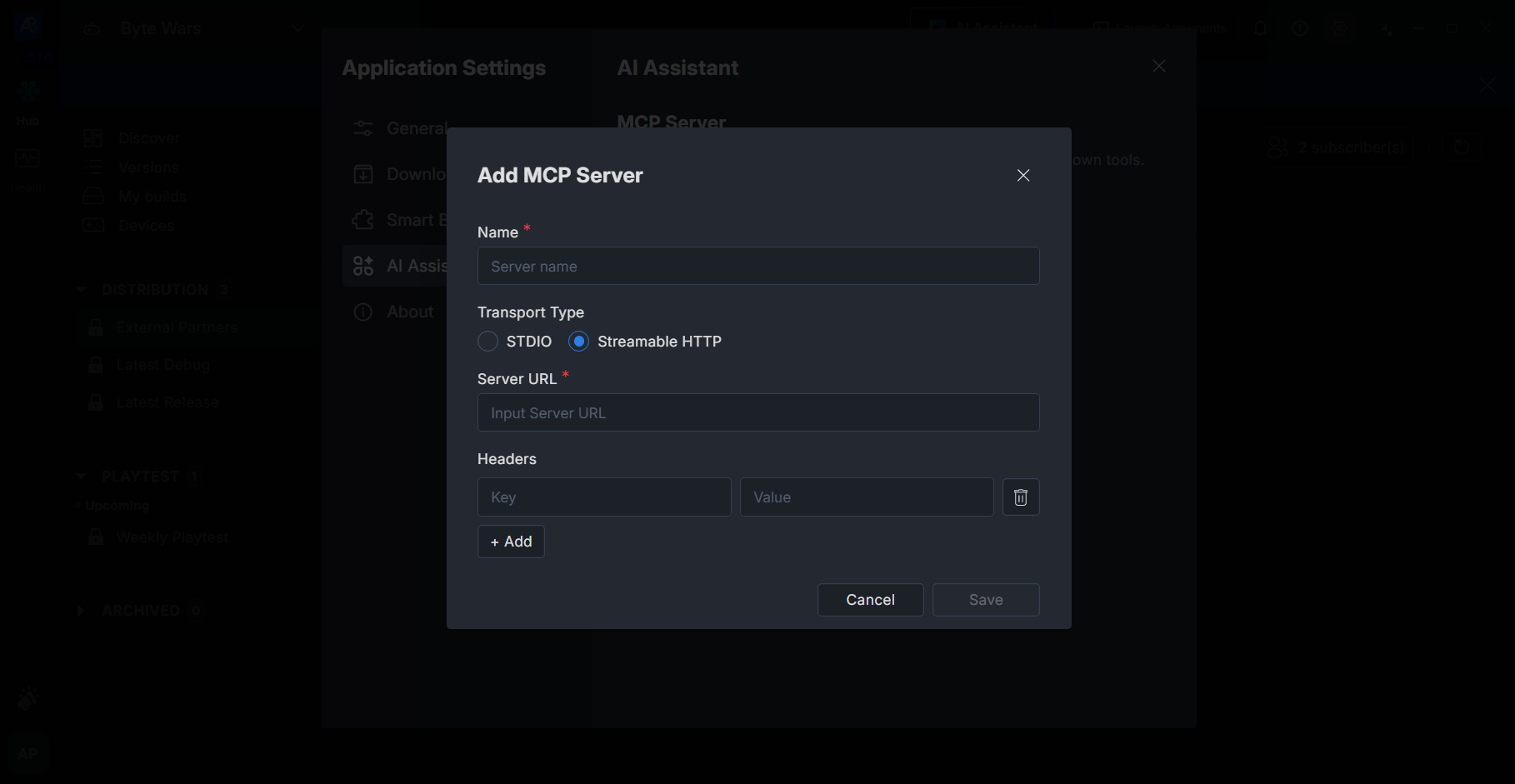
- Click Save.
Monitoring Connection States
Once you've added a server, you can monitor its health via the real-time status indicators in the management list:
- 🟢 Connected: Your server is active and your tools are ready for use.
- 🔴 Error: The connection failed. You should verify your URL or your command syntax.
- ⚫ Disconnected: You have manually toggled the server off.
Available Actions:
- Toggle On/Off: Quickly disable or enable a server without deleting its configuration.
- Edit/Remove: Update your parameters or delete the server entirely if you no longer require it.
- Restart/refresh: Force the ADT Hub to reconnect and rediscover your tools.