Create and organize playtest
Overview
Playtesting is a way of having multiple users try out your game's build and receive feedback to improve the overall performance, such as graphics, gameplay, matchmaking system, and stability rate.
Playtests also help you understand how the game will perform in a real-world scenario with different types of users, PC specifications, and internet bandwidth.
In AccelByte Development Toolkit (ADT), you can create and organize playtests from the latest stable build on your Distribution channel.
A playtest is created through the ADT Hub and after the playtest starts, all sessions, crashes, bugs, and suggestions are collected in the ADT Web.
Key features include:
- [Hub] Power Users can create/edit/delete the playtest.
- [Hub] Power Users can create a quick/scheduled playtest.
- [Hub] Admin and Coordinator can start/stop the playtest (from a quick playtest).
- [Hub] Member and Users can download the playtest build.
- [Web] Power Users can see the playtest results in the ADT Hub and Web Portal.
- [Hub] Anyone with access to a playtest channel can view every player session for the build — crashed or not — and download that session's log.
Playtests in ADT have the following statuses:
-
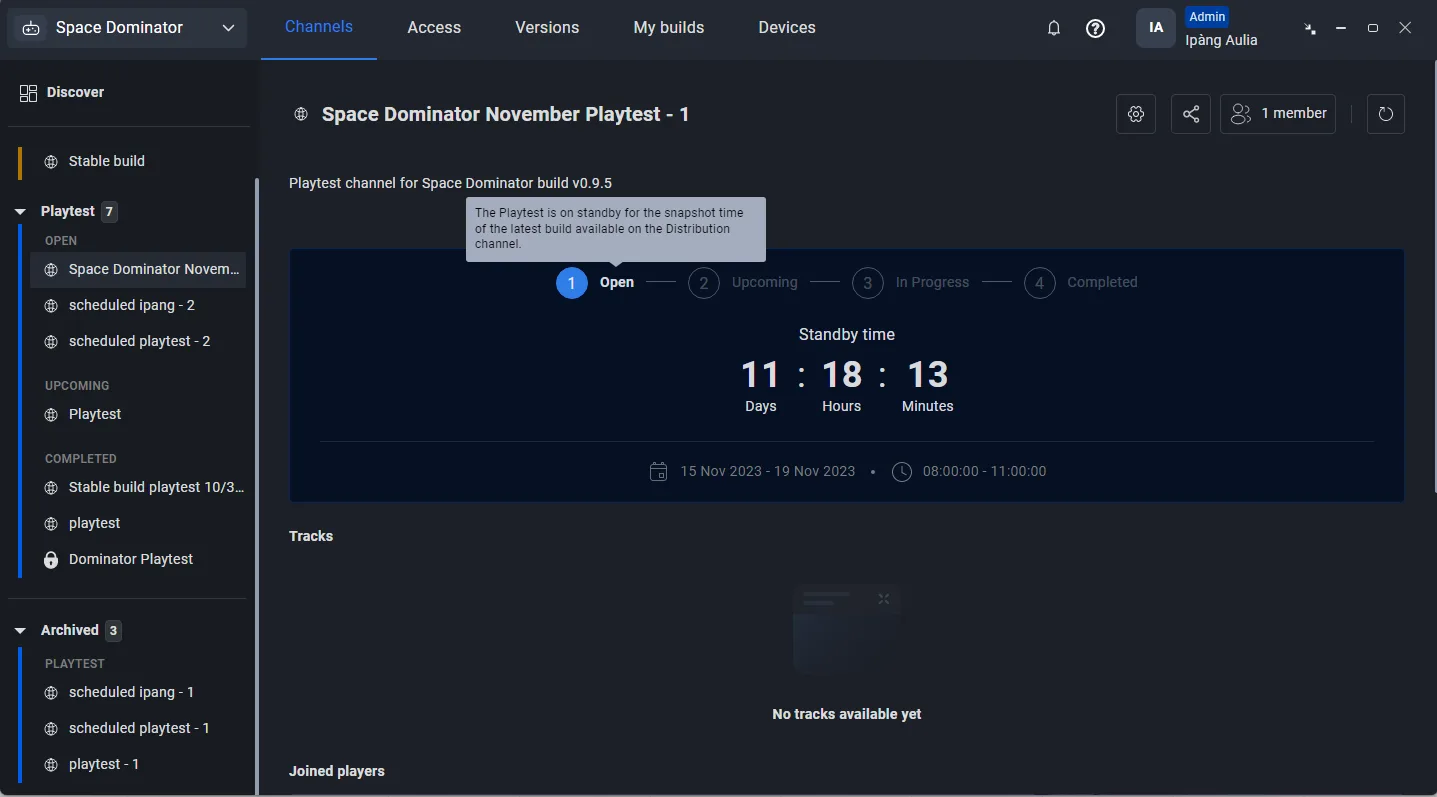
Open: the playtest channel is on standby to take a snapshot of all the information from the distribution channel it originated from, including tracks, members, and access permissions.
-
Upcoming: the playtest channel has already taken a snapshot of the information from the distribution channel and will start in a few hours, depending on the time setting of the channel snapshot.
-
In Progress: the playtest is currently ongoing and collecting data on sessions, crashes, feedback, stability rate, and other metrics from participants.
-
Completed: the playtest period has ended. Your team can start analyzing the playtest data to evaluate the health of your build.
Manage playtest channels
There are two types of playtest in ADT: quick and scheduled.
Manage quick playtest channels
A quick playtest is a playtest channel that's created right away and you can control when to start it.
The playtest status will immediately become "Upcoming", with the track from the Distribution channel captured as the main playtest build. It will also capture the members of the channel and the people who have access to the distribution channel.
Create a quick playtest channel
To create a quick playtest channel, follow these steps:
-
Launch the ADT Hub.
-
Select the distribution channel with the most stable build from the orange-highlighted sidebar.
-
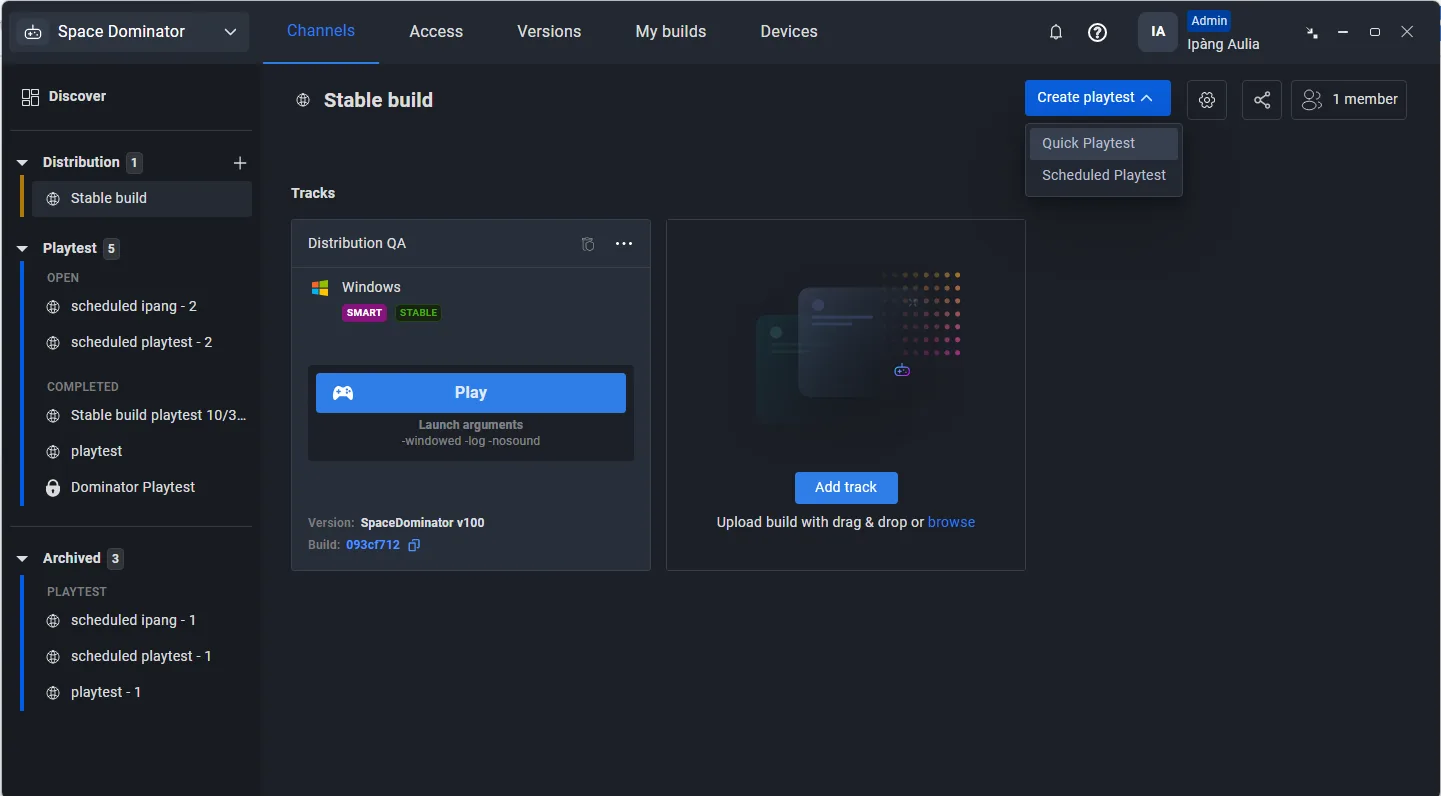
Click the Create playtest button, and select the Quick Playtest option from the dropdown.
-
Fill in the Channel name field to name your playtest channel.

-
(Optional) In the Description field, add a brief description about the channel.
-
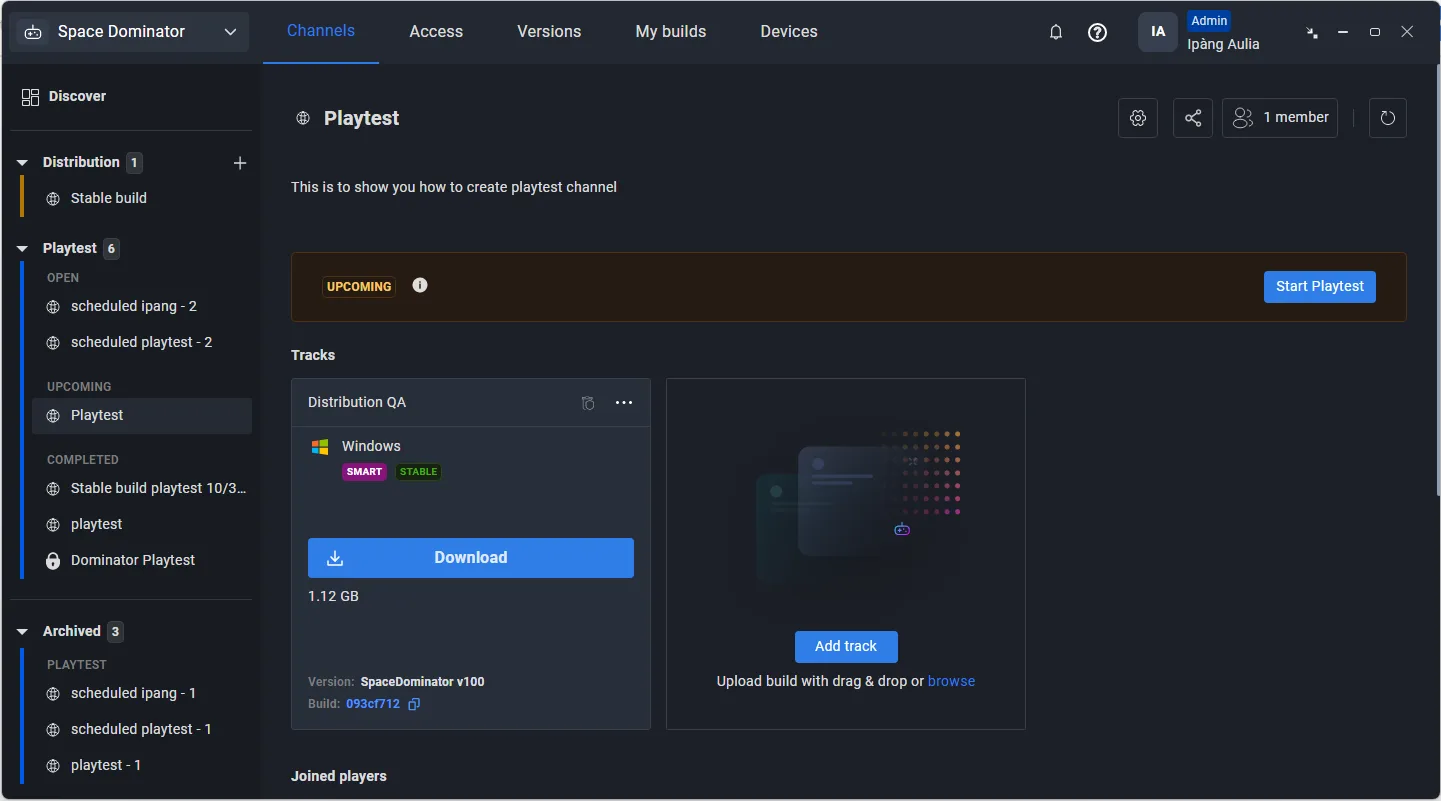
Click the Create button. The ADT Hub opens the playtest channel and automatically adds you to the channel as a member. Newly created playtests and playtests that are not yet started will have the "Upcoming" status.
Start a quick playtest channel
In ADT Hub, go to Channels. On the sidebar, under the Upcoming section, find and open the quick playtest you want to start. The status of the playtest will be changed to "In progress."
Stop in-progress quick playtests
To stop an ongoing quick playtest, follow these steps:
-
In ADT Hub, go to Channels.
-
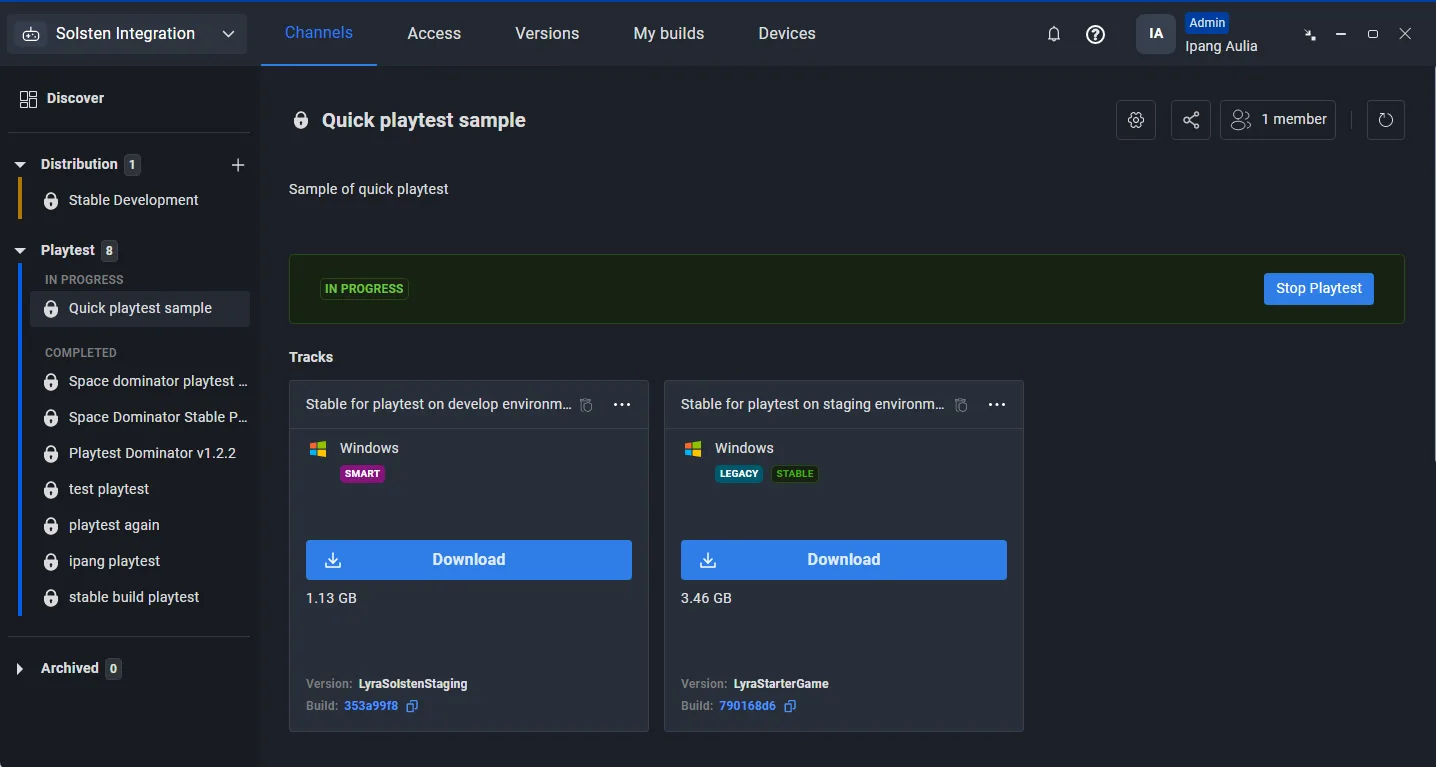
On the sidebar, under the Playtest section, find and open the in-progress playtest you want to stop.
-
Click Stop Playtest. The status of the playtest will be changed to "Completed."
Manage scheduled playtests
Scheduling a playtest allows you to create a channel for playtesting and start it at any predetermined time in the future. You can set the start date, start time, end date, and end time of the playtest. Additionally, you can choose whether the playtest will be repeated or not.
Create a scheduled playtest
To create a scheduled playtest, follow these steps:
-
Launch the ADT Hub.
-
Select the distribution channel with the most stable build from the orange-highlighted sidebar.
-
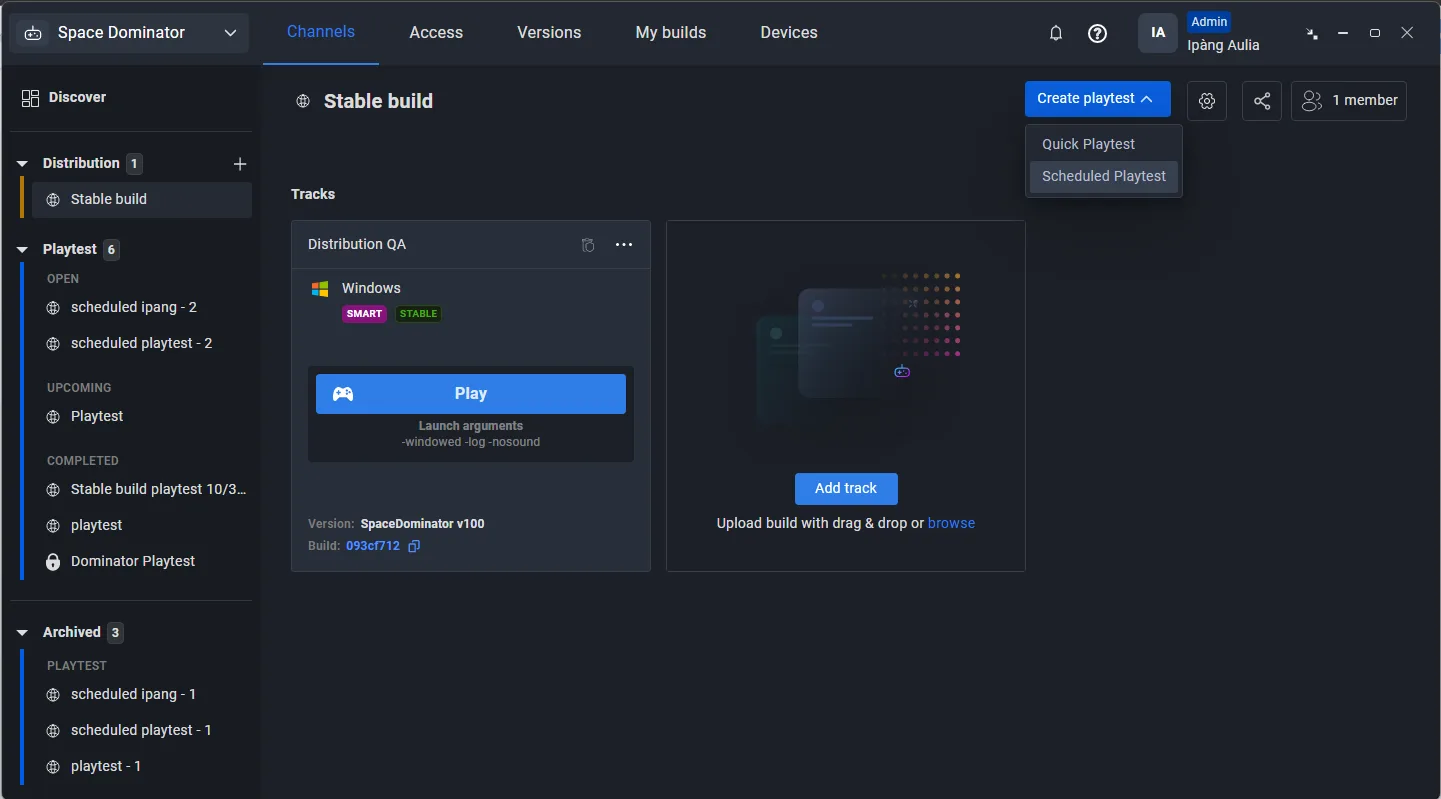
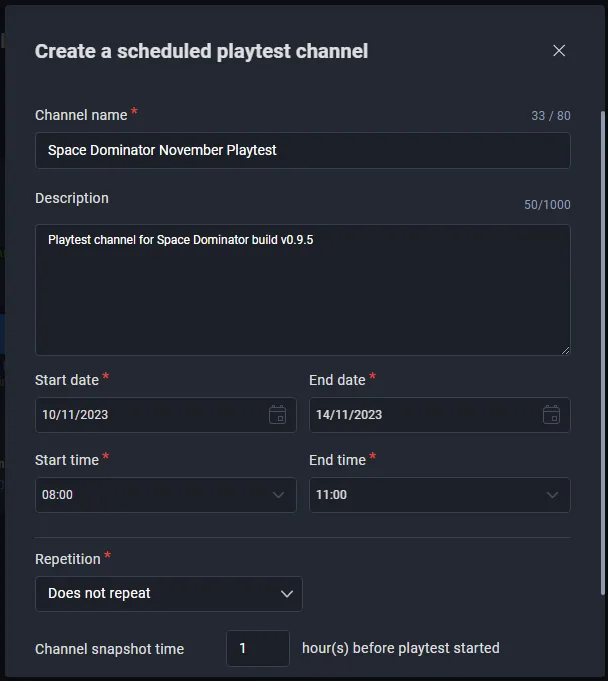
Click the Create playtest button, and select the Scheduled Playtest option from the dropdown. The "Create a scheduled playtest channel" appears.
-
Fill in the channel name and description.
-
Set the time period for when the playtest channel will automatically start and end.
-
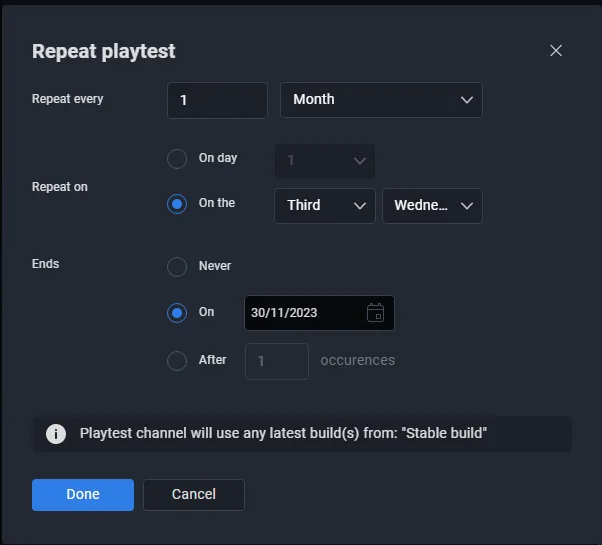
You can set repetition options for the scheduled playtest channel. Click Repeat on the "Repetition" dropdown. The "Repeat Playtest" appears. You can set the playtest channel to automatically start at a specific frequency, day, and time.
-
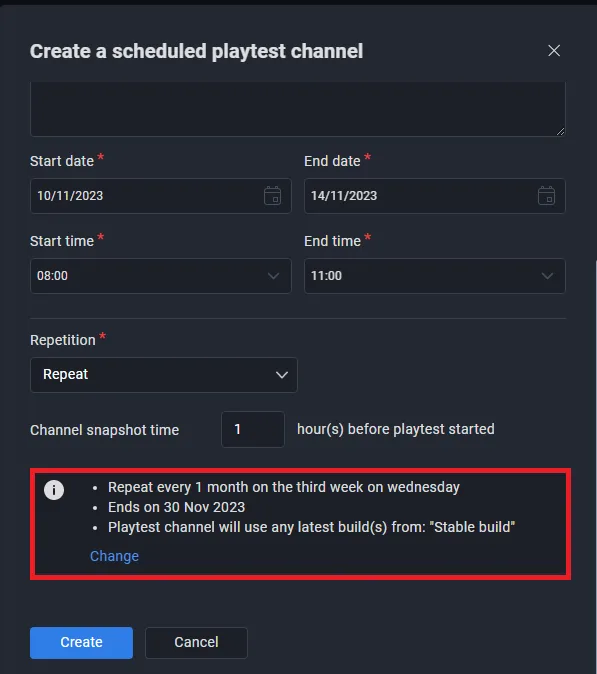
Click Done to save the repetition settings. The "Create a scheduled playtest channel" pop-up appears again, displaying the repetition details.
-
Adjust the Channel snapshot time to your liking. The minimum value is 1. This setting is to snapshot tracks, access, and members of the distribution channel to your playtest channel and transition the status from "Open" to "Upcoming".
-
Click the Create button. The ADT Hub opens the playtest channel and automatically adds you to the channel as a member.
Stop scheduled playtests
Scheduled playtests automatically stop based on their end time settings.
To monitor the timeout counter of a scheduled playtest, follow these steps:
-
In ADT Hub, go to Channels.
-
On the sidebar, under the Playtest section, find and open the scheduled playtest you want to monitor. In the details view of the scheduled playtest, you will see the timeout counter and the exact end time of the playtest.
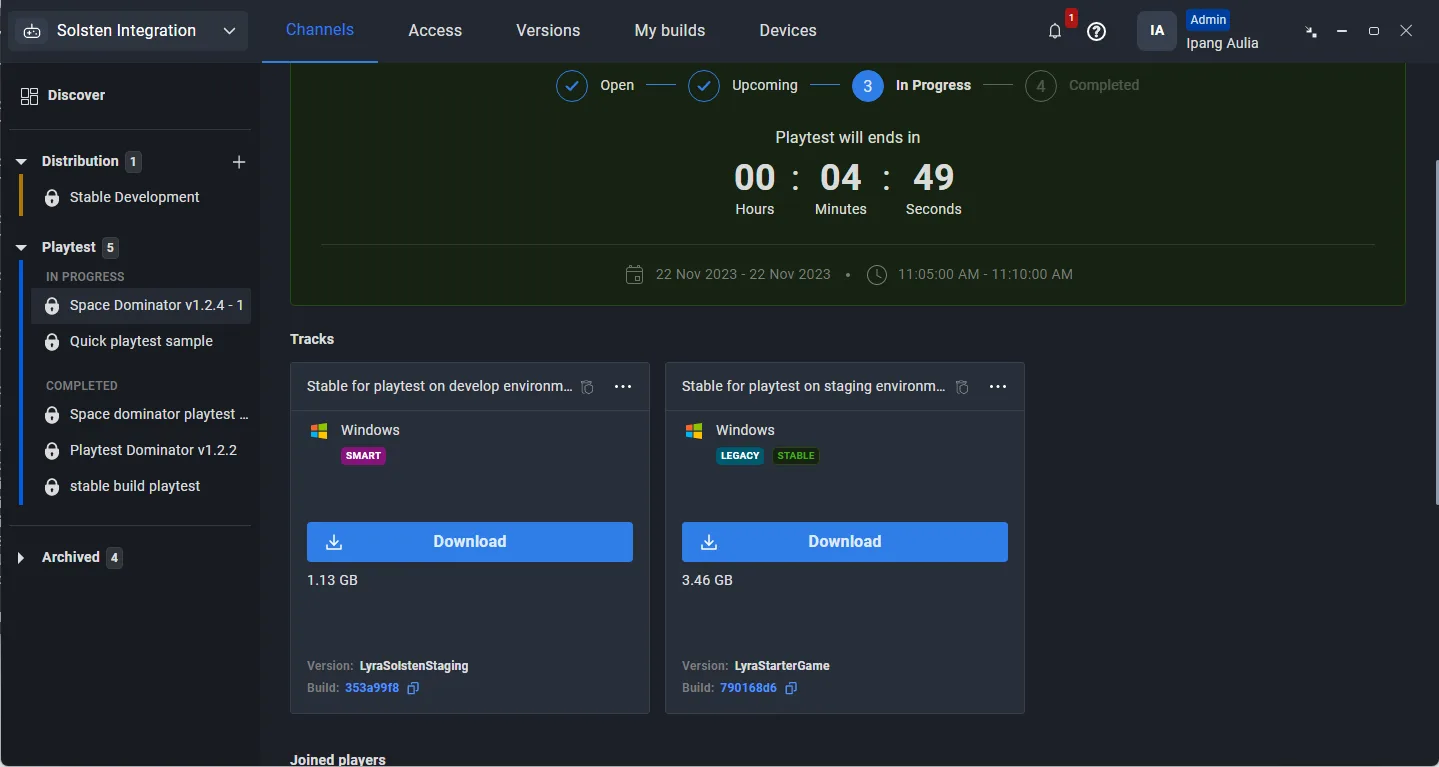
Playtest report: Feedback and Error
After completing the playtest, you can access the playtest report, which includes tabs for feedback and errors. The Feedback tab shows the feedback submitted by playtesters using our Issue Reporter application during the playtest.
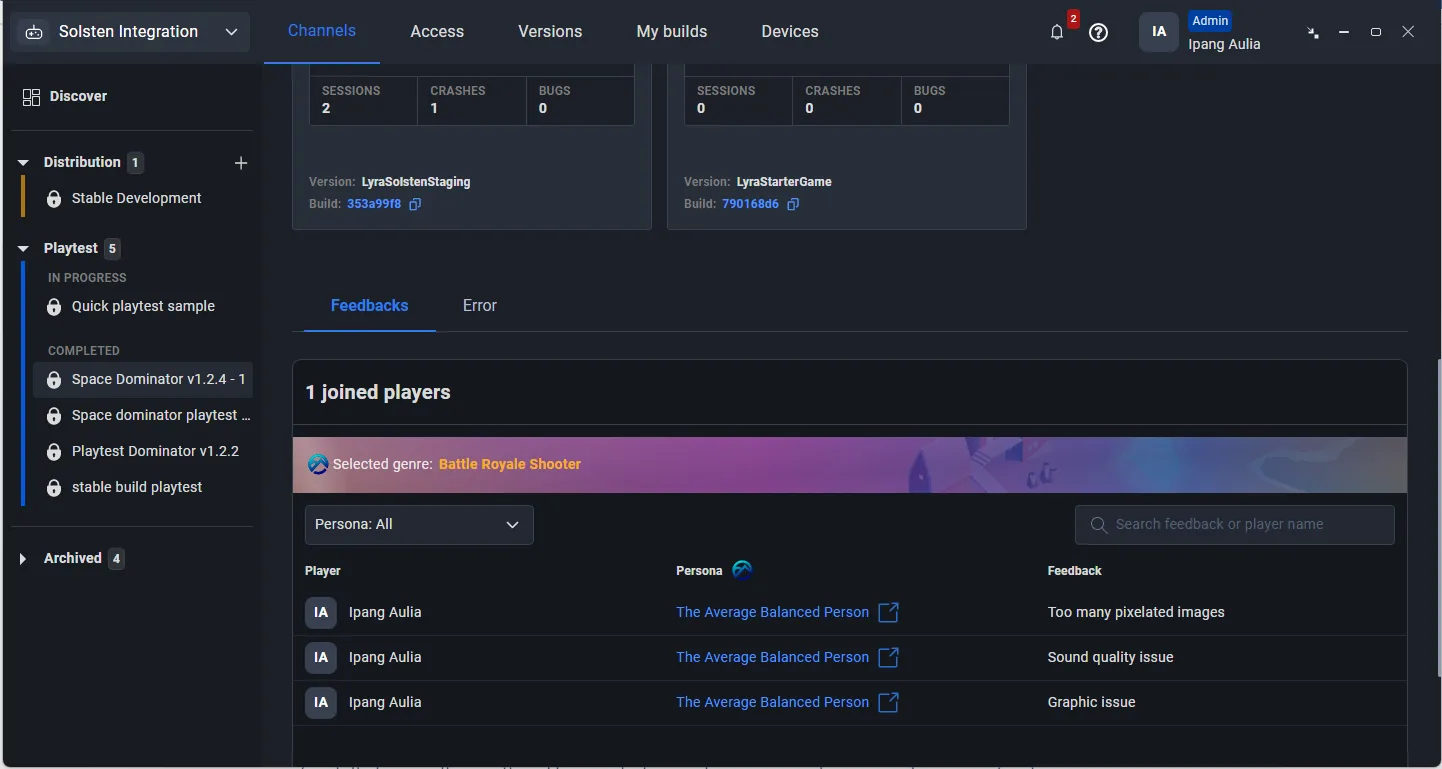
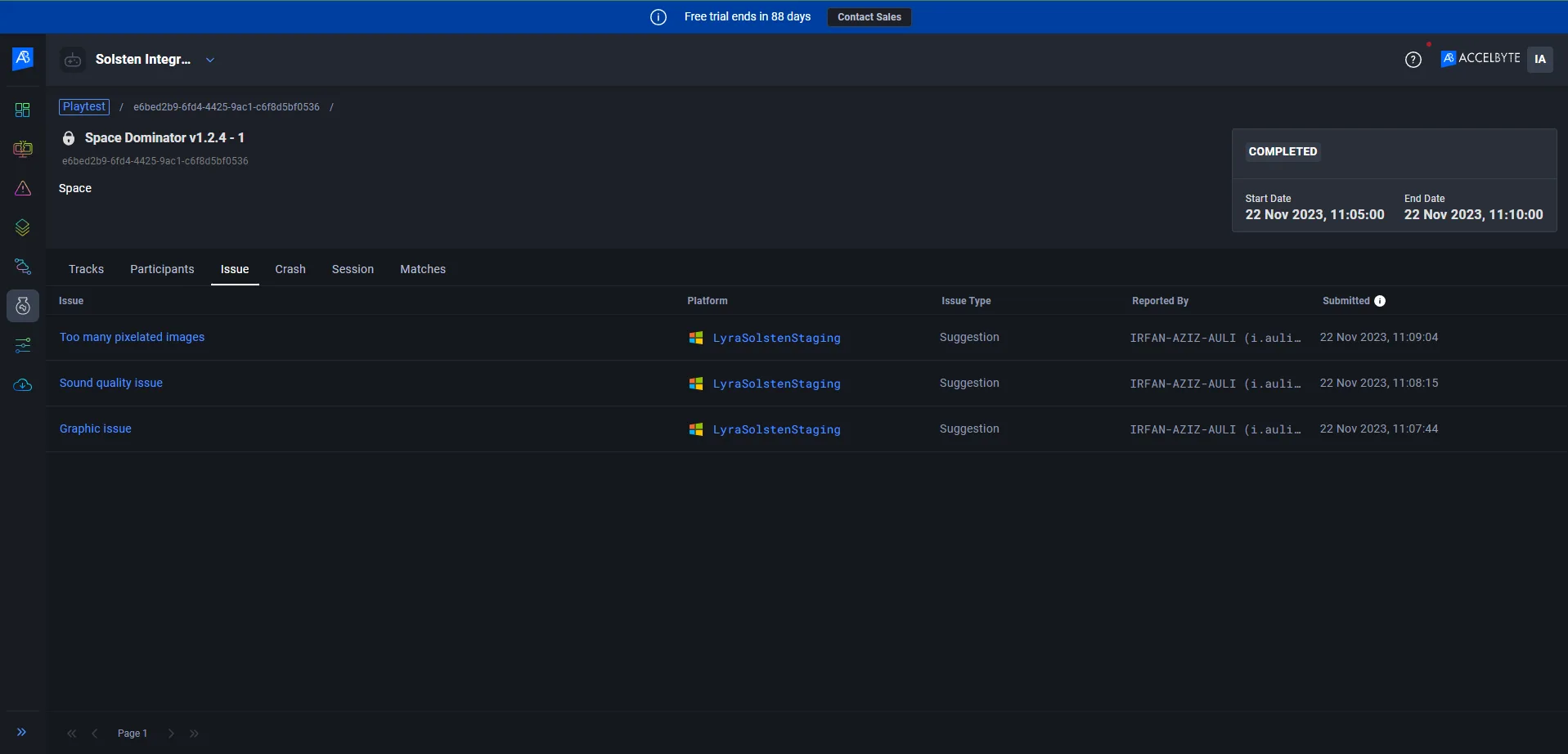
To view a detailed list of feedback, go to ADT Web, select the Playtests menu from the sidebar, open the completed playtest, and then open the Issue tab.
The Error tab provides in-depth information about your application's stability, including its stability rate, total number of sessions, crashes, and bugs (obtained from the Issue Reporter). It also features a list of top crashes, which are the crashes that occur most frequently, and a bar graph that shows the frequency of crashes during a certain period of time.
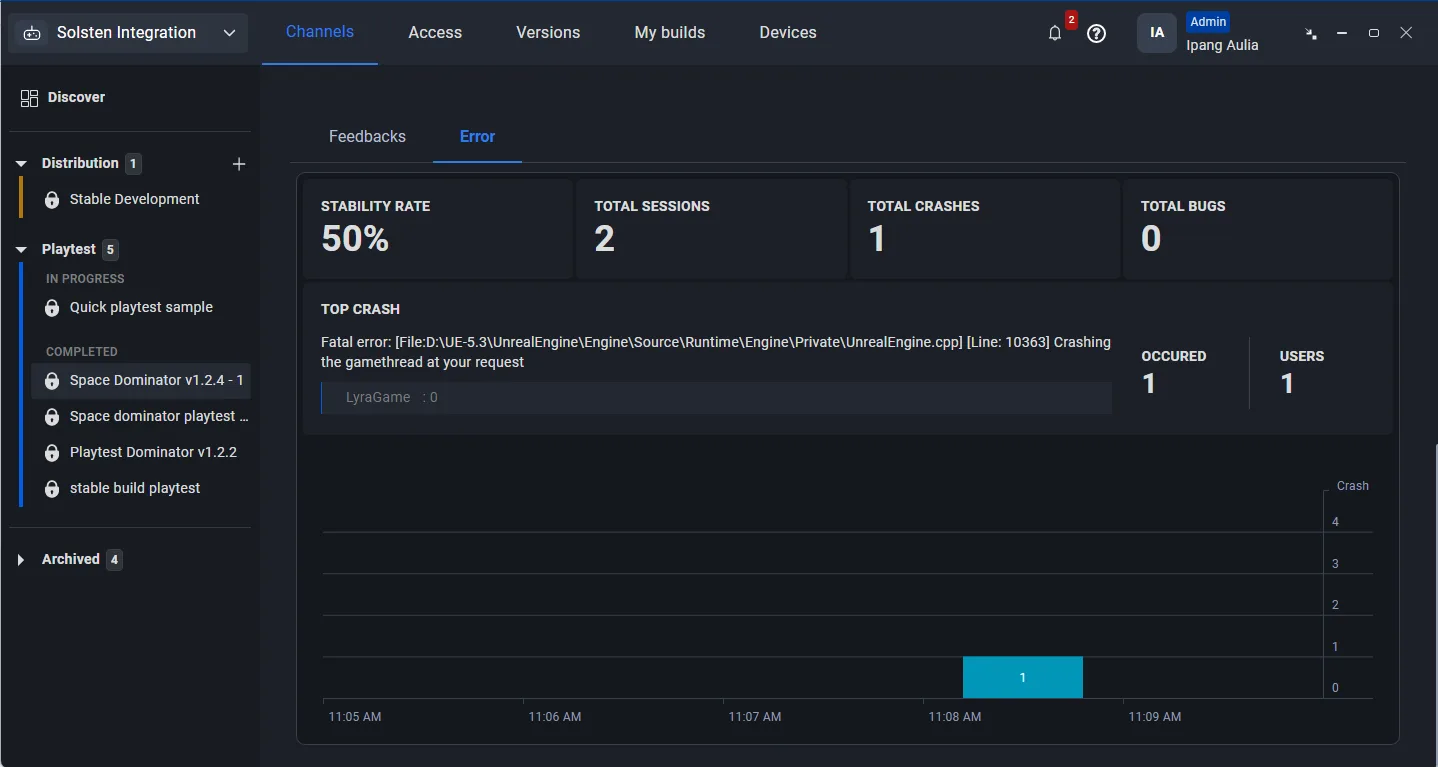
This information provides insight into the stability and real-life performance of the build for end-users.
Playtest report: Sessions
In addition to Feedback and Error, the playtest report includes a Sessions tab in ADT Hub that lists every player session for the playtest build — including sessions that completed normally, not just the ones that crashed. This means you're no longer limited to investigating only the sessions that happened to crash — stutters, unexpected behavior, and slow loading are visible too.
Each row shows:
- Session ID — click it to open that session's detail page on ADT Web
- Player — who played the session
- Role — the player's role in the playtest channel (User, Member, Coordinator, or Admin)
- Platform — the platform the session was played on
- Duration — how long the session lasted
- Result — Completed or Crashed, with crashed sessions shown with a distinct visual treatment (for example, a red "Crashed" label) so you can spot them at a glance
The Role values are the same account roles used throughout ADT Hub. Coordinator and Admin together make up what this guide elsewhere calls "Power Users."
The list only includes sessions from this build that were played through ADT Hub during the playtest's active window, sorted with the most recent session first. Sessions played outside ADT Hub, or outside the playtest's active window, don't appear here.
If no one has played the build yet, the tab shows an empty state instead of a blank list.
Download a session's log
Select Download log on any row — crashed or completed — to pull that session's log file to your computer.
If a log never arrived for a session (for example, the player's connection dropped before it could upload) or the session was played on a platform ADT doesn't capture logs for yet, Download log is shown as unavailable with a short explanation instead of producing a broken file.
Currently, log capture and download are supported on:
| Engine | Platforms with log capture |
|---|---|
| Unreal | Windows, Linux, PlayStation, Xbox |
| Unity | Windows, macOS |
Sessions from other platforms still appear in the list — only the log download is unavailable for them.
This table covers playtest builds played through ADT Hub, which are desktop and console only — mobile (Android, iOS) isn't part of ADT Hub playtesting and is out of scope here. It's a narrower list than ADT's general per-engine platform support, so don't read it as a statement about Unity or Unreal support outside of playtesting.
Find a specific session
Use the search box to find a session by player name or session ID. Use the Role dropdown to filter by role, and the result dropdown to narrow the list to crashed sessions only.
Access
Anyone who can see the playtest channel can see the Sessions tab and download any session's log, with no extra role restriction beyond channel visibility.
FAQ
Q: Does playtest support the console? A: Currently, no. However, we are actively looking at the possibility of supporting consoles.
Q: I'm still playing the build when the playtest is started. Does my session count as a playtest session? A: No, the sessions that were created before the playtest started will not be registered as playtest sessions.
Q: Can a playtest be created using an existing playtest name? A: No, it can't. Admins need to use a different name for each playtest
Q: Is it possible to use the same build for a different playtest? A: Yes, it is possible, but the playtests with the same build can't be started at the same time.
Q: Can a player download and join a playtest that has already started? A: Yes, they can.
Q: Why do I need to download the build again even though I have already downloaded it?
A: Currently, we are not implementing the "identical build" option between the non-playtest and the playtest builds. It will be available in the Beta version.
Q: How is the playtest card sorted?
A: It is sorted by created date and time. Recently created playtests will be available on the top-left.