View Extend app logs
Overview
Logs are the messages your Extend app writes while it runs, such as startup messages and errors. You can view them in two ways:
- Live app logs shows new log lines as your app writes them. Use it in the Admin Portal or with the AGS CLI.
- Download historical logs creates a file of past logs for a time range you choose, up to 7 days. Use it in the Admin Portal.
To search older logs or to view metrics, use Grafana. See Access observability dashboards.
Your app runs as one or more pods. A pod is a running copy of your app. A live stream reads these running pods, so you can stream logs only while the app is running.
Stream logs in the Admin Portal
You can start a stream when the app status is RUNNING, STARTING, or DOWN.
-
On the sidebar, go to Extend > My Extend Apps, then open the menu for your app type: Overridable Features, Service Extensions, or Event Handler.
-
Open your app.
-
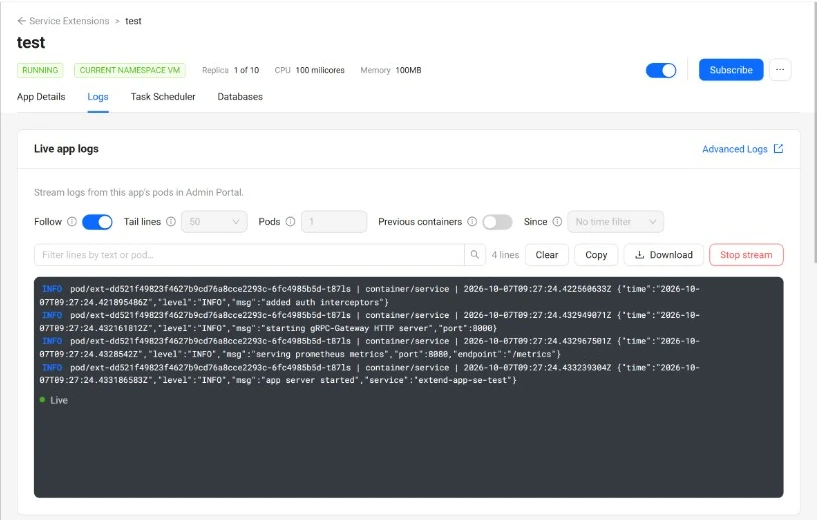
Open the Logs tab. The Live app logs card is at the top of the tab.
-
Set the stream options, then click Start stream. The viewer shows the recent log lines, then new lines as your app writes them.
-
When you are done, click Stop stream.
You can set these options before you start the stream. The defaults work for most cases.
| Option | What it does |
|---|---|
| Follow | On by default. Keeps the stream open so new lines keep arriving, and keeps the viewer scrolled to the newest line. If you turn it off before you click Start stream, the viewer only loads the recent lines, and then the stream ends with Stream finished. If you turn it off while a stream is open, the viewer stops scrolling so you can read, and new lines keep arriving. |
| Tail lines | How many recent lines to show from each pod when the stream starts: 50, 100, or 500. |
| Pods | How many running copies of your app the stream reads (1 to 5). Most apps only need 1. |
| Previous containers | Shows the logs from before the app last restarted, which helps you find out what happened just before a crash. |
| Since | Only shows lines from a recent period, from Last 1 minute to Last 24 hours. No time filter shows the latest lines without a time limit. |
While lines are on screen, you can type in the filter box to show only lines that contain certain text, or use these buttons:
- Copy copies the lines in the viewer to your clipboard.
- Download saves the lines in the viewer as a
.logfile. To download logs for a time range instead, see Download historical logs in the Admin Portal. - Clear empties the viewer.
The viewer holds up to the latest 1,000 lines. Copy and Download always include all of them, even if you filtered the view.
To search the same app's logs in Grafana Loki, click Advanced Logs on the card.
If the stream does not start or stops on its own, check this table:
| If you see | What it means | What to do |
|---|---|---|
| Logs aren't available for this app right now | The app status is not RUNNING, STARTING, or DOWN, for example because the app is stopped. | Start the app, or wait until it is running. Then try again. |
| No running pods available | The app has no running copies to read logs from. | Start or redeploy the app, then try again. |
| Stream finished. | The stream ended. This is expected when Follow is off, because the viewer only loads the recent lines. It can also happen when the app's pods stop or restart. | Click Start stream again. To keep receiving new lines, turn on Follow first. |
| Stream stopped | The app stopped running while the stream was open. | Start the app again, then start a new stream. |
| Too many log streams | The namespace already has the maximum number of live streams open. | Stop another live stream in that namespace, or wait a moment and try again. |
| You don't have permission to view these logs | Your role cannot read Extend apps. | Ask a studio admin to give you Extend app read permission. |
| Couldn't stream logs | The stream could not start, or it stopped, for example after a server error or a dropped connection that did not recover. | Click Retry. If the issue persists, contact AccelByte support. |
Stream logs with the AGS CLI
This section is for users who work in a terminal. Use the latest AGS CLI release. If ags extend --help does not list logs, update the CLI to the latest release. To install the CLI and sign in, see Install and sign in.
As in the Admin Portal, the app needs at least one running pod. If it has none, the command stops with an error that says the app may have no running pods.
To show the latest log lines and then stop, run:
ags extend logs stream --namespace <namespace> --app <app-name>
Replace <namespace> with your game namespace and <app-name> with your Extend app name.
Each log line starts with the pod name, the container, and the time the line was recorded, followed by the message your app wrote:
pod/<pod-name> | container/service | <timestamp> <log line>
The command also prints short status messages that show the elapsed time, for example when it connects or reconnects. It prints those messages separately from the log lines, so a saved log file does not include them. For example:
∘ [+0s] connected, fetching recent lines from pods (Ctrl-C to stop)
To keep watching new log lines as they arrive, add --follow. Press Ctrl+C to stop.
ags extend logs stream --namespace <namespace> --app <app-name> --follow
To see the logs from before the app last restarted, for example after a crash, add --previous. If the app has not restarted, there are no earlier logs, so the command shows no log lines.
ags extend logs stream --namespace <namespace> --app <app-name> --tail-lines 200 --previous
You can use these options:
| Option | Default | What it does |
|---|---|---|
--namespace, -n | Your game namespace. Required. You can also set it once with the AGS_NAMESPACE environment variable or in your CLI profile. | |
--app, -a | Your Extend app name. Required. | |
--follow, -f | Off | Keeps watching and shows new lines as they arrive. |
--tail-lines | 100 | How many recent lines to show from each pod. You can also write it as --tail. Must be at least 1. |
--pods | 1 | How many running pods to read from. Must be from 1 to 5. |
--since-seconds | Only shows lines from the last number of seconds you set, like Since in the Admin Portal. Must be at least 1. | |
--previous | Off | Shows the logs from before each pod last restarted. |
To save the log lines to a file, add > and a file name to the end of the command:
ags extend logs stream --namespace <namespace> --app <app-name> --tail-lines 500 > app-logs.txt
To get the output as JSON, one object per line, add --format json. In this mode, the output includes the status messages together with the log lines.
A namespace can have up to 10 live log streams open at the same time, in the Admin Portal and the AGS CLI combined. After a stream stops, the namespace can still count it for up to a minute. When the limit is reached, the command stops with an error. Stop another stream in that namespace, or wait a minute and try again. If you run the command from a script, it exits with code 3 in this case.
Download historical logs in the Admin Portal
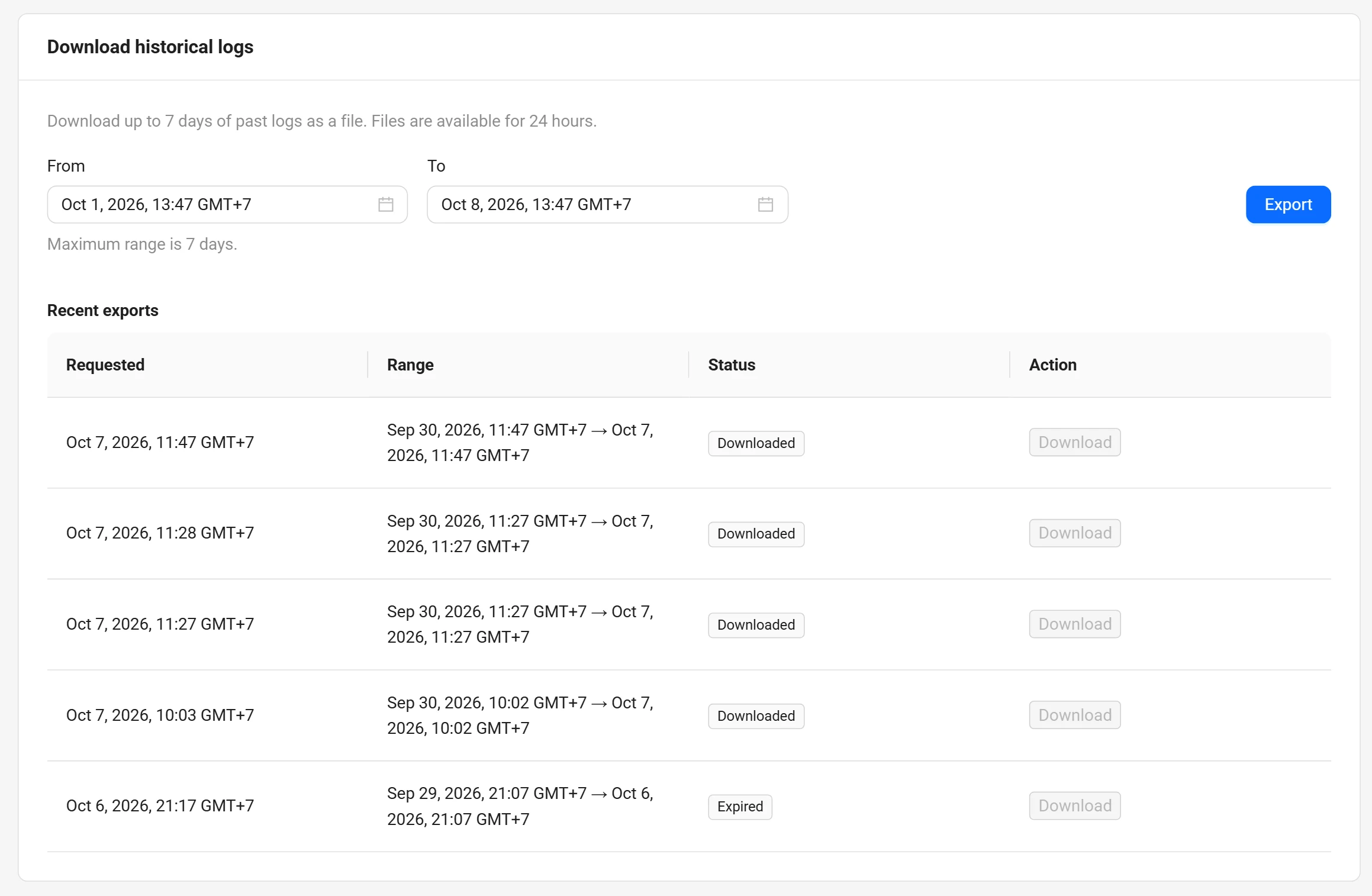
The Download historical logs card is on the same Logs tab, under Live app logs. It creates a log file for a time range you choose. This is only available in the Admin Portal.
-
Open your app's Logs tab. To get there, follow steps 1–3 in Stream logs in the Admin Portal.
-
Under Download historical logs, set From and To. By default, the range is the last 7 days, which is also the longest range you can choose. To must be later than From, and neither time can be in the future.
-
Click Export.
-
Find your export under Recent exports. It starts with the status Preparing. This can take a few minutes, and you can leave the page and come back later.
-
When the status changes to Ready, click Download on that row.
Each file can be downloaded only once, and it stays available for 24 hours. The Status column shows where each export is:
| Status | What it means | What to do |
|---|---|---|
| Preparing | The file is being created. | Wait. You can leave the page and come back. |
| Ready | The file is ready. | Click Download. |
| Downloaded | You already downloaded this file. | To get another copy, export the same range again. |
| Expired | More than 24 hours have passed, and the file is gone. | Export the same range again. |
| Failed | The file could not be created. | Export the same range again. |
If you see one of these messages after you click Export:
| If you see | What to do |
|---|---|
| Too many exports in progress | The namespace already has the maximum number of exports being prepared. Wait for one to finish, then try again. |
| Daily export limit reached | You have reached today's export limit. Try again after midnight UTC. |
| You don't have permission to export logs | Ask a studio admin to give you Extend app create permission. |