Set up Discord as an identity provider
Overview
This guide helps verified Discord developers connect Discord accounts to AccelByte Gaming Services (AGS). You may need to set up additional features within Discord services that we haven't listed here. For more information about setting up Discord services, we recommend contacting your Discord representative and reviewing Discord documentation.
This guide is intended for public use and contains limited information due to confidentiality. We recommend you refer to the full confidential guide first. To request a copy of the confidential guide, contact your AccelByte Technical Producer.
Goals
- Enable the Discord authentication method for your publisher website with the AGS Player Portal.
- Enable the Discord authentication method for your game using the AGS SDK.
Prerequisites
- A Discord developer account. Visit Discord Developer Portal for details.
- An AGS Admin Portal account to set up authentication and manage permissions.
- A publisher namespace for your Player Portal and Launcher, and a game namespace for your game.
- A Player Portal.
- To follow the AGS CLI steps, install the AGS CLI and sign in with an account that has access to these features. See Install and sign in. The examples use a Bash shell.
Set up the Discord application
Create a Discord application
Create a Discord application. To do this, you can follow the Creating an app guide.
Set up Discord OAuth2
Set up your Discord OAuth2. Generate an OAuth2 Client Secret and save it. Also, add these URIs to your OAuth2 Redirect URLs for the authentication process:
https://<BaseURL>https://<BaseURL>/iam/v3/platforms/discord/authenticatehttps://<BaseURL>/iam/v3/public/namespaces/<namespace>/users/me/platforms/discord/web/link/establish(used for account linking)https://<BaseURL>/iam/v3/public/namespaces/<namespace>/users/me/platforms/discord/web/reauth/establish(used for GDPR re-authentication processes)
The BaseURL is your domain address, e.g., https://development.accelbyte.io.
Read the Discord OAuth2 documentation for more details.
Set up a web login for Discord
Web login integration is currently unavailable in AGS Public Cloud and is only supported in AGS Private Cloud.
Configuration steps
Use the following steps to set up Discord logins in the player portal. This will allow your players to sign in to your player portal using their Discord accounts.
- Admin Portal
- AGS CLI
-
In the AGS Admin portal, go to your publisher namespace.
-
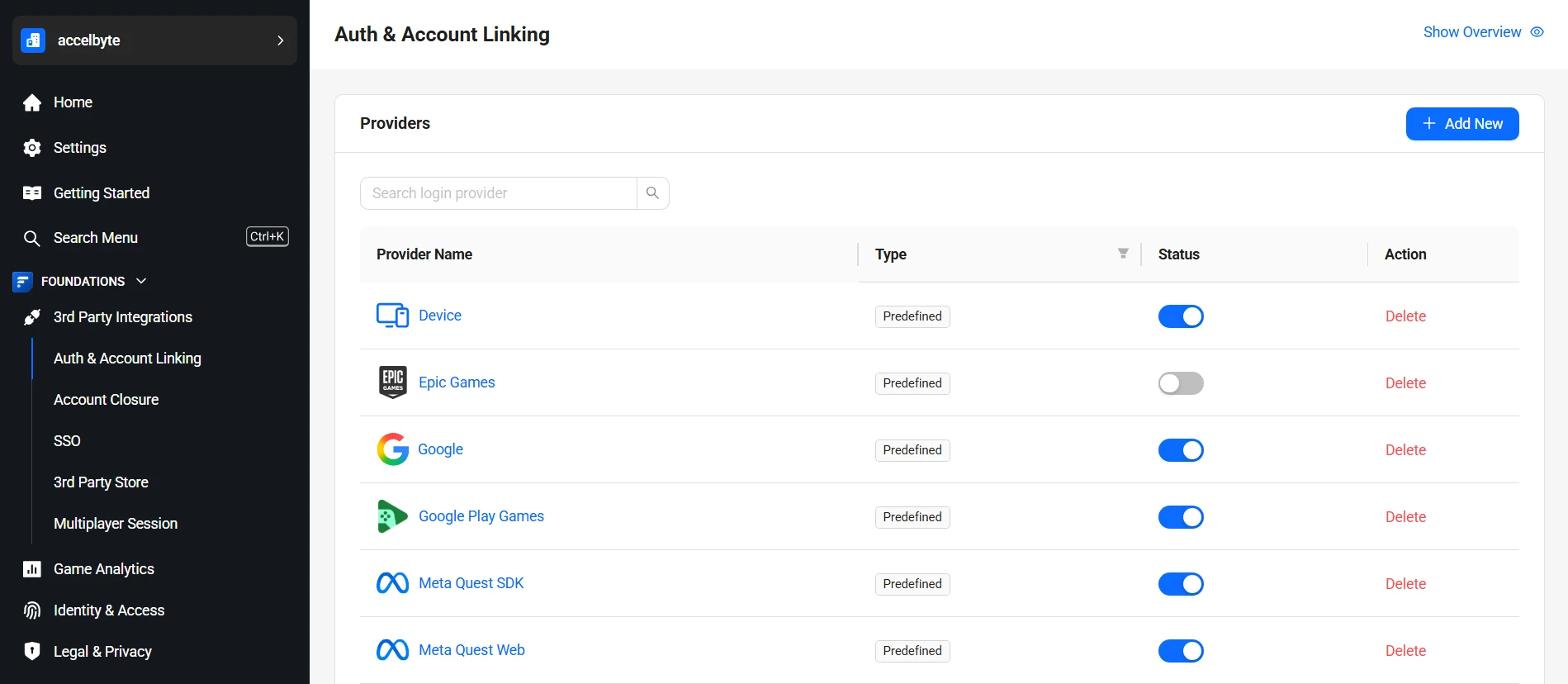
On the sidebar menu, go to Foundations > 3rd Party Integrations > Auth & Account Linking.
-
On the Auth & Account Linking page, click + Add New.
-
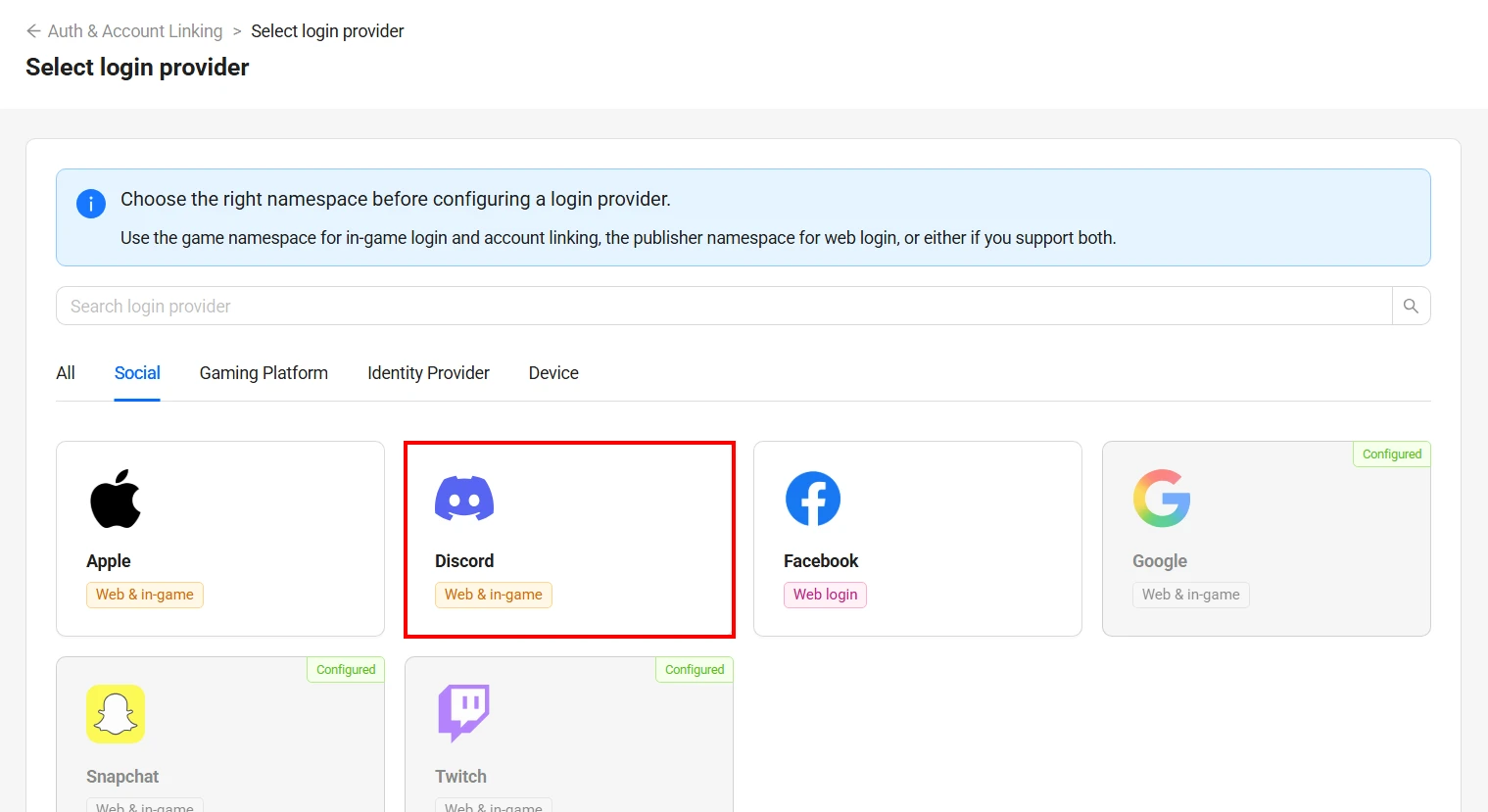
On the Select login provider page, from the Social tab, select Discord.
-
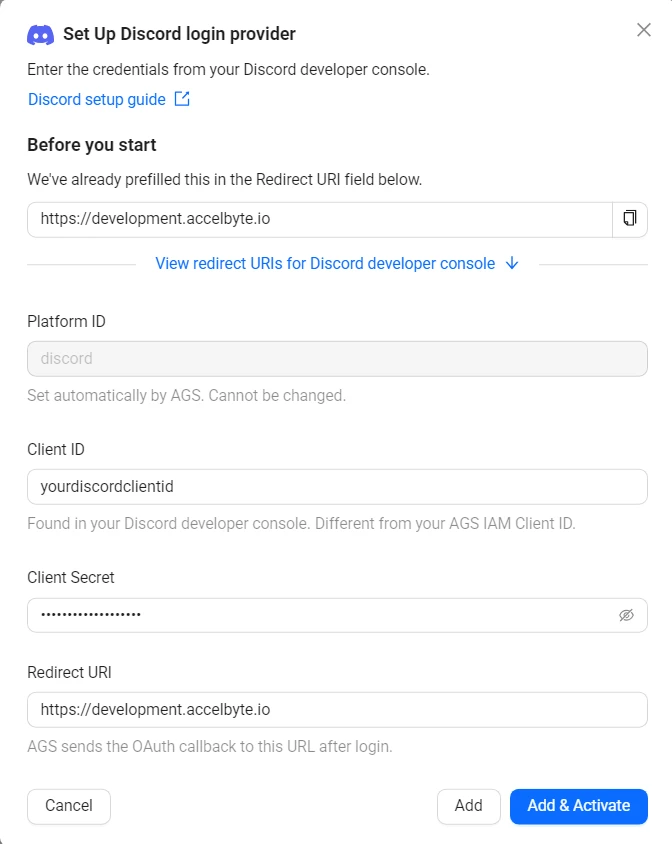
The Set Up Discord login provider dialog appears. Fill in the following fields:
- Platform ID:
discord. Set automatically. Cannot be changed. - Client ID: The Discord App Client ID.
- Client Secret: The Discord App Client Secret.
- Redirect URI: The
<BaseURL>(BaseURL is your domain address, e.g.,https://development.accelbyte.io).
- Platform ID:
-
Click Add & Activate to create and activate the provider in one step. Alternatively, click Add to create without activating.
-
Create a JSON file with the provider's settings. Any file name works. This example uses
discord.json:{
"ClientId": "<YourDiscordClientId>",
"Secret": "<YourDiscordClientSecret>",
"RedirectUri": "<BaseURL>",
"IsActive": true
}ClientIdandSecret: your Discord App Client ID and Client Secret.RedirectUri: replace<BaseURL>with your domain address, such ashttps://development.accelbyte.io. Register the redirect URLs listed in Set up Discord OAuth2 in your Discord application.IsActive:trueadds and activates the provider, like Add & Activate.falseadds it without activating it, like Add.
-
Add the provider. Replace
<YourPublisherNamespace>with your publisher namespace. After@, pass the path to your JSON file:ags iam platform-credentials create --namespace <YourPublisherNamespace> --platform-id discord --json @discord.jsonThe file contains your client secret, so delete it after the command runs.
Edit a login provider
- Admin Portal
- AGS CLI
-
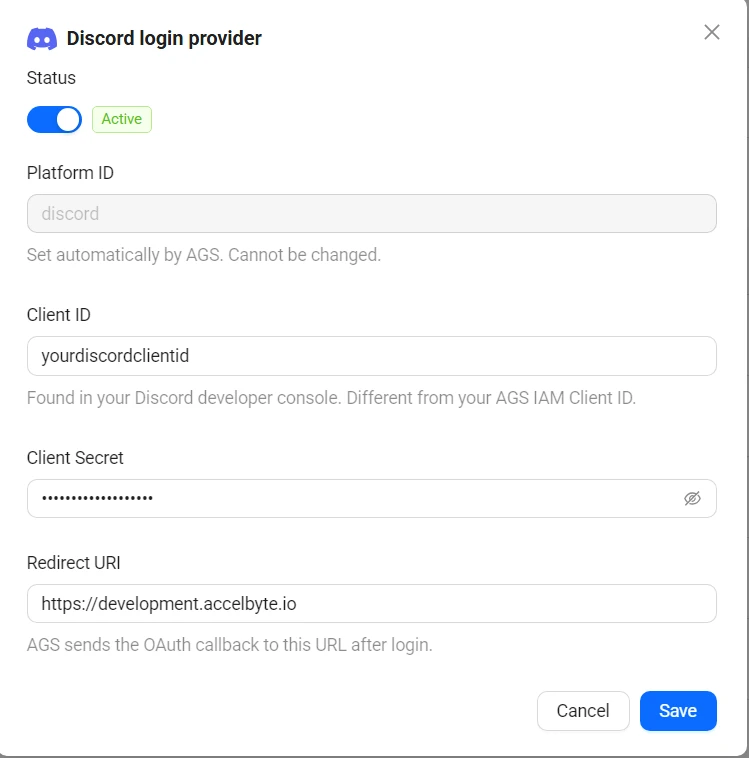
On the Auth & Account Linking page, click the Discord provider.
-
The Discord login provider dialog appears. Update the fields as needed.
-
Use the Status toggle at the top to activate or deactivate the provider.
-
Click Save.
-
Check the provider's current settings:
ags iam platform-credentials get --namespace <YourPublisherNamespace> --platform-id discord -
Send only the fields you want to change. Fields you leave out keep their current values. For example, to deactivate the provider:
ags iam platform-credentials update --namespace <YourPublisherNamespace> --platform-id discord --json '{"IsActive": false}'To activate it, send
{"IsActive": true}. To change the client secret, put{"Secret": "<NewDiscordClientSecret>"}in a JSON file instead, pass it with--json @<FileName>, and delete the file after the command runs.
Give it a try
Make sure you've already set up the Discord login method in the publisher namespace.
-
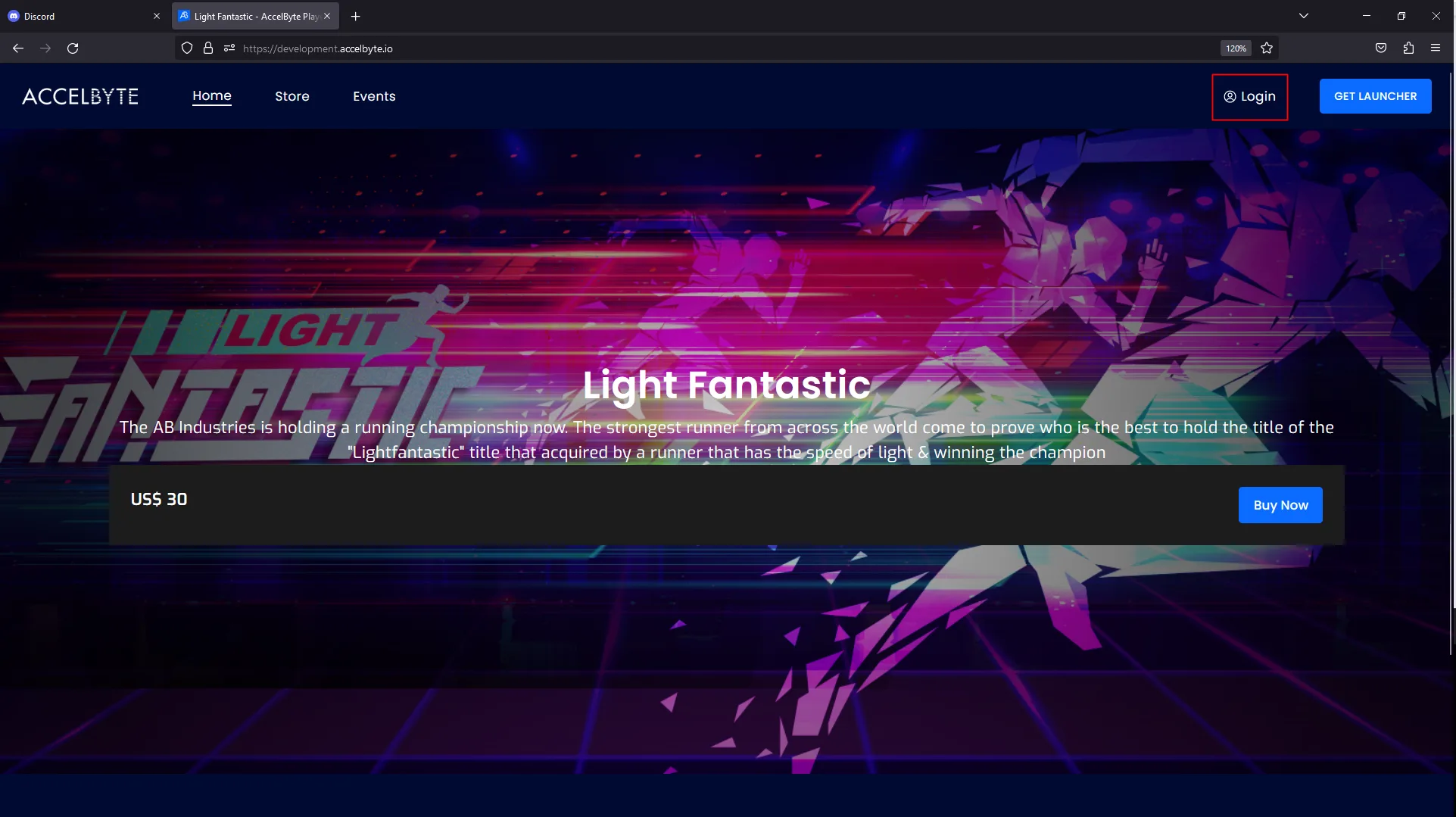
Go to your Player Portal and click Login.
-
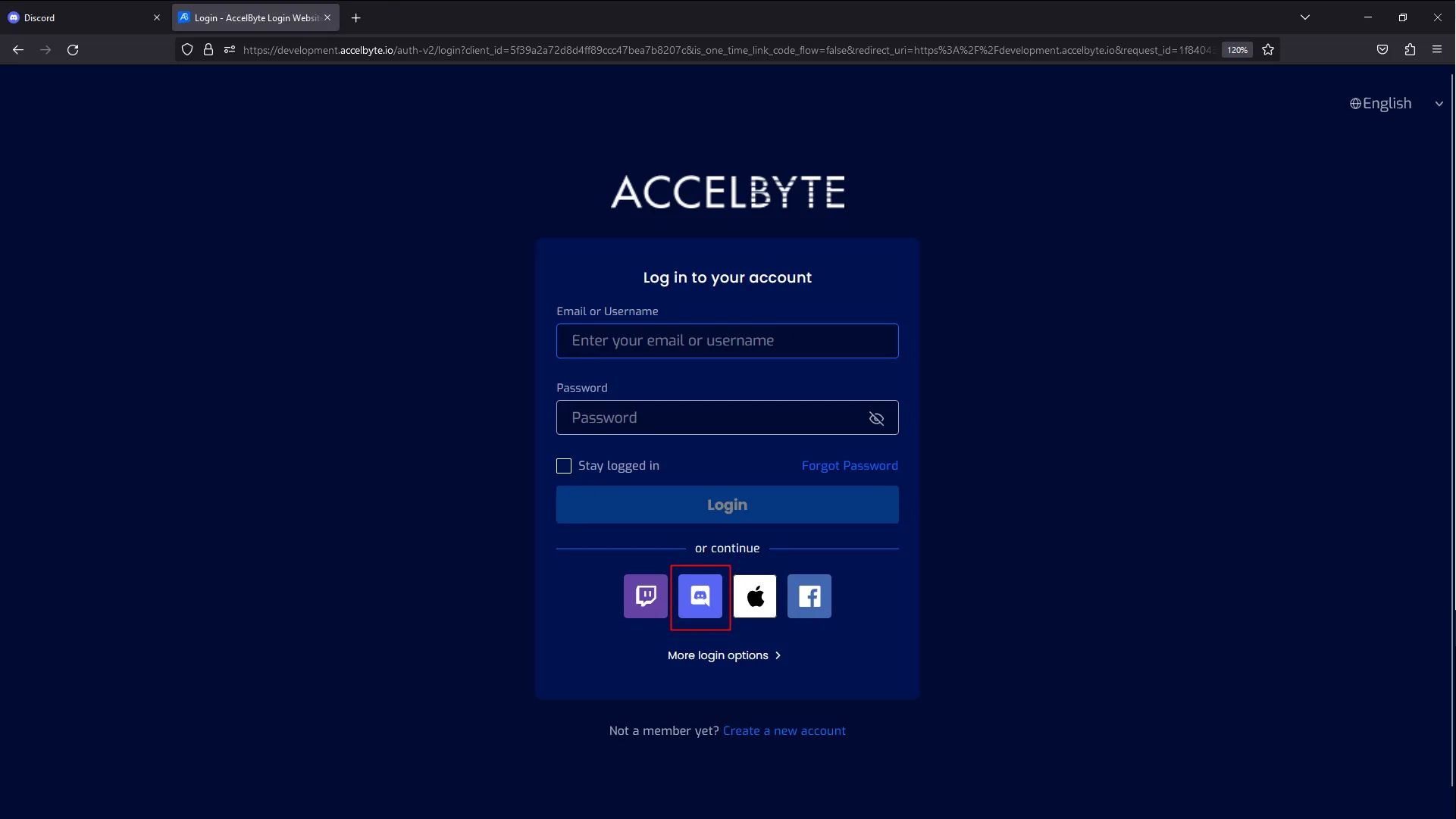
Click the Discord icon. If you can't find it, click More login options.
-
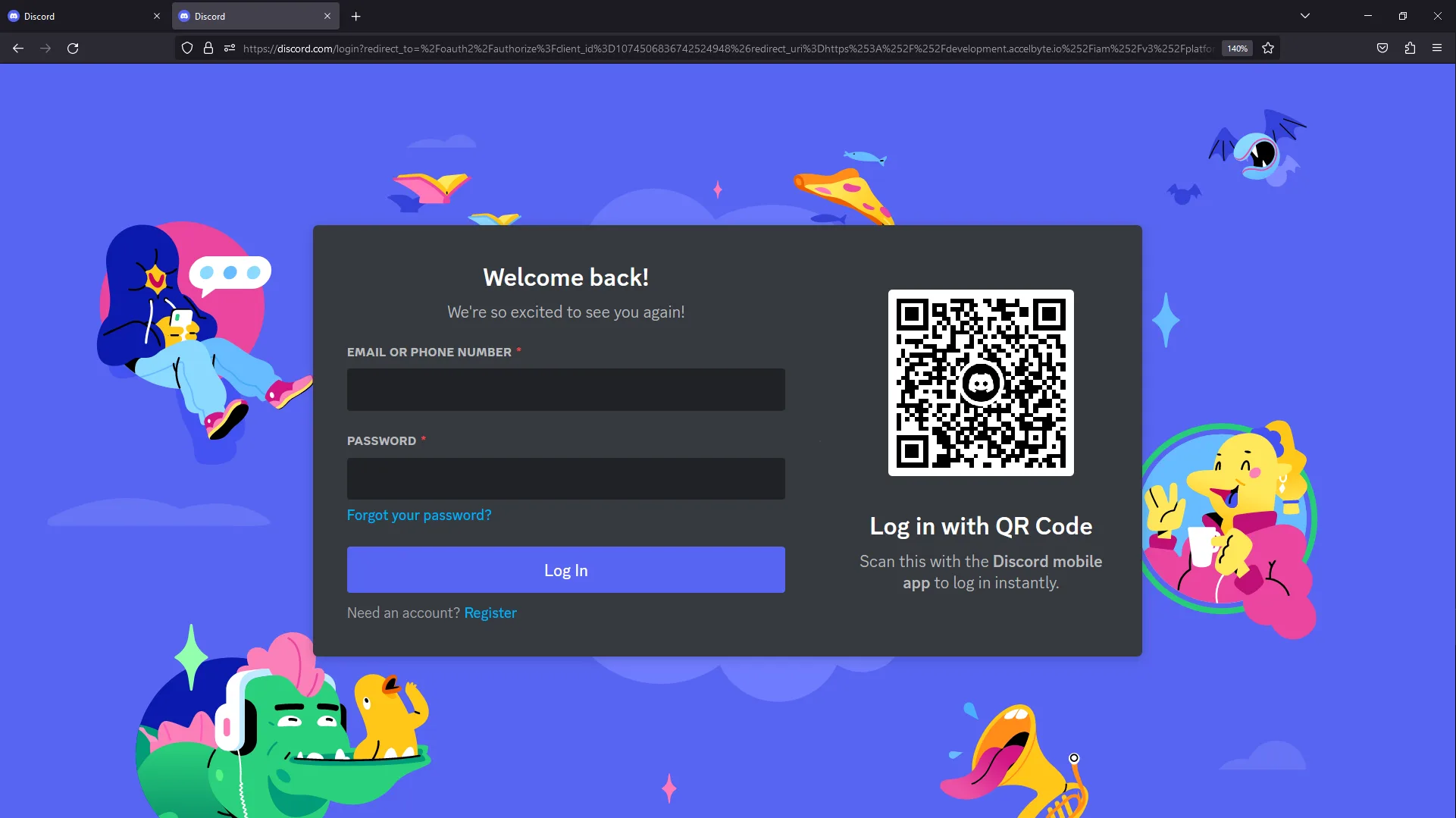
The system redirects you to the Discord login page. Fill in your Discord credentials to proceed.
That's it! You've completed the required steps.
Set up in-game login for Discord
Use the following steps to set up Discord logins for your game. This allows your players to sign in to your game using their Discord accounts.
On AGS Public Cloud, AGS does not redirect the player through Discord for in-game login. Your game client must implement the Discord OAuth integration itself to obtain the authorization code, then pass that code to AGS. On AGS Private Cloud, this constraint doesn't apply.
- Admin Portal
- AGS CLI
-
In the AGS Admin Portal, go to your game namespace.
-
On the sidebar menu, go to Foundations > 3rd Party Integrations > Auth & Account Linking.
-
On the Auth & Account Linking page, click + Add New.
-
From the list of login method options, select Discord.
-
The Set up Discord login provider form appears. Fill in the following fields:
- Platform ID:
discord. Set automatically. Cannot be changed. - Client ID: The Discord App Client ID.
- Client Secret: The Discord App Client Secret.
- Redirect URI:
http://127.0.0.1.
- Platform ID:
-
Click Add & Activate to create and activate the provider in one step. Alternatively, click Add to create without activating.
-
Create a JSON file with the provider's settings. Any file name works. This example uses
discord.json:{
"ClientId": "<YourDiscordClientId>",
"Secret": "<YourDiscordClientSecret>",
"RedirectUri": "http://127.0.0.1",
"IsActive": true
}ClientIdandSecret: your Discord App Client ID and Client Secret.RedirectUri: keephttp://127.0.0.1, the same default the Admin Portal fills in.IsActive:trueadds and activates the provider, like Add & Activate.falseadds it without activating it, like Add.
-
Add the provider. Replace
<YourGameNamespace>with your game namespace. After@, pass the path to your JSON file:ags iam platform-credentials create --namespace <YourGameNamespace> --platform-id discord --json @discord.jsonThe file contains your client secret, so delete it after the command runs.
Edit a login provider
- Admin Portal
- AGS CLI
-
On the Auth & Account Linking page, click the Discord provider.
-
The Discord login provider dialog appears. Update the fields as needed.
-
Use the Status toggle at the top to activate or deactivate the provider.
-
Click Save.
-
Check the provider's current settings:
ags iam platform-credentials get --namespace <YourGameNamespace> --platform-id discord -
Send only the fields you want to change. Fields you leave out keep their current values. For example, to deactivate the provider:
ags iam platform-credentials update --namespace <YourGameNamespace> --platform-id discord --json '{"IsActive": false}'To activate it, send
{"IsActive": true}. To change the client secret, put{"Secret": "<NewDiscordClientSecret>"}in a JSON file instead, pass it with--json @<FileName>, and delete the file after the command runs.