Set up Netflix as an identity provider
Overview
This guide helps developers connect Netflix accounts to AccelByte Gaming Services (AGS) using mTLS certificate-based authentication. Netflix requires mutual TLS (mTLS) certificates rather than standard OAuth credentials.
This guide is intended for public use and contains limited information due to confidentiality. We recommend you refer to the full confidential guide first. To request a copy of the confidential guide, contact your AccelByte Technical Producer.
Goals
- Enable the Netflix authentication method for your game with the AGS SDK.
Prerequisites
- A Netflix Partner Account Manager account.
- mTLS certificates downloaded from the Netflix Partner Account Manager:
- Root certificate (.pem file)
- Public certificate (.pem file)
- Encrypted private key (.pem file)
- An AGS Admin Portal account to set up authentication and manage permissions.
- A game namespace.
- Familiarity with AGS Identity and Access Management (IAM) Clients.
- To follow the AGS CLI steps, install the AGS CLI and sign in with an account that has access to these features. See Install and sign in. The examples use a Bash shell.
Set up Netflix credentials
-
Go to the Netflix Partner Account Manager and download the mTLS certificates.
-
You need three .pem files: the root certificate, the public certificate, and the encrypted private key.
The Set Up Netflix login provider form in AGS includes a link to download the mTLS certificate from the Netflix Partner Account Manager for convenience.
Set up the Netflix login provider in AGS
Configuration steps
- Admin Portal
- AGS CLI
-
In the AGS Admin Portal, go to your game namespace.
-
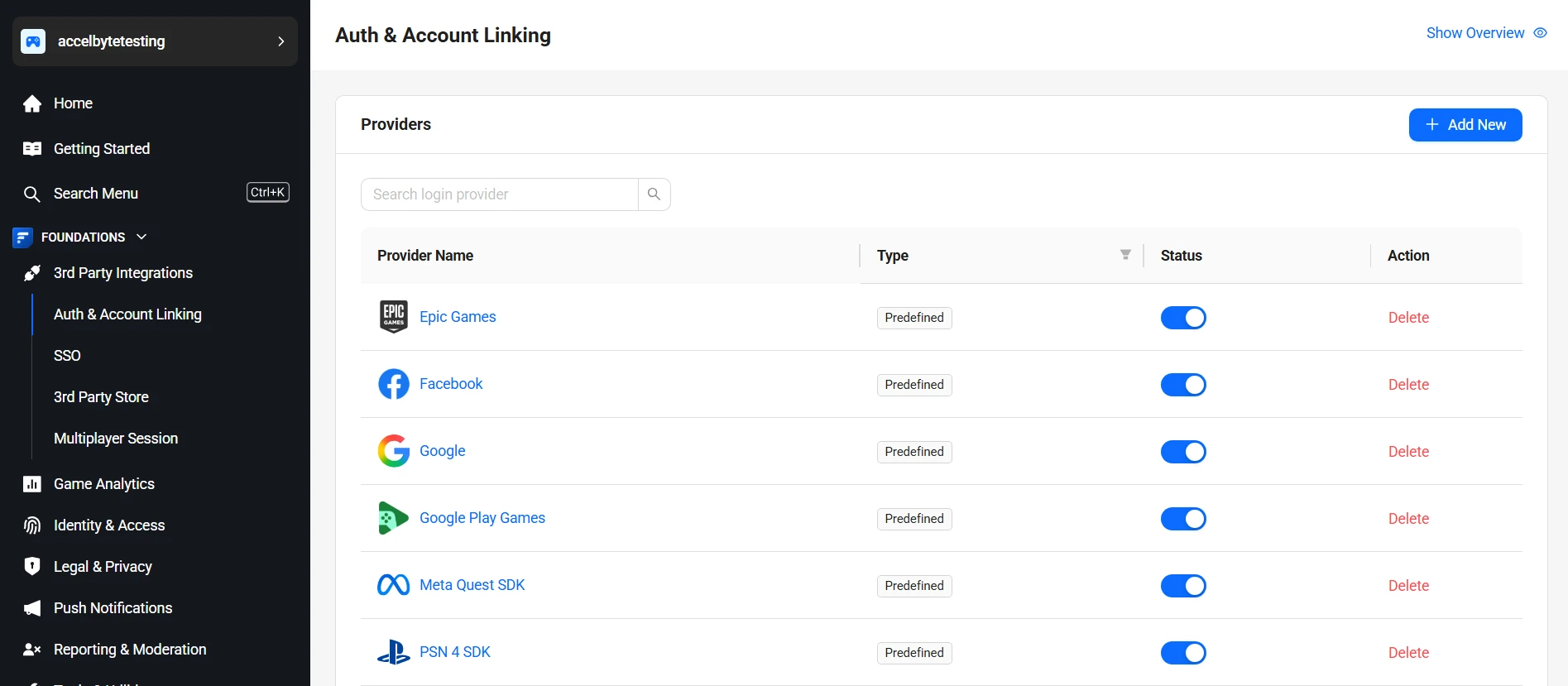
On the sidebar menu, go to Foundations > 3rd Party Integrations > Auth & Account Linking.
-
On the Auth & Account Linking page, click + Add New.
-
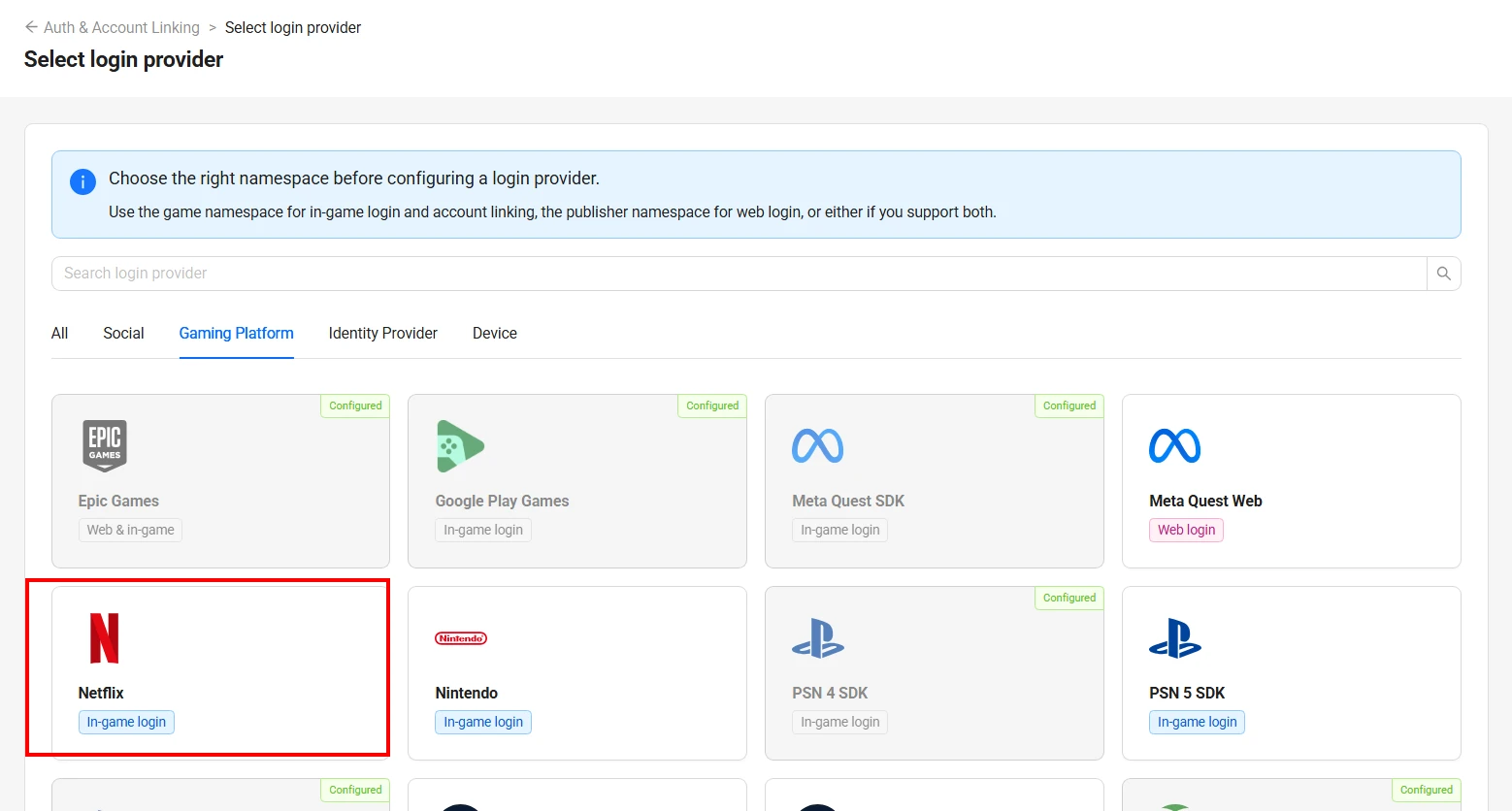
On the Select login provider page, find Netflix under the Gaming Platform tab and click it.
-
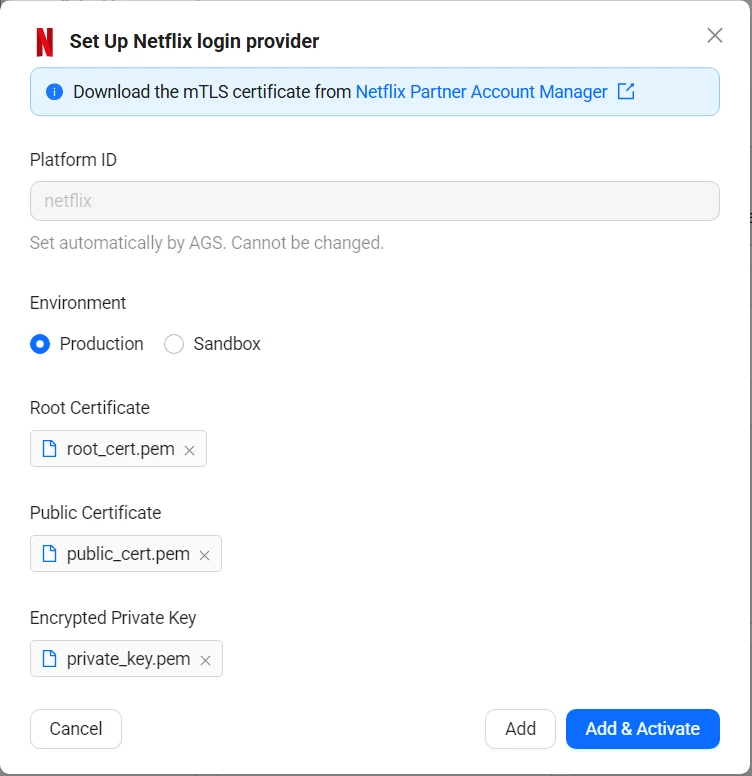
The Set Up Netflix login provider form appears. Fill in the following fields:
- Platform ID:
netflix. Set automatically by AGS. Cannot be changed. - Environment: Select Production or Sandbox.
- Root Certificate: Upload your root certificate .pem file.
- Public Certificate: Upload your public certificate .pem file.
- Encrypted Private Key: Upload your encrypted private key .pem file.
- Platform ID:
-
Click Add & Activate to create and activate the provider in one step. Alternatively, click Add to create without activating.
-
Encode the contents of each of your three
.pemfiles as base64. Each value must be a single line, so remove any line breaks the encoder adds. -
Create a JSON file with the provider's settings. Any file name works. This example uses
netflix.json:{
"Environment": "prod",
"NetflixCertificates": {
"rootCertificate": "<Base64RootCertificate>",
"publicCertificate": "<Base64PublicCertificate>",
"encryptedPrivateKey": "<Base64EncryptedPrivateKey>"
},
"IsActive": true
}Environment:prodfor Production orsandboxfor Sandbox.NetflixCertificates: the base64 strings from step 1.IsActive:trueadds and activates the provider, like Add & Activate.falseadds it without activating it, like Add.
-
Add the provider. Replace
<YourGameNamespace>with your game namespace. After@, pass the path to your JSON file:ags iam platform-credentials create --namespace <YourGameNamespace> --platform-id netflix --json @netflix.jsonThe file contains your private key, so delete it after the command runs.
Edit a login provider
- Admin Portal
- AGS CLI
-
On the Auth & Account Linking page, click the Netflix provider you want to edit.
-
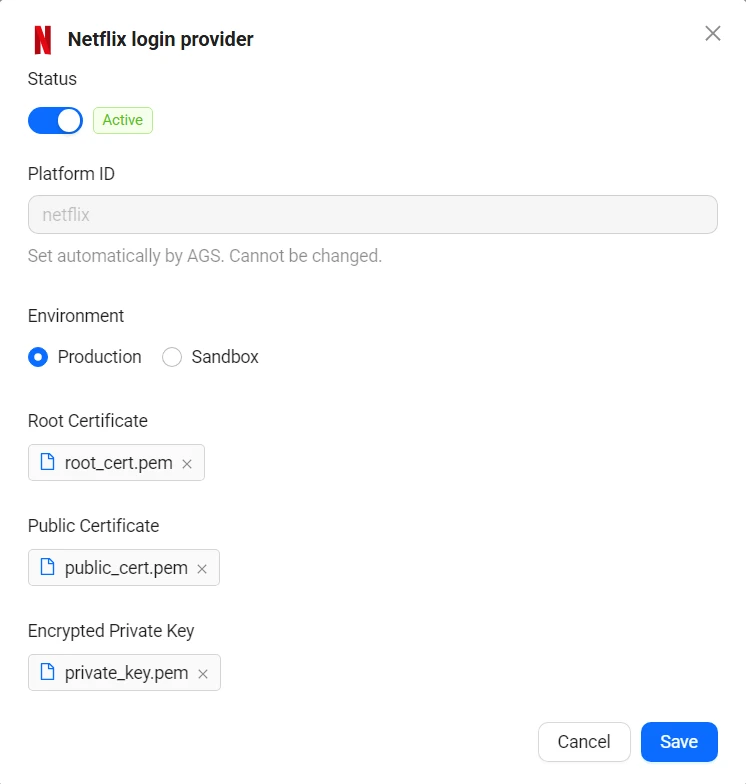
The provider's configuration panel appears on the right side. Update the fields as needed.
-
Use the Status toggle at the top to activate or deactivate the provider.
-
Click Save.
-
Check the provider's current settings:
ags iam platform-credentials get --namespace <YourGameNamespace> --platform-id netflix -
Send only the fields you want to change. Fields you leave out keep their current values. For example, to deactivate the provider:
ags iam platform-credentials update --namespace <YourGameNamespace> --platform-id netflix --json '{"IsActive": false}'To activate it, send
{"IsActive": true}. To switch environments, send{"Environment": "sandbox"}or{"Environment": "prod"}. To replace a certificate, put only that certificate in a JSON file, such as{"NetflixCertificates": {"publicCertificate": "<Base64PublicCertificate>"}}, and pass it with--json @<FileName>. Certificates you leave out stay as they are. If the file contains your private key, delete it after the command runs.
Create an IAM client for Netflix
An IAM client is a representation of the game client that you want to release on your target platform. Learn more about IAM Clients in Manage access control for applications.