Google Play Games as an identity provider
Overview
This guide helps developers connect Google Play Games accounts to AccelByte Gaming Services (AGS). Google Play Games is separate from Google sign-in — it is specifically for Android games using the Google Play Games Services SDK. For standard Google sign-in, see Set up Google as an identity provider. Depending on your game, you may need to set up additional features within Google Play services that we haven't listed here. For more information about setting up Google Play services, we recommend contacting your Google representative and reviewing the Google Play documentation directly.
This guide is intended for public use and contains limited information due to confidentiality. We recommend you refer to the full confidential guide first. To request a copy of the confidential guide, contact your AccelByte Technical Producer.
Goals
To enable the Google Play authentication method for your game with the AGS SDK.
Prerequisites
- A Google Cloud Console account.
- A Google Play Console account.
- If you use Unreal Engine, you need:
- JDK 1.8.X source.
- Android Studio 4.0 Follow the Setting Up Android SDK and NDK for Unreal guide.
- Unreal Engine 5.1.1 source code
- Unreal game project with an imported AGS Game SDK and OSS.
- The latest version of the AGS Unreal SDK and OSS.
- If you use Unity Engine, you need to:
- Follow the Unity Android Environment Setup
- Have the latest version of the AGS
Unity SDKandAccelByte Google Play Games Unity SDK.
- You have an AGS Admin Portal Account to set up authentication and manage permissions.
- You are familiar with AGS IAM Clients.
- To follow the AGS CLI steps, install the AGS CLI and sign in with an account that has access to these features. See Install and sign in. The examples use a Bash shell.
Set up Google Play
Create a Google Android app
Create a Google App. Follow the Create and set up your app guide.
- Unreal Engine Instructions
- Unity Engine Instructions
Build your blank Unreal project in Android App Bundle (AAB) format with a designated keystore. For more details about generating a keystore for your Unreal project, read Unreal's article on Signing Projects for Release.
Build your blank Unity project in AAB format with a designated keystore. For more details about generating and using a keystore for your Unity project, read Unity's article on Android Keystore.
Create a release for your project
Create a release for your app. Follow the Prepare and roll out a release guide.
Set up Google Play Games Services
Setting up your Google Play Games Services. Follow the Set Up Google Play Games Services guide. You will need to:
- Create a Play Games Services project.
- Create an OAuth consent screen in the Google Cloud Platform. On the OAuth consent screen, add these four scopes to your app:
openid.../auth/games.../auth/games_lite.../auth/drive.appdata
- Create Android and Game Server credentials.
After you're done setting it all up, review and publish.
Set up the Google Play Games login provider in AGS
Use the following steps to set up Google Play Games login for your game. This will allow your players to sign in to the game using their Google Play Games accounts.
- Admin Portal
- AGS CLI
-
In the AGS Admin Portal, go to your game namespace.
-
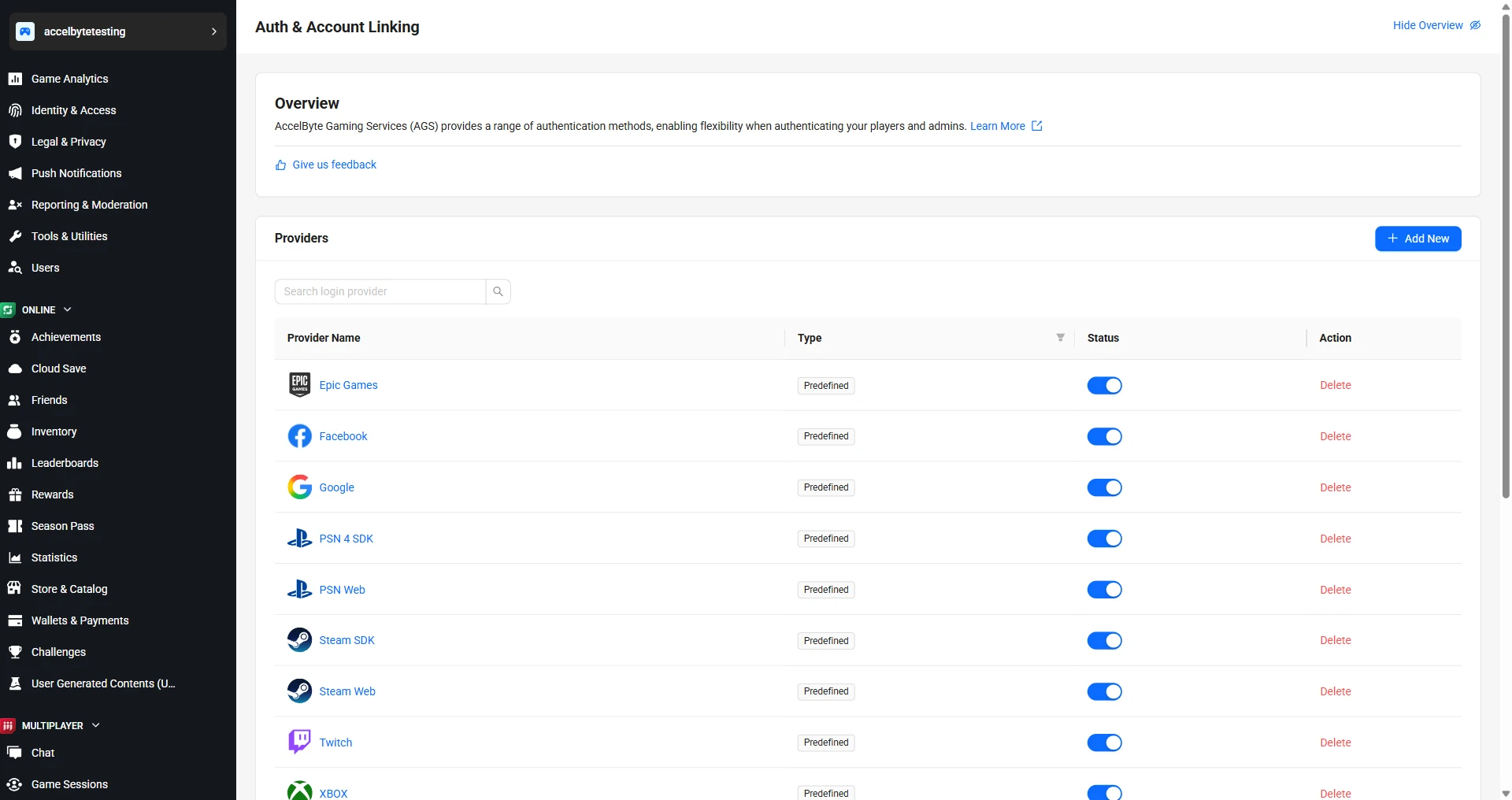
On the sidebar menu, go to Foundations > 3rd Party Integrations > Auth & Account Linking.
-
On the Auth & Account Linking page, click + Add New.
-
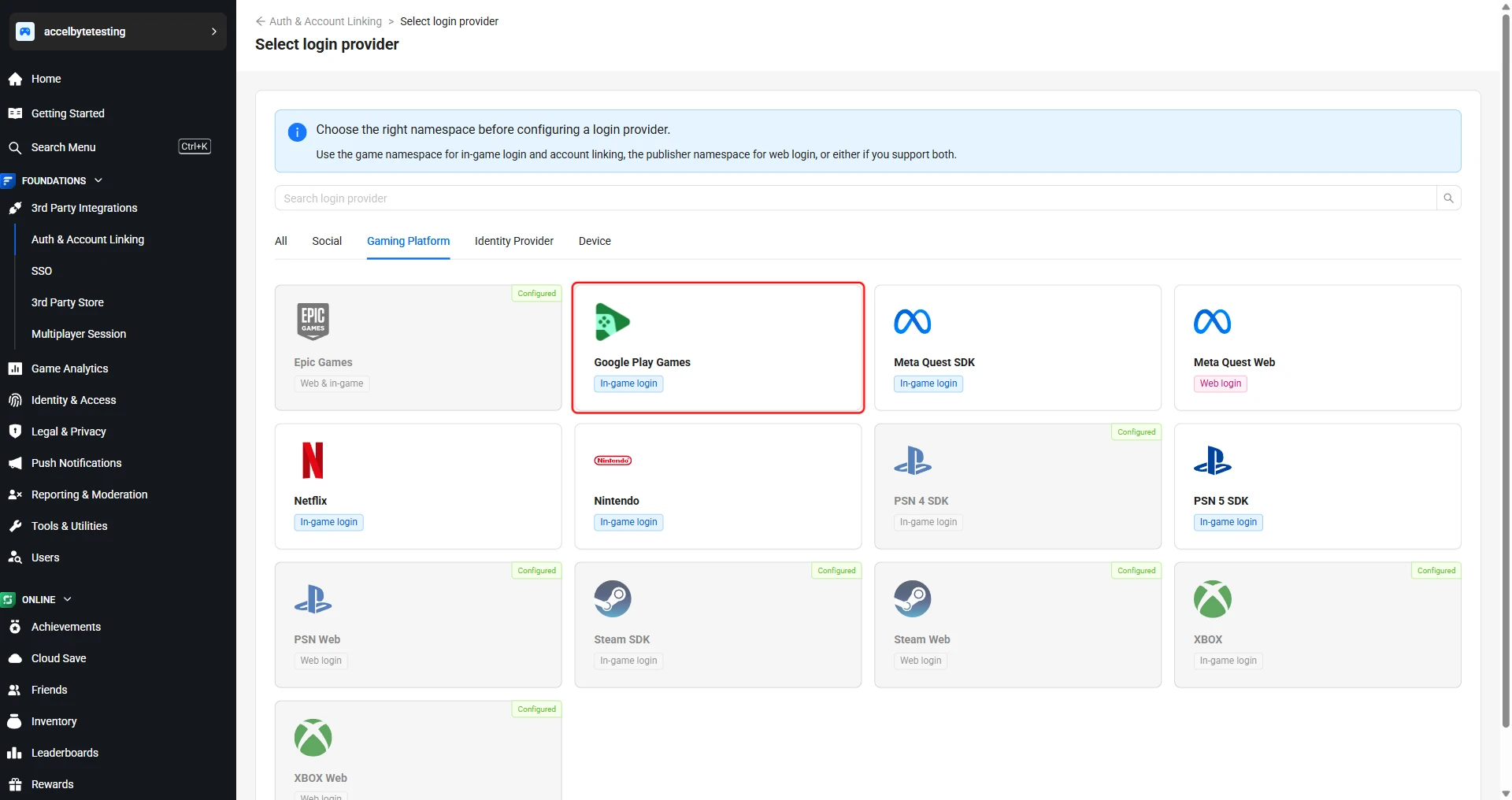
On the Select login provider page, find Google Play Games under the Gaming Platform tab and click on it.
-
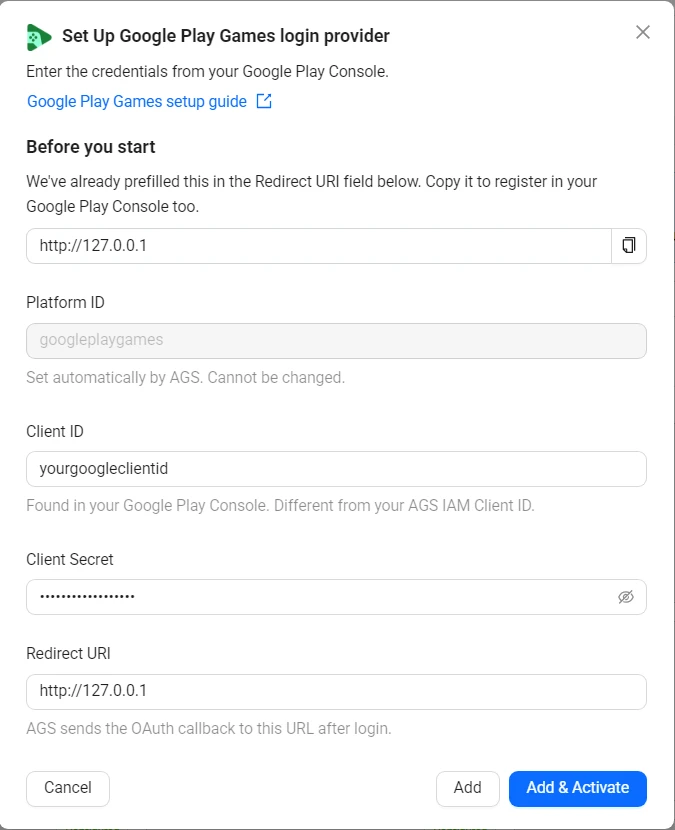
The Set up Google Play Games login provider form appears.
-
Fill in the following fields:
- Platform ID:
googleplaygames. Set automatically. Cannot be changed. - Client ID: Your OAuth Client ID from Google Cloud Console.
- Client secret: Your OAuth Client Secret from Google Cloud Console.
- Redirect URI: The OAuth callback URL. Prefilled with
http://127.0.0.1.
- Platform ID:
-
Click Add & Activate to create and activate the provider in one step. Alternatively, click Add to create without activating.
-
Create a JSON file with the provider's settings. Any file name works. This example uses
googleplaygames.json:{
"ClientId": "<YourGoogleClientId>",
"Secret": "<YourGoogleClientSecret>",
"RedirectUri": "http://127.0.0.1",
"IsActive": true
}ClientIdandSecret: your OAuth Client ID and Client Secret from Google Cloud Console.IsActive:trueadds and activates the provider, like Add & Activate.falseadds it without activating it, like Add.
-
Add the provider. Replace
<YourGameNamespace>with your game namespace. After@, pass the path to your JSON file:ags iam platform-credentials create --namespace <YourGameNamespace> --platform-id googleplaygames --json @googleplaygames.jsonThe file contains your client secret, so delete it after the command runs.
Edit a login provider
- Admin Portal
- AGS CLI
-
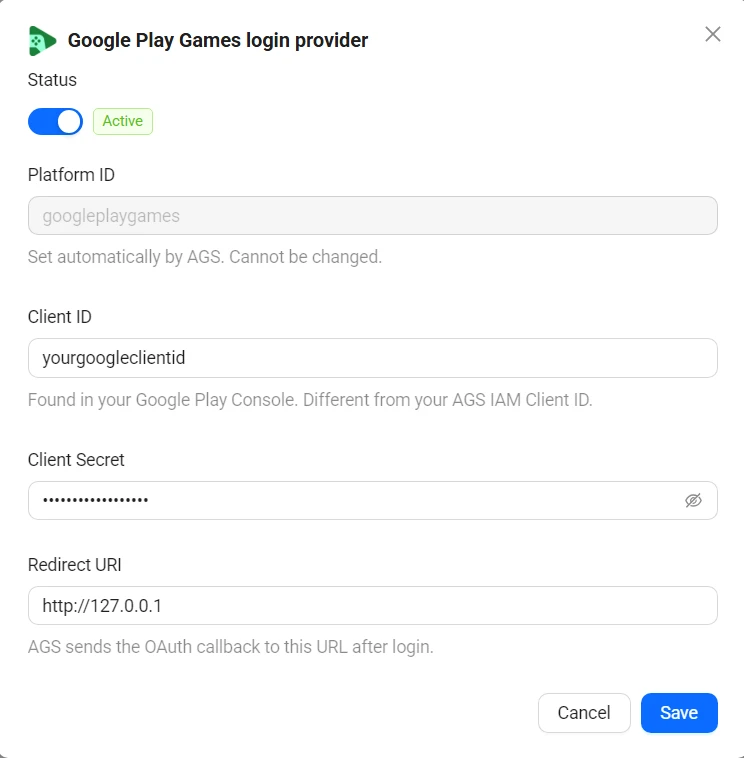
On the Auth & Account Linking page, click the Google Play Games entry.
-
A dialog appears with the provider's configuration. Update the fields as needed.
-
Use the Status toggle at the top to activate or deactivate the provider.
-
Click Save.
-
Check the provider's current settings:
ags iam platform-credentials get --namespace <YourGameNamespace> --platform-id googleplaygames -
Send only the fields you want to change. Fields you leave out keep their current values. For example, to deactivate the provider:
ags iam platform-credentials update --namespace <YourGameNamespace> --platform-id googleplaygames --json '{"IsActive": false}'To activate it, send
{"IsActive": true}. To change the client secret, put{"Secret": "<NewGoogleClientSecret>"}in a JSON file instead, pass it with--json @<FileName>, and delete the file after the command runs.
Create an IAM client
An IAM client is a representation of the game client that you want to release on your target platform. Learn more about IAM Clients in Manage access control for applications.
In-game login instructions
By following this documentation, you can integrate your game sign-in process using the AGS SDK so your players can log in to games using their Google Play Accounts. For a player to log in to your game or platform with Google credentials, the game needs to pass the Auth token from the Google platform that has the credentials the player is using to the publisher platform.
The setup for each game engine is different. Choose your game engine from the available tabs.
- Unreal Engine Instructions
- Unity Engine Instructions
In-game login integration (Unreal)
Create Unreal Engine Project
After creating a new Unreal Engine project you will need to set and configure several things inside your project.
Enable OnlineSubsystemGoogle Plugins and Service Configurations
- Enable Plugins on
.uprojectfile.
{
  "Plugins": [
    {
      "Name": "AccelByteUe4Sdk",
      "Enabled": true
    },
    {
      "Name": "OnlineSubsystemAccelByte",
      "Enabled": true
    },
    {
      "Name": "OnlineSubsystemGooglePlay",
      "Enabled": true
    },
    {
      "Name": "OnlineSubsystemGoogle",
      "Enabled": true
    }
  ]
}
- Inside
DefaultEngine.ini, set and add the credentials from the Google Cloud platform.
[OnlineSubsystem]
DefaultPlatformService=GooglePlay
NativePlatformService=Google

[OnlineSubsystemGoogle]
bEnabled=True
ClientId=123456789-abcdefghijklmnopqrstuvwxyz.apps.googleusercontent.com
ServerClientId=123456789-abcdefghijklmnopqrstuvwxyz.apps.googleusercontent.com
ClientSecret=abcdefghijklmnopqrstuvwxyz123456789

[OnlineSubsystemGoogle.OnlineIdentityGoogle]
+ScopeFields="email"
+ScopeFields="profile"
+ScopeFields="https://www.googleapis.com/auth/userinfo.email"
+ScopeFields="https://www.googleapis.com/auth/userinfo.profile"

[OnlineSubsystemGooglePlay]
bEnabled=True

[OnlineSubsystemGooglePlay.Store]
bSupportsInAppPurchasing=True
bUseStoreV2=False

[/Script/AccelByteUe4Sdk.AccelByteSettings]
ClientId=abcdefg12345
ClientSecret=abcdefg12345
Namespace=test
PublisherNamespace=accelbyte
BaseUrl="https://prod.gamingservices.accelbyte.io"
QosPingTimeout=0.6
-
Add the following code to your
<PROJECT>.Build.csfile.if (Target.Platform == UnrealTargetPlatform.Android)
{
PrivateDependencyModuleNames.AddRange(new string[]
{
"OnlineSubsystemGoogle",
"OnlineSubsystemGooglePlay",
});
} -
In Platforms - Android, match the package name defined in this project setting and on the Google console.
-
In Platforms - Android Distribution Setting, configure the distribution signing. For more information, refer to Signing Projects for Release.
-
In Platforms - Android - Google Play Service, obtain the Games App ID and Google Play License Key from the Google Play Console.
- Games App ID is located at Play Games Services > Configuration
- Google Play License Key is located at Monetize > Monetization Setup > Licensing
-
In Platforms - Android SDK, configure the fields based on your engine version. For more information, see Unreal Engine Version History.
Google Play Native Login and AGS Access implementation
- Initialize the necessary subsystems and interfaces.
const IOnlineSubsystem* OnlineSubsystemNativePtr = IOnlineSubsystem::GetByPlatform();
const IOnlineIdentityPtr OnlineIdentityNativePtr = OnlineSubsystemNativePtr->GetIdentityInterface();
const IOnlineExternalUIPtr NativeExternalUI = OnlineSubsystemNativePtr->GetExternalUIInterface();
- Implement the login UI for login with Google Play.
FDelegateHandle NativeOnLoginCompleteDelegateHandle;
const FOnLoginCompleteDelegate NativeLoginComplete = FOnLoginCompleteDelegate::CreateLambda(
  [&](int32 LoggedInLocalUserNum, bool bWasSuccessful, const FUniqueNetId& UserId, FString Error)
  {
      // Put your next implementation here.

      OnlineIdentityNativePtr->ClearOnLoginCompleteDelegate_Handle(0, NativeOnLoginCompleteDelegateHandle);
  });
NativeOnLoginCompleteDelegateHandle = OnlineIdentityNativePtr->AddOnLoginCompleteDelegate_Handle(0, NativeLoginComplete);

NativeExternalUI->ShowLoginUI(0
  , true
  , false
  , FOnLoginUIClosedDelegate::CreateLambda([this, &OnlineIdentityNativePtr, &NativeOnLoginCompleteDelegateHandle, &Result, &bNativeLoginSuccess](FUniqueNetIdPtr UniqueId, const int ControllerIndex, const FOnlineError& Error)
      {
          // Put your next implementation here.
      }));
- Get the Auth ID Token once the user has finished the Google Play login.
FString GooglePlayToken = TEXT("");
if (!NativeUserAccountPtr->GetAuthAttribute(AUTH_ATTR_ID_TOKEN, GooglePlayToken))
{
  // Do something when Google Play failed to retrieve the Auth Id Token
}
- To complete the implementation, log in to AGS with the token that you obtained earlier.
const IOnlineIdentityPtr OnlineIdentityABPtr = OnlineSubsystemABPtr->GetIdentityInterface();

FDelegateHandle ABOnLoginCompleteDelegateHandle;
{
  const FOnLoginCompleteDelegate ABLoginComplete = FOnLoginCompleteDelegate::CreateLambda(
    [&](int32 LoggedInLocalUserNum, bool bWasSuccessful, const FUniqueNetId& UserId, FString Error)
    {
      // Put your next implementation here.
      OnlineIdentityABPtr->ClearOnLoginCompleteDelegate_Handle(0, ABOnLoginCompleteDelegateHandle);
    });
  ABOnLoginCompleteDelegateHandle = OnlineIdentityABPtr->AddOnLoginCompleteDelegate_Handle(0, ABLoginComplete);
}

FOnlineAccelByteAccountCredentials OnlineAccountCredentialsNative(
  EAccelByteLoginType::GooglePlayGames,
  "",
  GooglePlayToken,
  true);

OnlineIdentityABPtr->Login(0, OnlineAccountCredentialsNative);
In-game login integration (Unity) (Deprecated)
AccelByte Unity SDK Google Play Games extension is deprecated. Please use AccelByte Unity SDK Google by following Google as Identity Provider guide.
The AccelByte Unity SDK Google Play Games extension enables you to integrate Google Play's features with AGS. You can find and download this extension on GitHub. To install the extension and implement Google login into your game, follow the extension's installation guide on GitHub.
Set up Google Play Games Android Configuration
- In the project, go to Window > Google Play Games > Setup > Android setup....
- Fill in the required information as follows:
- Resources Definition: Use the Android resources data from Play Console.
- Web client ID: Use the Client ID from the generated OAuth credentials.
- Click on Setup. This configures your game with the client ID and generates a C# class that contains constants for each of your Android resources.