Snapchat をアイデンティティプロバイダーとして設定する
Overview
This guide is intended to help verified Snapchat developers to connect Snapchat Accounts to AccelByte Gaming Services (AGS). You may need to set up additional features within Snapchat services which are not listed here. For full information about setting up Snapchat services, we recommend contacting your Snapchat representative and reviewing Snapchat documentation directly.
This guide is intended for public use and contains limited information due to confidentiality. We recommend you refer to the full confidential guide first. To request a copy of the confidential guide, contact your AccelByte Technical Producer.
Goals
Enable the Snapchat authentication method for your game with the AccelByte Game SDK.
Prerequisites
- A Snapchat Developer account.
- An Organization Under Developer Account
- If you use Unreal Engine, install UE version 4.27 or 5.0.
- An AccelByte Admin Portal Account to set up authentication and manage permissions.
- A Publisher Namespace for your Player Portal and Launcher, and a Game Namespace for your game.
- A Player Portal.
- A Unity or Unreal game project with the latest version of the AccelByte Game SDK imported.
- Familiarity with AGS Identity and Access Management (IAM) Clients.
Setting up Snapchat Kit App
Create Snap Kit App
Create a Snap Kit App under your Snapchat Developer Account. Follow Snapchat's guide on Setting up your first app guide.
Activate Snap Login Kit
Activate Snap Login Kit under your Snap Kit App and fill Redirect URI for OAuth with your domain URL (e.g., https://prod.gamingservices.accelbyte.io). For more information, see Snapchat's documentation on Login Kit.
Set up in-game login for Snapchat
Follow these steps to set up Snapchat logins in your game. This will allow your players to sign in to your game using their Snapchat accounts.
-
In the AGS Admin portal, go to your publisher namespace.
-
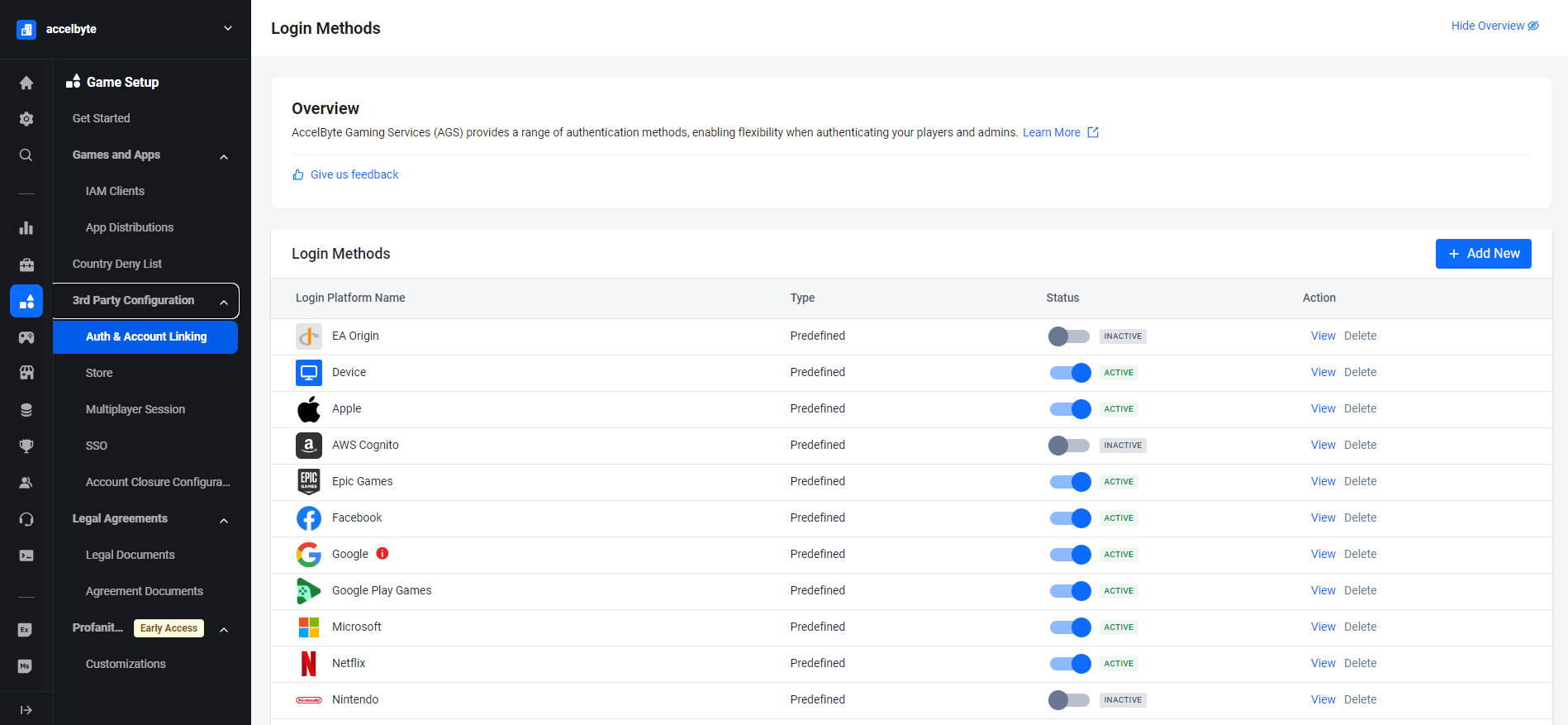
On the sidebar menu, go to Game Setup > 3rd Party Configuration > Auth & Account Linking.
-
On the Login Methods page, click on the + Add New button.
-
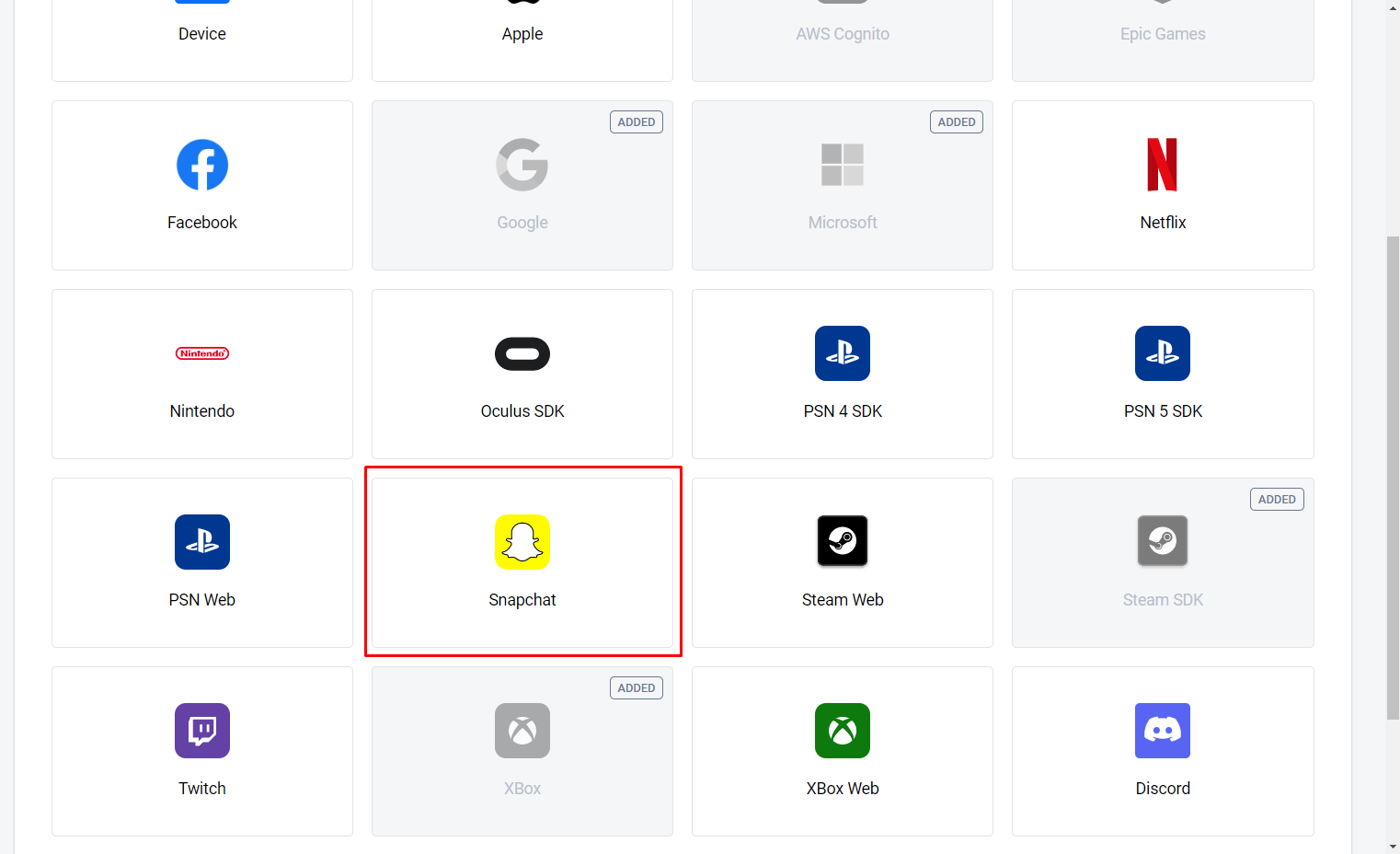
From the list of login method options, select Snapchat.
-
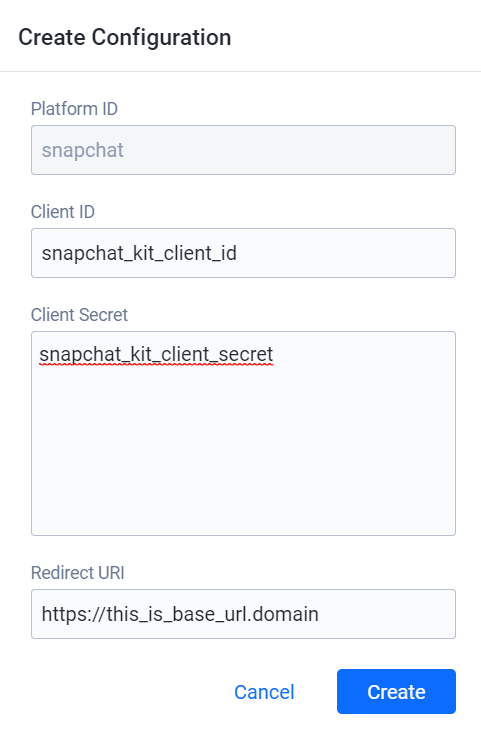
Fill Client ID with your Snap Kit Client ID, Client Secret with your Snap Kit Client Secret and Redirect URI with your Snapchat Login Kit OAuth Redirect URI/
-
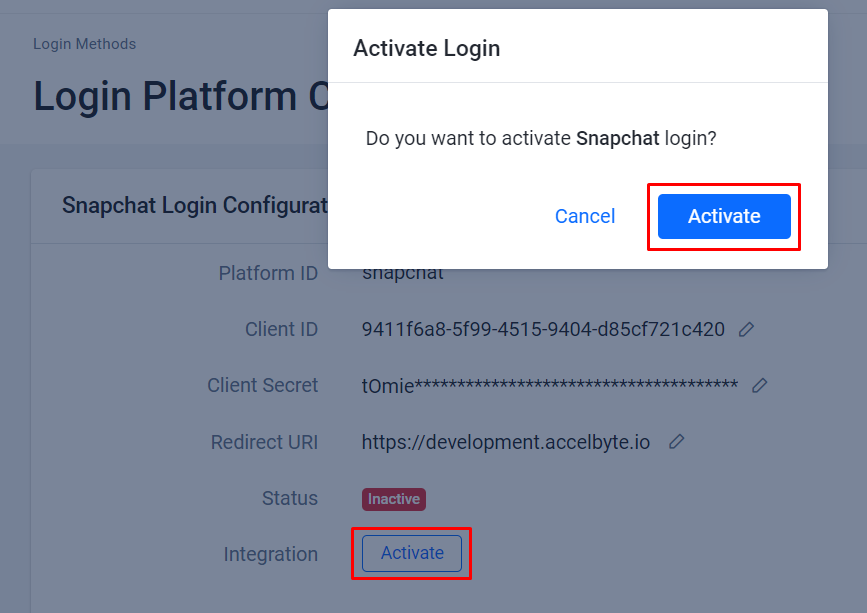
You will be redirected to the detail page, at this point you just need to activate it and it will able to be used.
Create IAM Client
An IAM client is a representation of the game client that you want to release on your target platform.
If you already have an IAM Client for your game on a specific SDK Platform (e.g., Xbox, Steam, or Playstation), you don't have to create a new IAM Client. Since Snapchat is not a platform on which to build games, you can use an existing IAM Client. Learn more about IAM Clients by reading Manage access control for applications.
In-game login instructions
The setup for each game engine is different. Please choose your game engine from the available tabs.
- Unreal Engine Instructions
- Unity Instructions
Unreal In-game login integration
You can integrate your Snapchat Game to sign-in with AccelByte SDK so that your players can log in to games using Snapchat credentials.
Unreal Preparation and Configuration
Snapchat doesn't support integration for UE4. So, the implementation uses web login and retrieving login code from SnapChat Auth as a token to Login into AccelByte. The Snapchat account will be linked to the AccelByte account as well, by default it will be a headless account
Reference: https://docs.snap.com/snap-kit/login-kit/Tutorials/web
Adding dependency
First you need to add public dependency modules called AccelbyteUe4Sdk, This dependencies needed for integrating your project to use the our AccelByte SDK Plugin within Unreal Engine.
public ABThirdPartyLogin(ReadOnlyTargetRules Target) : base(Target)
{
  PCHUsage = PCHUsageMode.UseExplicitOrSharedPCHs;

  PublicDependencyModuleNames.AddRange(new string[] { "Core", "CoreUObject", "Engine", "InputCore" , "AccelByteUe4Sdk", "Slate", "SlateCore" });

  PrivateDependencyModuleNames.AddRange(new string[] { "Json", "HTTP" });

}
Add AccelbyteUe4Sdk inside <YourProject>.Target.cs and <YourProjectEditor>.Target.cs
public ABThirdPartyLoginTarget( TargetInfo Target) : base(Target)
{
  Type = TargetType.Game;
  DefaultBuildSettings = BuildSettingsVersion.V2;
  ExtraModuleNames.AddRange( new string[] { "ABThirdPartyLogin", "AccelByteUe4Sdk" } );
}
public ABThirdPartyLoginEditorTarget( TargetInfo Target) : base(Target)
{
  Type = TargetType.Editor;
  DefaultBuildSettings = BuildSettingsVersion.V2;
  ExtraModuleNames.AddRange( new string[] { "ABThirdPartyLogin", "AccelByteUe4Sdk" } );
}
Unreal Engine Project Setting for Snapchat
Inside your DefaultEngine.ini file please Add Accelbyte credential here on DefaultEngine.ini
[/Script/AccelByteUe4Sdk.AccelByteSettings]
ClientId=<Your Client_Id>
ClientSecret=<Your Client_Secret>
Namespace=<Your Namespace>
PublisherNamespace=<Your Publisher Namespace>
RedirectURI="http://127.0.0.1"
BaseUrl="https://prod.gamingservices.accelbyte.io"
IamServerUrl="https://prod.gamingservices.accelbyte.io/iam"
PlatformServerUrl="https://prod.gamingservices.accelbyte.io/platform"

[SnapChatConfig]
SnapChatClientId=<SnapChatClientId>
Unreal Sample Code Implementation
Next step, we will show you how to implement the Snapchat authentication method for your game with sample code below.
-
Create a WebBrowser item in BluePrint as a login container.
-
Load Login Snapchat URL: https://accounts.snapchat.com/accounts/oauth2/auth
And add auth params :
- redirect_uri: RedirectURL when login is done. Since redirection is back to the game fill value with BaseURL (ApiClient->Settings->BaseUrl). Also, put the BaseUrl value in the Redirect Uri config in the Snapchat developer portal to whitelist.
- response_type: Put value with "code".
- scope: Put value with permission scope \
| https://auth.snapchat.com/oauth2/api/user.display_name | Grants access to the user's Snapchat display name |
| https://auth.snapchat.com/oauth2/api/user.bitmoji.avatar | Grants access to the user's Bitmoji avatar; toggleable by user |
| https://auth.snapchat.com/oauth2/api/user.external_id | Grants access to the user's external id which can be used to onboard the user into an application |
To obtain AccelByteOnlineSubsystemPtr used in snippet, follow this guide.
auto ApiClient = AccelByteOnlineSubsystemPtr->GetApiClient(TEXT("YOUR_KEY"));
auto UserApi = ApiClient->GetUserApi().Pin();

void UAccelByteAuth::SnapChatLogin()
{
	FString SnapChatClientId;
	GConfig->GetString(TEXT("SnapChatConfig"), TEXT("SnapChatClientId"), SnapChatClientId, GEngineIni);
	FString RedirectUri = ApiClient->Settings->BaseUrl;
	FString Scope = TEXT("https://auth.snapchat.com/oauth2/api/user.display_name https://auth.snapchat.com/oauth2/api/user.bitmoji.avatar https://auth.snapchat.com/oauth2/api/user.external_id");

	FString Url = FString::Printf(TEXT("https://accounts.snapchat.com/accounts/oauth2/auth?client_id=%s&redirect_uri=%s&response_type=%s&scope=%s"),
		*FGenericPlatformHttp::UrlEncode(SnapChatClientId),
		*FGenericPlatformHttp::UrlEncode(RedirectUri),
		TEXT("code"),
		*FGenericPlatformHttp::UrlEncode(Scope));

	WBrowser_SnapChatAuth->LoadURL(Url);
	WBrowser_SnapChatAuth->OnUrlChanged.AddUniqueDynamic(this, &UAccelByteAuth::AccelByteLoginWithSnapChat);
}

void UAccelByteAuth::AccelByteLoginWithSnapChat(const FText& NewUrl)
{
	FString Url = NewUrl.ToString();
	FString RedirectUri = ApiClient->Settings->BaseUrl;
	FString LoginCode = TEXT("");

	if (Url.Contains(RedirectUri))
	{
		LoginCode = FGenericPlatformHttp::GetUrlParameter(Url, TEXT("code")).GetValue();
	}

	if (!LoginCode.IsEmpty())
	{
	UserApi->LoginWithOtherPlatform(EAccelBytePlatformType::SnapChat, LoginCode, FVoidHandler::CreateWeakLambda(this, [this]()
		{
		// Handle Success Login
		}),
FErrorHandler::CreateWeakLambda(this, [](int32 ErrorCode, const FString& ErrorMessage)
		{
			// Handle Error Login
		}));

    // Close Login Page (Hide WebBrowser)
	}
}
platform_token for Snapchat Authentication is Auth Code
After adding this sample code to your project, compile, build, and run your project. That's it!
Sample Code Testing
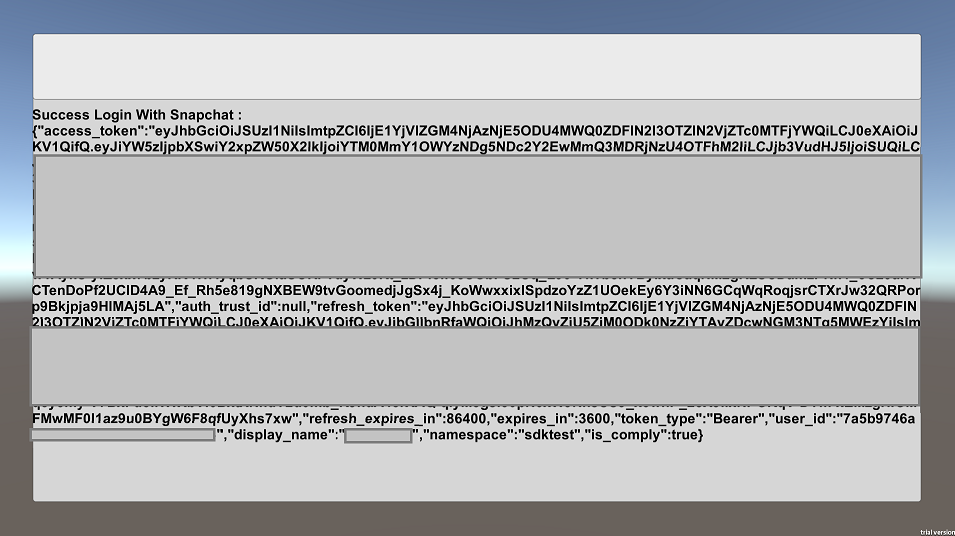
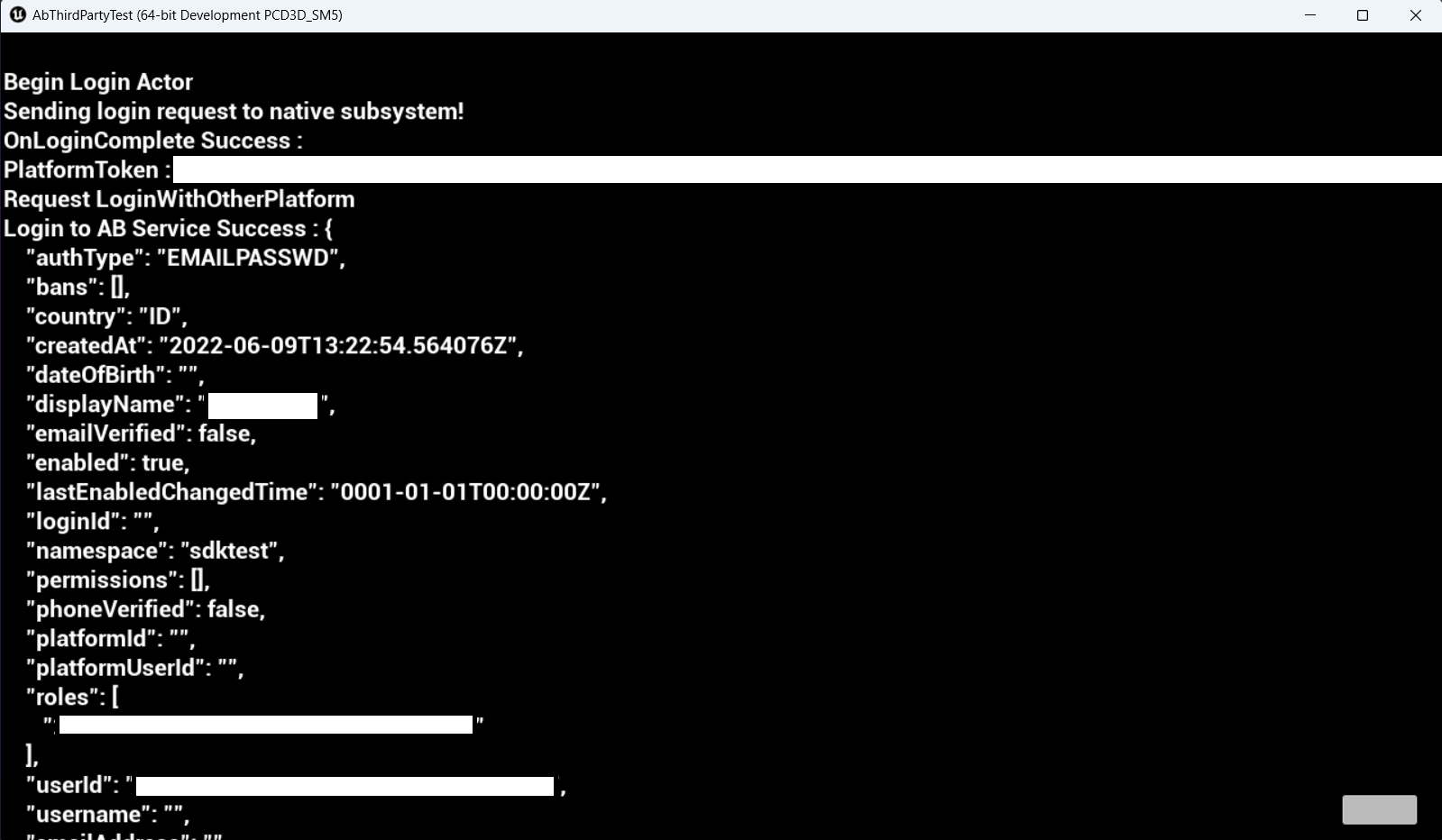
The image below shows a successful login using an Snapchat account to our test app.
Unity In-game login integration
You can integrate your Snapchat to sign-in with AccelByte SDK so that your players can log in to games using Snapchat credentials.
Unity Preparation and Configuration
Unity Project Setting for AccelByte Gaming Services
Before the AccelByte SDK can run properly in your project, you need to fill in the values that you created previously in the AccelByte Admin Portal and follow each step below:
- Create a file for Game Client configuration named AccelByteSDKConfig.json.
- Copy the AccelByteSDKConfig.json file and add it to your Unity project directory in the Assets/Resource directory.
- Fill in the AccelByteSDKConfig.json file using the information based on your game. Here is an example of the JSON file:
{
 "Default": {
    "Namespace": "<Your Game Namespace>",
    "UsePlayerPrefs": true,//It will use Player Preferences
    "EnableDebugLog": true,//Enable Debug Logging
    "DebugLogFilter": "Log",//Type of Debug Log
    "BaseUrl": "https://prod.gamingservices.accelbyte.io",
    "RedirectUri": "http://127.0.0.1",
    "AppId": "<Your AppId>",
    "PublisherNamespace": "<Your Publisher Namespace>"
  }
}
- Create a file called AccelByteServerSDKConfig.json and add it to your Unity project directory in the Assets/Resource directory.
- Update the AccelByteServerSDKConfig.json with the code below that will be used as the Game Server configuration. Here is an example of the JSON file:
{
  "Default": {
    "Namespace": "<Your Game Namespace>",
    "BaseUrl": "https://prod.gamingservices.accelbyte.io",
    "RedirectUri": "http://127.0.0.1"
  }
}
- Create two files named AccelByteSDKOAuthConfig.json and AccelByteServerSDKOAuthConfig.json. Add both of these files to your unity project directory in the Assets/Resources directory. The contents of both these JSON files should be as follows:
{
  "Default": {
    "ClientId": "<Your IAM Client ID>",
    "ClientSecret": "<Your IAM Client Secret>"
  }
}
Unity Sample Code Implementation
Next step, we will show you how to implement the Snapchat authentication method for your game with sample code below.
You need to create custom sdk to call snapchat api, here's below the example
[SerializeField] private string clientId = "Your Snapchat ClientId";
private string redirectUri = "http://127.0.0.1/";
[SerializeField] private string[] scopes =
{
   "https://auth.snapchat.com/oauth2/api/user.display_name",
   "https://auth.snapchat.com/oauth2/api/user.bitmoji.avatar",
   "https://auth.snapchat.com/oauth2/api/user.external_id"
};
private const string authUrl = "https://accounts.snapchat.com/accounts/oauth2/auth";

private async void OnLoginClick()
{
   SnapchatLoginButton.interactable = false;
   LoginStatus.text = "Logging in...";
   string scopeStr = string.Join("%20", scopes);
   string url = $"{authUrl}?client_id={clientId}&redirect_uri=http://127.0.0.1&response_type=code&scope={scopeStr}";

   // Open the URL in the default browser
   Application.OpenURL(url);

   // Wait for the authorization code
   string authCode = await GetAuthorizationCode();
   Debug.Log($"Snapchat auth code: {snapchatAuthCode}");
      });
}

private async Task<string> GetAuthorizationCode()
{
   string authCode = "";
   bool receivedAuthCode = false;
   // Wait for the user to complete the authentication process and receive the authorization code
   float elapsedTime = 0;
   float timeout = 10f; // Maximum time to wait for the user to complete the authentication process (in seconds)
   while (!receivedAuthCode && elapsedTime < timeout)
   {
       authCode = await ListenForAuthorizationCode(redirectUri);
       elapsedTime += 1f;

       // Check if the authorization code has been received
       if (!string.IsNullOrEmpty(snapchatAuthCode))
       {
           receivedAuthCode = true;
       }
   }
   return authCode;
}

private async Task<string> ListenForAuthorizationCode(string redirectUri)
{
   string authCode = "";

   // Create a HttpListener instance to listen on the redirect URI
   var listener = new HttpListener();
   listener.Prefixes.Add(redirectUri);
   listener.Start();

   // Wait for a request to be received on the HttpListener
   var context = await listener.GetContextAsync();

   // Extract the authorization code from the request URI
   var requestUri = context.Request.Url;
   authCode = HttpUtility.ParseQueryString(requestUri.Query).Get("code");

   // Send a response to the request with an HTML page that displays the authorization code
   var response = context.Response;
   var responseString = $"<html><body><h1>Authorization Code: {authCode}</h1></body></html>";
   var buffer = Encoding.UTF8.GetBytes(responseString);
   response.ContentLength64 = buffer.Length;
   var output = response.OutputStream;
   await output.WriteAsync(buffer, 0, buffer.Length);

   // Close the HttpListener and return the authorization code
   listener.Close();
   return authCode;
}
This code below will handle LoginWithOtherPlatform which is the part of AccelByte SDK that handles third-party platform login by auth token obtained from the GetAuthSessionTicket method.
var apiClient = AccelByteSDK.GetClientRegistry().GetApi();
var user = apiClient.GetUser();

Result < TokenData, OAuthError > loginResult = null;
user.LoginWithOtherPlatform(PlatformType.Snapchat, snapAuthToken, (Result < TokenData, OAuthError > loginResult) => {
  if (loginResult.IsError) {
    //If we error, grab the Error Error and Description to print in the Log
    Debug.Log($ "Login failed : {loginResult.Error.error} Description : {loginResult.Error.error_description}");
    //Set the Status Text to display the Error if there is any
    LoginStatus.text = $ "Login failed : {loginResult.Error.error} Description : {loginResult.Error.error_description}";
  } else {
    Debug.Log($ "Login successful : {loginResult.Value}");
    LoginStatus.text = $ "Success Login Snapchat :{loginResult.Value.ToJsonString()}";
  }
});
platform_token for Snapchat Authentication is Auth Code
After adding the Login Handler Script into your project, you can compile your project.
Sample Code Testing
Now, you can build and run your project. The image below shows a successful login using an Snapchat account to our test app.