Build Package and Upload Debug Symbols
Overview
This guide shows you how to upload the build package and PDB file on Windows, macOS, and iOS platforms.
Windows (Unreal)
-
Repackage your project and save the output to the
{GAME_OUTPUT_FOLDER}. -
When the package process completes, create
.exeand.pdbfiles here:{GAME_OUTPUT_FOLDER}\WindowsNoEditor\{PROJECT_NAME}\Binaries\Win64. -
Create a version and register the build in ADT. The ADT CLI points to the new version and build.
-
Run this command to upload the PDB of the new build you packaged.
.\blackboxcli.exe upload
--namespace <your-namespace>
--apikey <your-api-key>
--game-project <your-project-path>
--game-engine <your-installed-engine-path>
--game-archive <your-packaged-game-path>
Example:
.\blackboxcli.exe upload --namespace avengers --apikey <your-api-key> --game-project "C:\Users\setya_accelbyte\Documents\Unreal Projects\MyProject" --game-engine "D:\Epic Games\UE_5.0" --game-archive "C:\Users\setya_accelbyte\Documents\Unreal Projects\MyProject\Packaged\0.0.4-Windows"
MacOS and iOS
This process follows the same logic as the Windows build, but uses Unix-style paths and targets Apple-specific debug symbols (dSYM).
-
On Apple platforms, debug symbols are stored in a
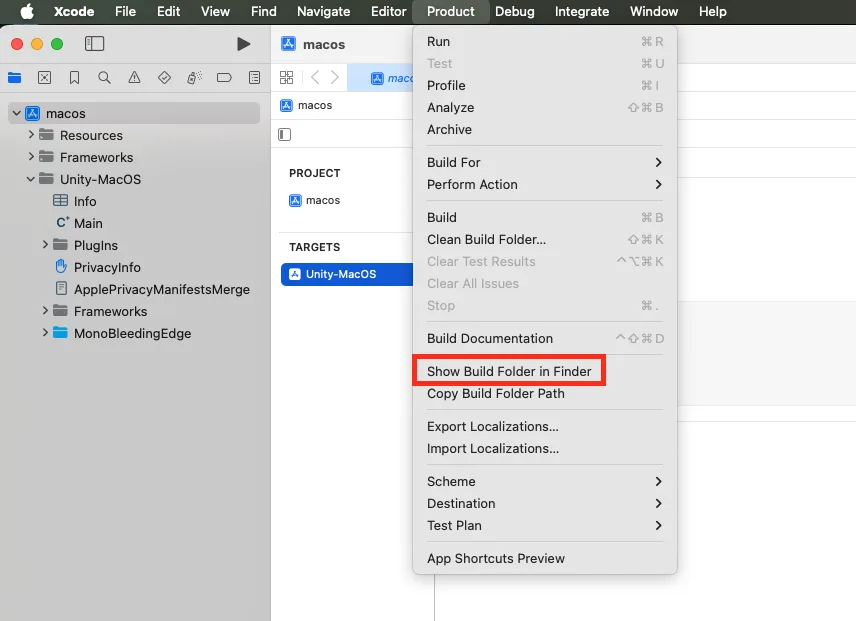
.dSYMbundle. To find it:a. Open your project in Xcode.
b. In the top menu, go to Product > Show Build Folder in Finder.
c. Navigate to
Build > Products > [Build-Configuration]. (e.g., Development-iphoneos or Release-macosx).d. Locate the file named
{PROJECT_NAME}.app.dSYM.
- Run this command to upload the symbols:
./blackboxcli upload
--namespace <your-namespace>
--apikey <your-api-key>
--game-project <your-project-path>
--game-engine <your-installed-engine-path>
--game-archive <your-dsym-path>
Example:
./blackboxcli upload --namespace avengers --apikey <your-api-key> --game-project "/Users/setya/Documents/Unreal Projects/MyProject" --game-engine "/Users/Shared/Epic Games/UE_5.0" --game-archive "/Users/setya/Library/Developer/Xcode/DerivedData/MyProject-latest/Build/Products/Release"